1. Einleitung
This manual provides essential instructions for the setup, operation, and maintenance of your SPC Zeus 2 Pro Smartphone. Designed for ease of use, this device features a simplified interface, physical buttons, and dedicated support features for seniors. Please read this manual thoroughly to ensure proper usage and to maximize the benefits of your new smartphone.
2. Packungsinhalt
Prüfen Sie nach dem Öffnen der Verpackung, ob alle folgenden Artikel vorhanden sind:
- SPC Zeus 2 Pro Smartphone
- Ladestation
- USB-Typ-C-Kabel
- Wand-Adapter
- SIM-Karten-Auswurfwerkzeug
- Schnellstartanleitung (Dieses Handbuch)
3. Gerät überview
The SPC Zeus 2 Pro is equipped with a 6.1-inch display and physical buttons for call management, designed for straightforward interaction.

Abbildung 3.1: Front view of the SPC Zeus 2 Pro Smartphone in its charging base, displaying the simplified "Easy Mode" interface with large, clear icons for essential functions. Physical call answer and end buttons are located at the bottom.
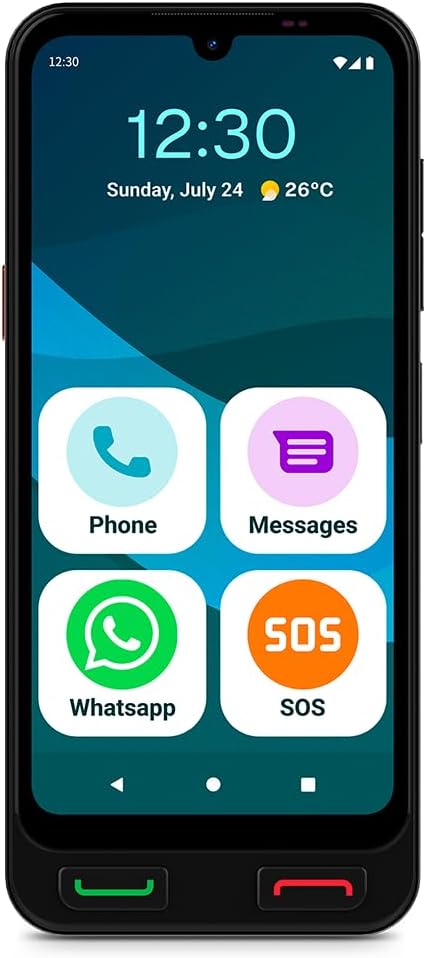
Abbildung 3.2: Front view of the SPC Zeus 2 Pro Smartphone, highlighting the 6.1-inch screen and the "Easy Mode" layout with oversized application icons.
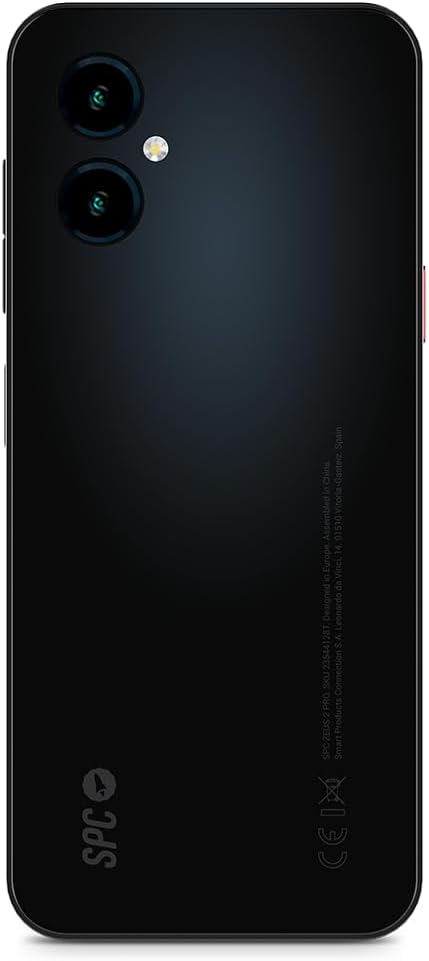
Abbildung 3.3: Hinteren view of the SPC Zeus 2 Pro Smartphone, featuring the dual camera system and the brand's logo.
3.1. Physische Tasten und Anschlüsse
- Schaltfläche „Anrufannahme“: Green button below the screen to accept incoming calls.
- Anruf beenden-Taste: Red button below the screen to end calls or return to the home screen.
- SOS-Taste: Located on the side, for emergency contact activation.
- Lautstärketasten: On the side, to adjust audio levels.
- Netzschalter: On the side, to turn the device on/off or lock/unlock the screen.
- USB-Typ-C-Anschluss: Zum Aufladen und zur Datenübertragung.
4. Einrichtung
4.1. Erste Inbetriebnahme und Konfiguration
- Halten Sie die Netzschalter bis der Bildschirm aufleuchtet.
- Follow the on-screen start-up assistant. This guide will walk you through initial settings.
- During setup, you can choose between Android-Modus (standard smartphone interface) or Einfacher Modus (simplified interface with large icons).
- Adjust icon size and distribution as prompted.
4.2. Installation der SIM-Karte / eSIM
Your SPC Zeus 2 Pro supports Dual SIM functionality and eSIM.
- Suchen Sie das SIM-Kartenfach an der Seite des Geräts.
- Insert the provided SIM tray ejector tool into the small hole next to the tray and gently push until the tray pops out.
- Place your Nano-SIM card(s) into the designated slots on the tray.
- Setzen Sie die Schublade vorsichtig wieder in das Telefon ein.
- For eSIM activation, follow the instructions provided by your mobile network operator.
4.3. Aufladen des Geräts
The smartphone comes with a convenient charging base.
- Connect the USB Type-C cable to the charging base and the wall adapter.
- Stecken Sie den Wandadapter in eine Steckdose.
- Place the SPC Zeus 2 Pro Smartphone into the charging base. Ensure it is seated correctly and the charging indicator appears on the screen.
- Alternativ können Sie das USB-Typ-C-Kabel direkt an den Ladeanschluss des Telefons anschließen.

Abbildung 4.1: The SPC Zeus 2 Pro Smartphone positioned in its charging base, illustrating the ease of charging without direct cable connection to the phone.
5. Bedienungsanleitung
5.1. Anrufe tätigen und entgegennehmen
- Anrufen: In Easy Mode, tap the "Phone" icon or a contact photo. Select the desired contact or dial the number. Press the green physical button to initiate the call.
- So erhalten Sie einen Anruf: When a call comes in, press the green physical button to answer.
- So beenden Sie einen Anruf: Press the red physical button to terminate the call.
5.2. Messaging (SMS and WhatsApp)
- SMS: Tap the "Messages" icon to send and receive text messages.
- WhatsApp: Tap the "WhatsApp" icon to access the application for instant messaging and calls.
5.3. Verwendung der SOS-Taste
The dedicated SOS button is designed for emergencies.
- Im Notfall die Taste gedrückt halten SOS-Taste an der Seite des Telefons.
- The phone will automatically initiate a cycle of calls and SMS messages to pre-configured emergency contacts.
- This cycle will repeat up to three times if no response is received from the emergency contacts.
5.4. SPC Care Application
The SPC Care app allows family members to remotely assist with phone settings and monitor the user's safety.
- Remoteeinstellungen: Family members can rearrange icons, adjust volume, or increase font size from their own smartphone (Android or iOS) via the SPC Care app.
- Standort in Echtzeit: The app provides real-time location tracking, allowing authorized family members to know the user's whereabouts.
- Security Notifications: The SPC Care app can send notifications if the phone has been unused for several hours or if the battery level is low, indicating potential issues.
5.5. Kameranutzung
The SPC Zeus 2 Pro features a 50 MP rear camera and a 5 MP front camera.
- Tap the Camera icon on the home screen or app drawer to open the camera application.
- Select between the front or rear camera.
- Tap the shutter button to capture photos or record videos.
5.6. Sicherheitsfunktionen
The device supports fingerprint and facial recognition for secure unlocking.
- Navigieren Sie zu Einstellungen > Sicherheit to set up fingerprint or face unlock.
- Follow the on-screen instructions to register your fingerprint or facial data.
5.7. NFC-Zahlungen
The SPC Zeus 2 Pro supports NFC for contactless payments.
- Stellen Sie sicher, dass NFC aktiviert ist in Einstellungen > Verbundene Geräte > Verbindungseinstellungen > NFC.
- Set up your preferred payment application (e.g., Google Pay) and add your payment cards.
- Um eine Zahlung durchzuführen, halten Sie die Rückseite Ihres Telefons in die Nähe eines kompatiblen Zahlungsterminals.
6. Wartung
6.1. Batteriepflege
- Vermeiden Sie extreme Temperaturen, da diese die Lebensdauer des Akkus beeinträchtigen können.
- Charge the device regularly, preferably using the provided charging base or cable.
- Lassen Sie den Akku nicht über längere Zeit vollständig entladen.
6.2. Reinigung
- Verwenden Sie ein weiches, fusselfreies Tuch, um den Bildschirm und das Gehäuse des Telefons zu reinigen.
- Vermeiden Sie die Verwendung aggressiver Chemikalien oder Scheuermittel.
- Halten Sie die Anschlüsse frei von Staub und Schmutz.
7. Fehlerbehebung
| Problem | Mögliche Ursache | Lösung |
|---|---|---|
| Das Telefon lässt sich nicht einschalten | Niedriger oder leerer Akku | Charge the phone using the provided charger and cable/base for at least 30 minutes. |
| Anrufe können weder getätigt noch empfangen werden. | No network signal, SIM card issue, or airplane mode is on. | Check network signal strength. Ensure SIM card is correctly inserted. Turn off airplane mode in settings. Contact your service provider. |
| Der Bildschirm reagiert nicht | Softwarefehler oder vorübergehender Systemabsturz. | Restart the phone by holding the power button. If unresponsive, force restart (refer to device specific instructions if available, usually holding power and volume down). |
| SPC Care app notifications not received | App permissions, internet connection, or settings issue. | Ensure the phone has an active internet connection. Check app permissions for notifications. Verify settings within the SPC Care app on both devices. |
8. Spezifikationen
| Besonderheit | Detail |
|---|---|
| Modellname | ZEUS 2 PRO |
| Modellnummer | 23544128T |
| Marke | SPC |
| Betriebssystem | Android 15 |
| Bildschirmgröße | 6.1 Zoll |
| Auflösung | 720 x 1560 |
| Bildwiederholrate | 60 Hz |
| RAM | 4 GB |
| Interner Speicher | 128 GB (erweiterbar) |
| CPU-Geschwindigkeit | 2.3 GHz (Octa-core) |
| Rückfahrkamera | 50 Megapixel |
| Frontkamera | 5 Megapixel |
| Batteriezusammensetzung | Lithium-Ionen |
| Konnektivität | Bluetooth, USB Type C, NFC |
| Besondere Merkmale | Dual SIM, Mobile Hotspot, Integrated GPS, Expandable Memory, Fast Charging Support, Fingerprint Unlock, Face Unlock, SOS Button, Charging Base. |
9. Garantie und Support
Your SPC Zeus 2 Pro Smartphone is covered by a standard manufacturer's warranty. Please refer to the warranty card included in your package for specific terms and conditions.
For technical support, troubleshooting assistance, or further inquiries, please visit the official SPC webSie können die Website besuchen oder sich an den Kundendienst wenden. Die Kontaktdaten finden Sie in der Regel auf der Produktverpackung oder beim Hersteller. webWebsite.


