1. Einleitung
Thank you for choosing the BIGASUO BGP34 Android 5G WiFi Projector. This manual provides essential information for setting up, operating, maintaining, and troubleshooting your projector. Please read it thoroughly before use to ensure optimal performance and longevity of your device. Keep this manual for future reference.
2. Wichtige Sicherheitshinweise
- Die Lüftungsöffnungen dürfen nicht blockiert werden. Sorgen Sie für ausreichende Luftzirkulation um den Projektor herum, um eine Überhitzung zu vermeiden.
- Vermeiden Sie direkten Blick in das Licht der Projektorlinse. Das helle Licht kann zu Augenbelastung oder -schäden führen.
- Stellen Sie den Projektor nicht an instabilen Orten auf. Achten Sie darauf, dass er auf einer ebenen, stabilen Oberfläche steht, um ein Umfallen zu verhindern.
- Keep the projector away from water or any liquids. Do not operate in damp Umgebungen.
- Verwenden Sie ausschließlich das mit dem Projektor gelieferte Netzteil.
- Bei Gewittern oder längerer Nichtbenutzung sollte der Projektor vom Stromnetz getrennt werden.
- Versuchen Sie nicht, den Projektor selbst zu reparieren. Überlassen Sie alle Wartungsarbeiten qualifiziertem Fachpersonal.
3. Packungsinhalt
Überprüfen Sie, ob alle Artikel in Ihrem Paket vorhanden sind:
- BIGASUO BGP34 Projektor
- Netzteil
- Fernbedienung (AAA-Batterien nicht im Lieferumfang enthalten)
- HDMI-Kabel
- Bedienungsanleitung
- Tripod (may vary by package)
4. Produktüberschreitungview
The BIGASUO BGP34 is a portable Android 5G WiFi projector designed for home entertainment. It supports 1080P native resolution and 4K input, offering a clear and vibrant viewErfahrung.
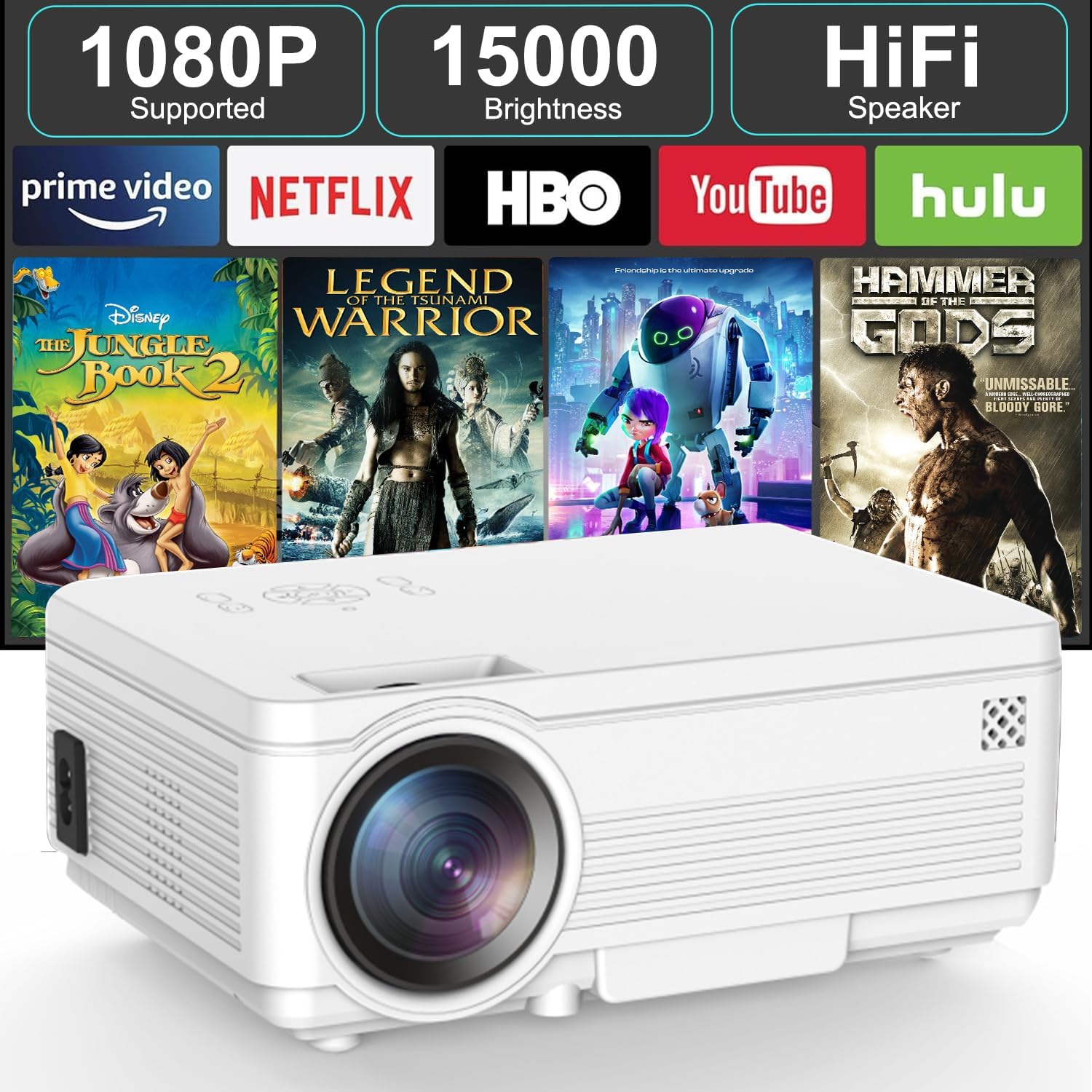
Bild: Vorderseite view of the BIGASUO BGP34 projector, showcasing its lens and ventilation. The image also highlights key features like 1080P support, 15000 brightness, HiFi speaker, and compatibility with streaming services such as Prime Video, Netflix, HBO, YouTube, and Hulu.
Häfen und Kontrollen
Familiarize yourself with the various ports and controls on your projector for seamless connectivity.

Bild: Eine detaillierte view of the projector's side panel, illustrating various input ports including AUX, AV, TF card slot, HDMI, and USB. Below the projector, icons depict compatible devices such as speakers, PS4, tablets, laptops, smartphones, USB flash drives, Roku Stick, TV Box, and TV Stick, demonstrating its versatile connectivity options.
- HDMI-Anschluss: Lässt sich mit Laptops, Spielekonsolen, TV-Sticks usw. verbinden.
- USB-Anschluss: Anschlussmöglichkeit für USB-Flash-Laufwerke zur Medienwiedergabe.
- AUX/Audio Out: Anschlussmöglichkeit für externe Lautsprecher oder Kopfhörer.
- AV-Anschluss: Verbindet sich über ein AV-Kabel mit älteren Geräten.
- TF-Karten-Slot: Zum direkten Abspielen von Medien von einer TF-Karte (MicroSD-Karte).
- Leistungsaufnahme: Wird mit dem Netzteil verbunden.
- Fokusring: Passt die Bildschärfe an.
- Trapezkorrektur: Adjusts image shape (manual or auto, depending on model features).
5. Einrichtung
5.1 Aufstellung und Bildschirmgröße
Position the projector on a stable surface. The projection distance affects the screen size. Ensure the projector is perpendicular to the projection surface for the best image quality.

Image: The BIGASUO BGP34 projector displayed in three common mounting configurations: on a desktop, mounted on a tripod, and hanging from a ceiling. This illustrates the versatility of the projector for various setup environments.
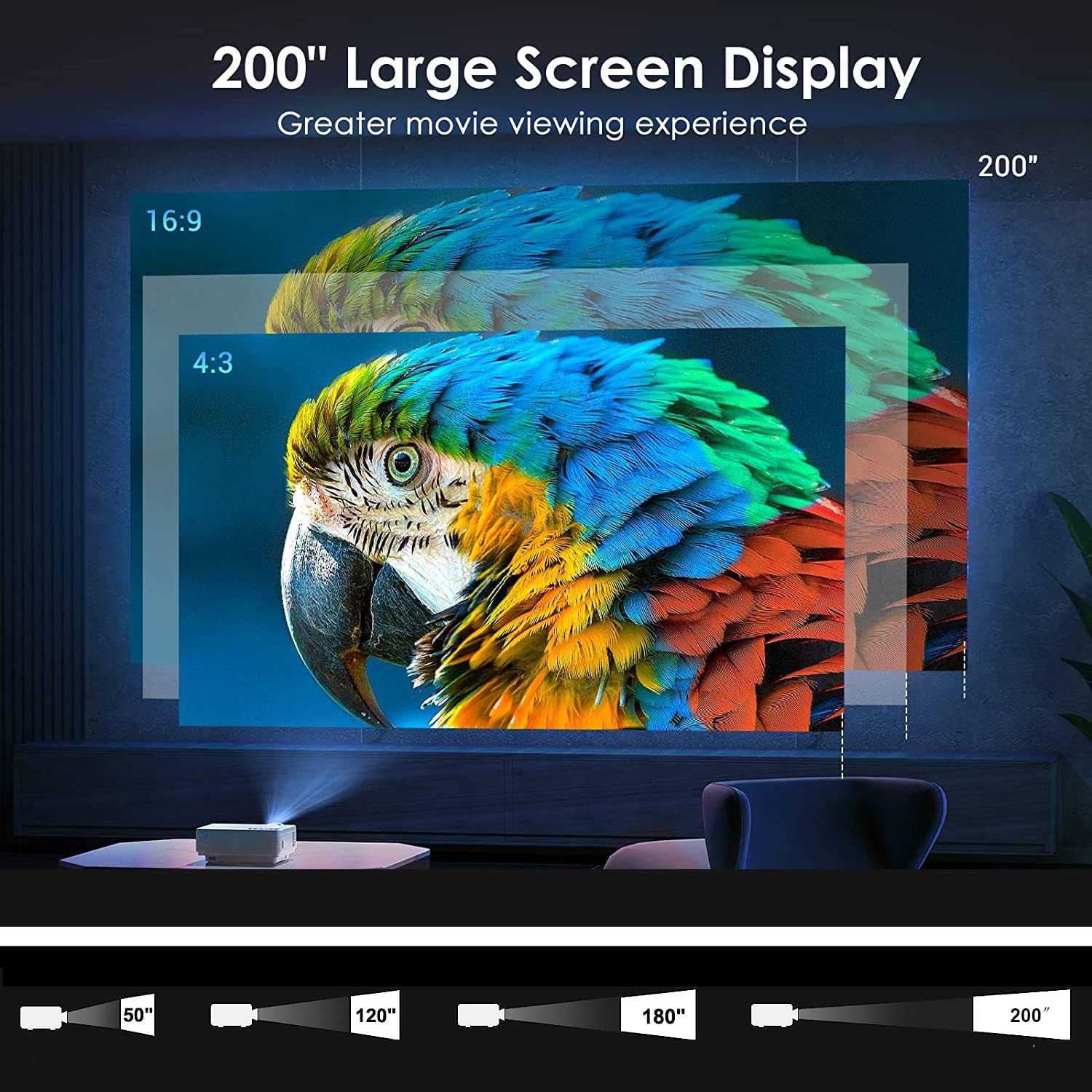
Image: A visual representation of the projector's capability to display a large screen up to 200 inches. It shows different projection sizes (50", 120", 180", 200") at varying distances, along with aspect ratio comparisons (16:9 and 4:3), demonstrating the immersive viewErfahrung.
- Für optimale viewing, project onto a white wall or a dedicated projector screen.
- Passen Sie den Abstand an, um die gewünschte Bildschirmgröße von bis zu 200 Zoll zu erreichen.
- The projector supports desktop, tripod, and ceiling mounting options.
5.2 Stromanschluss
- Schließen Sie das Netzteil an den Stromeingangsanschluss des Projektors an.
- Stecken Sie das Netzteil in eine geeignete Steckdose.
- Drücken Sie den Netzschalter am Projektor oder an der Fernbedienung, um ihn einzuschalten.
5.3 Fokus- und Trapezkorrektur
- Fokus: Drehen Sie den Fokusring in der Nähe des Objektivs, bis das projizierte Bild klar und scharf ist.
- Trapezkorrektur: If the image appears trapezoidal, use the keystone correction feature (manual knob or digital adjustment via settings) to square the image.
6. Bedienungsanleitung
6.1 Externe Geräte anschließen
- HDMI: Connect an HDMI cable from your device (laptop, TV stick, game console) to the projector's HDMI port. Select the HDMI input source from the projector's menu.
- USB: Insert a USB flash drive into the USB port. The projector's media player will typically detect the drive, allowing you to browse and play media files.
- EIN V: Verwenden Sie ein AV-Kabel, um ältere Geräte anzuschließen. Wählen Sie die AV-Eingangsquelle aus.
- TF-Karte: Insert a TF (MicroSD) card into the designated slot for direct media playback.
6.2 Wireless Connectivity (5G WiFi, Bluetooth)
- WiFi Verbindung: Navigate to the projector's settings menu, select 'Network' or 'WiFi', and connect to your desired 2.4G or 5G WiFi network. This enables access to online apps and screen mirroring.
- Bluetooth Verbindung: Go to the Bluetooth settings on the projector. Enable Bluetooth and pair with your Bluetooth speaker, headphones, or soundbar for enhanced audio.
6.3 Screen Mirroring (Android/iOS)
The projector supports screen mirroring from Android and iOS devices via WiFi.
- Für Android: Ensure your Android device and projector are on the same WiFi network. On the projector, select the 'Android Cast' or 'Screen Mirroring' option. On your Android device, enable 'Wireless Display', 'Smart View', or 'Cast' and select the projector from the list.
- Für iOS: Ensure your iOS device and projector are on the same WiFi network. On the projector, select the 'iOS Cast' or 'AirPlay' option. On your iOS device, open Control Center, tap 'Screen Mirroring', and select the projector.
- Note: Due to copyright restrictions, some streaming services (e.g., Prime Video, Netflix) may not support screen mirroring directly. For these, connect a TV stick (not included) or use an HDMI cable.
6.4 Verwendung integrierter Anwendungen
The BIGASUO BGP34 comes with built-in Android applications like YouTube. Connect to WiFi to access these apps directly.
- Navigieren Sie mithilfe der Fernbedienung durch die Android-Benutzeroberfläche.
- Wählen Sie die gewünschte Anwendung vom Startbildschirm aus.
- Stellen Sie eine stabile Internetverbindung für reibungsloses Streaming sicher.

Image: A collage demonstrating various application scenarios for the BIGASUO BGP34 projector, including outdoor parties, home theater setups, gaming sessions, and watching sports matches. This highlights the projector's versatility for different entertainment needs.
7. Wartung
Durch die richtige Wartung wird die Langlebigkeit und optimale Leistung Ihres Projektors gewährleistet.
- Linsenreinigung: Verwenden Sie ein weiches, fusselfreies Tuch, das speziell für optische Linsen entwickelt wurde. Wischen Sie die Linse vorsichtig ab, um Staub oder Fingerabdrücke zu entfernen. Vermeiden Sie scheuernde Materialien oder aggressive Chemikalien.
- Reinigung der Lüftungsanlage: Regularly check and clean the air vents to prevent dust buildup, which can lead to overheating. Use a soft brush or compressed air.
- Lagerung: When not in use, store the projector in a cool, dry, and dust-free environment. If possible, use the original packaging or a protective case.
- Ausschalten: Always power off the projector correctly and allow it to cool down before unplugging or moving.
8. Fehlerbehebung
In der folgenden Tabelle finden Sie häufig auftretende Probleme und deren Lösungen.
| Problem | Mögliche Ursache | Lösung |
|---|---|---|
| Kein Bild angezeigt | Power cable loose; incorrect input source; device not connected. | Check power connection; select correct input source (HDMI, USB, etc.); ensure external device is properly connected and powered on. |
| Verschwommenes Bild | Fokus nicht eingestellt; Trapezkorrektur nicht durchgeführt. | Adjust the focus ring; correct keystone distortion. |
| Kein Ton | Volume too low; external speaker not connected/paired; incorrect audio output. | Increase volume; connect/pair Bluetooth speaker; check audio output settings on projector and source device. |
| Fernbedienung funktioniert nicht | Batteries dead/incorrectly inserted; sensor blocked. | Replace batteries; ensure correct polarity; clear any obstructions between remote and projector sensor. |
| WiFi-Verbindung instabil | Weak signal; too far from router; network interference. | Move projector closer to router; ensure no large obstructions; try connecting to a 5G network if available and supported. |
9. Technische Daten
| Besonderheit | Spezifikation |
|---|---|
| Marke | BIGASUO |
| Modell | BGP34 |
| Native Auflösung | 1920 x 1080 Pixel |
| Unterstützte Auflösung | Bis zu 4K |
| Anzeigetyp | LED |
| Bildkontrastverhältnis | 6000:1 |
| Seitenverhältnis | 16:9 |
| Konnektivitätstechnologie | Bluetooth 5.0, 5-GHz-WLAN |
| Hardware-Schnittstelle | HDMI, USB |
| Besondere Merkmale | Bluetooth 5.0, Android OS, Auto Keystone |
| Empfohlene Verwendung | Home Theatre |
| Technische Daten | 10 x 25 x 10 cm |
| Artikelgewicht | 2.5 kg |
| Bandtage | 220 Volt |
| Wastage | 50 Watt |
| Bildwiederholrate | 60 Hz |
10. Garantie und Support
Your BIGASUO BGP34 Projector is covered by a manufacturer's warranty. Please refer to the warranty card included in your package for specific terms and conditions, including the warranty period and coverage details.
For technical support, troubleshooting assistance, or warranty claims, please contact BIGASUO customer service. Contact information can typically be found on the product packaging, the official BIGASUO webWebsite oder Ihre Kaufrechnung.


