1. Einleitung
Thank you for choosing the SABLUTE KM25Pro Wireless Keyboard and Mouse Combo. This manual provides detailed instructions for setting up, operating, and maintaining your new device. Please read this manual thoroughly before use to ensure optimal performance and longevity.
Packungsinhalt
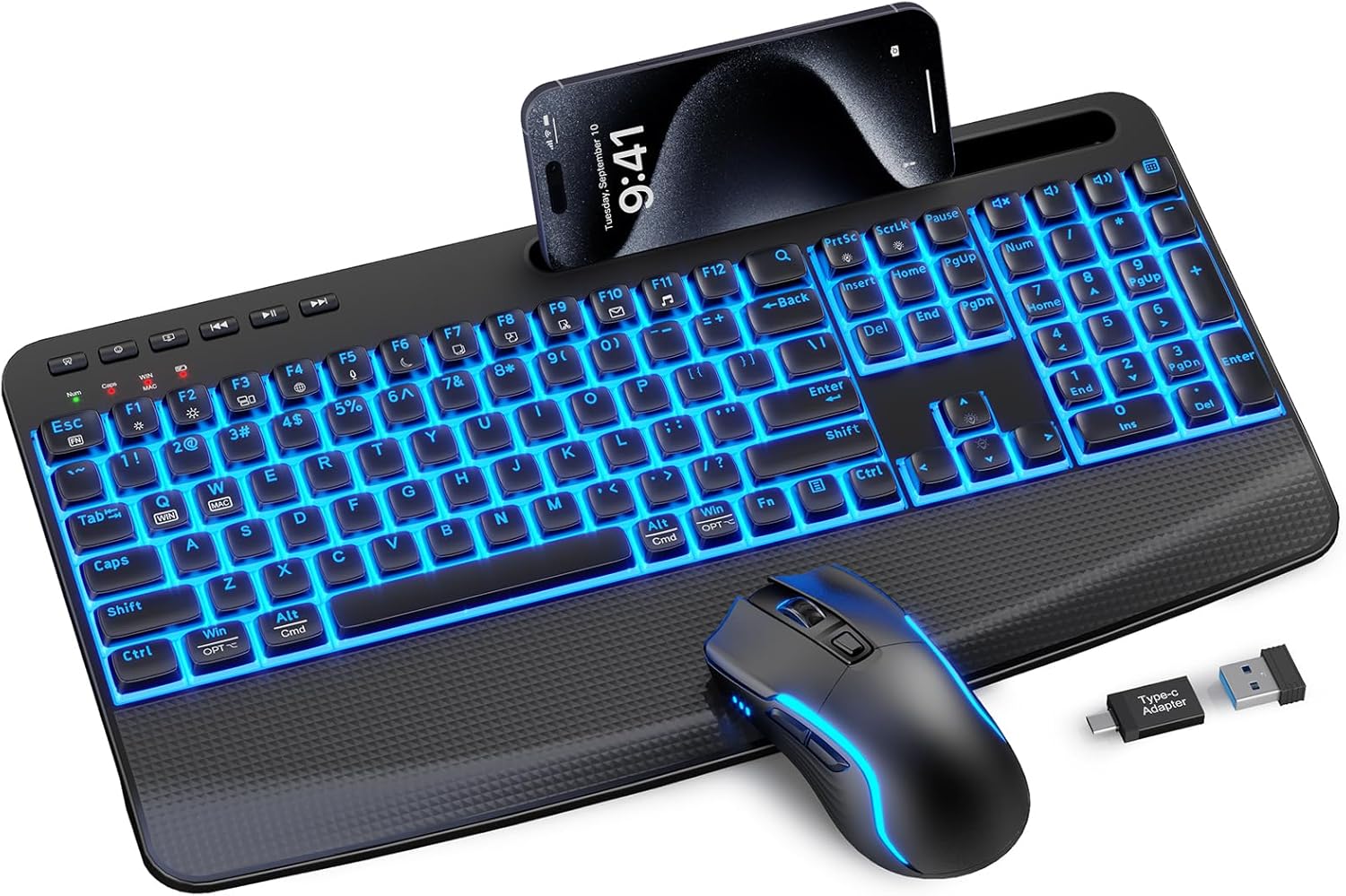
- SABLUTE KM25Pro Wireless Keyboard
- SABLUTE Kabellose Maus
- 2.4-GHz-USB-Empfänger (Dongle)
- USB-C-Ladekabel
- USB-A zu USB-C Adapter
2. Einrichtungsanweisungen
Erstladung
Before first use, it is recommended to fully charge both the keyboard and mouse.
- Connect the USB-C charging cable to the charging port on the keyboard and mouse.
- Stecken Sie das andere Ende in eine USB-Stromquelle (z. B. USB-Anschluss am Computer, Netzteil).
- The keyboard has a 4000mAh battery, providing up to two weeks of use on a single charge. The mouse has a 750mAh battery, offering extended usage. Full charging typically takes 8 hours.

Anschließen der Geräte
- Locate the 2.4GHz USB receiver. It is often stored in a compartment on the mouse.
- Plug the USB receiver into an available USB port on your computer. If your computer only has USB-C ports, use the provided USB-A to USB-C adapter.
- Schalten Sie Tastatur und Maus mit den jeweiligen Netzschaltern ein.
- Die Geräte sollten sich automatisch mit Ihrem Computer verbinden. Für Windows oder macOS sind in der Regel keine zusätzlichen Treiber erforderlich.
Betriebssystemwechsel
The keyboard supports both Windows and Mac operating systems. To switch between modes:
- Für Windows Modus: Drücken Sie Fn + Q.
- Für Mac Modus: Drücken Sie Fn + W.
3. Bedienungsanleitung
Tastaturfunktionen
Steuerung der Hintergrundbeleuchtung
The keyboard features 7-color backlighting with adjustable brightness.
- To turn the backlight on/off: Press Fn + PrtSc.
- To switch backlight color: Press Fn + ScrlLk.
- To adjust brightness (3 levels): Press Fn + Aufwärtspfeil (erhöhen) oder Fn + Pfeil nach unten (verringern).
Note: The key legends have limited transparency. Under certain angles, the backlight may appear slightly dim or characters may look blurred. This design protects legends from wear and ensures durability.
Tipperfahrung
The keyboard is designed for a soft and silent typing experience, utilizing scissor-switch keys that produce noise levels as low as 38dB.


Ergonomic Design and Phone Holder
The keyboard features an oversized palm rest and dual adjustable tilt legs (6° and 10°) to enhance comfort and reduce wrist strain. A built-in stand accommodates smartphones and iPad Mini devices (note: not for phone cases over 0.59 inches thick).

Multimedia and Hotkeys
The keyboard includes dedicated multimedia keys and function hotkeys for quick access to common tasks:
- Media Controls: Play/Pause, Previous Track, Next Track.
- Volume Controls: Mute, Volume Down, Volume Up.
- Quick Access: Search, Email, Web Browser, Calculator, Sleep.
Mausfunktionen
DPI-Anpassung
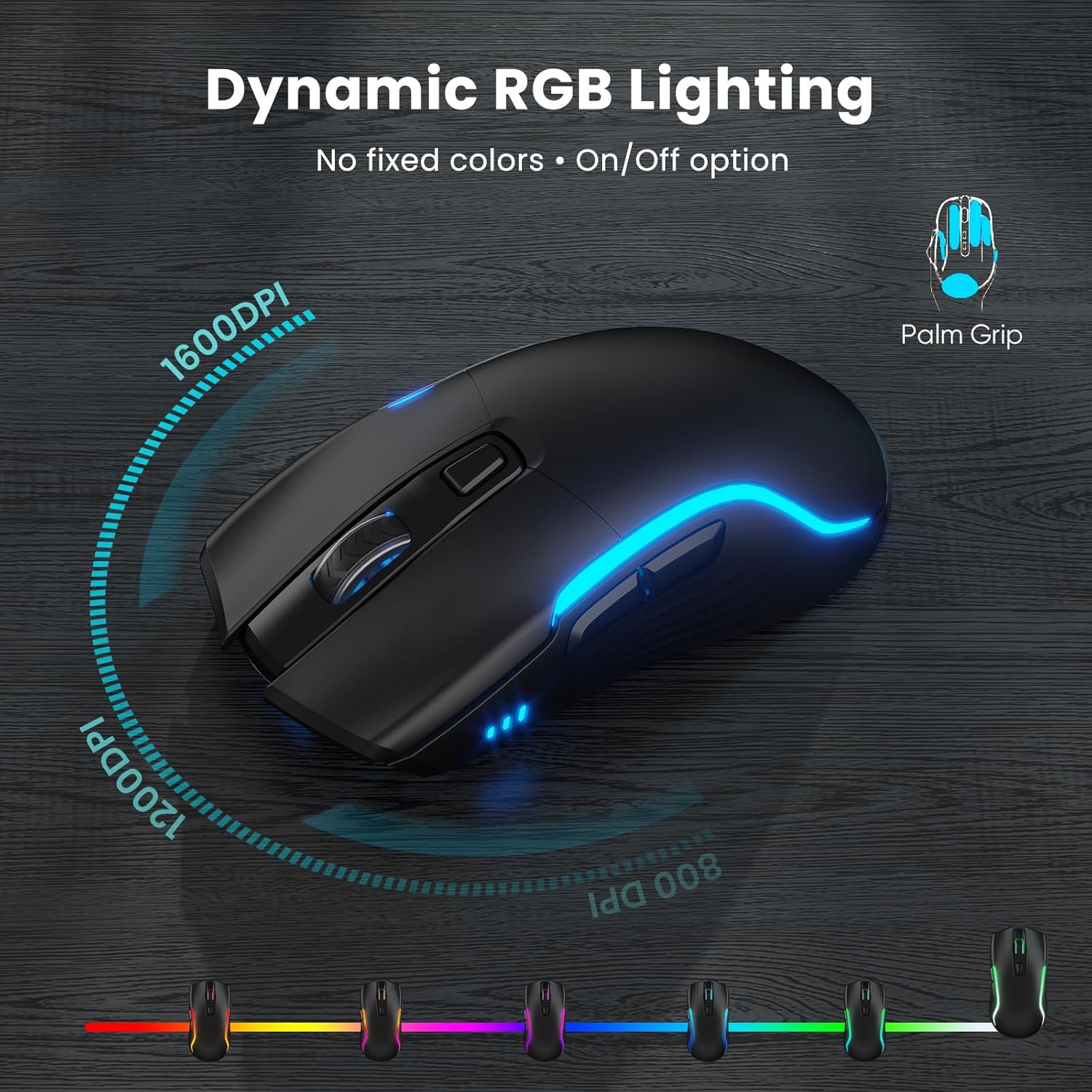
The mouse offers adjustable DPI settings for precise cursor control. Press the DPI button on top of the mouse to cycle through 800, 1200, and 1600 DPI.
RGB-Beleuchtung
The mouse features dynamic RGB lighting with an auto-cycling glow. A switch on the bottom allows you to turn the lighting on or off to conserve battery.
4. Wartung
Reinigung
- Um Tastatur und Maus zu reinigen, schalten Sie diese zuerst aus.
- Verwenden Sie ein weiches,amp cloth to wipe down the surfaces. Avoid using harsh chemicals or abrasive materials.
- Für Staub und Schmutz zwischen den Tasten verwenden Sie Druckluft.
Batteriepflege
- To prolong battery life, turn off the keyboard and mouse when not in use.
- The devices feature an auto-sleep function to conserve power during periods of inactivity.
- Laden Sie die Geräte auf, wenn die Batterieanzeige einen niedrigen Akkustand anzeigt.
5. Fehlerbehebung
Verbindungsprobleme
- Gerät reagiert nicht: Stellen Sie sicher, dass sowohl Tastatur als auch Maus eingeschaltet und vollständig aufgeladen sind.
- Keine Verbindung: Try unplugging and re-inserting the USB receiver into a different USB port.
- Interferenz: Move the devices closer to the USB receiver or away from other wireless devices that might cause interference.
Backlight Problems
- Hintergrundbeleuchtung funktioniert nicht: Ensure the keyboard is charged. Press Fn + PrtSc zum Ein- und Ausschalten der Hintergrundbeleuchtung.
- Incorrect color/brightness: Verwenden Fn + ScrlLk to change color and Fn + Pfeiltaste nach oben/unten um die Helligkeit anzupassen.
Typing/Mouse Lag
- Delayed input: Check battery levels and ensure the USB receiver is not obstructed.
- Mauszeiger unregelmäßig: Clean the mouse sensor. Adjust DPI settings if sensitivity is too high or low.
6. Spezifikationen
| Modellnummer | KM25Pro |
| Technische Daten | 16.85 x 8.46 x 1.38 Zoll |
| Artikelgewicht | 2.2 Pfund |
| Tastaturbatterie | 4000mAh Lithium-Metall-Akku (im Lieferumfang enthalten) |
| Mausbatterie | 750mAh Lithium-Metall-Akku (im Lieferumfang enthalten) |
| Konnektivitätstechnologie | 2.4 GHz kabellos (USB-Empfänger) |
| Besondere Merkmale | Backlit, Ergonomic, Phone Holder, Rechargeable, Wrist Rest |
| Kompatible Geräte | Gaming Console, Laptop, Personal Computer, Projector, Tablet |
| Haltbarkeit der Tastenanschläge | 10 Millionen Tastenanschläge |
7. Garantie und Support
The SABLUTE KM25Pro Wireless Keyboard and Mouse Combo comes with a 30-day return policy and a 1-year replacement warranty.
For technical support or warranty claims, please contact SABLUTE customer service through the retailer where the product was purchased or visit the official SABLUTE webWebsite für Kontaktinformationen.
8. Produktvideos
Full Product Demo, Quiet Scissor-Switch Keyboard Mouse Combo
This video provides a comprehensive demonstration of the SABLUTE KM25Pro Wireless Keyboard and Mouse Combo, highlighting its quiet scissor-switch keys and overall functionality.
Überview - Silent Keyboard with Scissor-Switch & Mouse
Ein Überview Video-Showasing the silent operation and key features of the SABLUTE KM25Pro keyboard and mouse, emphasizing the scissor-switch technology.


