1. Einrichtung
1.1 Was ist in der Box?
The Insta360 GO Ultra Creator Bundle includes the following components:
- 1x Standalone-Kamera
- 1x Action Pod
- 1x Magnetanhänger
- 1x Schnellverschluss-Sicherheitsschnur
- 1x Magnetischer Easy Clip
- 1x Mini 2-in-1 Tripod 2.0
- 1x Schnellverschlusshalterung
- 1x Schwenkständer
- Note: MicroSD Card and Mini Remote are sold separately.

Image: All components included in the Insta360 GO Ultra Creator Bundle.
1.2 Kamerabaugruppe
The Standalone Camera can be used independently or inserted into the Action Pod for extended functionality and battery life.
- Inserting Camera into Action Pod: Align the Standalone Camera with the Action Pod's magnetic slot and gently push until it snaps into place. The magnetic connection ensures a secure fit.
- Attaching to Mounts: The Action Pod features a standard action camera mount interface. Attach it to the Mini 2-in-1 Tripod, Quick Release Mount, or Pivot Stand using the provided screws and adapters. The Standalone Camera can also directly attach to magnetic accessories like the Magnet Pendant or Easy Clip.
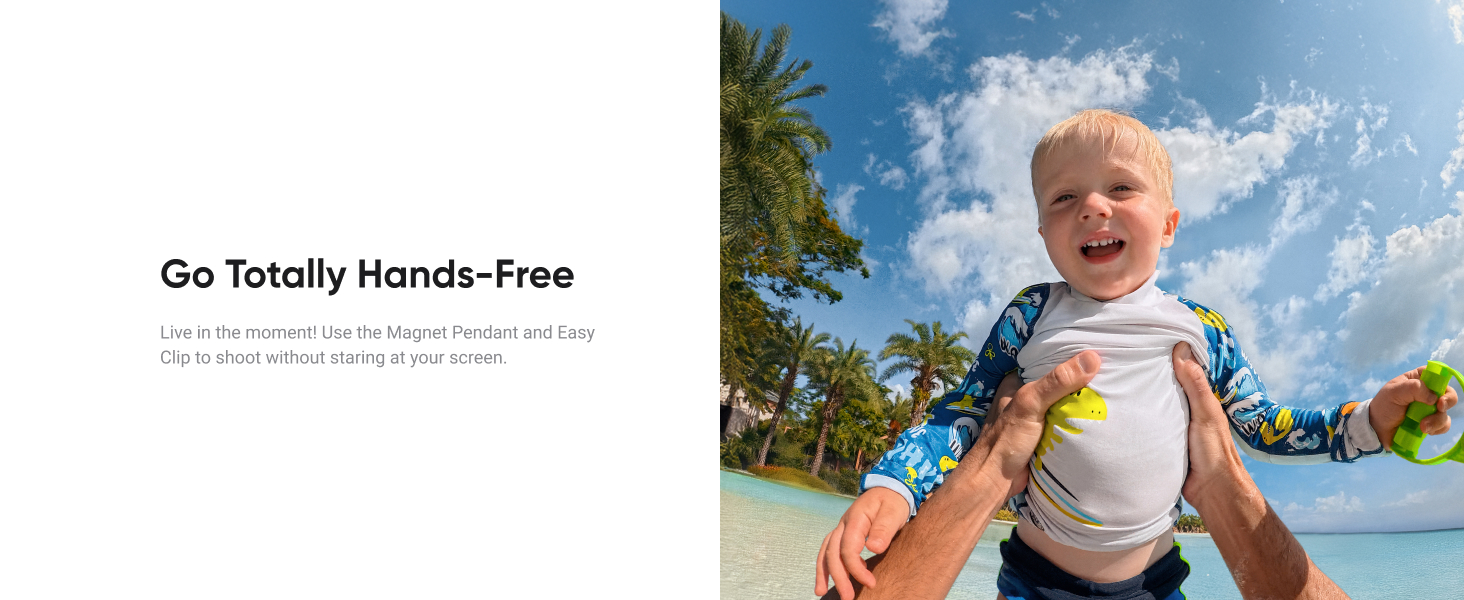
Image: The Insta360 GO Ultra camera being inserted into its Action Pod, demonstrating the magnetic connection.
Video: Demonstration of the BRDRC GO Ultra Mount, showing how the camera and Action Pod attach to various accessories.
1.3 Laden
The Insta360 GO Ultra offers fast charging capabilities. The Standalone Camera can shoot for 70 minutes, and with the Action Pod, total battery life extends to 200 minutes. Charging from 0% to 80% takes approximately 12 minutes.
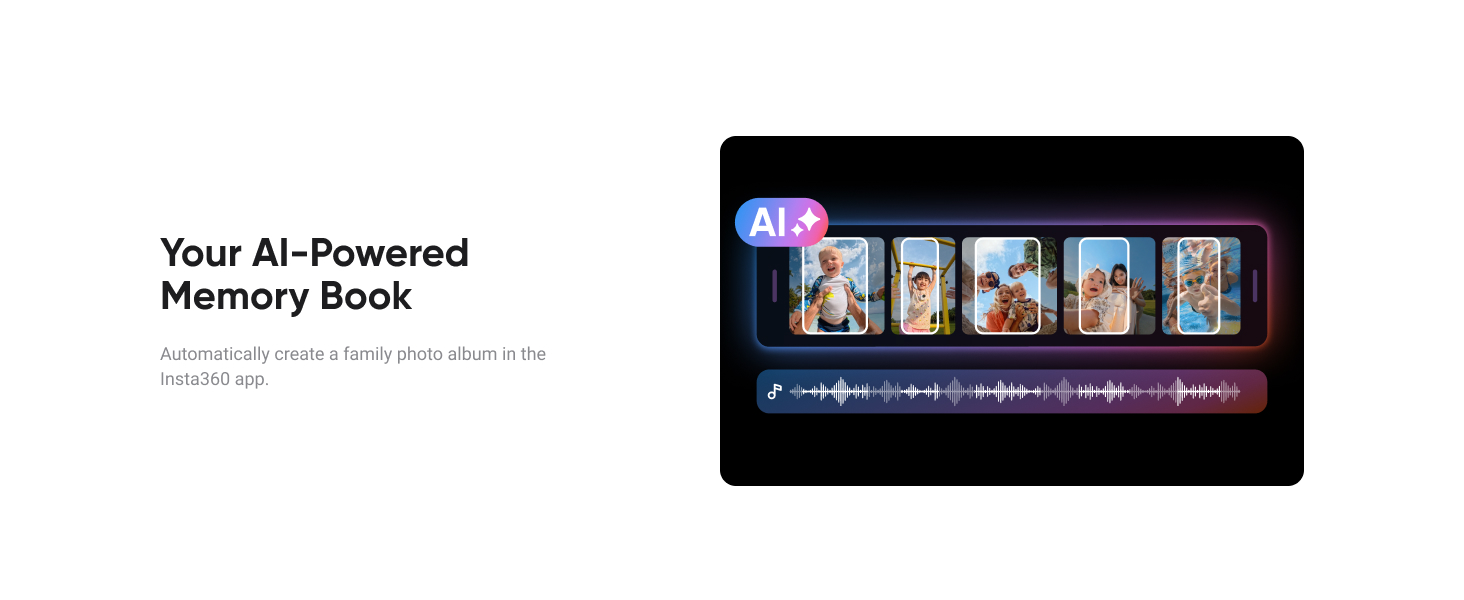
Image: Visual representation of battery life for the Standalone Camera and with the Action Pod, highlighting fast charging.
1.4 Einlegen der microSD-Karte
The Insta360 GO Ultra supports microSD cards up to 2TB, allowing for continuous shooting without storage concerns. The microSD card slot is located on the Standalone Camera.
- Locate the microSD card slot on the side of the Standalone Camera.
- Setzen Sie die microSD-Karte mit den goldenen Kontakten nach unten ein, bis sie einrastet.
- Zum Herausnehmen die Karte vorsichtig drücken, bis sie herausspringt.
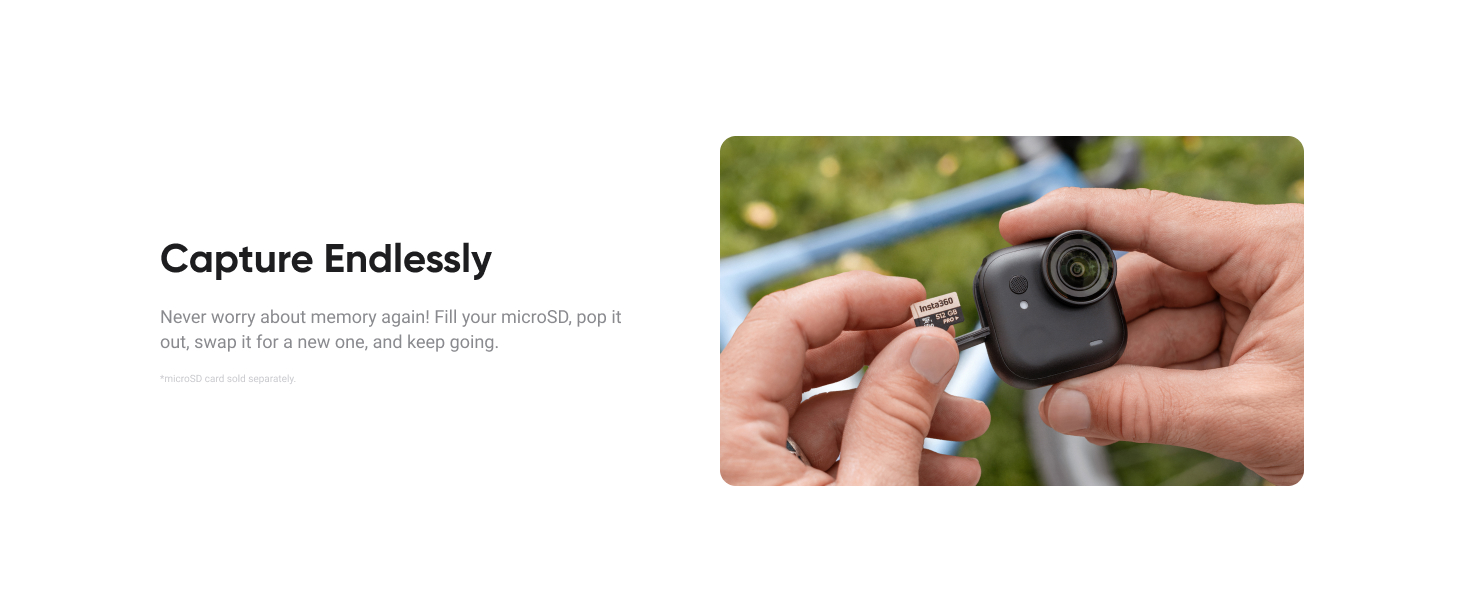
Image: Close-up of the Insta360 GO Ultra camera showing the microSD card being inserted into its slot.
2. Bedienungsanleitung
2.1 Hands-Free POV & Wearable
The magnetic design allows for versatile hands-free recording. Attach the camera to the Magnet Pendant to wear it around your neck, or clip it to a cap using the Magnetic Easy Clip for a first-person perspective.
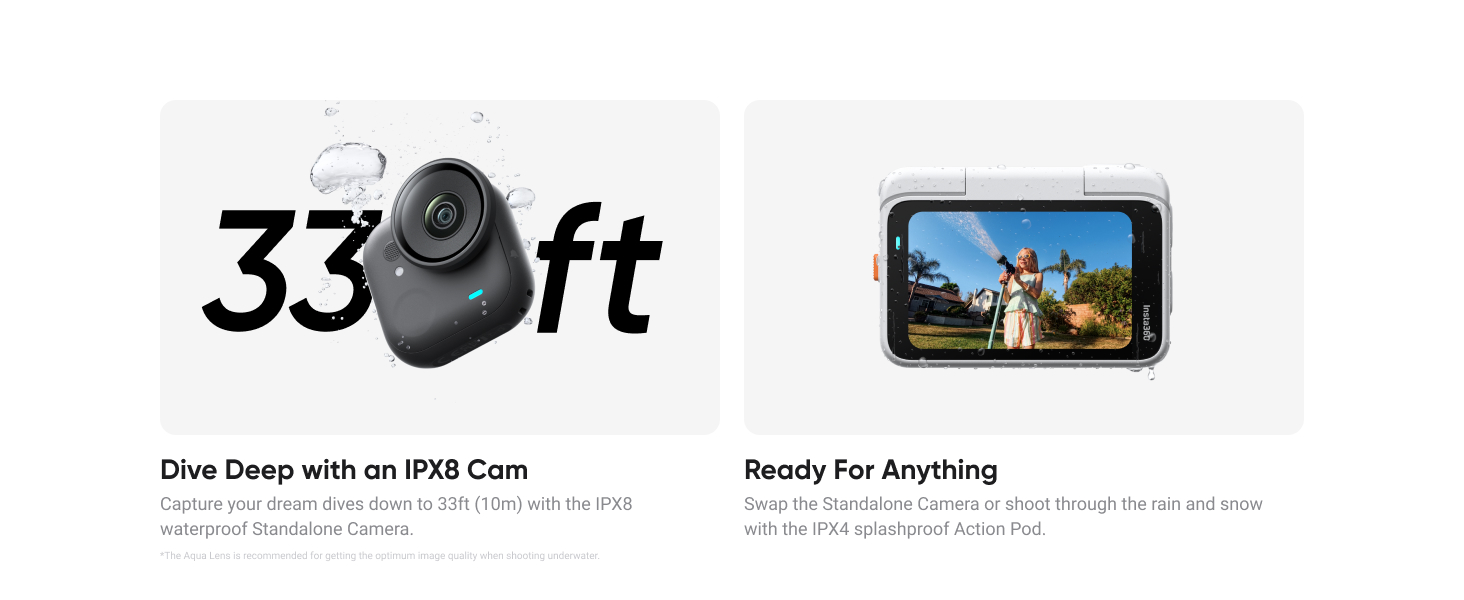
Image: A person wearing the Insta360 GO Ultra with the Magnet Pendant, capturing a hands-free point-of-view Schuss.
2.2 Videoaufzeichnung
Capture stunning visuals with advanced video capabilities.
- 4K60fps Video: Record crisp 4K video at a smooth 60 frames per second for high-quality action shots.
- 4K Active HDR: Utilize 4K Active HDR to balance extreme light and shadow, creating smooth, dynamic footagselbst bei schwierigen Lichtverhältnissen.
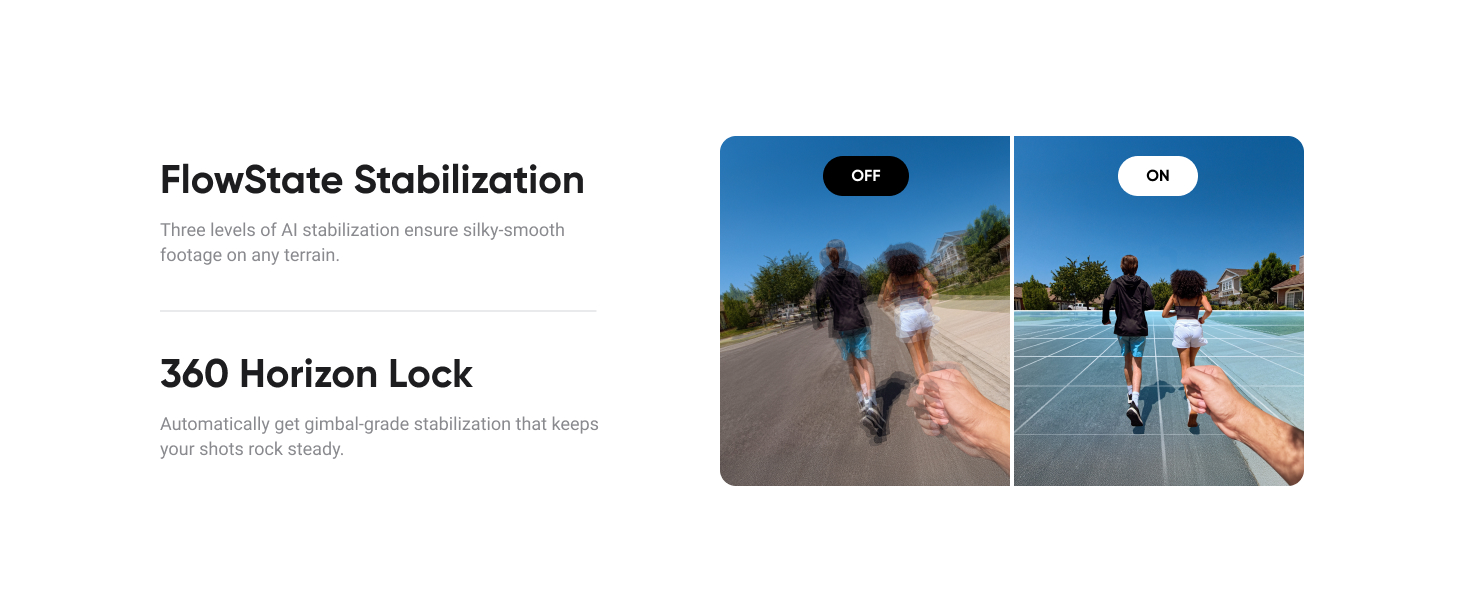
Bild: Eine Ich-Perspektive view from a bicycle, illustrating the clarity of 4K 60fps video captured by the Insta360 GO Ultra.
2.3 Leistung bei schwachem Licht
The camera excels in low-light environments thanks to its advanced hardware and software.
- 1/1.28" Sensor & 5nm AI Chip: The large sensor and powerful AI chip enhance image detail and vibrant colors in low-light situations.
- PureVideo-Modus: Specifically designed for low-light excellence, this mode reduces noise and boosts dynamic range for amazing footage at dawn, dusk, or night.
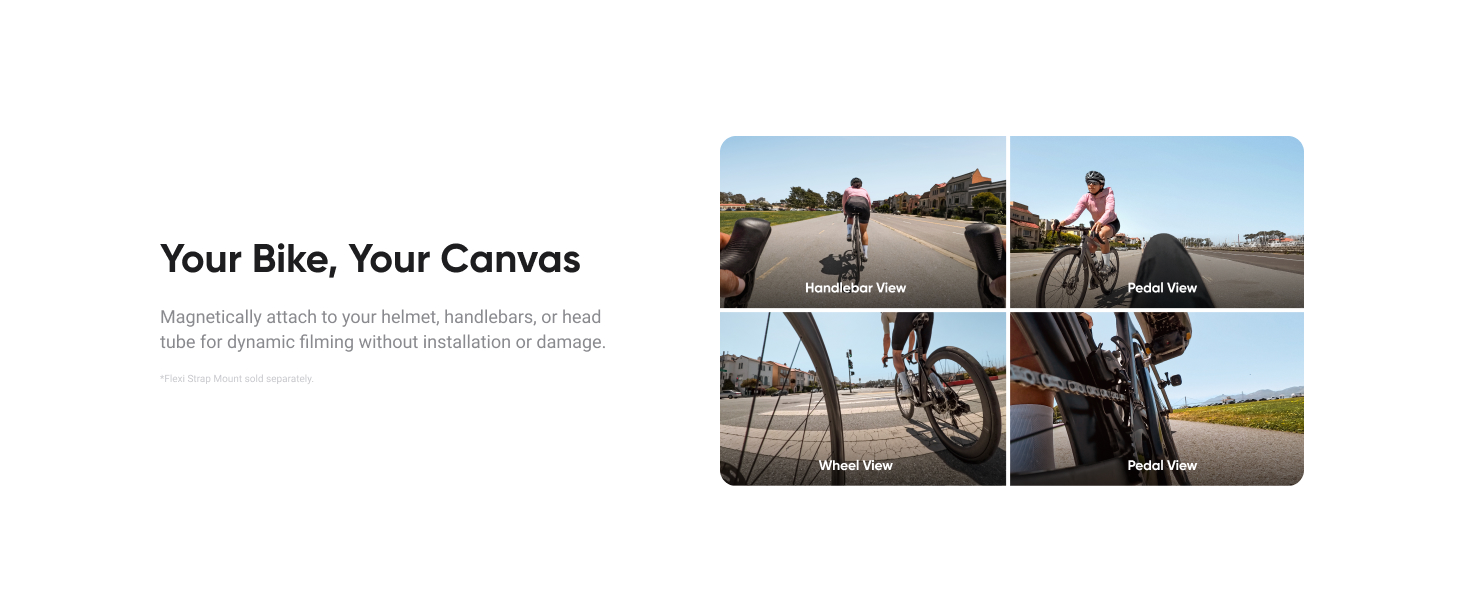
Image: A side-by-side comparison showing improved image quality in low light conditions using Insta360 GO Ultra's PureVideo Mode.
2.4 Magnetic Mounting & Versatility
The unique magnetic mounting system allows for creative angles and placement in various scenarios.
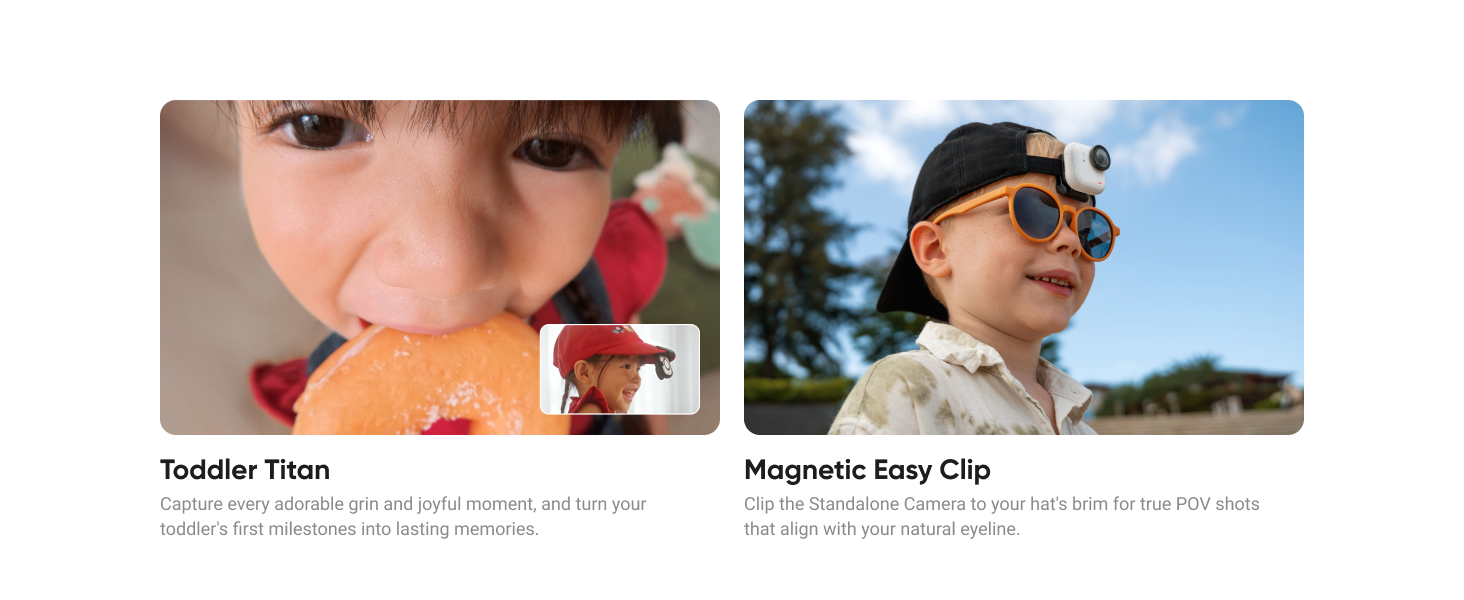
Image: A collage of images demonstrating the Insta360 GO Ultra mounted magnetically on different surfaces and objects for unique perspectives.
2.5 Stabilization & Horizon Lock
Achieve smooth and level footage with advanced stabilization features.
- Strömungszustandsstabilisierung: Three levels of AI stabilization ensure silky-smooth footage on any terrain.
- 360 Horizon Lock: Automatically provides gimbal-grade stabilization that keeps your shots perfectly level, regardless of camera orientation.
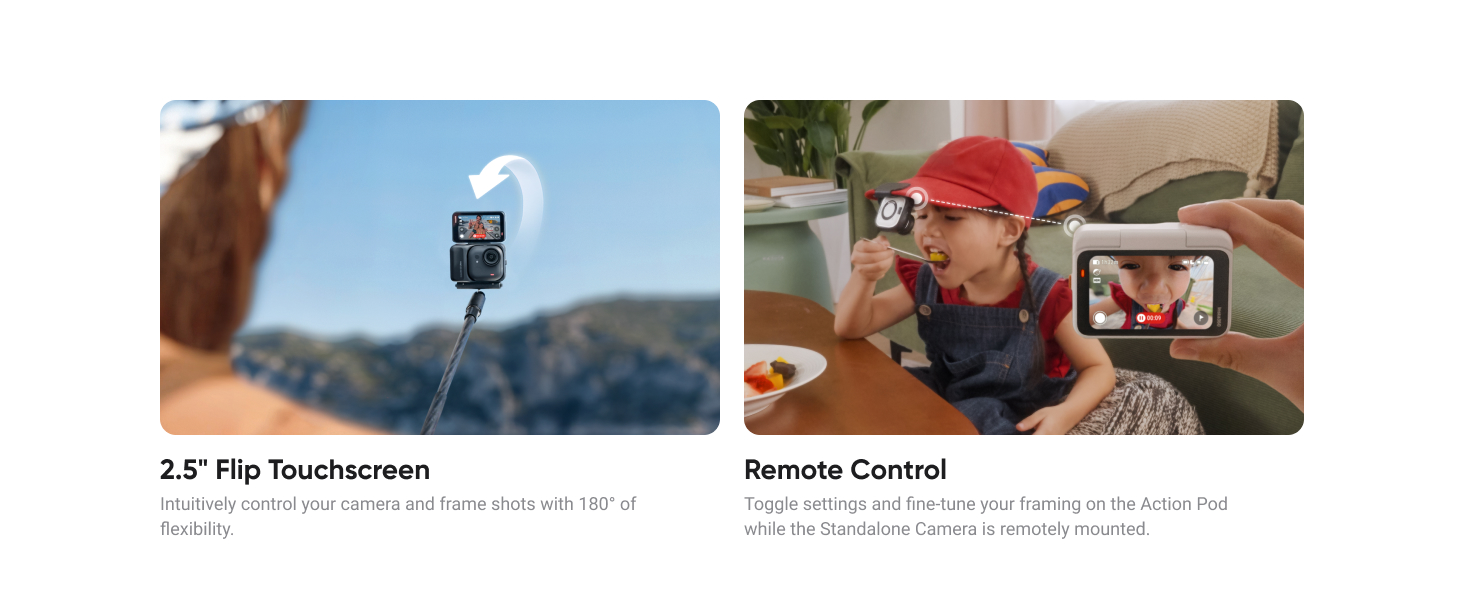
Image: A split image demonstrating the effect of FlowState Stabilization, showing blurred motion on the left and smooth footage on the right, with 360 Horizon Lock keeping the horizon level.
2.6 Wasserdichtigkeit
The Insta360 GO Ultra is designed for use in various water environments.
- Eigenständige Kamera: IPX8 waterproof up to 33ft (10m) for effortless underwater capture.
- Action Pod: IPX4 splashproof. Use with the Dive Case (sold separately) to shoot as deep as 197ft (60m).
Image: A split image showing the Insta360 GO Ultra camera being used underwater and the Action Pod being splashed with water, illustrating its waterproof and splashproof ratings.
Video: Demonstration of the Go Ultra Aqua Lens, an accessory for enhanced underwater footage.
2.7 Erweiterte Funktionen
- Auto Editing: The AI automatically finds highlights and edits them into a video with transitions and music. Shoot in FreeFrame Mode for flexible aspect ratio sharing.
- 2.5-Zoll-Klapp-Touchscreen: Intuitively control your camera and frame shots with 180° flexibility.
- Fernbedienung: Toggle settings and fine-tune framing on the Action Pod while the Standalone Camera is remotely mounted.
- Voice Control 2.0 & Gesture Control: Speak to shoot or show your palm for hands-free operation.
- Point and Shoot: Effortlessly capture moments by pressing the shutter button.
- Aspect Ratio Switching: Switch between 16:9 and 9:16 aspect ratios by twisting the camera.
- AI-Powered Memory Book: Automatically create family photo albums in the Insta360 app.
- Zeitraffer & Zeitverschiebung: Create dynamic time-lapse videos or speed-ramp footage.
- Quick Release Safety Cord: Secure the camera during intense activities while allowing quick swapping.
- Apple „Wo ist?“: Track your camera accurately with the Apple Find My network if lost.
Video: Review of the Insta360 Go Ultra with the Boya Magic Mic, demonstrating external audio capabilities.
3. Wartung
3.1 Allgemeine Pflege
To ensure the longevity and optimal performance of your Insta360 GO Ultra, follow these general care guidelines:
- Keep the camera and accessories clean and free from dust and debris. Use a soft, dry cloth for cleaning.
- Vermeiden Sie es, die Kamera über längere Zeiträume extremen Temperaturen oder direkter Sonneneinstrahlung auszusetzen.
- Store the camera in a protective case when not in use to prevent scratches and damage.
3.2 Wasserfeste Pflege
After using the Standalone Camera in water, ensure proper drying to prevent damage:
- Rinse the camera with fresh water after use in saltwater or chlorinated water.
- Wischen Sie die Kamera mit einem weichen Tuch trocken.
- Allow the camera to air dry completely before storing it or inserting it back into the Action Pod.
3.3 MicroSD-Kartenverwaltung
Regularly manage your microSD card to maintain optimal recording performance:
- Format the microSD card periodically using the camera's settings to ensure stable performance.
- Back up your footage regularly to prevent data loss.
- Use high-quality, recommended microSD cards for best results.
4. Fehlerbehebung
4.1 Häufige Probleme
- Kamera lässt sich nicht einschalten: Stellen Sie sicher, dass der Akku geladen ist. Schließen Sie die Kamera an eine Stromquelle an und überprüfen Sie die Ladeanzeige.
- Aufnahmeprobleme: Check if the microSD card is inserted correctly and has sufficient free space. Try formatting the card.
- Wobbly tripod: While the Mini 2-in-1 Tripod is generally stable, ensure all connections are tightened. For stationary shots, allow a moment for the setup to settle.
- Screen not intuitive: Familiarize yourself with the touchscreen gestures and menu layout. Practice navigating through settings and modes.
4.2 Allgemeine Hinweise
- Always ensure the camera's firmware is up to date for the latest features and bug fixes.
- If issues persist, perform a factory reset (refer to the in-app settings for this option).
- For specific technical problems, refer to the official Insta360 support resources.
5. Spezifikationen
| Besonderheit | Detail |
|---|---|
| Marke | Insta360 |
| Modellnummer | CINSABEA |
| Artikelgewicht | 5.7 Unzen |
| Verpackungsabmessungen | 10.63 x 8.23 x 4.76 Zoll |
| Batterien | 1 AAA-Batterien erforderlich (im Lieferumfang enthalten) |
| Farbname | Mitternachtsschwarz |
| Besondere Merkmale | Touch-Screen |
| Fotosensor-Technologie | CMOS |
| Auflösung der Videoaufnahme | 4K |
| Maximale Brennweite | 30 |
| Maximale Blendenöffnung | 2.85 f |
| Flash-Speichertyp | CompactFlash (MicroSD Card support up to 2TB) |
| Videoaufnahmeformat | MP4 |
| Unterstütztes Audioformat | 48 kHz 32 Bit AAC |
| Bildschirmgröße | 10 Zoll (Action Pod) |
| Konnektivitätstechnologie | Bluetooth, USB, WLAN |
6. Garantie und Support
Specific warranty details and comprehensive support information for the Insta360 GO Ultra are typically provided with your product packaging or can be found on the official Insta360 webWebsite.
For technical assistance, troubleshooting, or warranty claims, please visit the Insta360-Supportseite oder kontaktieren Sie direkt deren Kundenservice.


