1. Einleitung
Vielen Dank für Ihren Einkauf.asing the Vangoa VMX8 Wireless MIDI Controller Mixer. This device is designed to enhance your music production workflow by providing intuitive control over your Digital Audio Workstation (DAW) software. Featuring 43 backlit buttons, 8 channel faders with LED indicators, and 8 assignable endless knobs, the VMX8 offers a portable and versatile solution for musicians and producers.
Please read this manual thoroughly to understand the features and operation of your new MIDI controller. Keep this manual for future reference.
2. Produktüberschreitungview
2.1 Hauptmerkmale
- 43 Backlit Buttons: Assignable for triggering beats, melodies, and effects with real-time feedback.
- 8 Channel Faders: Diamond-shaped faders with LED indicators for precise control over audio levels and parameters.
- 8 Assignable Endless Knobs: Customize parameters such as EQ settings, effects, and more.
- Tragbares Design: Compact and lightweight for on-the-go music production.
- Kabellose Verbindung: Bluetooth for flexible setup.
- USB-C-Anschluss: Fast transmission and driver-free connection to Windows/Mac.
- Eingebaute Batterie: 780mAh battery provides up to 25 hours of play time after a 5-hour charge.
2.2 Komponentenidentifikation
Familiarize yourself with the various components of your Vangoa VMX8 MIDI Controller.

Abbildung 2.2.1: Vangoa VMX8 MIDI Controller showing its compact design and labeled components including faders, knobs, LED indicators, and track control buttons. Dimensions are 11.61" x 5.91" x 2.36" and it weighs 1.26 lbs.
- Fader: Control channel volume or assigned parameters.
- Knöpfe: Endless encoders for fine-tuning parameters.
- Von hinten beleuchtete Tasten: Multi-functional buttons for various controls (Mute, Solo, Record, Play, Stop, etc.).
- LED-Anzeigen: Provide visual feedback for fader positions and button states.
- USB-C-Anschluss: Für Strom- und Datenverbindungen.
- Stromschalter: Schaltet das Gerät ein/aus.
- BT-Taste: For Bluetooth pairing.
- SHIFT-Taste: Accesses secondary functions of buttons/knobs.
3. Einrichtung
3.1 Einschalten und Laden
- Locate the USB-C port on the rear of the VMX8 controller.
- Connect the provided USB-C cable to the controller and the other end to a USB power adapter (not included) or a computer's USB port.
- The device will begin charging. A full charge takes approximately 5 hours and provides up to 25 hours of operation.
- Zum Einschalten den Netzschalter in die Position „EIN“ schieben.

Abbildung 3.1.1: Connecting the Vangoa VMX8 MIDI Controller via its USB-C port for power and data.
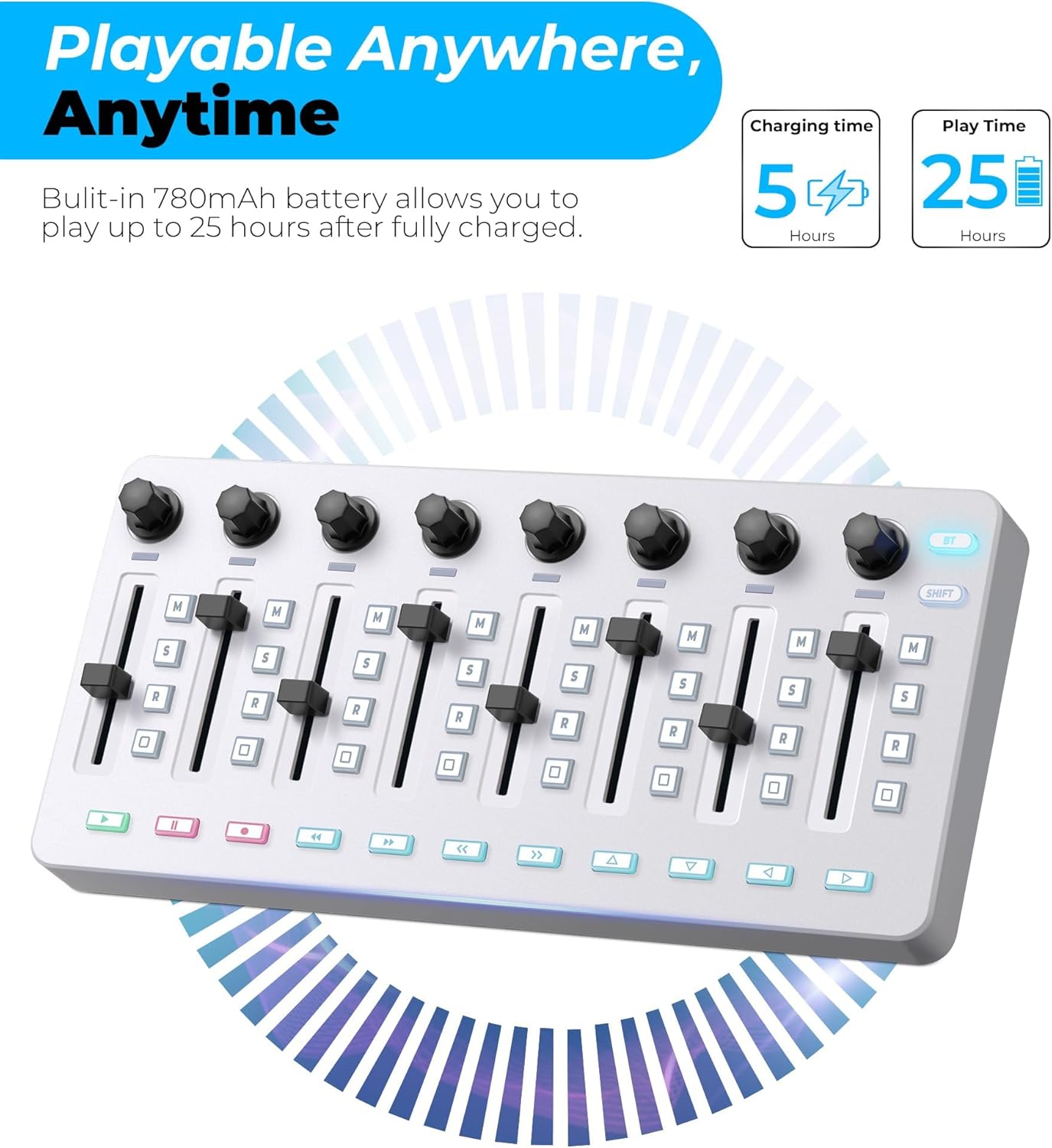
Abbildung 3.1.2: Battery life indicators for the Vangoa VMX8, showing 5 hours charging time for 25 hours of play time.
3.2 Anschluss an einen Computer (USB)
- Ensure the VMX8 is powered on.
- Connect the USB-C cable from the VMX8 to an available USB port on your Windows PC or Mac computer.
- The VMX8 is a class-compliant device and typically does not require additional drivers. Your operating system should recognize it automatically.
- Open your Digital Audio Workstation (DAW) software and configure the VMX8 as a MIDI input/output device in the software's preferences or settings.
3.3 Connecting Wirelessly (Bluetooth)
- Ensure the VMX8 is powered on.
- Press the "BT" button on the VMX8 to activate Bluetooth pairing mode. The Bluetooth indicator light will flash.
- On your computer or compatible device, open Bluetooth settings.
- Suchen nach available devices and select "Vangoa VMX8" (or similar) to pair.
- Once paired, the Bluetooth indicator light on the VMX8 will become solid.
- Configure the VMX8 as a MIDI input/output device in your DAW software's preferences.
Note: For detailed wireless connection tutorials, search for "BLE Drive Connection Tutorial" on YouTube.
4. Bedienung
4.1 Basic DAW Control
The VMX8 is designed to integrate seamlessly with various DAWs. After connecting and configuring, you can use its controls to manage your projects.

Abbildung 4.1.1: A hand interacting with the faders and buttons of the Vangoa VMX8, demonstrating simplified music creation.

Abbildung 4.1.2: The Vangoa VMX8 in a studio setup, showing compatibility with DAWs like Ableton Live, Logic Pro X, FL Studio, Cubase, and Pro Tools. A QR code is present for software editor download.
Note: This MIDI controller requires scanning a QR code to download the software editor first for full customization. The QR code is typically found in the packaging or on the product page. A direct link is also available: http://www.cuvave.com/appdownload
4.2 Using the Backlit Buttons

Abbildung 4.2.1: Detaillierte view of the 43 assignable backlit buttons on the Vangoa VMX8, highlighting real-time feedback and quick recognition.
- The 43 backlit buttons can be assigned to various functions within your DAW, such as Mute, Solo, Record Arm, Play, Stop, Loop, and more.
- The backlighting provides visual feedback, indicating the status of each assigned function.
- Use the dedicated software editor to customize button assignments and colors.
4.3 Adjusting with Faders
- The 8 channel faders are primarily used for adjusting track volumes or other continuous parameters.
- The LED indicators next to each fader provide a visual representation of the current parameter value.
- In most DAWs, moving a fader on the VMX8 will correspond to the fader of an assigned track.
4.4 Using the Assignable Knobs

Abbildung 4.4.1: The 8 assignable endless encoder knobs on the Vangoa VMX8, featuring a 360-degree rotation and anti-slip diamond-shaped design for parameter customization.
- The 8 endless knobs can be assigned to control various parameters such as EQ, effects sends, pan, or virtual instrument controls.
- These knobs offer 360-degree rotation, allowing for precise adjustments without limits.
- Use the software editor to assign specific MIDI CC messages to each knob for custom control.
4.5 SHIFT Function
Halten Sie die SCHICHT button to access secondary functions of certain buttons or knobs. Refer to the software editor or the device's overlay (if any) for specific SHIFT assignments.
5. Wartung
- Reinigung: Reinigen Sie die Oberfläche des Controllers mit einem weichen, trockenen Tuch. Verwenden Sie keine Scheuermittel, Lösungsmittel oder Wachse.
- Lagerung: Bewahren Sie das Gerät an einem kühlen, trockenen Ort fern von direkter Sonneneinstrahlung und extremen Temperaturen auf.
- Handhabung: Vermeiden Sie es, das Gerät fallen zu lassen oder starken Stößen auszusetzen.
- Batteriepflege: Um eine optimale Akkulaufzeit zu gewährleisten, vermeiden Sie häufiges vollständiges Entladen des Akkus. Laden Sie das Gerät regelmäßig auf, auch wenn es längere Zeit nicht benutzt wird.
6. Fehlerbehebung
| Problem | Mögliche Ursache | Lösung |
|---|---|---|
| Gerät lässt sich nicht einschalten. | Niedriger Batteriestand oder Netzschalter ausgeschaltet. | Ensure the power switch is ON. Connect the USB-C cable to charge the device. |
| No MIDI signal in DAW (USB). | Incorrect USB connection, DAW not configured, or driver issue. | Check USB-C cable connection. Verify VMX8 is selected as a MIDI input device in your DAW's preferences. Restart DAW and computer. |
| No MIDI signal in DAW (Bluetooth). | Not paired, Bluetooth off, or DAW not configured. | Ensure Bluetooth is enabled on your computer/device. Press the BT button on VMX8 to enter pairing mode. Pair the device in Bluetooth settings. Configure VMX8 in DAW preferences. Refer to "BLE Drive Connection Tutorial" on YouTube if issues persist. |
| Buttons/knobs not responding as expected. | Incorrect MIDI mapping or software editor settings. | Check your DAW's MIDI mapping settings. Use the Vangoa software editor to customize assignments and ensure they match your intended functions. |
| Backlights not working. | Device not powered or specific setting. | Ensure the device is powered on. Check if there are any backlight settings in the software editor that might be off. |
7. Spezifikationen
| Besonderheit | Detail |
|---|---|
| Marke | Vangoa |
| Modell | VMX8 |
| Anzahl der Tasten | 43 (Backlit, Assignable) |
| Number of Faders | 8 (with LED indicators) |
| Anzahl der Knöpfe | 8 (Assignable, Endless Encoders) |
| Konnektivität | Bluetooth, USB-C |
| Batteriekapazität | 780 mAh |
| Ladezeit | Ca. 5 Stunden |
| Spielzeit | Bis zu 25 Stunden |
| Farbe | Weiß |
| Abmessungen (L x B x H) | 11.61" x 5.91" x 2.36" (ca.) |
| Gewicht | 1.26 Pfund (ca.) |
| Kompatibilität | Windows, Mac (DAW software dependent) |
8. Garantie und Support
Vangoa provides a one-year satisfactory service for this product. For warranty claims, technical support, or further assistance, please contact Vangoa customer service through the retailer where the product was purchased or visit the official Vangoa webWebsite.
For software editor downloads and additional resources, please visit: http://www.cuvave.com/appdownload


