1. Einleitung
Thank you for choosing the Transformers GM04 Lightweight Wireless Gaming Mouse. This manual provides essential information for setting up, operating, and maintaining your new gaming mouse. Designed for precision and comfort, the GM04 features a high-precision PAW3311 sensor, triple connection modes (2.4G wireless, Bluetooth 5.3, and USB-C wired), 5 programmable buttons, and up to 100 hours of battery life. Its ergonomic design and lightweight construction ensure a comfortable and responsive experience for gaming, work, and study.
2. Lieferumfang
- TF-GM04 Wireless Gaming Mouse x 1
- USB Wireless Dongle x 1
- USB-C-Kabel x 1
- Benutzerhandbuch x 1
3. Produktüberschreitungview
Familiarize yourself with the key features and components of your Transformers GM04 gaming mouse.
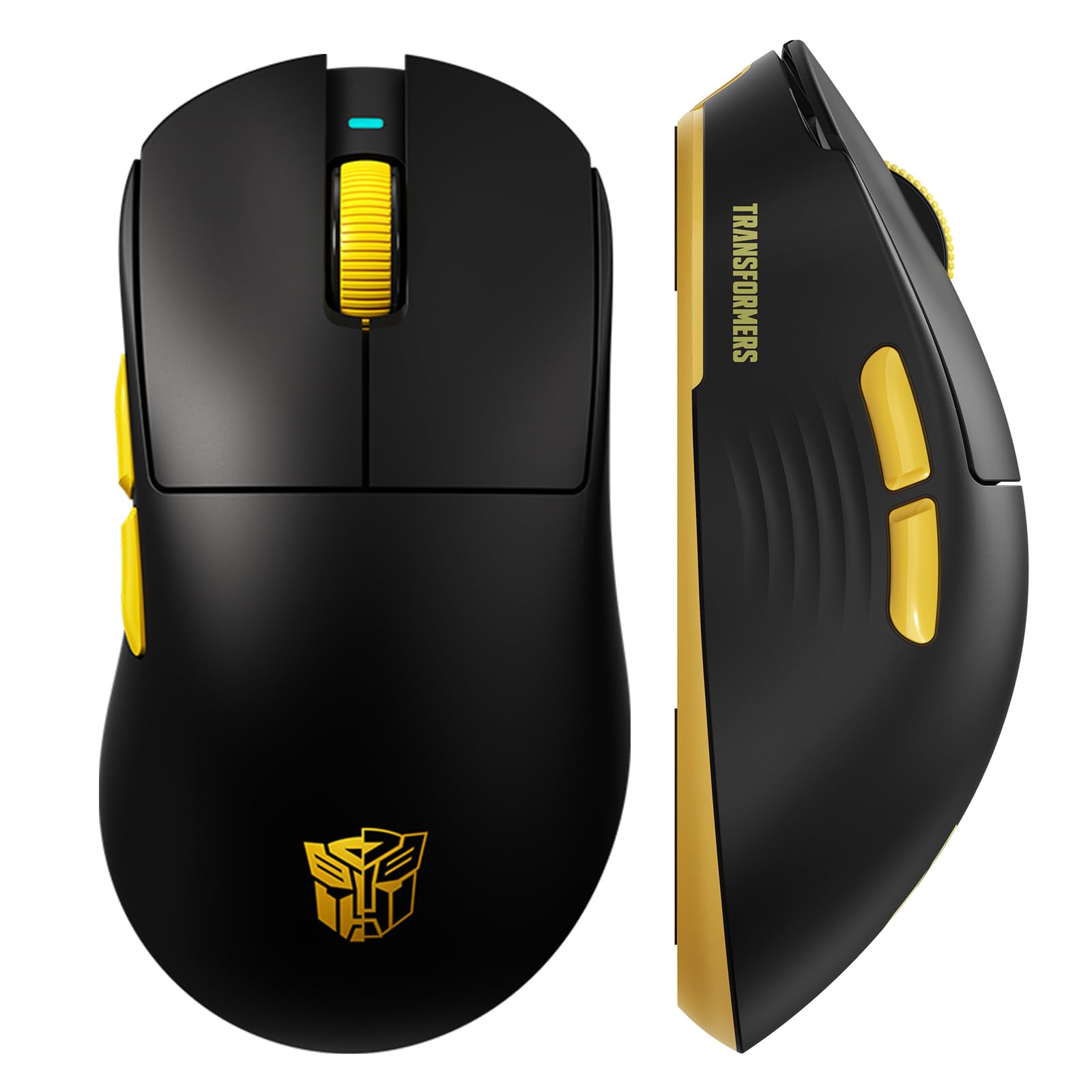
Bild 1: The Transformers GM04 Wireless Gaming Mouse, showcasing its sleek black and yellow design, along with icons highlighting its core features such as PixArt PAW3311 sensor, up to 12000 DPI, 1000Hz polling rate, 20 million clicks, Tri-Mode connectivity, custom macros, 63g lightweight design, and up to 100 hours of battery life. A USB wireless dongle is also visible next to the mouse.

Bild 2: A hand demonstrating the ergonomic design of the Transformers GM04 mouse. The image highlights how the mouse fits comfortably in the palm, promoting more comfort and less fatigue during extended use, thanks to its non-slip texture.

Bild 3: The underside of the Transformers GM04 mouse, detailing the 2.4G/OFF/BT switch for connection modes, the DPI button, and the storage compartment for the 2.4G wireless receiver. This view is crucial for understanding how to switch modes and adjust settings.

Bild 4: An illustration of the 6-level adjustable DPI settings for the Transformers GM04 mouse. It shows the DPI values (1200, 2400, 3200, 4800, 6400, 12000) and their corresponding LED indicator colors (Red, Green, Blue, Purple, Yellow, Cyan), which helps users identify the current DPI level.
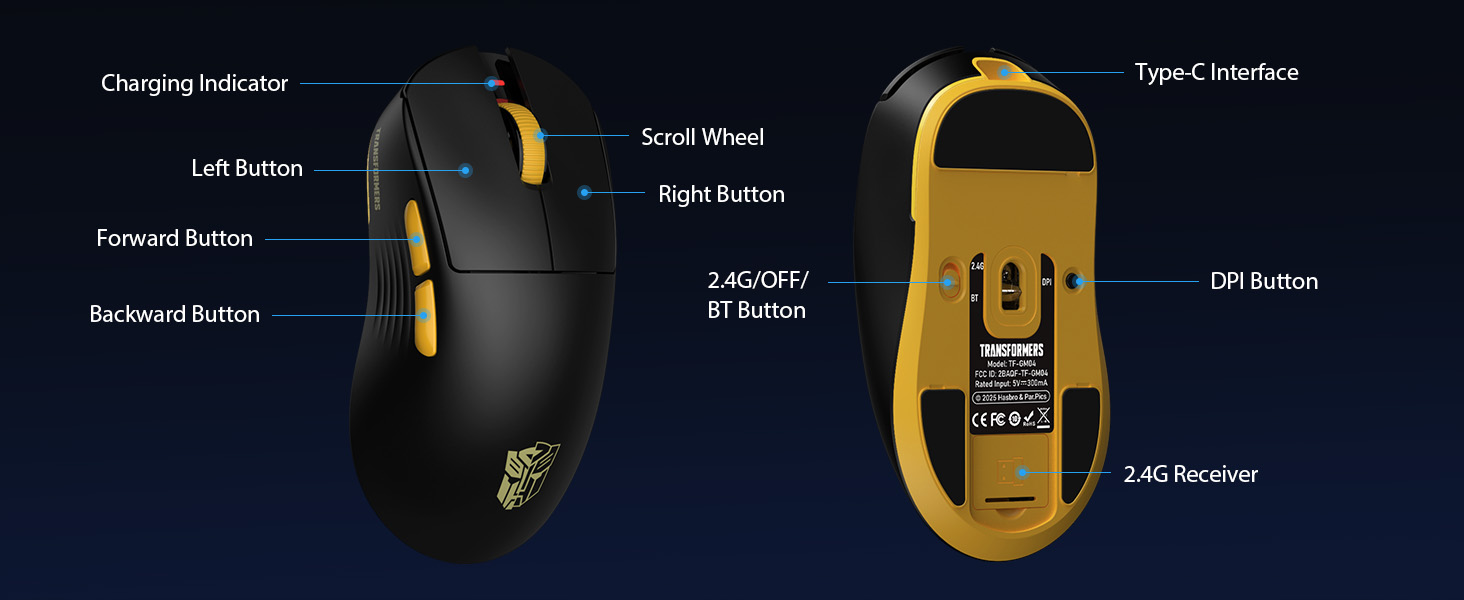
Bild 5: Ein explodiert view diagram of the Transformers GM04 mouse, highlighting the HUANO micro switches. This image emphasizes the precision-engineered mechanical switches designed for crisp feedback and a lifespan of over 20 million clicks, ideal for rapid gaming actions.
Video 1: An official product video from Transformers Keyboard showcasing the GM04 Lightweight Wireless Gaming Mouse. This short video provides a dynamic overview of the mouse's design and features.
4. Einrichtung
4.1. Aufladen der Maus
Before first use, it is recommended to fully charge your GM04 mouse. Connect the provided USB-C cable to the mouse's front port and the other end to a USB power source (e.g., computer USB port, USB wall adapter). The LED indicator will show charging status.
4.2. Anschließen der Maus
The GM04 mouse supports three connection modes: 2.4G Wireless, Bluetooth 5.3, and USB-C Wired. Use the switch on the bottom of the mouse to select your desired mode.
4.2.1. 2.4-GHz-Funkmodus
- Remove the USB wireless dongle from its storage slot on the bottom of the mouse.
- Plug the USB wireless dongle into an available USB-A port on your computer.
- Schieben Sie den Modusschalter an der Unterseite der Maus in die Position „2.4G“.
- Die Maus sollte sich automatisch mit Ihrem Computer verbinden.
4.2.2. Bluetooth-Modus
- Schieben Sie den Modusschalter an der Unterseite der Maus in die Position „BT“.
- Öffnen Sie auf Ihrem Computer oder Gerät die Bluetooth-Einstellungen und suchen Sie nach neuen Geräten.
- Select "TF-GM04 BT" from the list of available devices to pair.
- The mouse should connect and be ready for use.
4.2.3. Kabelgebundener USB-C-Modus
- Connect the provided USB-C cable to the mouse's front port and the other end to a USB-A port on your computer.
- Die Maus schaltet automatisch in den kabelgebundenen Modus und beginnt mit dem Ladevorgang.
5. Betrieb
5.1. DPI-Anpassung
The GM04 mouse offers 6 default DPI settings. To cycle through these settings, press the DPI-Taste located on the bottom of the mouse. The LED indicator will change color to reflect the current DPI level:
- Rot: 1200 DPI
- Grün: 2400 DPI
- Blau: 3200 DPI
- Lila: 4800 DPI
- Gelb: 6400 DPI
- Cyan: 12000 DPI
5.2. Programmierbare Tasten
The mouse features 5 programmable buttons. To customize these buttons with macro commands, shortcut keys, or other functions, you will need to use the dedicated driver software. This software is typically available for Windows systems under 2.4G wireless and wired modes. Bluetooth mode may not support full software customization.
5.3. Connection Mode Switching
Easily switch between 2.4G Wireless, Bluetooth, and Wired modes using the dedicated switch on the bottom of the mouse. This allows for seamless transitions between multiple devices.
5.4. LED-Anzeigen
- DPI-Anzeige: Changes color according to the current DPI setting (see 5.1).
- Ladeanzeige: A green LED near the scroll wheel indicates charging. It turns off when fully charged.
6. Wartung
6.1. Reinigung
To maintain optimal performance and appearance, regularly clean your mouse. Use a soft, dry cloth to wipe the surface. For stubborn dirt, a slightly damp Ein Tuch kann verwendet werden, um sicherzustellen, dass keine Feuchtigkeit in die internen Komponenten eindringt. Vermeiden Sie aggressive Chemikalien oder scheuernde Materialien.
6.2. Batteriepflege
The GM04 mouse is equipped with a 500mAh high-capacity battery. To prolong battery life:
- Vermeiden Sie häufiges vollständiges Entladen des Akkus.
- Bewahren Sie die Maus an einem kühlen, trockenen Ort auf, wenn Sie sie längere Zeit nicht verwenden.
- If using wired mode, the mouse will charge automatically.
7. Fehlerbehebung
7.1. Maus reagiert nicht
- Batterie prüfen: Ensure the mouse is charged. Connect it via USB-C cable.
- Verbindungsmodus prüfen: Verify the switch on the bottom is set to the correct mode (2.4G, BT, or Wired).
- Re-pair (2.4G/Bluetooth): For 2.4G, try plugging the dongle into a different USB port. For Bluetooth, unpair and re-pair the device in your computer's settings.
- Versuchen Sie den Kabelmodus: Connect the mouse directly via USB-C cable to see if it functions.
7.2. DPI ändert sich nicht
- Ensure you are pressing the correct DPI button on the bottom of the mouse.
- Observe the LED indicator for color changes to confirm DPI cycles.
- Bei Verwendung von kundenspezifischer Software stellen Sie sicher, dass die Einstellungen korrekt angewendet werden.
7.3. Lag or Disconnection in Wireless Mode
- Störungen reduzieren: Move the mouse closer to the receiver/device. Avoid obstacles or other wireless devices that may cause interference.
- Batterie prüfen: Low battery can affect wireless performance.
- Treiber aktualisieren: Ensure your computer's Bluetooth or USB drivers are up to date.
8. Spezifikationen
| Besonderheit | Detail |
|---|---|
| Technische Daten | 4.68 x 2.52 x 0.1 Zoll |
| Artikelgewicht | 2.22 Unzen (ca. 63 g) |
| Artikelmodellnummer | TF-GM04 |
| Konnektivitätstechnologie | 2.4-GHz-Funk, Bluetooth 5.3, USB-C-Kabel |
| Bewegungserkennungstechnologie | Optischer Sensor (PAW3311) |
| DPI-Einstellungen | 1200/2400/3200/4800/6400/12000 (Adjustable) |
| Abfragerate | 1000 Hz (1 ms Latenz) |
| Tracking-Geschwindigkeit | 300 IPS |
| Beschleunigung | 35 G |
| Schaltflächen | 5 programmierbare Tasten |
| Schaltertyp | HUANO Micro Switches (20 Million Clicks) |
| Batteriekapazität | 500 mAh |
| Akkulaufzeit | Bis zu 100 Stunden (Bluetooth-Modus) |
| Kompatibilität | Windows, Mac OS, and other systems |
9. Garantie und Support
9.1. Garantieinformationen
The Transformers GM04 Lightweight Wireless Gaming Mouse comes with a standard manufacturer's warranty. Please refer to the packaging or the official Transformers webDie vollständigen Garantiebedingungen finden Sie auf der Website. Bewahren Sie Ihren Kaufbeleg als Kaufnachweis für eventuelle Garantieansprüche auf.
9.2. Kundendienst
For technical assistance, troubleshooting, or any questions regarding your Transformers GM04 mouse, please contact Transformers customer support. Contact details can typically be found on the product packaging or the official brand webWebsite.


