Einführung
The ProtoArc EM03 NL Wireless Bluetooth Trackball Mouse is designed to provide an ergonomic and efficient computing experience. This manual will guide you through the setup, operation, maintenance, and troubleshooting of your new trackball mouse, ensuring optimal performance and comfort.
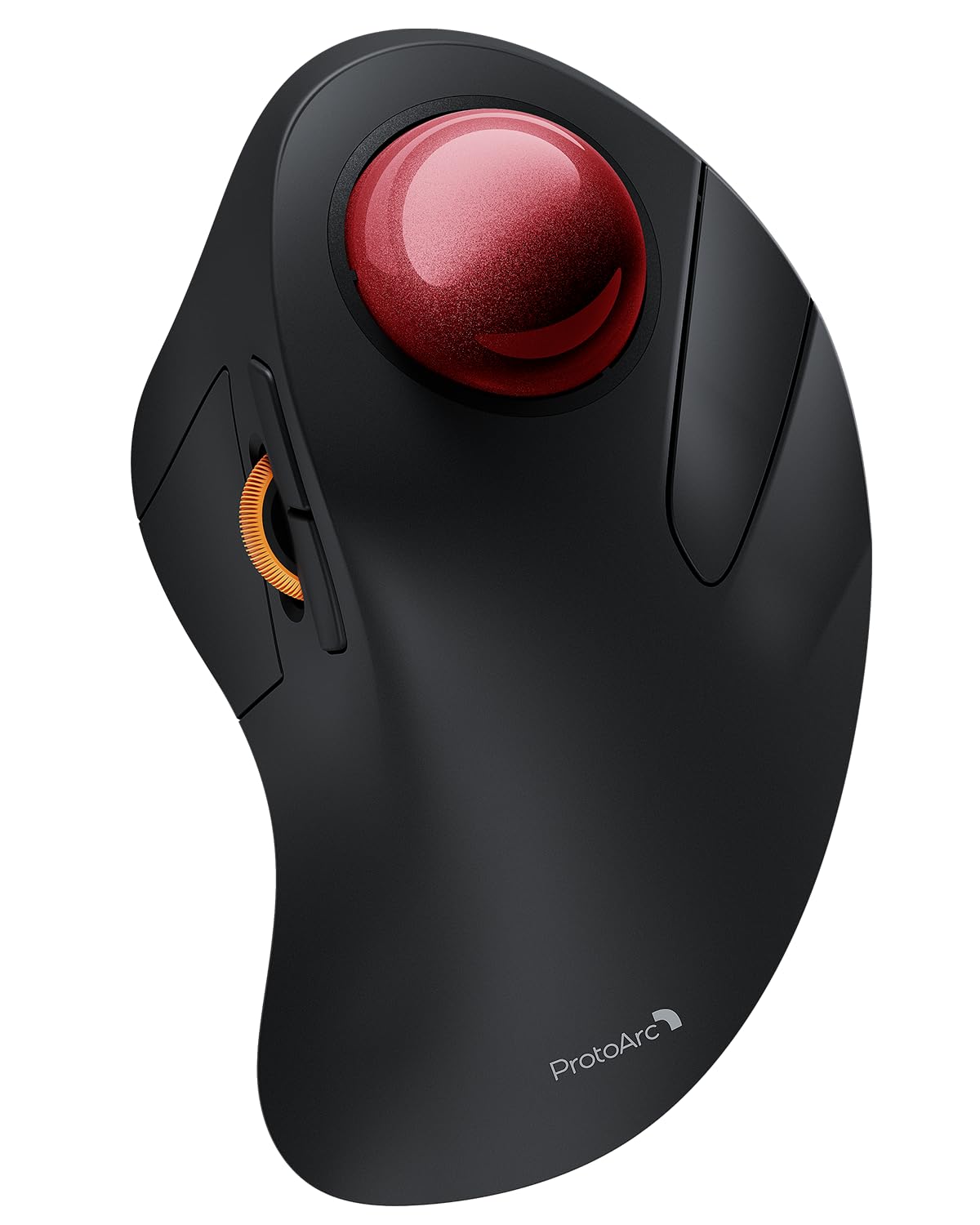
Image: The ProtoArc EM03 NL Wireless Bluetooth Trackball Mouse, showcasing its ergonomic design and red trackball.
Lieferumfang
- Trackball-Maus
- Bedienungsanleitung
- USB-Empfänger
- Ladekabel
Produkt überview
Familiarize yourself with the components and controls of your ProtoArc EM03 NL trackball mouse.

Image: A detailed diagram labeling the trackball, left/right buttons, scroll wheel, forward/backward buttons, DPI button, channel switch, power switch, and USB receiver slot.
- Rollkugel: For precise cursor control using your index finger.
- Links/Rechts-Tasten: Standardmäßige Mausklickfunktionen.
- Scrollrad: Für vertikales Scrollen.
- Vorwärts-/Rückwärtstasten: Navigieren web Seiten oder Dokumente.
- DPI-Taste: Adjust cursor sensitivity (200/400/800/1200/1600 DPI). Located on the bottom.
- Kanalschalter: Toggle between 2.4G wireless and two Bluetooth connections (BT1, BT2). Located on the bottom.
- Stromschalter: Turns the mouse On/Off. Located on the bottom.
- USB-Empfängersteckplatz: Stores the 2.4G USB receiver. Located on the bottom.
Einrichtung & Verbindung
Your ProtoArc EM03 NL trackball mouse offers versatile connectivity options.
2.4G Wireless-Verbindung
- Locate the USB receiver stored in the slot on the bottom of the mouse.
- Stecken Sie den USB-Empfänger in einen freien USB-Port Ihres Computers.
- Slide the power switch on the bottom of the mouse to the "ON" position.
- Set the channel switch to the "2.4G" position. The indicator light will illuminate.
- Your mouse should now be connected and ready to use.
Bluetooth-Verbindung (BT1 / BT2)
- Slide the power switch on the bottom of the mouse to the "ON" position.
- Slide the channel switch to either "BT1" or "BT2" position.
- Press and hold the channel switch button for 3 seconds until the corresponding indicator light flashes quickly. This indicates the mouse is in pairing mode.
- On your device (PC, iPad, Mac, etc.), go to Bluetooth settings and search for "ProtoArc EM03 NL".
- Select the mouse to pair. Once connected, the indicator light will stop flashing and remain solid.
- To connect a second Bluetooth device, repeat steps 2-5, selecting the other Bluetooth channel (BT1 or BT2).

Image: The underside of the mouse, highlighting the power switch, channel selection, and USB receiver storage for multi-device connectivity.
Video: An official ProtoArc video demonstrating the features and connectivity of the Wireless Bluetooth Trackball Mouse.
Betrieb
DPI-Anpassung
The mouse features 5 adjustable DPI levels (200/400/800/1200/1600 DPI) to customize cursor sensitivity. To change the DPI, press the DPI button located on the bottom of the mouse. Each press cycles through the available settings.

Image: Illustration of the DPI adjustment button on the mouse's underside and the USB-C charging port.
Trackball Usage
Control the cursor by rolling the 44mm trackball with your index finger. This allows for precise navigation without moving your wrist or arm, reducing strain.

Image: Close-up of the ProtoArc EM03 NL trackball mouse, highlighting its large 44mm trackball for precise control.
Vorwärts-/Rückwärts-Tasten
Use the dedicated forward and backward buttons, conveniently located near the scroll wheel, to quickly navigate through web Seiten oder Ordner.
Ergonomics & Comfort
The EM03 NL is designed to fit the natural curves of your hand, promoting a comfortable, neutral wrist posture. This ergonomic design helps prevent strain and fatigue during extended use.

Image: A hand resting naturally on the ergonomic ProtoArc EM03 NL trackball mouse, demonstrating comfortable usage.

Image: A graph illustrating the typical 1-2 week adaptation period for users to achieve maximum comfort and reduced muscle tension with the ergonomic design.
Akku und Laden
The EM03 NL features a built-in 930mAh lithium battery. A single full charge provides up to 60 days of power. The mouse enters an auto-sleep mode after a few minutes of inactivity to conserve battery. Click any button to wake it up.
- Ladezeit: Ungefähr 3.5 Stunden für eine vollständige Aufladung.
- Ladeanschluss: USB-C.

Image: The ProtoArc EM03 NL trackball mouse being charged via its USB-C port.
Wartung
To ensure smooth and precise tracking, regular cleaning of the trackball is recommended.
Reinigen des Trackballs
- Schalten Sie die Maus mit dem Netzschalter an der Unterseite aus.
- Gently push the trackball from the bottom opening to remove it.
- Use a soft, lint-free cloth or cotton swab to clean the trackball and the inside of the trackball cavity, removing any dust or debris.
- Setzen Sie den Trackball wieder in seine Halterung ein.

Image: Visual guide on how to remove and clean the trackball for optimal performance.
Technische Daten
| Modell | EM03 Niederlande |
| Konnektivitätstechnologie | 2.4-GHz-Funk, Bluetooth (BT1, BT2) |
| DPI-Stufen | 200/400/800/1200/1600 |
| Batteriekapazität | 930mAh Lithiumbatterie |
| Akkulaufzeit | Up to 60 days (on a single charge) |
| Ladezeit | Ca. 3.5 Stunden |
| Bewegungserkennung | Trackball |
| Artikelgewicht | 13.1 Unzen |
| Verpackungsabmessungen | 6.93 x 4.96 x 3.27 Zoll |
Fehlerbehebung
- Maus reagiert nicht: Ensure the mouse is powered on and correctly connected via 2.4G or Bluetooth. Check battery level.
- Die Cursorbewegung ist unregelmäßig: Clean the trackball and its cavity as described in the Maintenance section. Adjust DPI settings if cursor is too fast or slow.
- Kopplung via Bluetooth nicht möglich: Ensure the mouse is in pairing mode (flashing indicator light). Check your device's Bluetooth settings and try re-pairing.
- Die Verbindung bricht häufig ab: Ensure the mouse is within range of your device. Avoid interference from other wireless devices.
Garantie und Support
ProtoArc products come with a standard manufacturer's warranty. For detailed warranty information, product support, or technical assistance, please visit the official ProtoArc website or contact their customer service. Contact information can typically be found in the included user manual or on the product packaging.
WebWebsite: www.protoarc.com


