1. Einleitung
Thank you for choosing the SGIN C10 10.1-inch Kids Tablet. This device is designed to provide an engaging and safe digital experience for children, featuring parental controls and educational content. This manual will guide you through the setup, operation, and maintenance of your tablet to ensure optimal performance and user safety.
2. Produktüberschreitungview
2.1 Packungsinhalt
Bitte prüfen Sie beim Auspacken, ob alle unten aufgeführten Artikel vorhanden sind:
- SGIN C10 10.1-inch Tablet
- Schutzhülle
- Ladegerät
- USB-Kabel
- Bedienungsanleitung

Image: Diagram showing the tablet's ports and buttons, along with the included accessories: tablet, protective case, charger, USB cable, and instruction manual.
2.2 Tablet-Komponenten
Familiarize yourself with the physical components of your SGIN C10 tablet:
- Netzschalter: An der Seite gelegen, dient die Taste zum Ein- und Ausschalten sowie zum Versetzen des Tablets in den Ruhemodus.
- Lautstärketasten: Stellen Sie den Audioausgangspegel ein.
- Kopfhöreranschluss: Zum Anschließen von kabelgebundenen Kopfhörern.
- USB-Anschluss: Zum Aufladen und zur Datenübertragung.
- TF-Karten-Slot: Zur Speichererweiterung mit einer microSD-Karte.
- Frontkamera: Für Videoanrufe und Selfies.
- Rückfahrkamera: Zum Fotografieren und Filmen.
- Referenten: Für Audioausgabe.
- 10.1-Zoll-HD-IPS-Touchscreen: Hauptanzeige für die Interaktion.
- Schutzhülle mit Ständer: Provides protection and allows for hands-free viewing.
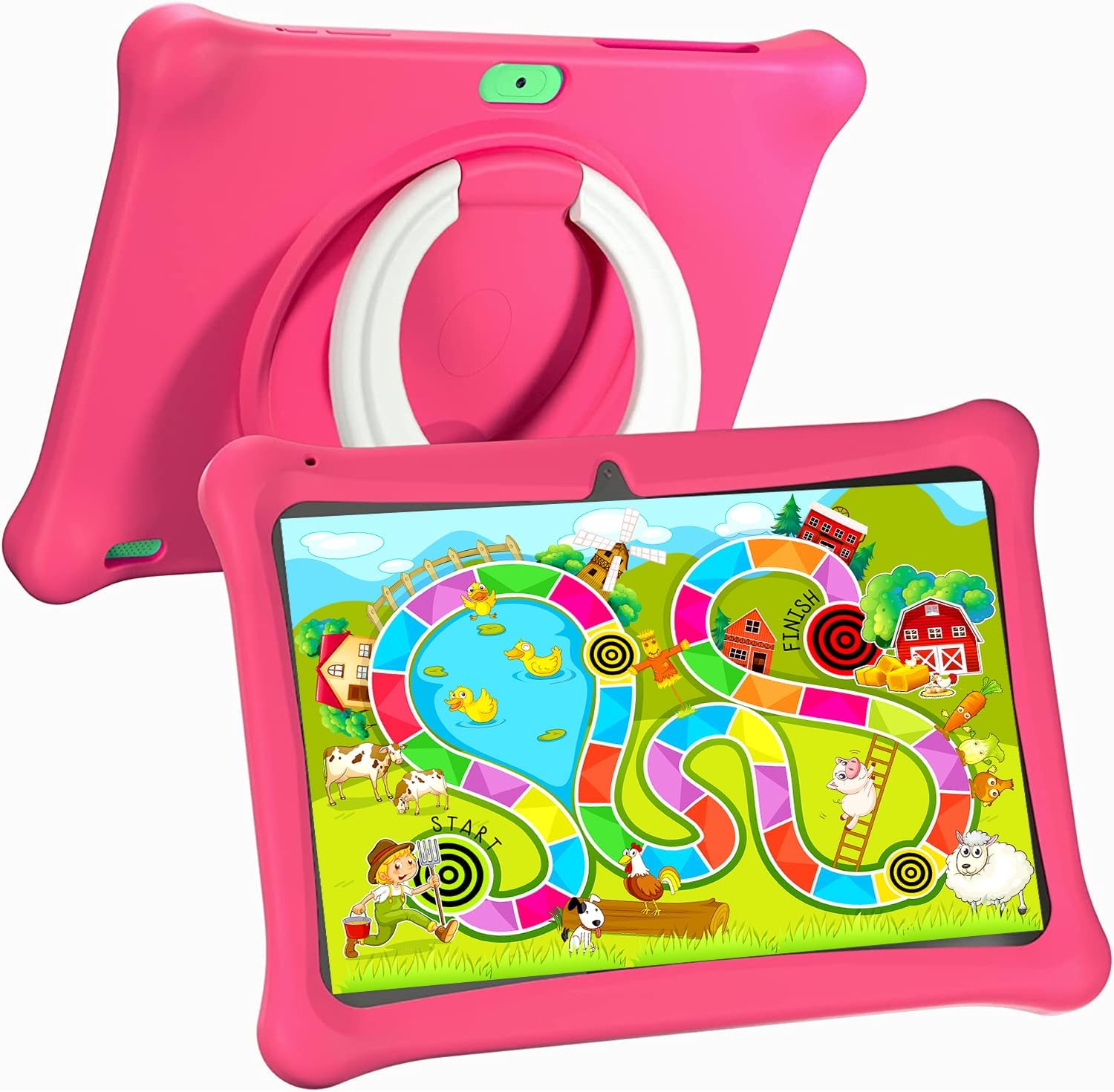
Image: The SGIN C10 tablet in its pink protective case, displaying a colorful educational game on its screen. The rear of the tablet shows the integrated stand.
2.3 Hauptmerkmale
- Hohe Leistung: Equipped with a 1.6GHz quad-core processor, 2GB RAM, and 32GB ROM (expandable up to 32GB via TF card).
- Kindersichere Hülle: Durable pink case designed to protect against dust, bumps, and drops, with heat dissipation features.
- Pre-installed iWawa Kid's Software: Offers a safe and entertaining environment with thousands of free educational games and apps.
- Parental Control System: Allows parents to manage screen time, content, and user accounts.
- Lange Akkulaufzeit: 5000mAh lithium battery provides 6-8 hours of usage.
- Eye Protection Screen: 1280*800 HD IPS touch screen for vibrant colors and comfortable viewing.
- Doppelkamera: 2MP front camera and 5MP rear camera for photos and videos.

Image: Icons representing key features of the SGIN C10 tablet: Android 12, Quad-core processor, Dual Camera, 5000mAh battery, WiFi, HD Display, 2GB RAM + 32GB storage, 10 Inch screen, and Parental Control.

Image: Visual representation of the tablet's 2GB RAM and 32GB ROM (expandable via TF card), alongside a diagram of the 1.6 GHz Quad-core Processor.

Image: The 10-inch HD display showing vibrant content, and a close-up of the protective case's rotatable stand.

Image: A child using the tablet, highlighting the 5000mAh Lithium Battery, and a close-up of the tablet's dual camera system.
3. Einrichtung
3.1 Erstaufladung
- Connect the USB cable to the tablet's USB port.
- Verbinden Sie das andere Ende des USB-Kabels mit dem mitgelieferten Ladegerät.
- Stecken Sie das Ladegerät in eine Steckdose.
- Laden Sie das Tablet vor der ersten Verwendung vollständig auf. Die Akkuanzeige auf dem Bildschirm zeigt den Ladestatus an.
3.2 Ein-/Ausschalten
- So schalten Sie das Gerät ein: Press and hold the Power Button until the SGIN logo appears on the screen.
- So schalten Sie das Gerät aus: Press and hold the Power Button until a menu appears. Select "Power off" and confirm.
- Zum Schlafen/Aufwachen: Drücken Sie kurz den Ein-/Ausschalter, um das Tablet in den Ruhemodus zu versetzen oder es aufzuwecken.
3.3 Mit WLAN verbinden
- Vom Startbildschirm aus wischen Sie vom oberen Bildschirmrand nach unten, um das Schnellzugriffsfeld zu öffnen.
- Halten Sie das WLAN-Symbol gedrückt, um die WLAN-Einstellungen zu öffnen.
- Schalten Sie WLAN ein, falls es ausgeschaltet ist.
- Wählen Sie das gewünschte WLAN-Netzwerk aus der Liste aus.
- Geben Sie gegebenenfalls das Netzwerkpasswort ein und tippen Sie anschließend auf „Verbinden“.
3.4 Initial iWawa Setup
The SGIN C10 tablet comes with iWawa Kid's software pre-installed. Follow the on-screen prompts to set up the child-friendly environment and parental controls during the first launch.
4. Bedienungsanleitung
4.1 Grundlegende Navigation
- Berühren: Tippen Sie auf ein Symbol oder eine Option, um sie auszuwählen.
- Wischen: Ziehen Sie mit dem Finger über den Bildschirm, um durch Seiten oder Listen zu scrollen.
- Prise: Verwenden Sie zwei Finger, um Bilder zu vergrößern oder zu verkleinern. web Seiten.
- Home "Button: Bringt Sie zurück zum Startbildschirm.
- Zurück-Schaltfläche: Bringt Sie zum vorherigen Bildschirm zurück.
- Schaltfläche „Letzte Apps“: Zeigt die zuletzt verwendeten Anwendungen an.
4.2 Verwendung der Kamera
- Öffnen Sie die Kamera-App vom Startbildschirm oder aus der App-Übersicht.
- Tippen Sie auf das Kamerasymbol, um zwischen der Vorder- und der Rückkamera umzuschalten.
- Tippen Sie auf den Auslöser, um ein Foto aufzunehmen.
- Tap the video icon to switch to video recording mode, then tap the record button to start/stop recording.
4.3 Installing/Uninstalling Apps
- Installiere Apps: Within the iWawa environment, access the Kids Store to download free games and educational applications. Parents can also approve apps from the Google Play Store via parental controls.
- Apps deinstallieren: From the parental control interface, select the app management option to uninstall unwanted applications.
4.4 Einstellungen anpassen
- Volumen: Use the physical Volume Buttons on the side of the tablet.
- Helligkeit: Swipe down from the top of the screen to access Quick Settings and adjust the brightness slider. More detailed display settings are available in the main Settings app.
- Andere Einstellungen: Access the main Settings app for Wi-Fi, Bluetooth, display, sound, storage, and other system configurations.
5. Kindersicherung
The SGIN C10 tablet features a robust parental control system integrated with the iWawa Kid's software, allowing you to create a safe and customized environment for your child.
5.1 Zugriff auf die Kindersicherung
To access parental control settings, you will typically need to exit the iWawa Kid's interface and enter a password-protected parent mode. Follow the on-screen instructions within the iWawa app to set up and manage this access.
5.2 Wichtige Funktionen der Kindersicherung
- Passwörter festlegen: Establish a secure password to prevent children from exiting the iWawa environment or altering settings.
- Bildschirmzeitbegrenzungen: Define daily usage limits and specific time periods when the tablet can be used.
- Inhaltsverwaltung: Control access to apps, games, videos, and websites. You can whitelist appropriate websites and block unwanted content.
- App Approval: Manage which applications your child can access, including those downloaded from the Kids Store or Google Play Store.
- Multiple User Accounts: Erstellen Sie ein separates Profilfiles for each child, allowing personalized settings and content for individual users.
- Ad Elimination: The system helps eliminate unwanted advertisements within the child's environment.
6. Wartung
6.1 Gerät reinigen
- Always power off the tablet before cleaning.
- Wischen Sie Bildschirm und Gehäuse mit einem weichen, fusselfreien Tuch ab.
- Bei hartnäckigen Flecken leicht dampReinigen Sie das Tuch mit Wasser oder einem für Bildschirme geeigneten Reiniger. Vermeiden Sie aggressive Chemikalien.
- Achten Sie darauf, dass keine Feuchtigkeit in Anschlüsse oder Öffnungen eindringt.
6.2 Batteriepflege
- Vermeiden Sie häufiges vollständiges Entladen des Akkus.
- Setzen Sie das Tablet keinen extremen Temperaturen aus.
- Verwenden Sie ausschließlich das mitgelieferte Ladegerät und Kabel.
6.3 Softwareaktualisierungen
Periodically check for system updates in the tablet's Settings menu under "System" or "About tablet." Keeping your software updated ensures optimal performance and security.
6.4 Speicherverwaltung
To manage storage, you can:
- Delete unused apps and files.
- Move photos and videos to a computer or cloud storage.
- Insert a TF (microSD) card into the designated slot to expand storage capacity up to 32GB.
7. Fehlerbehebung
| Problem | Mögliche Lösung |
|---|---|
| Das Tablet lässt sich nicht einschalten. | Stellen Sie sicher, dass der Akku geladen ist. Schließen Sie das Ladegerät an und warten Sie einige Minuten, bevor Sie versuchen, das Gerät erneut einzuschalten. |
| Der Bildschirm reagiert nicht. | Restart the tablet by holding the Power Button for about 10 seconds until it powers off, then power it on again. |
| Es kann keine Verbindung zum WLAN hergestellt werden. | Check if Wi-Fi is enabled. Ensure the password is correct. Restart your Wi-Fi router. |
| Apps stürzen ab oder laufen langsam. | Close background apps. Clear app cache (Settings > Apps > [App Name] > Storage > Clear cache). Ensure sufficient storage space. |
| Parental controls are not working as expected. | Re-enter the parental control settings and verify all configurations (time limits, content filters, app approvals). Ensure the correct child profile ist aktiv. |
8. Spezifikationen
| Besonderheit | Spezifikation |
|---|---|
| Marke | SGIN |
| Modellname | C10 |
| Betriebssystem | Android |
| Bildschirmgröße | 10 Zoll |
| Maximale Bildschirmauflösung | 1280 Pixel |
| Prozessor | 1.6GHz Quad-core (Intel Processor Brand) |
| RAM | 2 GB |
| Interner Speicher (ROM) | 32 GB |
| Erweiterbarer Speicher | TF-Karte bis zu 32GB |
| Frontkamera | 2 Megapixel |
| Rückfahrkamera | 5 Megapixel |
| Batteriekapazität | 5000 mAh |
| Konnektivität | WLAN, Bluetooth |
| Artikelgewicht | 2.35 Pfund |
| Technische Daten | 1 x 1 x 1 Zoll |
9. Garantie und Support
For warranty information and technical support, please refer to the documentation included with your purchase or visit the official SGIN website. If you encounter issues not covered in this manual, please contact SGIN customer service for assistance.


