1. Einleitung
This manual provides essential information for the safe and efficient operation of your Tornado 65UA5300E 65-inch 4K Frameless Android Smart TV. Please read it thoroughly before using the product and retain it for future reference.

Bild 1.1: Vorderseite view of the Tornado 65UA5300E Smart TV, showcasing its frameless design and included stand.
2. Sicherheitshinweise
Beachten Sie beim Gebrauch dieses Fernsehers stets die grundlegenden Sicherheitsvorkehrungen, um das Risiko von Bränden, Stromschlägen und Verletzungen zu verringern.
- Setzen Sie den Fernseher weder Regen noch Feuchtigkeit aus.
- Sorgen Sie für ausreichende Belüftung; blockieren Sie keine Belüftungsöffnungen.
- Stellen Sie den Fernseher nicht auf einen instabilen Wagen, Ständer, ein Stativ, eine Halterung oder einen Tisch.
- Ziehen Sie bei Gewittern oder längerer Nichtbenutzung den Netzstecker des Fernsehers.
- Überlassen Sie sämtliche Wartungsarbeiten qualifiziertem Servicepersonal.
3. Packungsinhalt
Überprüfen Sie, ob alle Artikel im Paket vorhanden sind:
- Tornado 65UA5300E 65-inch 4K Frameless Android Smart TV
- Fernbedienung
- Stromkabel
- TV-Ständer (2-teilig)
- Schrauben für die Ständermontage
- Benutzerhandbuch (dieses Dokument)
4. Einrichtung
4.1 Auspacken
Carefully remove the TV from its packaging. It is recommended to keep the original packaging for potential future transport or servicing.
4.2 Anbringen des Ständers
If you are not wall-mounting the TV, attach the included stand pieces. Place the TV face down on a soft, flat surface to prevent screen damage. Align each stand piece with the corresponding slots on the bottom of the TV and secure them with the provided screws.
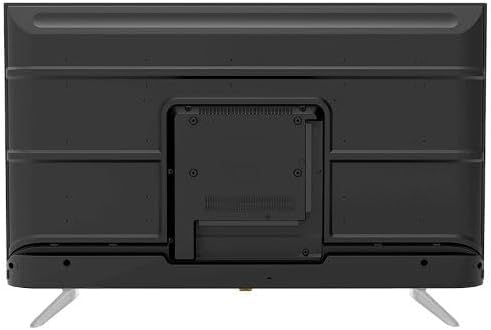
Abbildung 4.1: Unterseite view of the TV, illustrating the designated areas for stand attachment.
4.3 Wandmontage
For wall mounting, remove the stand (if attached). Use a VESA-compatible wall mount (not included) that supports the TV's weight and dimensions. Consult a professional for wall mounting to ensure safety and proper installation.

Bild 4.2: Hinten view of the TV, highlighting the VESA mounting pattern and various input/output ports.
4.4 Anschließen von Peripheriegeräten
Schließen Sie Ihre externen Geräte über die entsprechenden Anschlüsse an den Fernseher an:
- HDMI: For high-definition devices like Blu-ray players, gaming consoles, or set-top boxes. The TV has 3 HDMI ports, one with ARC support.
- USB: For connecting USB storage devices to play media (video, photos, music). The TV has 2 USB ports.
- LAN: Für eine kabelgebundene Internetverbindung.
- HF-Eingang: For connecting an antenna or satellite dish for the built-in digital receiver.
- Digitaler Audioausgang (optisch): Zum Anschluss an ein externes Audiosystem.
- Kopfhöreranschluss (3.5 mm): Zum Anschließen von Kopfhörern.

Abbildung 4.3: Seite view of the TV, illustrating the accessible side input ports.
4.5 Ersteinrichtungs- und Installationsassistent
After connecting the power cable, press the power button on the remote control or TV. The TV will guide you through an initial setup wizard, including language selection, network connection (Wi-Fi or LAN), channel scanning, and Google account setup for Android TV features.
5. Bedienung des Fernsehers
5.1 Fernsteuerung überview
The included remote control allows you to navigate the TV's functions. It features dedicated buttons for power, volume, channel, input selection, smart TV apps (Netflix, YouTube, Prime Video, Disney+), Google Assistant voice search, and menu navigation.
5.2 Grundfunktionen
- Ein-/Ausschalten: Drücken Sie die Einschalttaste.
- Lautstärkeregelung: Verwenden Sie die Lautstärketasten (Lauter/Leiser).
- Kanalauswahl: Use the Channel Up/Down buttons or numeric keypad.
- Eingabequelle: Press the 'Input' button to select between HDMI, AV, TV, etc.
5.3 Smart-TV-Funktionen (Android 11)
Your TV runs on Android 11, providing access to a wide range of smart features:
- Anwendungen: Access pre-installed apps like Netflix, YouTube, Prime Video, Disney+, Shahid VIP, and download more from the Google Play Store.
- Google Assistant: Nutzen Sie Sprachbefehle über die Fernbedienung zur Suche, Steuerung und Informationsabfrage.
- Chromecast integriert: Übertragen Sie Inhalte von Ihrem Smartphone oder Tablet direkt auf den Fernseher.
- Web Browser: Surfen Sie direkt über Ihren Fernseher im Internet.
- Bluetooth 5.0: Verbinden Sie kabellose Kopfhörer, Lautsprecher oder andere Bluetooth-Geräte.
5.4 Bild- und Toneinstellungen
Passen Sie Ihre viewEin- und Ausstiegserlebnis über das Einstellungsmenü des Fernsehers:
- Bildmodi: Select from Dynamic, Game, Sports, Cinema, or User-defined modes.
- Farbtemperatur: Adjust to Normal, Cool, or Warm.
- Klangmodi: Choose from Smart, User, Game, Movie, Music, or News.
- Dolby Digital Plus: Enhanced audio processing for compatible content.
6. Wartung
6.1 Reinigung des Fernsehers
- Bildschirm: Wischen Sie den Bildschirm vorsichtig mit einem weichen, fusselfreien Tuch ab. Bei hartnäckigen Flecken verwenden Sie einen speziell für Fernseher entwickelten Bildschirmreiniger. Tragen Sie den Reiniger auf das Tuch und nicht direkt auf den Bildschirm auf.
- Körper: Wipe the TV's frame and back panel with a soft, dry cloth. Do not use abrasive cleaners or solvents.
6.2 Softwareaktualisierungen
Ensure your TV's software is up to date for optimal performance and security. Connect the TV to the internet and check for updates periodically through the settings menu.
7. Fehlerbehebung
Sollten Probleme auftreten, konsultieren Sie bitte die folgenden gängigen Lösungsansätze:
| Problem | Mögliche Lösung |
|---|---|
| Kein Strom | Check if the power cable is securely plugged into the TV and the wall outlet. Ensure the outlet is functional. |
| Kein Bild, aber Ton ist vorhanden | Überprüfen Sie die Eingangsquelle. Stellen Sie sicher, dass externe Geräte eingeschaltet und korrekt angeschlossen sind. |
| Kein Ton, aber ein Bild ist vorhanden. | Check the volume level and mute status. Verify audio settings and external audio connections. |
| Fernbedienung funktioniert nicht | Tauschen Sie die Batterien aus. Stellen Sie sicher, dass sich keine Hindernisse zwischen der Fernbedienung und dem Infrarotsensor des Fernsehers befinden. |
| Keine Verbindung zum WLAN möglich | Überprüfen Sie Ihren Router und Ihr Modem. Geben Sie das WLAN-Passwort erneut ein. Versuchen Sie, den Fernseher und den Router neu zu starten. |
Wenn das Problem weiterhin besteht, wenden Sie sich an den Kundendienst.
8. Spezifikationen
| Besonderheit | Detail |
|---|---|
| Modellnummer | 65UA5300E |
| Bildschirmgröße | 65 Zoll |
| Display-Technologie | LED |
| Auflösung | 4K-UHD (3840 x 2160) |
| Seitenverhältnis | 16:9 |
| Viewing-Winkel | 178 Grad |
| Helligkeit | 250 cd/m² |
| Bildwiederholrate | 50/60 Hz |
| HDR-Unterstützung | HDR10, HLG |
| Audiotechnik | Dolby Digital Plus, Surround Sound |
| Audio-Ausgangsleistung | 10W x 2 |
| Betriebssystem | Android 11 |
| Interner Speicher | 16 GB |
| Konnektivität | WLAN, Bluetooth 5.0, LAN |
| Eingänge | RF Input (Digital) x1, Video Input x1, HDMI x3 (ARC), USB x2, LAN x1 |
| Ausgaben | Digital Audio Output (Optical) x1, Headphone Jack (3.5mm) x1 |
| Stromversorgung | Wechselstrom 90-240V / 50Hz |
| Standby-Stromversorgung | 0.5 W |
| Abmessungen (B x H x T) ohne Standfuß | 1446 x 832 x 84 mm |
| Abmessungen (B x H x T) mit Standfuß | 1446 x 892 x 305 mm |
| Nettogewicht | 15.32 kg |
| Bruttogewicht | 21.32 kg |
| Ursprungsland | Ägypten |
9. Gewährleistung
This Tornado TV comes with a 3 Jahre volle kostenlose Garantie. Please retain your proof of purchase for warranty claims. For specific terms and conditions, refer to the warranty card included with your product or contact Tornado customer service.
10. Unterstützung
For further assistance, technical support, or service inquiries, please contact Tornado customer service. Contact details can typically be found on the manufacturer's official webauf der Website oder auf der Garantiekarte.


