1. Einleitung
Thank you for choosing the JOMAA VM604 Wireless Ergonomic Vertical Mouse. This advanced mouse is designed to provide superior comfort and efficiency, reducing wrist strain during prolonged use. Featuring multi-device connectivity, adjustable DPI, and a unique multi-function dial, the VM604 is an ideal tool for various computing environments.
Bitte lesen Sie diese Bedienungsanleitung vor der Verwendung des Produkts sorgfältig durch, um einen ordnungsgemäßen Betrieb zu gewährleisten und seine Lebensdauer zu maximieren.
2. Produktüberschreitungview
2.1 Packungsinhalt
- JOMAA VM604 Ergonomic Vertical Mouse
- USB-Empfänger (2.4 G)
- USB-C-Ladekabel
- Bedienungsanleitung
2.2 Mauskomponenten
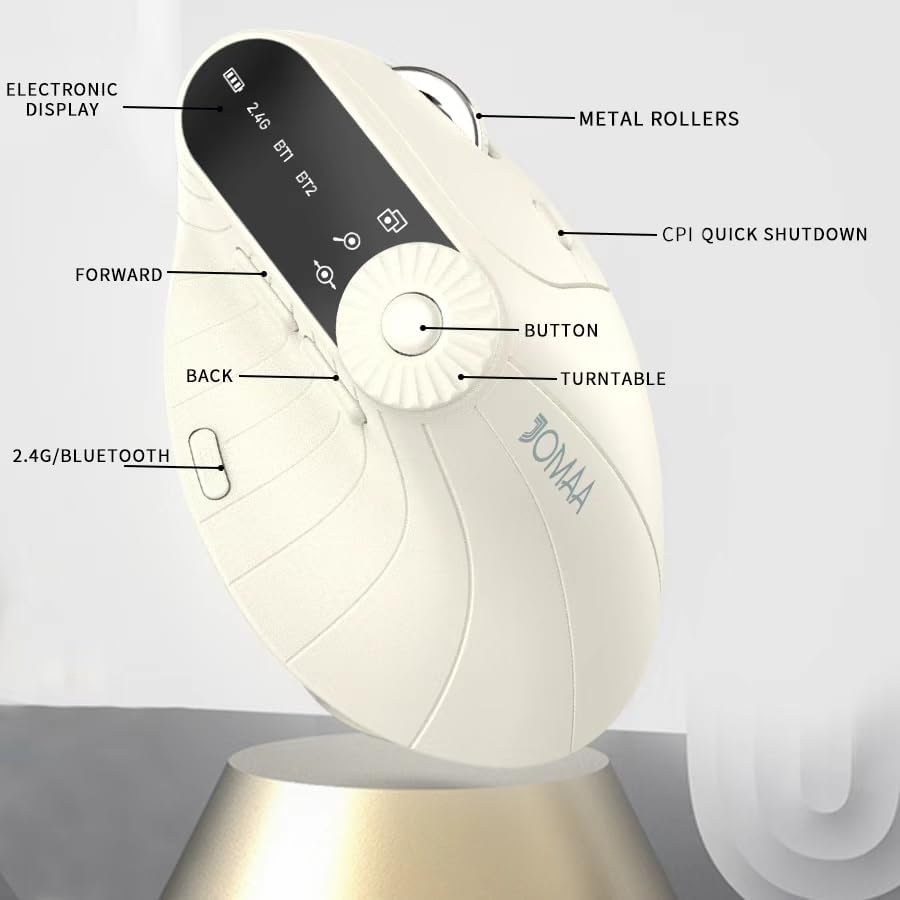
Bild 1: Labeled components of the JOMAA VM604 mouse, highlighting the electronic display, metal rollers, CPI quick shutdown, forward/back buttons, turntable, and 2.4G/Bluetooth switch.
- Linksklick-Taste: Standard left mouse function.
- Rechtsklick-Schaltfläche: Standard right mouse function.
- Scrollrad: Für vertikales Scrollen.
- Vorwärts-Taste: Navigiert vorwärts in web Browser bzw file Entdecker.
- Zurück-Schaltfläche: Navigiert rückwärts in web Browser bzw file Entdecker.
- Multi-function Turntable/Dial: Offers three functions: 1. Window switching, 2. Zoom in/out (for pages and images), 3. Page moves left/right (for Excel).
- DPI/CPI Adjustment Button: Schaltet die DPI-Einstellungen durch (1000/1200/1600/2400).
- Elektronische Anzeige: Shows battery level, connection mode (2.4G, BT1, BT2), and DPI setting.
- Connection Mode Switch (Bottom): Toggles between 2.4G, Bluetooth 1 (BT1), and Bluetooth 2 (BT2) modes.
- Power ON/OFF Switch (Bottom): Schaltet die Maus ein oder aus.
- USB-C-Ladeanschluss: Befindet sich an der Vorderseite der Maus.
- USB-Empfänger-Speicherfach: Located at the bottom of the mouse.
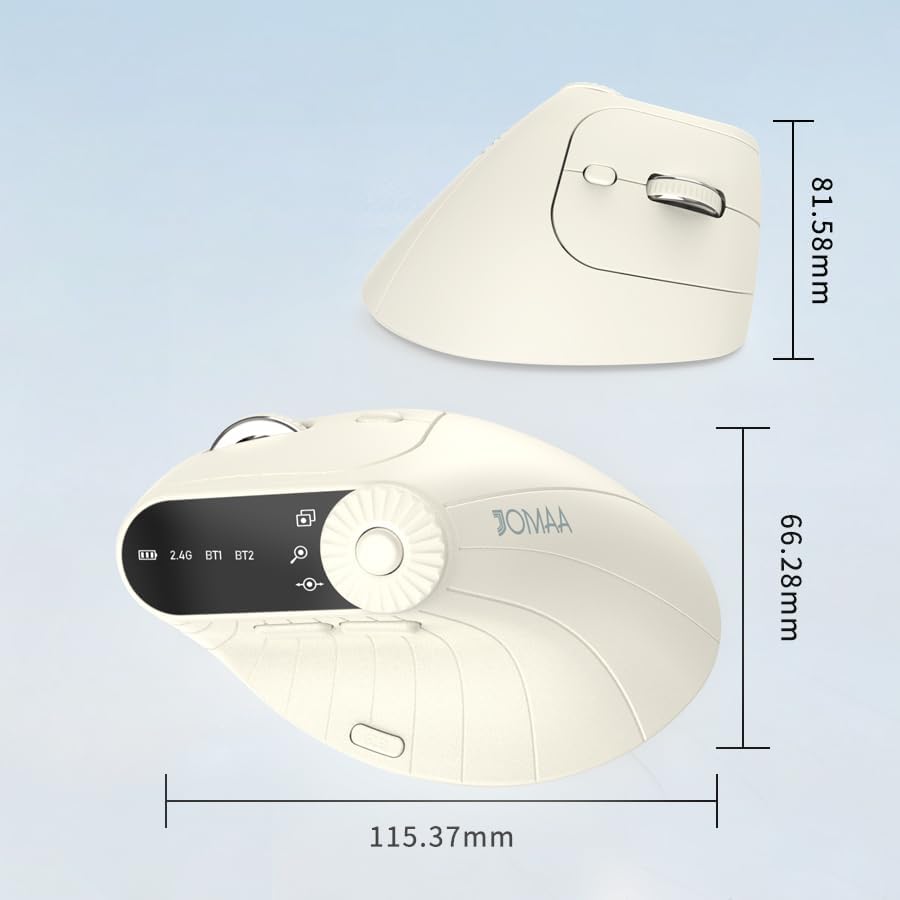
Bild 2: Dimensions of the JOMAA VM604 mouse, showing its ergonomic vertical design.

Bild 3: Illustration of the JOMAA VM604's 57-degree ergonomic design, promoting a natural handshake posture to reduce wrist pressure.
3. Einrichtung
3.1 Aufladen der Maus
The JOMAA VM604 mouse features a built-in rechargeable battery. To charge:
- Connect the provided USB-C charging cable to the charging port at the front of the mouse.
- Verbinden Sie das andere Ende des USB-Kabels mit einer USB-Stromquelle (z. B. einem USB-Anschluss am Computer oder einem USB-Netzteil).
- The electronic display will indicate charging status.

Bild 4: The JOMAA VM604 mouse connected via USB-C for charging, with a visible charging indicator on the electronic display.
3.2 2.4G-Drahtlosverbindung
Für eine stabile und schnelle drahtlose Verbindung:
- Locate the USB receiver stored in the slot at the bottom of the mouse.
- Stecken Sie den USB-Empfänger in einen freien USB-Port Ihres Computers.
- Turn on the mouse using the ON/OFF switch at the bottom.
- Slide the connection mode switch to the '2.4G' position. The mouse should automatically connect to your computer.
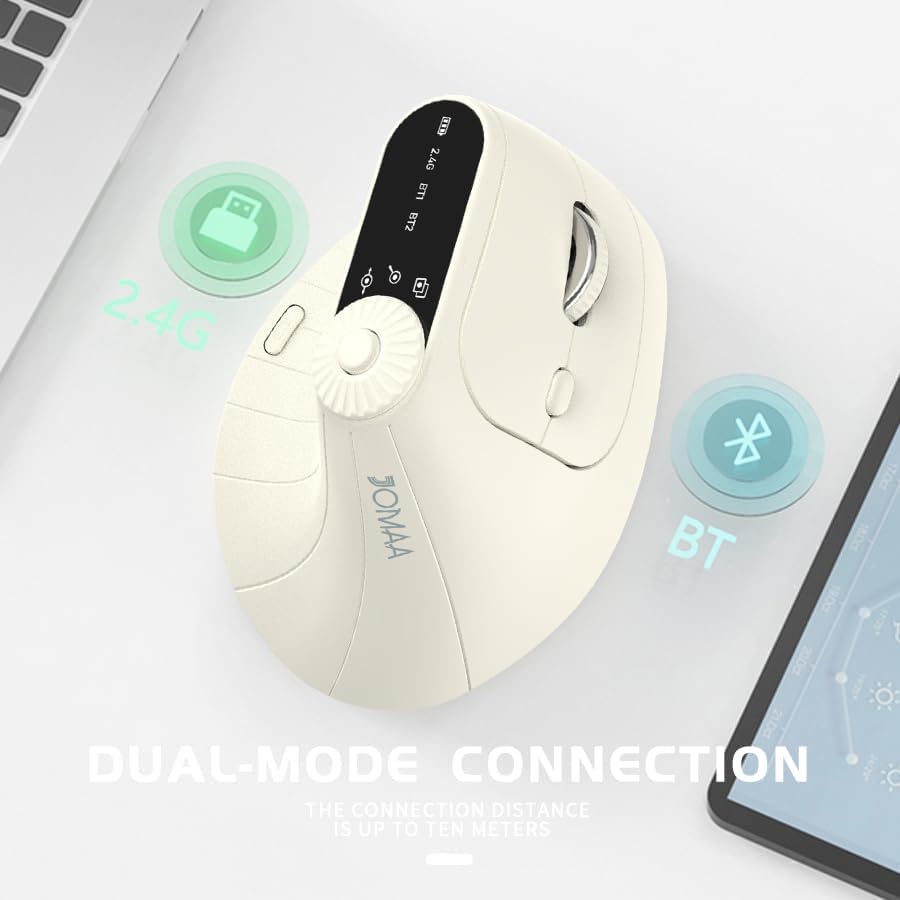
Bild 5: The JOMAA VM604 mouse illustrating its dual-mode connection capabilities, including the 2.4G USB receiver and Bluetooth options.
3.3 Bluetooth-Verbindung (BT1/BT2)
The mouse can connect to two different Bluetooth devices:
- Turn on the mouse using the ON/OFF switch at the bottom.
- Slide the connection mode switch to either 'BT1' or 'BT2' position.
- For the first Bluetooth connection or to reset a connection, press and hold the connection mode switch for 3-5 seconds until the Bluetooth indicator on the electronic display starts blinking.
- On your device (PC, Laptop, MacBook), go to Bluetooth settings and search for 'JOMAA VM604' (or similar name).
- Select the mouse to pair. The indicator light will stop blinking once connected.
- To switch between connected devices, simply double-click the connection mode switch to cycle through 2.4G, BT1, and BT2.
4. Bedienungsanleitung
4.1 DPI-Anpassung
Adjust the mouse sensitivity (DPI/CPI) to suit your preference:
- Press the DPI Adjustment Button (Component 7) located near the multi-function dial.
- Each press will cycle through the available DPI settings: 1000, 1200, 1600, and 2400.
- The electronic display will show the current DPI setting.
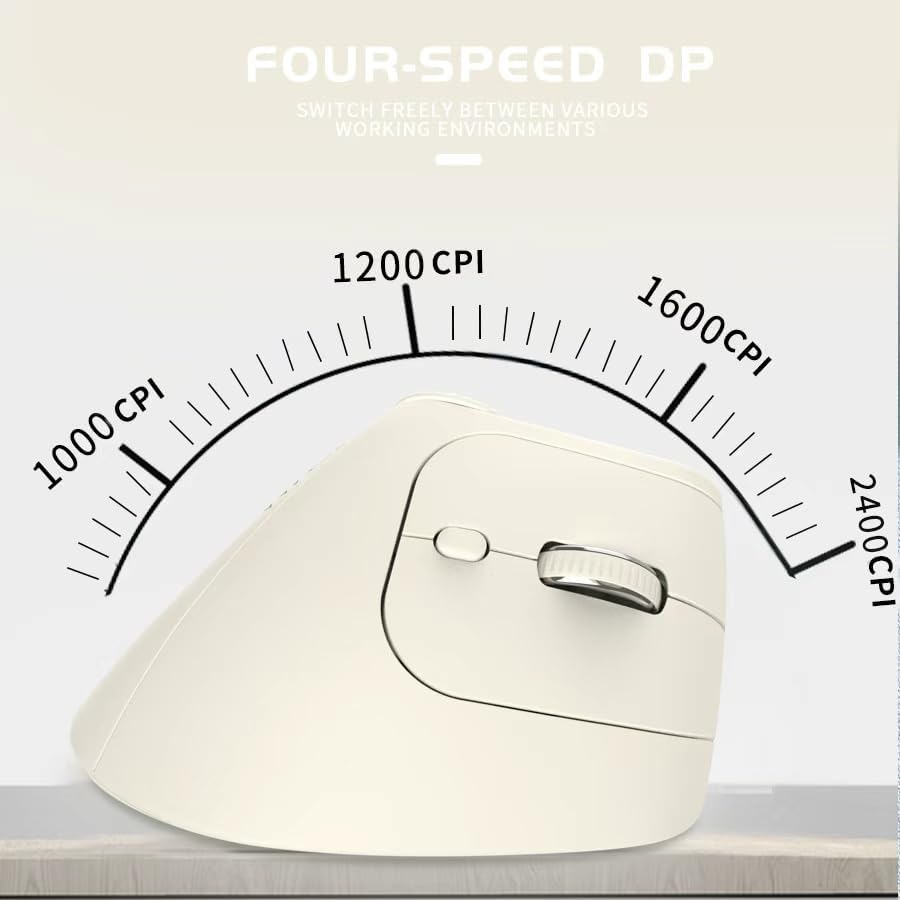
Bild 6: The JOMAA VM604 mouse highlighting its four-speed CPI settings (1000, 1200, 1600, 2400) for precise optical tracking.
4.2 Multi-Function Turntable
The unique turntable (Component 6) provides enhanced control:
- Window Switching: Rotate the dial to quickly switch between open application windows.
- Rein / rauszoomen: Rotate the dial to zoom in or out on pages and images.
- Page Left/Right: Useful for navigating large spreadsheets in applications like Excel.

Bild 7: The multi-function knob on the JOMAA VM604 mouse, demonstrating its uses for window switching, zooming in/out on pages and images, and moving pages left/right in applications like Excel.
4.3 Vor-/Zurück-Tasten
Use the Forward (Component 4) and Back (Component 5) buttons for quick navigation in web Browser und file Entdecker.
5. Wartung
5.1 Reinigung
Um optimale Leistung und Hygiene zu gewährleisten:
- Schalten Sie die Maus vor der Reinigung aus.
- Verwenden Sie ein weiches,amp cloth to wipe the surface of the mouse.
- Vermeiden Sie die Verwendung aggressiver Chemikalien oder Scheuermittel.
- Periodically clean the optical sensor at the bottom with a cotton swab.
5.2 Batteriepflege
So verlängern Sie die Akkulaufzeit:
- Vermeiden Sie häufiges vollständiges Entladen des Akkus.
- Laden Sie die Maus regelmäßig auf, auch wenn der Akku nicht vollständig entladen ist.
- If the mouse will not be used for an extended period, turn it off.

Bild 8: The JOMAA VM604 mouse demonstrating its intelligent hibernate mode, which activates after 60 seconds of inactivity to save power.
6. Fehlerbehebung
- Maus reagiert nicht: Ensure the mouse is turned on and fully charged. Check the connection mode (2.4G or Bluetooth) and ensure it's correctly paired/connected to your device. For 2.4G, try plugging the USB receiver into a different port. For Bluetooth, try re-pairing the device.
- Die Cursorbewegung ist unregelmäßig: Clean the optical sensor at the bottom of the mouse. Ensure the surface you are using is clean and suitable for mouse operation. Adjust the DPI setting to a lower value if the cursor is too fast.
- Bluetooth-Verbindungsprobleme: Ensure your device's Bluetooth is enabled. Try forgetting the device in your Bluetooth settings and re-pairing. Ensure the mouse is in the correct BT1 or BT2 mode and in pairing mode (blinking indicator).
- Multi-function dial not working: Ensure the mouse is properly connected. Some functions may require specific application support.
7. Spezifikationen
| Besonderheit | Detail |
|---|---|
| Technische Daten | 6 x 4 x 0.04 Zoll |
| Artikelgewicht | 7.4 Unzen |
| Artikelmodellnummer | VM604 |
| Batterien | 1 9V batteries required (included) - Note: Product features built-in rechargeable battery, 9V battery information may be a listing error. |
| Konnektivitätstechnologie | Bluetooth, USB (2.4-GHz-Funk) |
| Besonderheit | Ergonomic Design, Multi-function Turntable, Adjustable DPI, Rechargeable |
| Bewegungserkennungstechnologie | Optisch |
| DPI-Einstellungen | 1000/1200/1600/2400 |
| Farbe | Beiga |
8. Garantie und Support
JOMAA products are designed and manufactured to the highest quality standards. This product is covered by a limited warranty from the date of purchase. For detailed warranty information, technical support, or customer service inquiries, please refer to the contact information provided on the product packaging or visit the official JOMAA webWebsite.
Bitte bewahren Sie Ihren Kaufbeleg für Garantieansprüche auf.
9. Offizielles Produktvideo
Video 1: Ein Überview of the JOMAA VM604 Ergonomic Mouse, showcasing its unique vertical design and comfortable grip. This video highlights the physical appearance and ergonomic benefits of the mouse.