1. Einleitung
This manual provides essential information for the NIMO 15.6" Gaming Laptop (Model N159). It covers product features, setup procedures, operating instructions, maintenance guidelines, troubleshooting tips, and detailed specifications. Please read this manual thoroughly before using your new laptop to ensure optimal performance and longevity.

Image: The NIMO 15.6" Gaming Laptop, showcasing its display and key features like fingerprint unlock, Type-C PD charger, and backlit keyboard.
2. Lieferumfang
Prüfen Sie, ob alle Artikel in der Verpackung vorhanden sind:
- 1 x NIMO N159 Laptop
- 1 x Typ-C 100W PD Schnellladegerät
- 1 x Benutzerhandbuch (dieses Dokument)
- Windows 11 Home Betriebssystem (vorinstalliert)
- Garantieinformationen (2 Jahre Garantie, 90 Tage Rückgaberecht)
3. Produktüberschreitungview
3.1 Hauptmerkmale
- Prozessor: AMD Ryzen 7 7735HS (8 Kerne, 16 Threads, bis zu 4.75 GHz)
- Grafik: Integrated AMD Radeon 680M GPU
- Anzeige: 15.6" Full HD (1920x1080) IPS Anti-Glare Display
- Erinnerung: 16GB DDR5 RAM (upgradeable)
- Lagerung: 1 TB PCIe 4.0 SSD (aufrüstbar)
- Laden: 100-W-Schnellladegerät mit USB-C-Anschluss und Power-Drive-Funktion
- Sicherheit: Fingerprint Reader for secure unlock
- Tastatur: Backlit Keyboard with Numeric Keypad
- Audio: Dual 2W stereo speakers, dual beamforming microphones
- WebNocken: 2MP with physical camera shutter
- Betriebssystem: Windows 11 Home

Image: An illustration detailing the AMD Ryzen 7 7735HS processor, highlighting its 8 cores, 16 threads, and integrated Radeon 680M graphics for balanced performance.
3.2 Anschlüsse und Steckverbinder
Familiarize yourself with the available ports on your NIMO laptop:

Image: A detailed diagram illustrating the location and type of ports on the NIMO laptop, including USB 2.0, USB 3.2 Gen1, Type-C Gen2 (multifunction), HDMI 2.0, Audio Jack, Micro SD Reader, and Kensington Lock.
- USB 2.0-Anschluss: Zum Anschließen älterer USB-Geräte.
- USB 3.2 Gen1-Anschlüsse (x4): Für schnelle Datenübertragung mit kompatiblen USB-Geräten.
- Type-C Gen2 Ports (x2, Multifunction): Supports data transfer, video output, and power delivery (100W PD fast charging).
- HDMI 2.0-Anschluss: Zum Anschluss an externe Bildschirme oder Fernseher.
- Audiobuchse: Zum Anschluss von Kopfhörern oder externen Lautsprechern.
- Micro-SD-Kartenleser: Zum Auslesen von Micro-SD-Speicherkarten.
- Steckplatz für Kensington-Schloss: Zum Sichern Ihres Laptops mit einem kompatiblen Schloss.
4. Einrichtung
4.1 Erstes Einschalten
- Packen Sie den Laptop und sämtliches Zubehör aus dem Karton aus.
- Connect the 100W Type-C PD Fast Charger to one of the Type-C ports on the laptop and then to a power outlet.
- Öffnen Sie den Laptopdeckel. Der Laptop schaltet sich möglicherweise automatisch ein, andernfalls müssen Sie den Netzschalter drücken.
- Folgen Sie den Anweisungen auf dem Bildschirm, um die Einrichtung von Windows 11 Home abzuschließen, einschließlich Sprachauswahl, Netzwerkverbindung und Erstellung des Benutzerkontos.
4.2 Laden des Akkus
Before first use, it is recommended to fully charge the laptop battery. The 100W Type-C PD Fast Charger can provide approximately 5 hours of usage time with just 1 hour of charging.

Image: A visual representation of the 100W Type-C lightning-fast charger connected to the NIMO laptop, demonstrating its ability to charge quickly and efficiently.
5. Bedienungsanleitung
5.1 Ein-/Ausschalten und Schlafmodus
- Einschalten: Drücken Sie den Ein-/Ausschalter auf der Tastatur.
- Ausschalten: Klicken Sie in Windows auf die Schaltfläche „Start“ und wählen Sie dann „Ein/Aus“ > „Herunterfahren“.
- Schlafmodus: Klicken Sie auf die Schaltfläche „Start“ und wählen Sie dann „Ein/Aus“ > „Ruhezustand“ oder schließen Sie den Laptopdeckel.
5.2 Using the Fingerprint Unlock
The fingerprint reader is integrated into the touchpad for quick and secure access.
- During Windows setup or later in Windows Settings, configure your fingerprint for login.
- To unlock, simply place your registered finger on the fingerprint reader on the touchpad.
5.3 Adjusting the Backlit Keyboard
The keyboard backlight can be adjusted for comfortable typing in various lighting conditions.

Image: A visual guide demonstrating the fingerprint unlock feature on the touchpad and the functionality of the backlit keyboard, including how to cycle through brightness settings using the F9 key.
- Drücken Sie die F9 key to cycle through backlight settings:
- 1 Tap: Light (Temporary)
- 2 Taps: Light (Temporary)
- 3 Taps: Light (Constant)
- 4 Taps: Off
5.4 Verwenden des Webcam Shutter
For privacy, the laptop includes a physical camera shutter.
- Slide the shutter to the left to open the camera.
- Slide the shutter to the right to close and cover the camera lens.

Image: A visual guide demonstrating the physical camera shutter, showing both the 'Camera Open' and 'Camera Close' statuses for enhanced privacy.
6. Wartung
6.1 Reinigung des Laptops
- Always power off the laptop and disconnect the charger before cleaning.
- Mit einem weichen, fusselfreien Tuch leichtampMit Wasser oder einem Bildschirmreiniger für das Display reinigen.
- Reinigen Sie Tastatur und Gehäuse mit einem weichen, trockenen Tuch. Vermeiden Sie aggressive Chemikalien und Scheuermittel.
- Use compressed air to clear dust from vents periodically.
6.2 Batteriepflege
- Vermeiden Sie häufiges vollständiges Entladen des Akkus.
- Bewahren Sie den Laptop an einem kühlen, trockenen Ort auf, wenn er längere Zeit nicht benutzt wird.
- Setzen Sie den Laptop keinen extremen Temperaturen aus.
6.3 Softwareaktualisierungen
Prüfen Sie regelmäßig, ob Betriebssystem- und Treiberaktualisierungen verfügbar sind, und installieren Sie diese, um optimale Leistung und Sicherheit zu gewährleisten.
7. Fehlerbehebung
| Problem | Mögliche Ursache | Lösung |
|---|---|---|
| Der Laptop lässt sich nicht einschalten. | Problem mit schwacher Batterie oder defektem Netzteil. | Connect the charger and wait a few minutes before attempting to power on. Ensure the charger is properly connected to both the laptop and the power outlet. |
| Der Bildschirm ist leer oder schwarz. | Laptop in sleep mode, display settings issue, or hardware problem. | Press any key or the power button to wake from sleep. Try connecting an external monitor to check if the display output works. Restart the laptop. |
| Die Tastaturbeleuchtung funktioniert nicht. | Backlight turned off or at lowest setting. | Drücken Sie die F9 key repeatedly to cycle through brightness levels and turn on the backlight. |
| Fingerprint unlock not working. | Finger not properly placed, or sensor issue. | Ensure your finger is clean and dry and covers the sensor completely. Re-register your fingerprint in Windows Settings if the issue persists. |
| Langsame Leistung. | Too many applications running, insufficient storage, or outdated drivers. | Close unnecessary applications. Check available storage space. Update Windows and device drivers. |
Sollten Sie auf Probleme stoßen, die hier nicht aufgeführt sind, oder weitere Unterstützung benötigen, wenden Sie sich bitte an den NIMO-Kundendienst.
8. Spezifikationen
| Marke | NIMO |
| Modellname | NIMO N159B |
| Bildschirmgröße | 15.6 Zoll |
| Bildschirmauflösung | 1920 x 1080 Pixel (FHD IPS) |
| Prozessor | AMD Ryzen 7 7735HS (8 Cores, 4.75 GHz Max Turbo) |
| RAM | 16 GB DDR5 (4800 MHz) |
| Festplatte | 1024 GB SSD (PCIe 4.0) |
| Grafik-Coprozessor | AMD Radeon 680M (integriert) |
| Betriebssystem | Windows 11 Home |
| Kabelloser Typ | 802.11a/b/g/n/ac |
| USB 2.0-Anschlüsse | 1 |
| USB 3.0-Anschlüsse | 4 |
| Durchschnittliche Akkulaufzeit | 5 Stunden (54 Wh, 11.4 V/4700 mAh) |
| Artikelgewicht | 3.8 Pfund |
| Technische Daten | 14.07 x 8.98 x 0.76 Zoll |
| Farbe | Blau |
| Hinteren Webcam Auflösung | 2 Megapixel |
| Besondere Merkmale | Tastatur mit Hintergrundbeleuchtung, Fingerabdruckleser, HD-Audio, Ziffernblock |
9. Garantie und Support
9.1 Herstellergarantie
Your NIMO N159 laptop is covered by a comprehensive 2 Jahr Herstellergarantie from Nimo Direct Inc. This warranty covers defects in materials and workmanship under normal use. For warranty claims, please contact customer support.
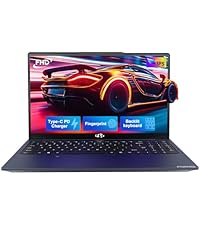
Image: A technician working on a laptop's internal components, representing the 2-year support provided for Nimo products.
9.2 Rückgaberecht
Nimo Direct Inc. bietet ein 90-Tage-Rückgaberecht ohne Probleme. You may return any Nimo product for any reason within 90 days of purchase. Please refer to your purchase documentation for specific return procedures.
Image: A delivery person handing a package to a customer, illustrating the 90-day return policy for Nimo products.
9.3 Kundendienst
For any product-related questions, technical assistance, or warranty claims, please contact our professional after-sales service team. Our dedicated support team is available to resolve issues or facilitate replacements.
- E-Mail: service@nimopc.com
- Online: Besuchen Sie die offizielle NIMO-Website. website or product page for contact options.
Image: Customer service representatives wearing headsets, indicating professional customer assistance available via phone and live chat.


