1. Einleitung
This manual provides instructions for the safe and efficient operation of your vretti Bluetooth Thermal Label Printer, model B0FNW9FCS5. Please read this manual thoroughly before using the device and retain it for future reference.
2. Sicherheitshinweise
- Ensure the printer is connected to a power source with the correct voltage.
- Setzen Sie den Drucker weder Wasser noch übermäßiger Feuchtigkeit aus.
- Vermeiden Sie es, den Drucker direkter Sonneneinstrahlung oder der Nähe von Wärmequellen auszusetzen.
- Versuchen Sie nicht, den Drucker selbst zu zerlegen oder zu reparieren. Wenden Sie sich an qualifiziertes Servicepersonal.
- Außerhalb der Reichweite von Kindern aufbewahren.
- Use only vretti approved accessories and power adapters.
3. Packungsinhalt
Überprüfen Sie, ob alle Artikel im Paket vorhanden sind:
- vretti Bluetooth Thermal Label Printer (Model B0FNW9FCS5)
- Netzteil
- USB-Kabel
- Kurzanleitung
- Sample Labels (50 premium labels)
4. Einrichtung
4.1 Physische Verbindung
- Schließen Sie das Netzteil an den Drucker und anschließend an eine Steckdose an.
- Connect the USB cable from the printer to your computer (if using USB connection).
- Schalten Sie den Drucker mit dem Netzschalter ein.
4.2 Ladeetiketten
The printer features an integrated paper bin designed for easy label loading.
- Öffnen Sie die obere Abdeckung des Druckers.
- Place the roll of thermal labels into the integrated paper bin. Ensure the labels feed from the bottom of the roll and the printable side faces upwards.
- Adjust the guide rails to fit the width of your labels snugly, without creasing them. The printer supports label widths from 0.78 inches (19mm) to 4.6 inches (116mm).
- Feed the first label through the print mechanism until it is positioned correctly.
- Schließen Sie die obere Abdeckung.

Abbildung 4.2.1: Label loading into the integrated paper bin. The visualization window allows monitoring label supply. Adjustable guide rails ensure proper label alignment for various sizes like 2"x3", 3"x3", and 4"x6".
4.3 Treiber- und Softwareinstallation
The vretti printer offers dual connectivity options: USB and Bluetooth.

Abbildung 4.3.1: Connectivity Compatibility Guide. USB connection is compatible with MacOS, Windows, Linux, and Chrome OS. Bluetooth connection is compatible with iOS, Android, and Tablets. Bluetooth is not supported for MacOS, Windows, Linux, or Chrome OS.
4.3.1 USB Connection (Windows/Mac/Linux/ChromeOS)
For most operating systems, the printer is designed for "Plug & Play" functionality. Connect the USB cable, and your system should automatically detect and install the necessary drivers within approximately 60 seconds. If drivers do not install automatically, refer to the included Quick Start Guide or the manufacturer's website for manual driver installation instructions.
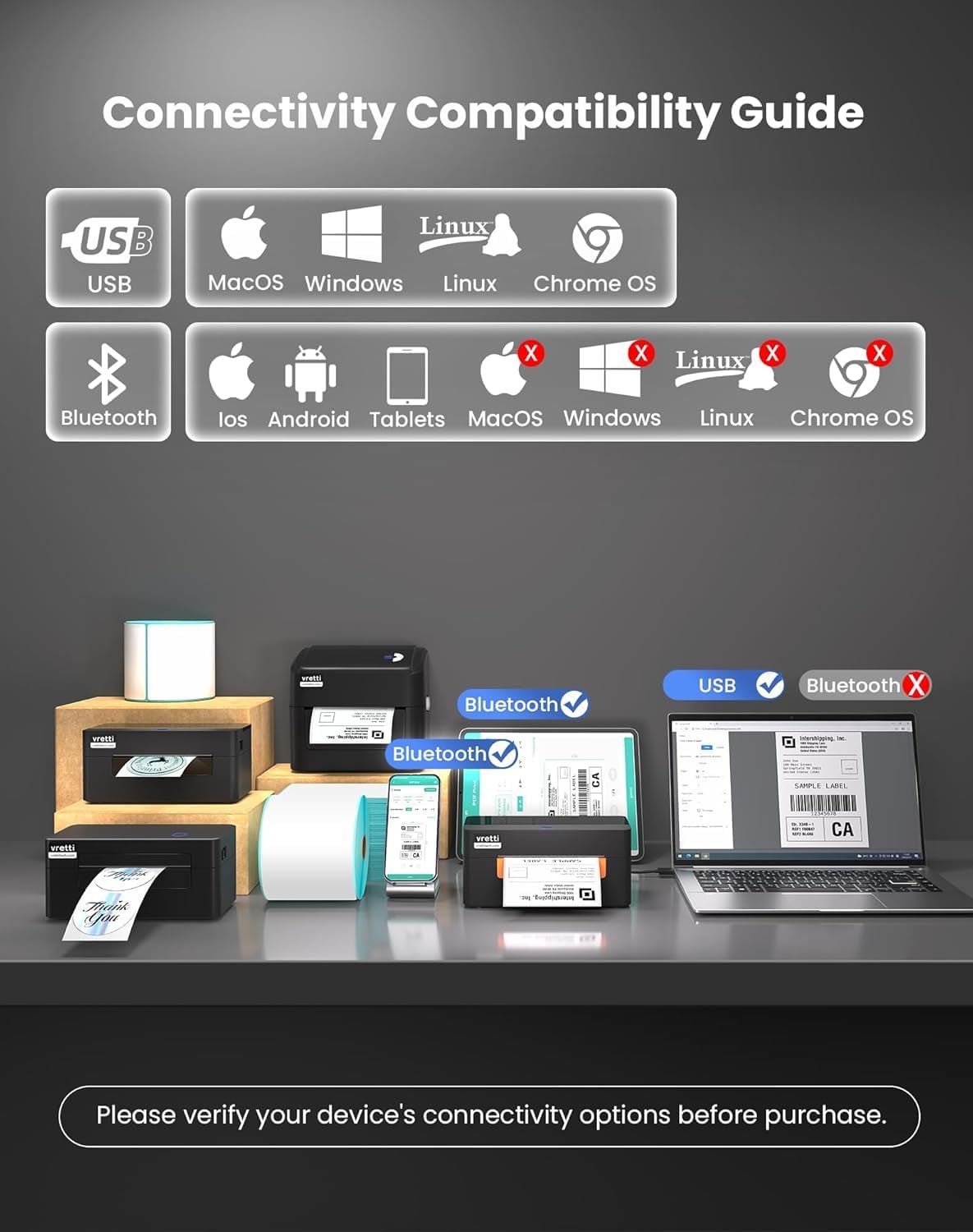
Abbildung 4.3.2: The vretti label printer is designed for quick deployment, allowing users to master its operation rapidly, often within 2 minutes for basic setup.
4.3.2 Bluetooth Connection (iOS/Android/Tablets)
- Ensure Bluetooth is enabled on your mobile device or tablet.
- Turn on the vretti printer.
- On your device, search for available Bluetooth devices and select the vretti printer (e.g., "vretti Printer" or similar).
- Befolgen Sie die Anweisungen auf dem Bildschirm, um den Kopplungsvorgang abzuschließen.
- Install the vretti printing application from your device's app store (e.g., Apple App Store, Google Play Store) to manage print jobs.
5. Bedienungsanleitung
5.1 Etiketten drucken
The vretti thermal label printer uses direct thermal printing technology, eliminating the need for toner or ink. It is optimized for 4x6 inch shipping labels and barcodes.
- Ensure labels are properly loaded (refer to Section 4.2).
- Öffnen Sie das Dokument oder die Anwendung, aus der Sie drucken möchten.
- Wählen Sie im Menü der Anwendung die Option „Drucken“.
- Choose the vretti printer from the list of available printers.
- Adjust print settings as needed, such as label size (e.g., 4x6 inches) and orientation.
- Starten Sie den Druckauftrag.

Abbildung 5.1.1: The printer delivers 203 dpi resolution, ensuring clear and scannable barcodes with a 99.99% recognition rate for labels such as DHL 4x6 shipping labels and QR codes.

Abbildung 5.1.2: The vretti printer offers a print speed of 152 mm/s, capable of producing 72 labels per minute. Its direct thermal technology eliminates ink/toner, leading to significant cost savings and a print head lifespan three times longer than standard printers.
6. Wartung
6.1 Reinigung des Druckkopfes
The printer features automatic cleaning functionality. However, if print quality degrades, manual cleaning may be necessary.
- Schalten Sie den Drucker aus und trennen Sie ihn von der Stromquelle.
- Öffnen Sie die obere Abdeckung.
- Den Druckkopf vorsichtig mit einem fusselfreien Tuch abwischen.ampmit Isopropylalkohol gereinigt.
- Lassen Sie den Druckkopf vollständig trocknen, bevor Sie die Abdeckung schließen und den Drucker einschalten.
6.2 Allgemeine Reinigung
Wischen Sie die Außenseite des Druckers mit einem weichen, trockenen Tuch ab. Verwenden Sie keine Scheuermittel oder Lösungsmittel.
7. Fehlerbehebung
| Problem | Mögliche Ursache | Lösung |
|---|---|---|
| Drucker lässt sich nicht einschalten | Kein Strom, Netzteil defekt | Überprüfen Sie die Stromanschlüsse, versuchen Sie es mit einer anderen Steckdose. |
| Schlechte Druckqualität | Dirty print head, incorrect label type, low-quality labels | Clean the print head (Section 6.1). Ensure you are using thermal labels. Try new labels. |
| Etiketten werden nicht richtig zugeführt | Labels improperly loaded, guide rails not adjusted | Reload labels, adjust guide rails (Section 4.2). |
| Verbindung über Bluetooth nicht möglich | Bluetooth not enabled, incorrect pairing, device incompatibility | Ensure Bluetooth is on. Re-pair the device. Confirm your device is compatible (iOS/Android/Tablets only). |
| Drucker wird vom Computer nicht erkannt (USB) | Driver issue, faulty USB cable, incorrect port | Try a different USB port or cable. Reinstall drivers if necessary. |
8. Spezifikationen
| Besonderheit | Detail |
|---|---|
| Marke | vretti |
| Modellnummer | B0FNW9FCS5 |
| Drucktechnologie | Thermodirekt |
| Druckauflösung | 203 dpi |
| Druckgeschwindigkeit | Up to 152 mm/s (72 labels/min) |
| Etikettenbreite | 0.78" - 4.6" (19 mm - 116 mm) |
| Konnektivität | USB (Windows/Mac/Linux/ChromeOS), Bluetooth 5.0 (iOS/Android/Tablets) |
| Maximale Blattkapazität | 500 labels (integrated bin) |
| Abmessungen (L x B x H) | 29.5 x 20.5 x 18.8 cm (ca.) |
| Stromquelle | Externes Netzteil |
9. Garantie und Support
vretti products are manufactured to high-quality standards. For warranty information and technical support, please refer to the warranty card included with your product or visit the official vretti website. Please have your model number (B0FNW9FCS5) and purchase date available when contacting support.


