1. Einleitung
Welcome to the user manual for your NIMO N152S 15.6-inch Laptop. This guide provides essential information on setting up, operating, maintaining, and troubleshooting your new device. Please read this manual thoroughly to ensure optimal performance and longevity of your laptop.
2. Produktüberschreitungview
2.1 Hauptmerkmale
- Starke Leistung: Equipped with an AMD Ryzen 5 3500U processor and integrated Radeon graphics for smooth multitasking and efficient performance.
- Immersives Full-HD-Display: A 15.6-inch Full HD (1920x1080) IPS display with a 180° wide hinge for vibrant visuals and wide viewwinkeln.
- Schlankes und leichtes Design: Crafted with a sleek metal top cover, weighing under 3.7 lbs and measuring just 19.2 mm thin.
- Verbesserte Konnektivität: Features 2 USB-A, 2 USB-C (full function PD/DP/Data), HDMI, MicroSD, and a 3.5mm audio jack.
- Erweiterbarer Speicher und Datenspeicher: Supports up to 32GB DDR4 RAM and M.2 PCIe 3.0 x4 SSD for future-proof upgrades.
- Smart Security & Comfort: Includes a fingerprint reader on the touchpad, a backlit keyboard for low-light use, and dual microphones.
2.2 Komponentenidentifikation
Familiarize yourself with the various components of your NIMO N152S laptop as illustrated below.

Abbildung 2.1: Vorderseite view of the NIMO N152S laptop, showcasing its sleek design and key features like Windows 11, 32GB RAM, 1TB SSD, Full HD display, AMD Ryzen 5, Type-C PD Charger, Backlit Keyboard, and Fingerprint Reader.

Figure 2.2: Illustration of the AMD Ryzen 5 processor, detailing its specifications including 4 Cores, 8 Threads, 15W Power Consumption, and 3.7 GHz Turbo Boost, indicating its capability for daily tasks and light gaming.

Figure 2.3: The NIMO laptop screen showcasing a vivid Full HD (1920x1080) IPS display, highlighting features like bright view and eye protection, with an 85% screen-to-body ratio.

Abbildung 2.4: Ausführlich view of the NIMO laptop's expanded connectivity options, labeling ports such as Type-C (Charge Only), USB 3.0, HDMI, Type-C (Full Function), Charge LED, Micro SD Reader, USB 2.0, USB 3.0, Headphone Combo, and Kensington Lock.
3. Ersteinrichtung
3.1 Laden des Laptops
Before first use, fully charge your NIMO laptop. Connect the provided 65W Type-C PD charger to the USB-C charging port on the laptop and then to a power outlet. The charge LED indicator will illuminate to confirm charging.

Figure 3.1: The 65W Type-C PD Charger, designed for universal compatibility with laptops, tablets, and smartphones, simplifying your charging needs compared to multiple chargers.
3.2 Erstmaliges Einschalten
- Öffnen Sie den Laptopdeckel.
- Drücken Sie den Ein-/Ausschalter auf der Tastatur.
- Folgen Sie den Anweisungen auf dem Bildschirm, um die Ersteinrichtung von Windows 11 abzuschließen, einschließlich Sprachauswahl, Netzwerkverbindung und Erstellung des Benutzerkontos.
4. Bedienung Ihres NIMO-Laptops
4.1 Ein-/Ausschalten und Schlafmodus
- Einschalten: Drücken Sie die Einschalttaste.
- Abschalten: Klicken Sie auf die Start-Taste, dann auf Ein/Aus > Ausschalten.
- Schlafmodus: Schließen Sie den Deckel oder drücken Sie die Starttaste und anschließend Ein/Aus > Ruhemodus.
4.2 Verwendung der Tastatur und des Touchpads
Your NIMO laptop features a full-sized keyboard with a numeric keypad and a responsive touchpad.
- Tastatur mit Hintergrundbeleuchtung: Drücken Fn + F10 (oder die Taste mit dem Hintergrundbeleuchtungssymbol), um die Tastaturhintergrundbeleuchtung ein- und auszuschalten oder die Helligkeit anzupassen.
- Touchpad: Unterstützt Multi-Touch-Gesten zur Navigation. Anpassungsmöglichkeiten finden Sie in den Windows-Einstellungen.
- Numerische Tastatur: Nutzen Sie den separaten Ziffernblock für eine effiziente Dateneingabe.

Figure 4.1: The NIMO laptop keyboard, emphasizing its backlit keys, integrated touchpad, fingerprint reader, and numeric keypad, designed for comfortable typing in various lighting conditions.
4.3 Fingerabdruckleser
The integrated fingerprint reader on the touchpad provides quick and secure access to your laptop.
- Gehen Sie zu Windows-Einstellungen > Konten > Anmeldeoptionen.
- Windows Hello-Fingerabdruck einrichten.
- Follow the on-screen prompts to register your fingerprints.
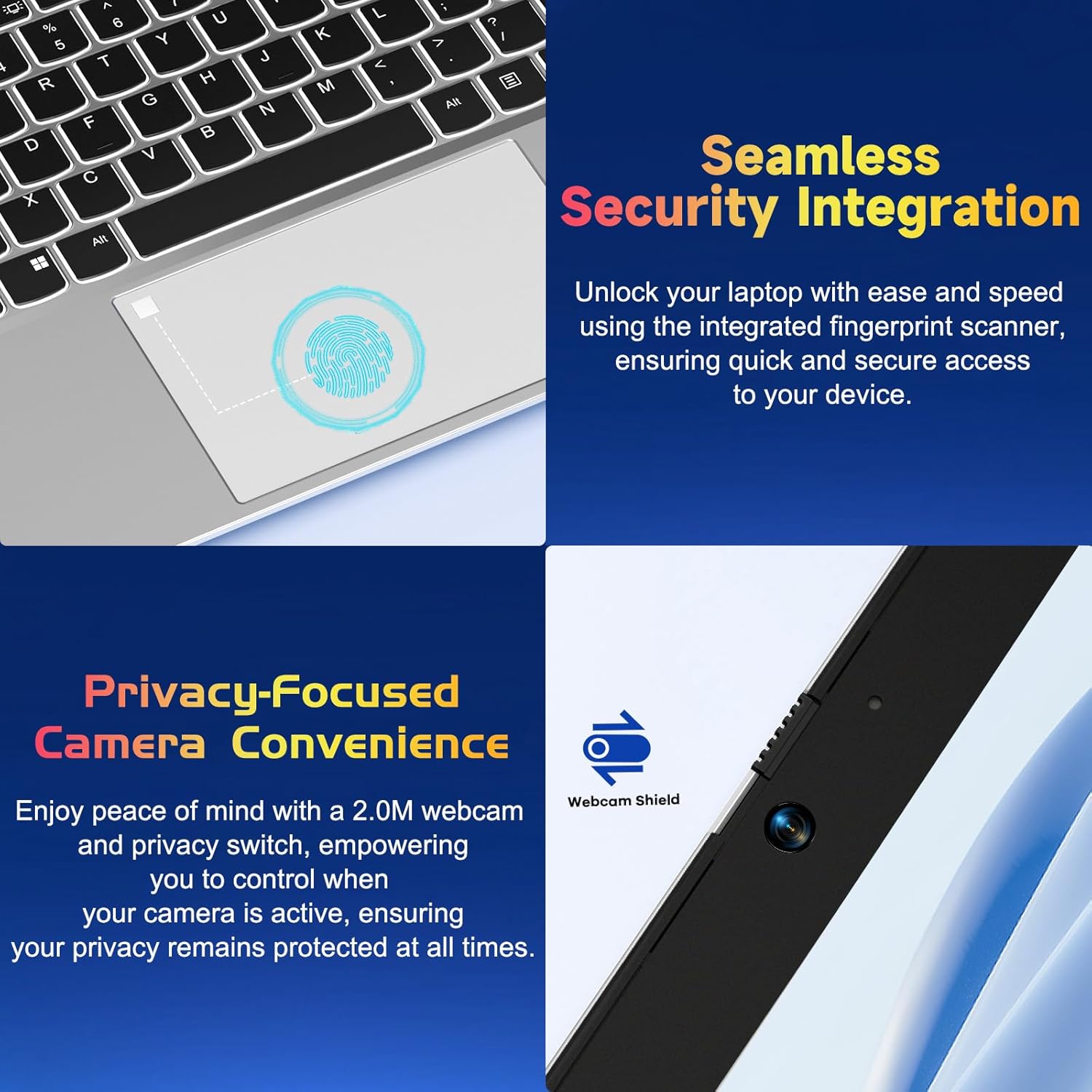
Abbildung 4.2: Nahaufnahme view of the NIMO laptop's touchpad, highlighting the integrated fingerprint scanner for seamless security integration, alongside the privacy-focused webcam with a physical shield.
4.4 Anschließen von Peripheriegeräten
Your laptop offers various ports for connecting external devices:
- USB-A-Anschlüsse: Zum Anschließen von Standard-USB-Geräten wie Mäusen, Tastaturen oder externen Laufwerken.
- USB-C-Anschlüsse: Two full-function USB-C ports support Power Delivery (PD), DisplayPort (DP), and data transfer. One is dedicated for charging.
- HDMI-Anschluss: Anschluss an externe Monitore oder Projektoren.
- MicroSD-Kartenleser: Insert a MicroSD card for additional storage or data transfer.
- 3.5-mm-Audiobuchse: Für Kopfhörer oder externe Lautsprecher.
4.5 WebKamera-Privatsphäre
Der Laptop verfügt über eine 2.0-MP-Kamera. webcam with a physical privacy shield. Slide the shield to cover the camera lens when not in use to ensure your privacy.
5. Wartung und Pflege
- Reinigung: Mit einem weichen, fusselfreien Tuch leichtampened with water or a screen cleaner to clean the display and exterior. Avoid harsh chemicals.
- Software-Updates: Aktualisieren Sie regelmäßig Ihr Windows-Betriebssystem und Ihre Treiber, um optimale Leistung und Sicherheit zu gewährleisten.
- Batteriepflege: Um die Batterielebensdauer zu verlängern, vermeiden Sie extreme Temperaturen und versuchen Sie, den Ladezustand der Batterie nach Möglichkeit zwischen 20 % und 80 % zu halten.
- Lagerung: Bewahren Sie den Laptop an einem kühlen, trockenen Ort fern von direkter Sonneneinstrahlung und extremen Temperaturen auf.
6. Fehlerbehebung
In diesem Abschnitt werden häufig auftretende Probleme behandelt, die bei Ihrem NIMO-Laptop auftreten können.
| Ausgabe | Mögliche Lösung |
|---|---|
| Der Laptop lässt sich nicht einschalten. | Ensure the laptop is charged. Connect the charger and wait a few minutes before attempting to power on again. If unresponsive, perform a hard reset by holding the power button for 15 seconds. |
| Der Bildschirm ist leer oder flackert. | Try adjusting the screen brightness (Fn + F5/F6). If connected to an external monitor, ensure the cable is secure. Restart the laptop. |
| Die Tastaturbeleuchtung funktioniert nicht. | Press Fn + F10 (or the key with the backlight icon) to cycle through backlight settings. Ensure the function keys are enabled. |
| Fingerprint reader not recognized. | Ensure your finger is clean and dry. Re-register your fingerprint in Windows Hello settings if the issue persists. |
| Probleme mit der WLAN-Verbindung. | Check if Wi-Fi is enabled (Fn + F12 or Windows settings). Restart your router and laptop. Update Wi-Fi drivers if necessary. |
| Der Laptop läuft langsam. | Schließen Sie unnötige Anwendungen. Überprüfen Sie den Task-Manager auf ressourcenintensive Prozesse. Stellen Sie sicher, dass Windows und Treiber auf dem neuesten Stand sind. Erwägen Sie eine Datenträgerbereinigung. |
7. Technische Daten
| Besonderheit | Spezifikation |
|---|---|
| Marke | NIMO |
| Modellname | NIMO N152S |
| Artikelmodellnummer | NIMO N152 |
| Bildschirmgröße | 15.6 Zoll |
| Maximale Bildschirmauflösung | 1920 x 1080 Pixel (Full HD) |
| Prozessor | AMD Ryzen 5 3500U (3.7 GHz) |
| RAM | 32 GB DDR4 (3200 MHz) |
| Festplatte | 1024 GB SSD (Solid State) |
| Grafik-Coprozessor | AMD-integrierte Grafik |
| Betriebssystem | Windows 11 |
| Kabelloser Typ | 802.11abg |
| Anzahl der USB 2.0-Anschlüsse | 1 |
| Durchschnittliche Akkulaufzeit | 5 Stunden |
| Artikelgewicht | 3.8 Pfund |
| Technische Daten | 14.07 x 8.98 x 0.76 Zoll |
| Farbe | Klassisches Silber |
| Hinteren Webcam Auflösung | 2 Megapixel |
| Stromquelle | Batteriebetrieben |
| Batterien | 1 Lithium-Polymer-Batterien erforderlich (im Lieferumfang enthalten) |
8. Garantie und Kundendienst
8.1 Garantieinformationen
Your NIMO N152S laptop comes with a comprehensive warranty:
- 90-Tage-Rückgaberecht (kostenlos): You may return your NIMO laptop for any reason within 90 days of purchase.
- 2 Jahr Garantie: All NIMO products are covered by a 2-year warranty for after-sales support.

Figure 8.1: NIMO's commitment to customer satisfaction, featuring a 90-day free return policy and a 2-year warranty for reliable support.
8.2 Kundendienst
For any product-related questions, technical assistance, or warranty claims, please contact our U.S.-based support team:
- Besuchen Sie die offizielle NIMO-Website. webWebsite mit Supportressourcen und Kontaktmöglichkeiten.
- Die genauen Kontaktdaten finden Sie in Ihren Kaufunterlagen.
Our team is dedicated to providing professional and high-quality customer service to resolve any issues you may encounter.


