1. Einleitung
The AOC MS610 Ergonomic Wireless Vertical Mouse is designed to enhance comfort and productivity during extended computer use. Its unique vertical design promotes a natural hand position, reducing wrist strain. This mouse offers versatile connectivity options, adjustable precision, and customizable features to suit various workflows.

Image 1.1: The AOC MS610 mouse, highlighting its ergonomic design and productivity benefits.
2. Lieferumfang
- Kabellose ergonomische Maus
- 2.4-GHz-USB-Empfänger
- Typ C Ladekabel
- Bedienungsanleitung
- Kurzanleitung

Image 2.1: The AOC MS610 mouse and its included USB receiver.
3. Einrichtung
3.1 Konnektivitätsoptionen
The AOC MS610 mouse offers three versatile connection modes: 2.4GHz wireless, Bluetooth 5.4, and wired USB-C. You can switch between these modes using the button on the underside of the mouse.

Image 3.1: Three easy ways to connect your AOC MS610 mouse.
3.2 2.4-GHz-Funkverbindung
- Locate the 2.4GHz USB receiver stored in the magnetic compartment on the bottom of the mouse.
- Stecken Sie den USB-Empfänger in einen freien USB-Port Ihres Computers.
- Schalten Sie die Maus mit dem Netzschalter an der Unterseite ein. Die Maus sollte sich automatisch verbinden.
3.3 Bluetooth-Verbindung
- Stellen Sie sicher, dass die Maus eingeschaltet ist.
- Press the mode switch button on the bottom of the mouse to select Bluetooth mode. The LED screen will indicate 'MODE: BT'.
- Öffnen Sie auf Ihrem Computer die Bluetooth-Einstellungen und suchen Sie nach neuen Geräten.
- Select 'AOC MS610' from the list of available devices to pair. The mouse can connect to up to three Bluetooth devices, allowing seamless switching.
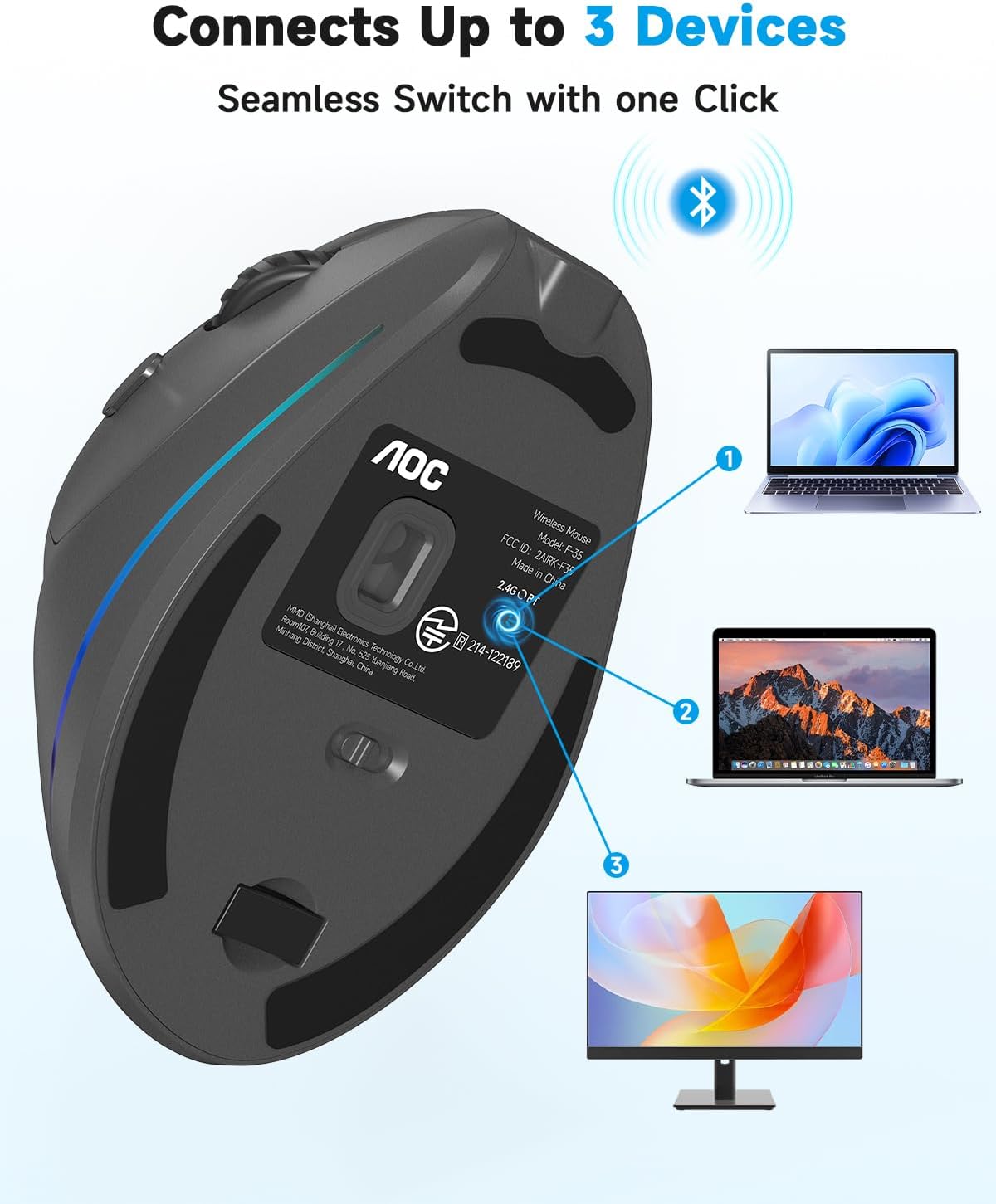
Image 3.2: The AOC MS610 mouse supports seamless switching between up to three devices.
3.4 Kabelverbindung
Connect the provided Type-C charging cable from the front of the mouse to a USB port on your computer. The mouse will function as a wired mouse and charge simultaneously.
3.5 Erstgebühr
It is recommended to fully charge the mouse before first use. Connect the Type-C cable to the mouse and a power source. The LED status screen will display the battery percentage.
Video 3.1: Die Geschichte eines Verkäufersview demonstrating the unboxing and initial setup of the AOC MS610 mouse.
4. Bedienungsanleitung
4.1 DPI-Anpassung
The mouse features 5 adjustable DPI levels: 1000, 1600, 2400, 3200, and 4800. Press the DPI button located near the scroll wheel to cycle through these settings. The current DPI level is displayed on the built-in LED screen.

Image 4.1: Adjustable DPI for smooth and precise tracking.
4.2 programmierbare Tasten
The mouse includes programmable buttons to customize shortcuts and enhance efficiency. Refer to the included Quick Guide for details on downloading the companion software to configure these buttons and customize the RGB lighting.

Bild 4.2: Überview der Maustasten und ihrer Funktionen.
4.3 RGB-Beleuchtung
The mouse features customizable RGB accent lighting. Use the companion software (details in Quick Guide) to adjust colors and lighting modes.
4.4 Quiet Clicks
The left and right mouse buttons are designed for whisper-quiet operation, producing less than 35dB of sound. Other buttons may produce normal clicking sounds.

Image 4.3: Enjoy quiet operation with the AOC MS610 mouse.
5. Ergonomie
The AOC MS610 is designed with a 52° vertical angle to promote a natural 'handshake' position, which helps reduce wrist twisting and forearm tension during prolonged use. This design aims to improve comfort and prevent repetitive strain injuries.

Image 5.1: The 52° ergonomic angle promotes natural hand posture.
5.1 Hand Size Guide
For optimal comfort, ensure the mouse size is suitable for your hand. The mouse dimensions are 4.33 x 2.91 x 3.15 inches (11 x 7.4 x 8 cm).
- Medium Hands: Hand Length (A) 6.7-7.5 inches (17-19 cm), Palm Width (B) 3.2-3.9 inches (8-10 cm)
- Large Hands: Hand Length (A) >7.5 inches (>19 cm), Palm Width (B) >3.9 inches (>10 cm)
Note: Not recommended for small hands.

Image 5.2: Hand size recommendations for the AOC MS610 mouse.
6. Akkulaufzeit und Laden
The AOC MS610 is equipped with an 800mAh rechargeable battery. It provides up to 200 hours of use without RGB lighting and over 40 hours with RGB active. The built-in LED status screen displays the battery percentage, wodurch Sie den Stromverbrauch auf einen Blick überwachen können.
6.1 Laden
Use the provided Type-C charging cable to recharge the mouse. The mouse supports use-while-charging, ensuring uninterrupted workflow. It is recommended to charge the mouse when the battery level drops below 20%.

Image 6.1: Rechargeable ergonomic mouse with long battery life.

Image 6.2: Visual battery display to prevent unexpected downtime.
7. Spezifikationen
- Produktabmessungen:
- 4.33 x 2.91 x 0.1 Zoll
- Artikelgewicht:
- 3.68 Unzen
- Artikelmodellnummer:
- MS610
- Batterien:
- 1 nicht standardmäßige Batterie (im Lieferumfang enthalten)
- Konnektivitätstechnologie:
- 2.4 GHz Wireless, Bluetooth 5.4, Wired USB-A
- Besondere Merkmale:
- Programmable Buttons, Quiet Clicks, RGB Accent Lighting, Rechargeable Battery, LED Status Screen
- Bewegungserkennungstechnologie:
- Optisch
- DPI-Stufen:
- 1000/1600/2400/3200/4800
8. Wartung
To ensure the longevity and optimal performance of your AOC MS610 mouse, follow these maintenance guidelines:
- Reinigung: Reinigen Sie die Mausoberfläche mit einem weichen, trockenen Tuch. Bei hartnäckigem Schmutz kann ein leicht trocknendes Tuch hilfreich sein.amp Es kann ein Tuch verwendet werden, um sicherzustellen, dass keine Feuchtigkeit in die inneren Bauteile eindringt.
- Sensorpflege: Halten Sie den optischen Sensor an der Unterseite der Maus sauber und frei von Staub und Schmutz.
- Lagerung: Bewahren Sie den USB-Empfänger bei Nichtgebrauch im dafür vorgesehenen Fach an der Unterseite der Maus auf, um einen Verlust zu vermeiden.
- Batteriepflege: Vermeiden Sie häufiges vollständiges Entladen des Akkus. Laden Sie die Maus auf, sobald die Akkuanzeige einen niedrigen Ladestand anzeigt.
9. Fehlerbehebung
If you encounter issues with your AOC MS610 mouse, try the following troubleshooting steps:
- No Connection (2.4GHz): Ensure the USB receiver is securely plugged into a working USB port. Verify the mouse is switched to 2.4GHz mode. Try a different USB port.
- Keine Verbindung (Bluetooth): Ensure Bluetooth is enabled on your computer and the mouse is in Bluetooth pairing mode. Remove the mouse from your computer's Bluetooth device list and re-pair it.
- Verzögerung oder intermittierende Verbindung: Move the mouse closer to the receiver/computer. Ensure there are no major obstructions or sources of interference (e.g., other wireless devices) between the mouse and receiver.
- Cursor Not Moving: Check the battery level on the LED screen and charge if necessary. Ensure the optical sensor is clean.
- Schaltflächen reagieren nicht: Check battery level. If using programmable buttons, ensure the companion software is correctly configured.
10. Garantie und Support
AOC is committed to delivering professional-grade comfort, precision, and reliability. The AOC MS610 ergonomic mouse is built to last and is backed by AOC’s reliable warranty and responsive customer support. For warranty claims or technical assistance, please refer to the contact information provided in the Quick Guide or visit the official AOC webWebsite.


