1. Einleitung
Thank you for choosing the EWEADN V102 Wired Gaming Keyboard. This manual provides essential information for setting up, operating, and maintaining your new keyboard. Please read it thoroughly to ensure optimal performance and longevity of your device.

Figure 1: EWEADN V102 Wired Gaming Keyboard
2. Packungsinhalt
Stellen Sie sicher, dass alle Artikel im Paket vorhanden sind:
- EWEADN V102 Kabelgebundene Gaming-Tastatur
- USB-Typ-C-Kabel
- Benutzerhandbuch (dieses Dokument)
3. Einrichtungsanweisungen
3.1 Anschließen der Tastatur
- Suchen Sie den USB-Typ-C-Anschluss an der Tastatur.
- Verbinden Sie ein Ende des mitgelieferten USB-Typ-C-Kabels mit der Tastatur.
- Connect the other end of the USB Type-C cable to an available USB port on your computer or compatible device.
- Die Tastatur ist Plug-and-Play-fähig und sollte von Ihrem Betriebssystem automatisch erkannt werden.

Figure 2: Wired Type-C Connectivity
4. Bedienungsanleitung
4.1 Multifunktions-Drehknopf
The smart rotary knob provides quick control over various functions:
- Einzelpresse: Toggles between backlight modes.
- Drehen: Regelt die Helligkeit der Hintergrundbeleuchtung.
- Hold FN + Rotate Knob: Switches to multimedia mode for volume control (rotate) and mute (press).

Figure 3: Multi-Function Control Knob
Video 1: Demonstration of the EWEADN V102 Keyboard's multi-function knob and lighting effects.
4.2 Anzeigebildschirm
The integrated display screen shows real-time status indicators without requiring additional software:
- Caps Lock status
- Num Lock status
- Win Lock status
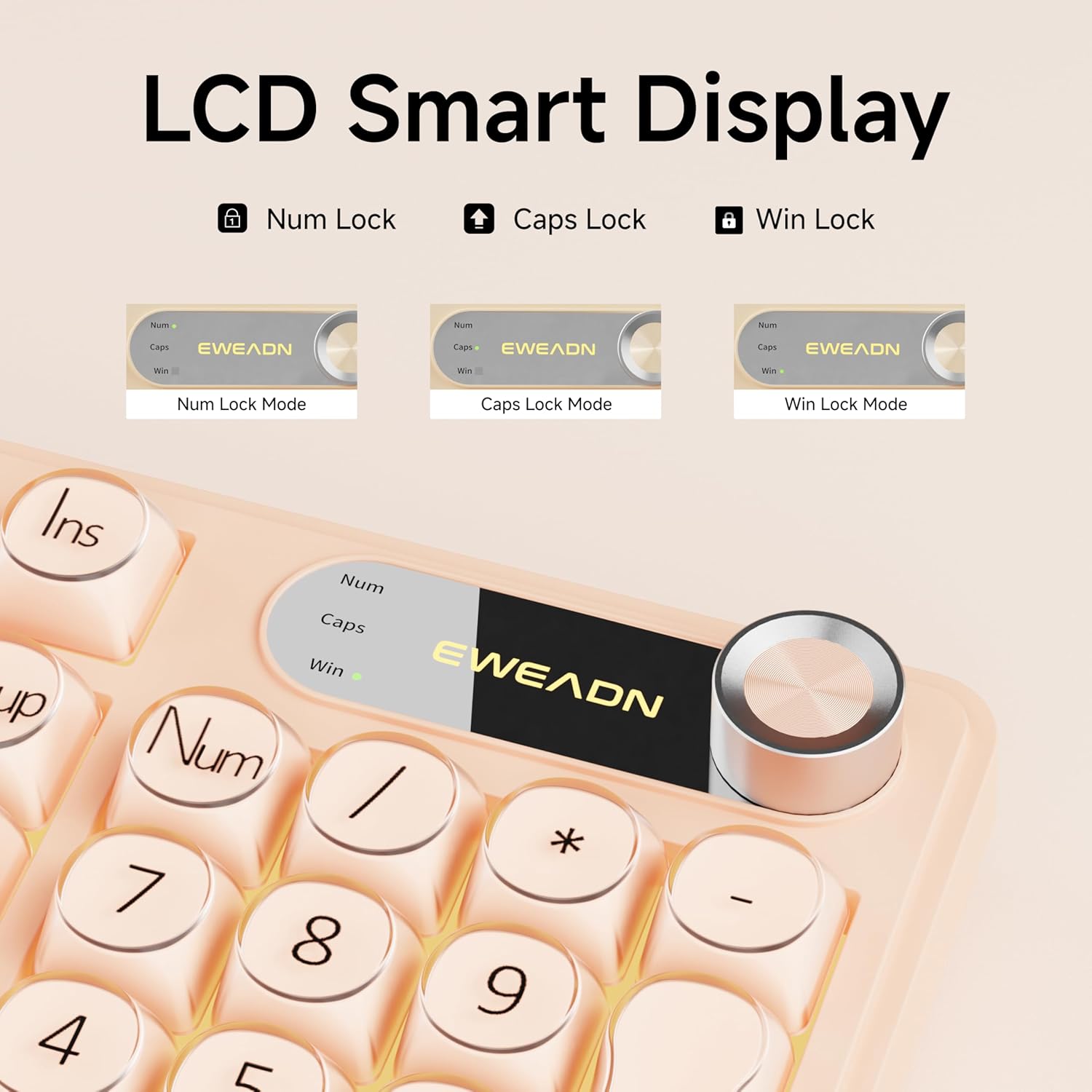
Figure 4: LCD Smart Display
4.3 RGB-Hintergrundbeleuchtung
Customize your typing experience with dynamic RGB lighting:
- FN + INS: Switches between 12 stunning RGB lighting effects.
- FN + Bild auf/Bild ab: Regelt die Helligkeit der Hintergrundbeleuchtung (5 Stufen).
- FN + "_" or "+": Reguliert die Lichtgeschwindigkeit (5 Stufen).
- FN + Rücktaste: Schaltet die Hintergrundbeleuchtung ein/aus.

Abbildung 5: RGB-Hintergrundbeleuchtungssteuerungsfunktionen
Video 2: Demonstration of various RGB lighting effects on the keyboard.
4.4 Dual-System-Kompatibilität
The V102 keyboard is designed for broad compatibility across multiple operating systems and devices:
- Windows
- Mac (FN + S for Mac layout)
- Android
- iOS
- Xbox
- PS4
- PS5

Figure 6: Dual-System Connection for Windows and Mac
4.5 Ergonomisches Design
The keyboard features a streamlined layout and adjustable typing angles for enhanced comfort during extended use. It includes a numeric keypad for efficient data entry.

Figure 7: 98-Key Layout and Adjustable Feet
4.6 Geräuschloser Betrieb
The membrane keyboard design is engineered to reduce typing sound, providing a quieter experience suitable for various environments.

Figure 8: Silent Computer Keyboard Design
4.7 Auslaufsicheres Design
The keyboard features a spill-resistant design to protect against accidental liquid spills. In case of a spill, promptly disconnect the keyboard and allow it to dry completely before reconnecting.

Figure 9: Spill-Resistant Design
5. Wartung
To ensure the longevity and optimal performance of your EWEADN V102 keyboard, follow these maintenance guidelines:
- Reinigung: Use a soft, lint-free cloth to wipe the surface of the keyboard. For deeper cleaning, use a can of compressed air to remove dust and debris from between the keys. Avoid using harsh chemicals or abrasive materials.
- Lagerung: Bewahren Sie die Tastatur an einem kühlen, trockenen Ort fern von direkter Sonneneinstrahlung und extremen Temperaturen auf.
- Handhabung: Vermeiden Sie es, die Tastatur fallen zu lassen oder übermäßiger Krafteinwirkung auszusetzen, da dies zu Schäden an den internen Bauteilen führen kann.
6. Fehlerbehebung
Sollten Sie Probleme mit Ihrer Tastatur haben, beachten Sie bitte die folgenden gängigen Lösungsansätze:
- Tastatur reagiert nicht: Ensure the USB Type-C cable is securely connected to both the keyboard and your device. Try connecting to a different USB port or a different device to rule out port or device issues.
- Hintergrundbeleuchtung funktioniert nicht: Check if the backlight is turned off using the FN + Backspace shortcut. Adjust brightness using FN + PGUP/PGDN.
- Schlüssel werden nicht registriert: Stellen Sie sicher, dass sich keine Fremdkörper unter den Tasten befinden. Sollte das Problem weiterhin bestehen, wenden Sie sich bitte an den Kundendienst.
- Incorrect layout (Mac users): Press FN + S to switch to the Mac layout.
Weitere Informationen finden Sie im Abschnitt Garantie und Support.
7. Spezifikationen
| Modell | V102 |
| Layout | 98-Key Compact Layout with Number Pad |
| Konnektivität | Kabelgebundener USB Typ-C |
| Hintergrundbeleuchtung | Dynamic RGB (12 effects, 5 brightness levels, 5 speed levels) |
| Besondere Merkmale | Multi-Function Control Knob, Display Screen, Silent Membrane Keys, Spill-Resistant Design, Adjustable Typing Angles |
| Kompatible Geräte | Laptop, PC, Gaming Console (Windows, Mac, Android, iOS, Xbox, PS4, PS5) |
| Material | Polybutylenterephthalat |
| Artikelgewicht | 2.4 Pfund |
| Verpackungsabmessungen | 17.68 x 7.05 x 1.97 Zoll |
8. Garantie und Support
Your EWEADN V102 Wired Gaming Keyboard is backed by a standard warranty. For specific warranty details, please refer to the product packaging or contact your retailer.
Kundenservice
For technical assistance, troubleshooting, or any product-related inquiries, please contact EWEADN customer support:
- E-Mail-Support: eweadnkeyboard@outlook.com
- Online-Hilfe: Besuchen Sie die EWEADN Store on Amazon and click 'Ask a question' to contact the seller.