1. Einleitung
This manual provides essential information for setting up, operating, maintaining, and troubleshooting your Motorola Razr 60 5G smartphone. Please read this guide thoroughly to ensure optimal performance and longevity of your device.
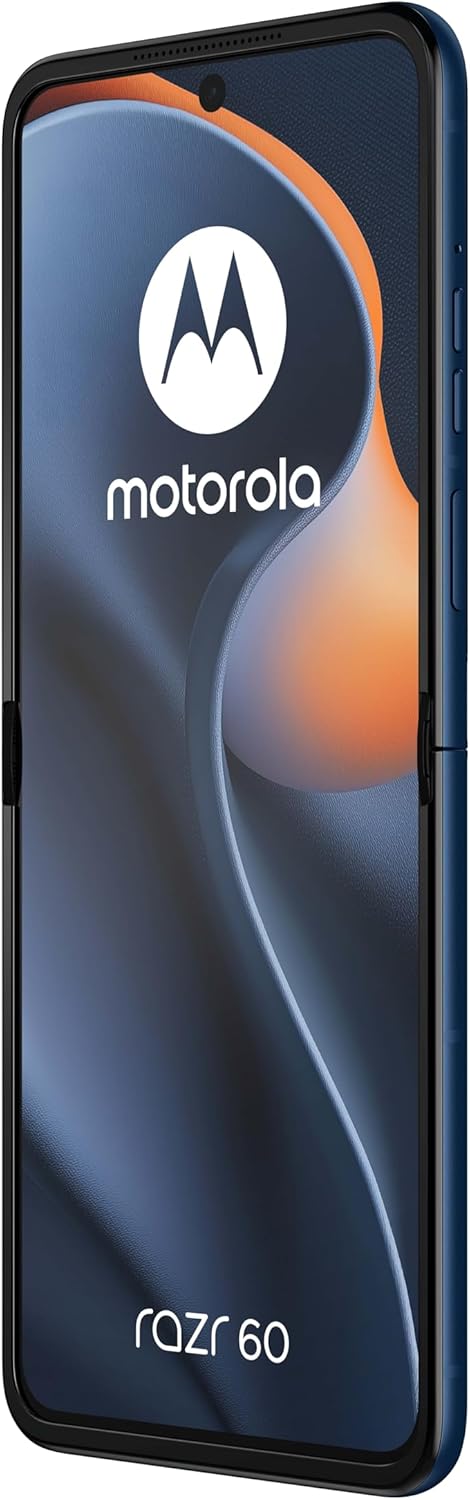
Figure 1: Motorola Razr 60 in unfolded state, displaying the main screen.
2. Einrichtung
2.1. Auspacken und erste Inspektion
Nehmen Sie alle Komponenten vorsichtig aus der Verpackung. Prüfen Sie, ob folgende Teile vorhanden sind:
- Motorola Razr 60 Smartphone
- USB-Kabel
- Kurzanleitung (falls enthalten)
Überprüfen Sie das Gerät auf sichtbare Schäden, bevor Sie fortfahren.
2.2. SIM-Karten einlegen
The Motorola Razr 60 supports Dual SIM functionality. To insert your SIM cards:
- Suchen Sie das SIM-Kartenfach an der Seite des Geräts.
- Use a SIM ejector tool (not included, typically comes with new phones) to open the tray.
- Place your nano-SIM cards into the designated slots, ensuring the gold contacts face downwards.
- Setzen Sie den SIM-Kartenhalter vorsichtig wieder in das Gerät ein.

Abbildung 2: Seite view of the Motorola Razr 60, indicating the location of the SIM tray and power/volume buttons.
2.3. Laden des Akkus
Before first use, it is recommended to fully charge the device. Connect the provided USB cable to the phone's USB-C port and the other end to a compatible power adapter (sold separately) or a computer's USB port.

Abbildung 3: Unten view of the Motorola Razr 60, highlighting the USB-C charging port.
2.4. Einschalten und Erstkonfiguration
Press and hold the Power button (located on the side) until the Motorola logo appears. Follow the on-screen prompts to select your language, connect to a Wi-Fi network, and set up your Google account.
3. Bedienung Ihres Geräts
3.1. Foldable Screen Operation
The Motorola Razr 60 features a foldable display. Gently unfold the device to access the main 6.9-inch screen. When finished, you can fold the device to a compact form factor for portability and to utilize the external display.
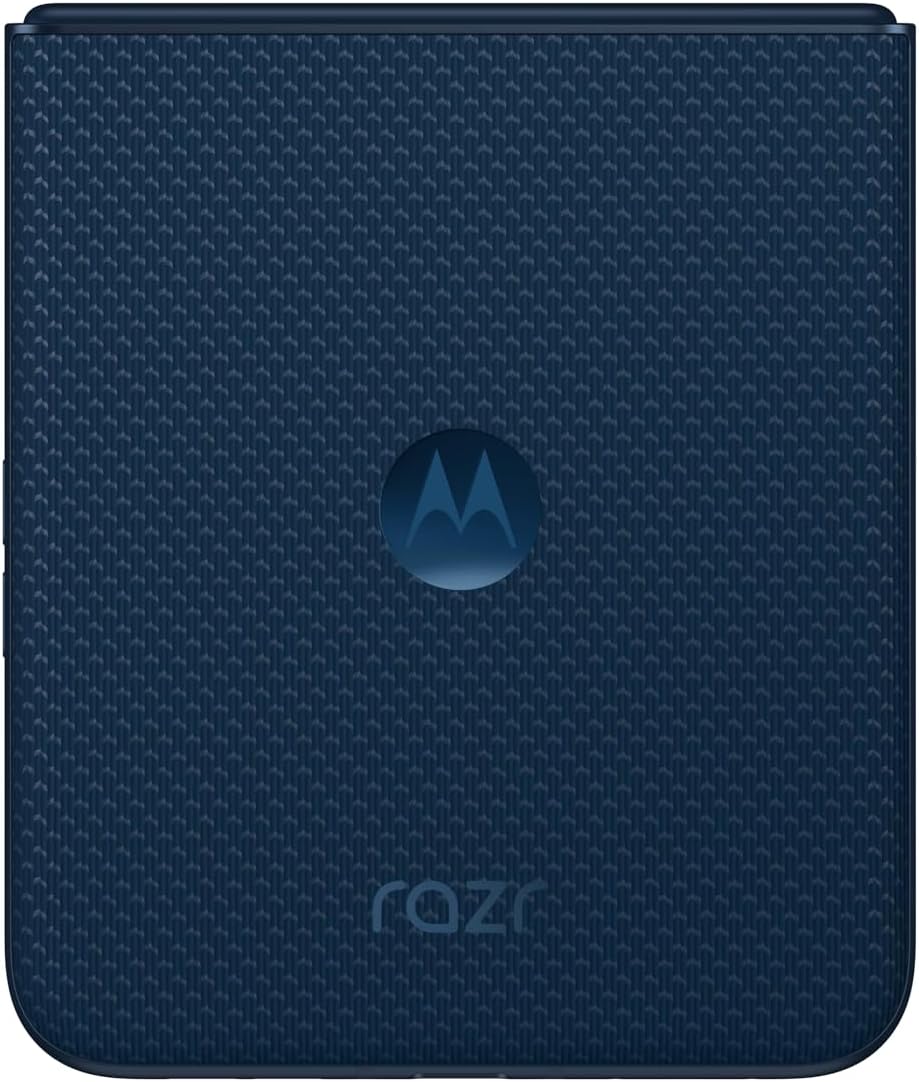
Figure 4: Motorola Razr 60 in its folded, compact state.

Figure 5: Motorola Razr 60 partially folded, showcasing the external display and camera module.
3.2. Android 15 Betriebssystem
Your device runs on Android 15. Navigate through the interface using gestures and taps. Swipe up from the bottom to access the app drawer, swipe down from the top for notifications and quick settings.
3.3. Konnektivität
The Razr 60 supports 5G connectivity for high-speed mobile data. Ensure your SIM card is provisioned for 5G service. The device also features Wi-Fi for internet access and Bluetooth for connecting accessories.
3.4. Dual-SIM-Funktionalität
With Dual SIM support, you can use two different phone numbers or carriers simultaneously. Manage your SIM preferences for calls, messages, and mobile data through the Settings menu under "Network & internet" > "SIMs".
4. Wartung
4.1. Reinigen Ihres Geräts
To clean your Motorola Razr 60, use a soft, lint-free cloth. For stubborn smudges, slightly dampen the cloth with water. Avoid using harsh chemicals, abrasive materials, or aerosol sprays, as these can damage the screen and finish.
4.2. Batteriepflege
The device is equipped with a 4500 mAh battery. To prolong battery life:
- Vermeiden Sie extreme Temperaturen.
- Lassen Sie das Gerät nicht über längere Zeiträume vollständig geladen oder vollständig entladen.
- Verwenden Sie ausschließlich zugelassenes Ladezubehör.
4.3. Software-Updates
Prüfen Sie regelmäßig, ob Software-Updates verfügbar sind, und installieren Sie diese, um sicherzustellen, dass Ihr Gerät über die neuesten Funktionen, Sicherheitspatches und Leistungsverbesserungen verfügt. Gehen Sie zu Einstellungen> System> Systemupdates um nach verfügbaren Updates zu suchen.
5. Fehlerbehebung
If you encounter issues with your Motorola Razr 60, try the following steps:
5.1. Gerät reagiert nicht
Wenn das Gerät nicht reagiert, halten Sie den Netzschalter etwa 10-15 Sekunden lang gedrückt, um einen Neustart zu erzwingen.
5.2. Probleme mit der Netzwerkverbindung
- Ensure Airplane Mode is off (Einstellungen > Netzwerk & Internet).
- Check that your SIM cards are properly inserted.
- Starten Sie das Gerät neu.
- Contact your mobile carrier to verify service status.
5.3. Schneller Akkuentladung
- Reduzieren Sie die Bildschirmhelligkeit.
- Schließen Sie nicht verwendete Apps, die im Hintergrund ausgeführt werden.
- Deaktivieren Sie unnötige Funktionen wie GPS oder Bluetooth, wenn Sie diese nicht benötigen.
- Überprüfen Sie den Batterieverbrauch in Einstellungen > Akku um stromfressende Apps zu identifizieren.
5.4. Werksreset
As a last resort, if software issues persist, you may perform a factory data reset. This will erase all data from your phone. Sichern Sie Ihre Daten, bevor Sie fortfahren. Gehe zu Einstellungen > System > Reset-Optionen > Alle Daten löschen (Werksreset).
6. Spezifikationen
Below are the key technical specifications for the Motorola Razr 60:
| Besonderheit | Spezifikation |
|---|---|
| Modellname | Motorola Razr 60 |
| Betriebssystem | Android 15 |
| CPU Modell | Kortex |
| CPU-Geschwindigkeit | 2.8 GHz |
| Größe des installierten RAM-Speichers | 8 GB |
| Interner Speicher | 256 GB |
| Bildschirmgröße | 6.9 Zoll (Hauptdisplay) |
| Auflösung | 1080 x 2640 |
| Konnektivitätstechnologien | 5G |
| Besondere Merkmale | Dual SIM, Foldable Screen |
| Batterieleistung | 4500 Milliamp Std |
| Technische Daten | 6.74 x 0.29 x 2.91 Zoll |
| Artikelgewicht | 7.1 Unzen (200 Gramm) |
| Audio-Buchse | Kein Kopfhöreranschluss |
| Farbe | Pantone Gibraltar Meer |
7. Garantie und Support
7.1. Garantieinformationen
Your Motorola Razr 60 is covered by a limited warranty. For detailed warranty terms and conditions, please refer to the warranty card included with your device or visit the official Motorola support website. This product is listed as "Renewed," which may affect warranty terms; consult your seller for specific details regarding renewed product warranties.
7.2. Kundendienst
Für weitere Hilfe, technischen Support oder Serviceanfragen besuchen Sie bitte die offizielle Motorola-Supportseite. website or contact their customer service. You can typically find contact information on the manufacturer's webauf der Website oder in der mit Ihrem Gerät gelieferten Dokumentation.
For issues related to the "Renewed" status or purchase, please contact your seller directly.


