1. Einleitung
Thank you for choosing the SOLAKAKA A75 Wireless Mechanical Keyboard. This manual provides detailed instructions for setting up, operating, and maintaining your keyboard to ensure optimal performance and longevity. The A75 is a versatile 75% layout keyboard designed for various users, offering multiple connectivity options, customizable RGB lighting, and a comfortable typing experience.

Figure 1: SOLAKAKA A75 Wireless Mechanical Keyboard
2. Packungsinhalt
Bitte überprüfen Sie, ob alle Artikel in Ihrem Paket vorhanden sind:
- SOLAKAKA A75 Wireless Mechanical Keyboard
- USB-C-auf-USB-A-Kabel
- 2.4 GHz USB-Empfänger
- Tastenkappenabzieher
- Abzieher wechseln
- Spare Mechanical Switches (2 pieces)
- Benutzerhandbuch (dieses Dokument)
3. Produktüberschreitungview
The SOLAKAKA A75 keyboard is engineered with several key features for enhanced user experience:
- 75 % kompaktes Layout: An 81-key layout that saves desk space while retaining essential keys.
- Tri-Mode-Konnektivität: Unterstützt 2.4-GHz-Funkverbindungen, Bluetooth 5.0 und kabelgebundene USB-C-Verbindungen.
- Gasket Mounted Structure: Designed for a softer, more cushioned typing feel and reduced acoustic resonance.
- Hot-Swap-fähige Schalter: Compatible with 3-pin and 5-pin mechanical switches, allowing for easy customization without soldering.
- PBT-Tastenkappen: Durable, wear-resistant, and fade-proof keycaps with side-etched legends for enhanced backlighting.
- RGB-Hintergrundbeleuchtung: Features 17 lighting modes with adjustable brightness and speed.
- Multifunction Metal Knob: Provides quick control over lighting effects or multimedia functions.
- Lange Akkulaufzeit: Ausgestattet mit einem 4000-mAh-Akku für längere Nutzungsdauer.

Figure 2: Key Features of the A75 Keyboard

Figure 3: Gasket Structure Components
4. Einrichtung und Konnektivität
The A75 keyboard offers three connection modes: Wired, 2.4GHz Wireless, and Bluetooth. You can switch between these modes using the toggle switch located on the back of the keyboard.
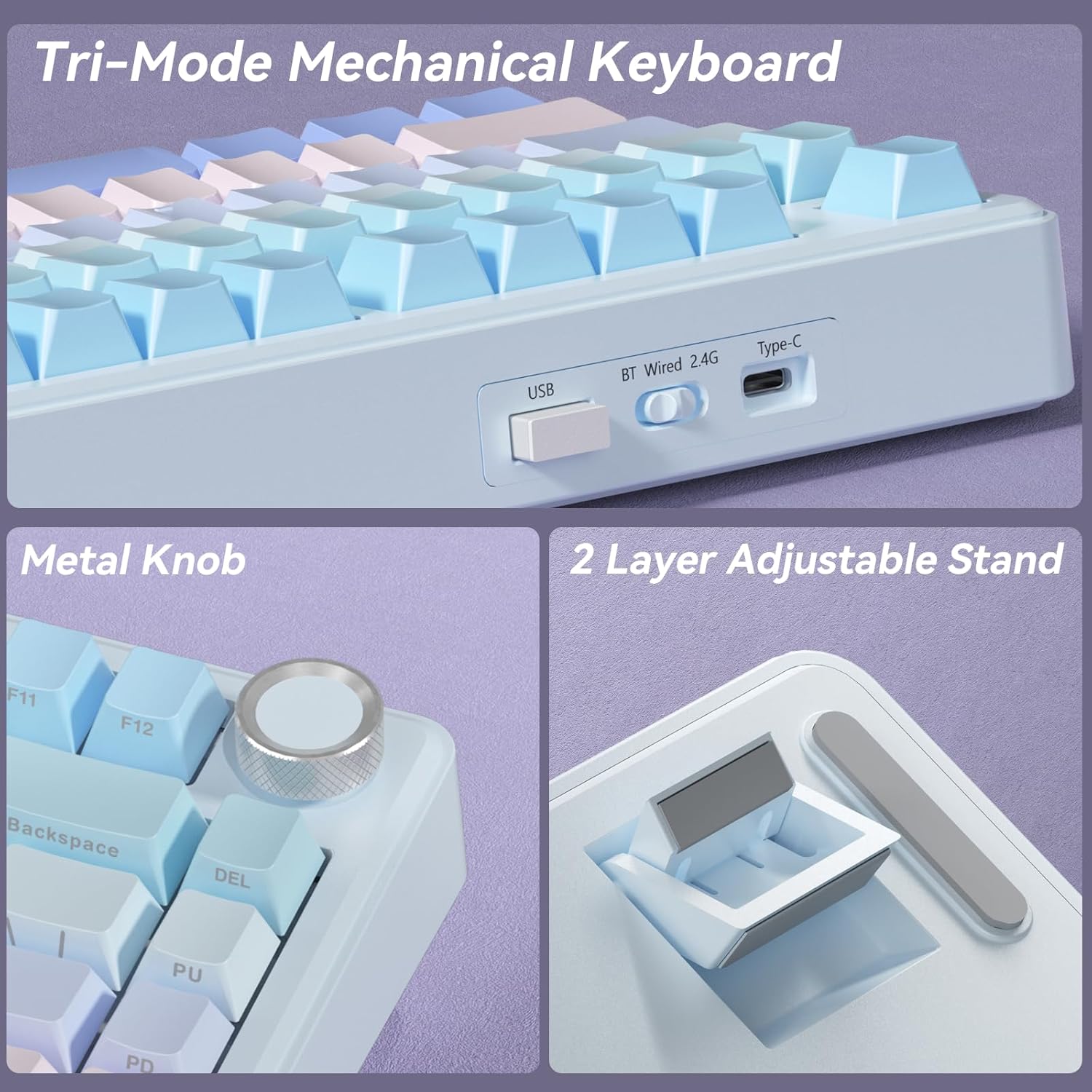
Figure 4: Connectivity Ports and Switch
4.1 Kabelverbindung
- Verbinden Sie das mitgelieferte USB-C-Kabel mit dem USB-C-Anschluss der Tastatur.
- Verbinden Sie das andere Ende des Kabels mit einem USB-A-Anschluss an Ihrem Computer.
- Set the toggle switch on the back of the keyboard to 'Wired'.
- Die Tastatur wird von Ihrem System automatisch erkannt.
4.2 2.4-GHz-Funkverbindung
- Locate the 2.4GHz USB receiver (often stored in a slot on the keyboard).
- Stecken Sie den USB-Empfänger in einen freien USB-A-Anschluss Ihres Computers.
- Set the toggle switch on the back of the keyboard to '2.4G'.
- Die Tastatur sollte sich automatisch verbinden.
4.3 Bluetooth-Verbindung
The A75 keyboard supports Bluetooth 5.0 and can remember up to three paired devices.
- Set the toggle switch on the back of the keyboard to 'BT'.
- Um in den Pairing-Modus zu wechseln, halten Sie Fn + Q, Fn + W, oder Fn + E for 3-5 seconds until the corresponding key (Q, W, or E) flashes rapidly. This indicates the keyboard is ready to pair.
- On your device (computer, tablet, smartphone), go to Bluetooth settings and search for 'SOLAKAKA A75'.
- Select the keyboard to pair. The flashing light will become solid once connected.
- Um zwischen gekoppelten Bluetooth-Geräten zu wechseln, drücken Sie einfach Fn + Q, Fn + W, oder Fn + E (short press) corresponding to the device's assigned slot.

Figure 5: Tri-Mode Connectivity for Multiple Devices
5. Bedienungsanleitung
5.1 RGB-Beleuchtungssteuerung
The A75 keyboard features 17 RGB lighting modes. Use the following key combinations to adjust the lighting:
- Fn + \|: Beleuchtungsmodus wechseln
- Fn + Tab: Lichtfarben wechseln
- Fn + ↑: Erhöhen Sie die Beleuchtungshelligkeit
- Fn + ↓: Reduce Lighting Brightness
- Fn + ←: Reduce Light Speed
- Fn + →: Erhöhen Sie die Lichtgeschwindigkeit
Advanced customization, including 10 music-sync lighting effects, is available through the programmable software. Download the driver from solakakadriver.com.

Figure 6: RGB Lighting Shortcuts
5.2 Multifunction Metal Knob
The metal knob on the top right of the keyboard serves dual functions, switching between Gaming and Office modes with a long press.
- Spielmodus: A short press selects lighting patterns. Rotating the knob adjusts lighting brightness.
- Office-Modus: A short press controls multimedia playback (play/pause). Rotating the knob adjusts the system volume.

Figure 7: Multifunction Metal Knob
5.3 System Compatibility Modes
The keyboard is compatible with Windows, Mac, and iOS systems. Use the following to switch modes:
- Fn + A: Switch to Windows mode.
- Fn + S: Switch to Mac mode. (In Mac mode, function keys will behave as typical macOS functions).
The keyboard also supports locking the WIN key and full N-key rollover to prevent accidental presses during gaming.
5.4 Überprüfung des Batteriestatus
To check the remaining battery life, press Fn+B. The number keys (1-0) will light up to indicate the battery level (1 being lowest, 10 being full).
6. Wartung
6.1 Reinigung
- Vor der Reinigung die Tastatur von allen Stromquellen trennen.
- Mit einem weichen, fusselfreien Tuch leichtampAnschließend mit Wasser oder einer milden Reinigungslösung abwischen, um die Tastenkappen und das Gehäuse zu reinigen.
- Für eine gründlichere Reinigung verwenden Sie den mitgelieferten Tastenkappenabzieher, um die Tastenkappen zu entfernen und die Unterseite mit Druckluft oder einer kleinen Bürste zu reinigen.
6.2 Austauschen von Schaltern und Tastenkappen
The A75 keyboard is hot-swappable, allowing for easy replacement of switches and keycaps.
- Verwenden Sie den Tastenkappenabzieher, um die gewünschte Tastenkappe vorsichtig zu entfernen.
- Use the switch puller to carefully grip the switch and pull it straight up to remove it.
- Richten Sie die Pins des neuen Schalters an den Löchern auf der Platine aus und drücken Sie ihn fest nach unten, bis er einrastet. Achten Sie darauf, dass die Pins nicht verbogen sind.
- Place the new keycap onto the switch stem and press down.

Abbildung 8: Hot-Swap-fähige Schalter
7. Fehlerbehebung
If you encounter issues with your SOLAKAKA A75 keyboard, please refer to the following common solutions:
- Tastatur reagiert nicht: Ensure the keyboard is charged. Check the connection mode switch (Wired, 2.4G, BT) is set correctly. For 2.4G, ensure the USB receiver is properly inserted. For Bluetooth, re-pair the device.
- Schlüssel werden nicht registriert: Check if any keycaps or switches are loose. Try replacing the switch if it's faulty (refer to Section 6.2).
- RGB-Beleuchtung funktioniert nicht: Ensure the keyboard is powered on. Adjust brightness using Fn + ↑. Cycle through modes using Fn + \|.
- Bluetooth-Kopplungsprobleme: Ensure the keyboard is in pairing mode (Fn + Q/W/E held for 3-5 seconds). Remove previous pairings from your device's Bluetooth list and try again.
- Latency issues: For critical applications like gaming, a wired connection or 2.4GHz wireless connection is recommended for the lowest latency.
If the problem persists, please contact SOLAKAKA customer support.
8. Spezifikationen
| Besonderheit | Spezifikation |
|---|---|
| Modell | A75 |
| Layout | 75 % (81 Tasten) |
| Konnektivität | 2.4-GHz-Funk, Bluetooth 5.0, USB-C-Kabel |
| Schaltertyp | LEOBOG Reaper Switches (Hot-swappable 3-pin/5-pin) |
| Tastenkappen | PBT, Double Injection Molding, Side-etched |
| Hintergrundbeleuchtung | RGB (17 Modi) |
| Batteriekapazität | 4000 mAh |
| Battery Life (with lighting) | Bis zu 17 Stunden |
| Battery Life (lighting off) | Bis zu 11 Tage |
| Technische Daten | 12.79 x 5.51 x 1.73 Zoll |
| Artikelgewicht | 2.82 Pfund |
| Kompatible Geräte | Laptop, PC, Smartphone (Windows, Mac, iOS) |
| Besondere Merkmale | Gasket Mounted, Multifunction Knob, Programmable Software, N-key Rollover |
9. Offizielles Produktvideo
Video 1: Endeview of the SOLAKAKA A75 75% Wireless Mechanical Keyboard, demonstrating its features and functionality.
10. Garantie und Support
For warranty information and customer support, please refer to the documentation included with your purchase or visit the official SOLAKAKA webWebsite. Sollten Sie Fragen haben oder Hilfe benötigen, zögern Sie nicht, unser Support-Team zu kontaktieren.


