Einführung
This manual provides essential information for the NIMO 15.6-inch Light Gaming Laptop N15A. It covers setup, operation, maintenance, troubleshooting, and product specifications. Please read this manual thoroughly before using your new laptop to ensure proper function and longevity.

Image: NIMO 15.6-inch Light Gaming Laptop N15A, showcasing verfügt über ein vollständiges Display und eine Tastatur.
Packungsinhalt
Verify that all items listed below are present in your product packaging. If any items are missing or damaged, please contact NIMO customer support.
- 1 x NIMO N15A Laptop
- 1 x Typ-C 100W PD Schnellladegerät
- 1 x Benutzerhandbuch
- Windows 11 Home Betriebssystem (vorinstalliert)
Produkt überview
The NIMO N15A laptop is designed for balanced performance, featuring an AMD Ryzen 7 Pro 6850U processor, 32GB LPDDR5 RAM, and a 1TB PCIe 4.0 SSD. It includes a 15.6-inch Full HD IPS display, a backlit keyboard, and an integrated fingerprint reader for secure access.
Hauptmerkmale:
- Prozessor: AMD Ryzen 7 Pro 6850U with 8 Cores and 16 Threads, up to 4.7GHz.
- Grafik: Integrierte AMD Radeon 680M GPU.
- Erinnerung: 32 GB LPDDR5-RAM für effizientes Multitasking.
- Lagerung: 1 TB PCIe 4.0 SSD für schnelle Bootzeiten und Datenzugriffe.
- Anzeige: 15.6-Zoll Full HD (1920x1080) IPS-Display mit Antireflexbeschichtung.
- Laden: 100W USB-C Power Delivery fast charging.
- Sicherheit: Integrated fingerprint reader for secure login.
- Tastatur: Backlit keyboard for use in various lighting conditions.
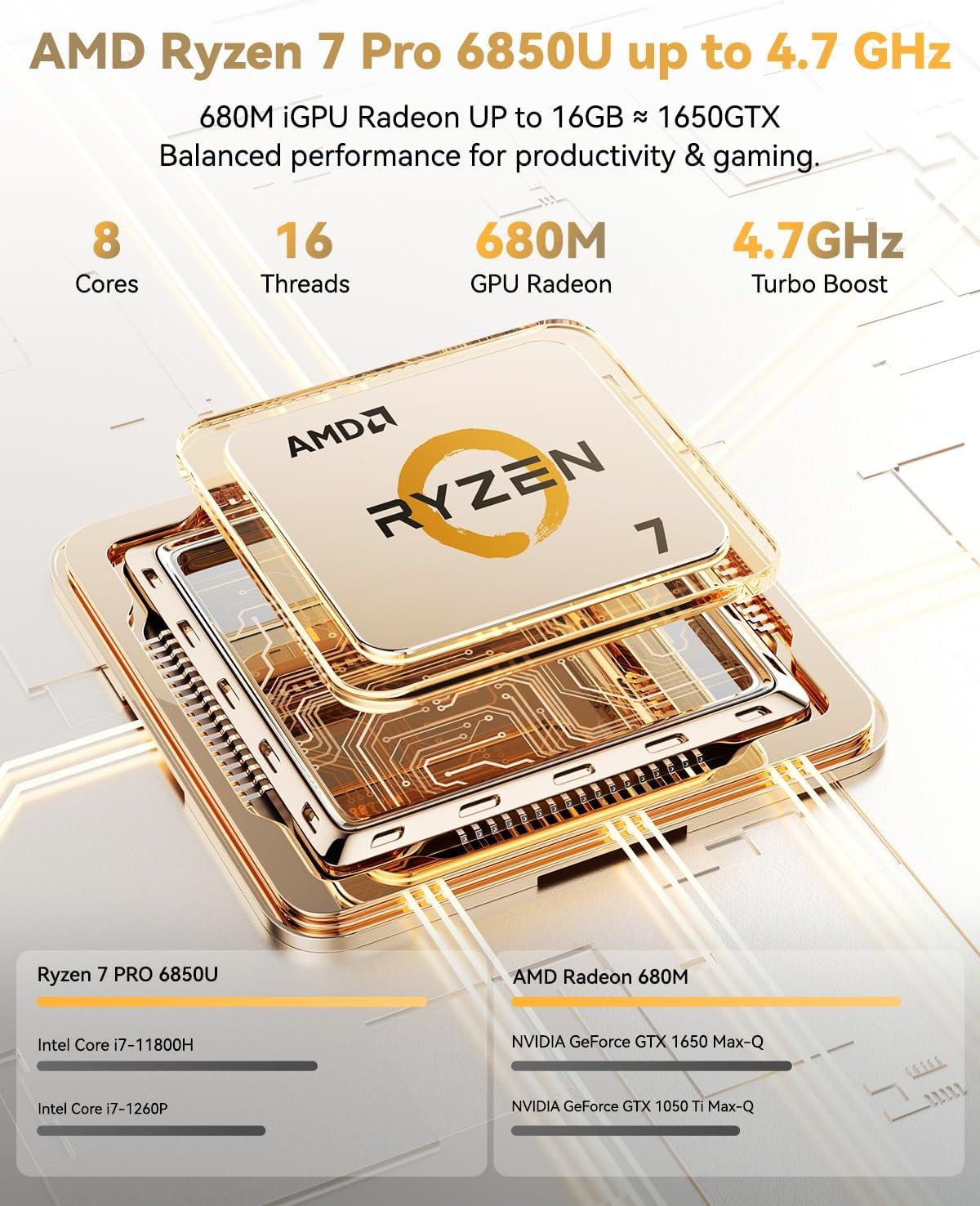
Image: Visual representation of the AMD Ryzen 7 Pro 6850U processor's core and thread count, and turbo boost speed.
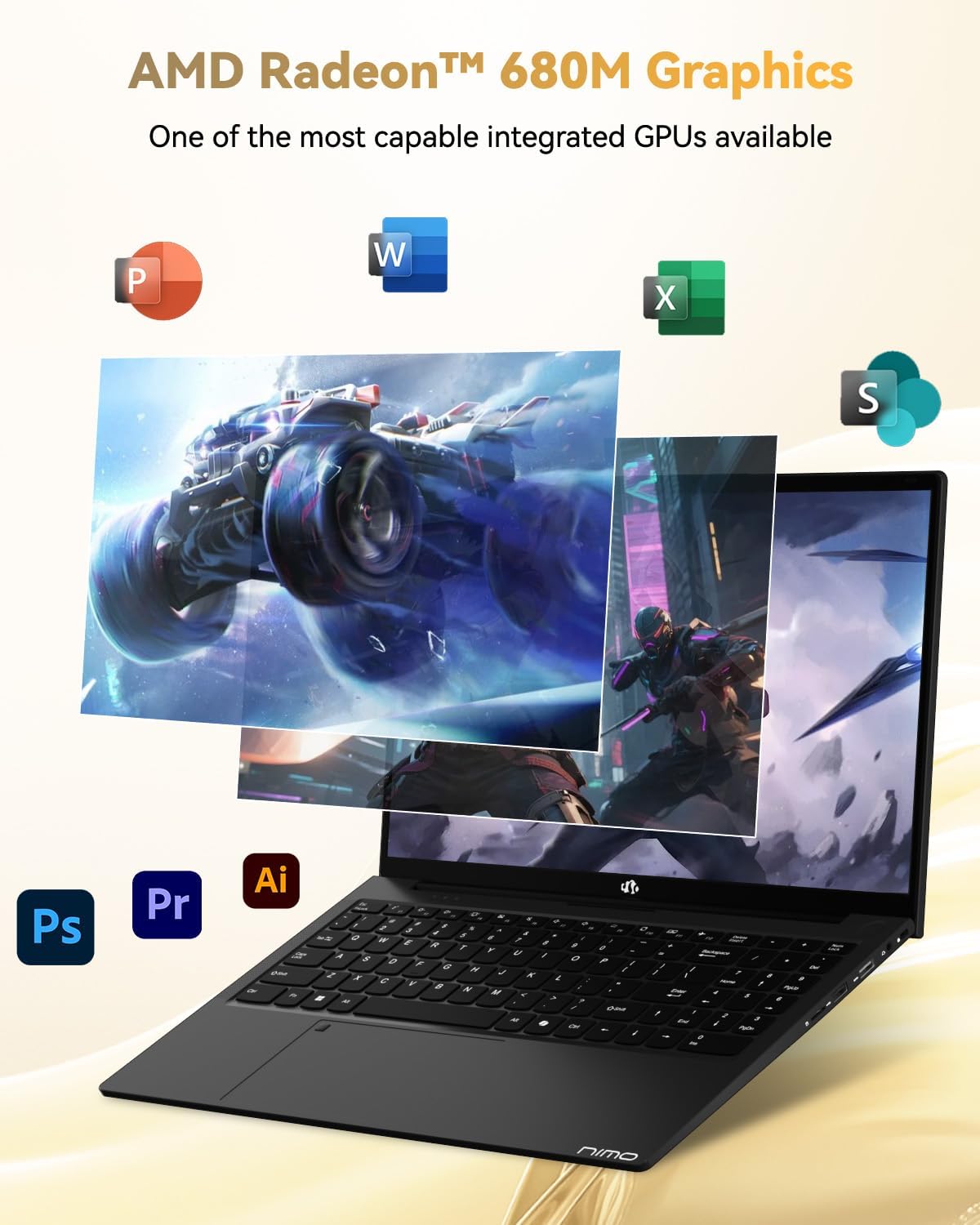
Image: Illustration highlighting the capabilities of the AMD Radeon 680M integrated graphics for various applications.

Image: Diagram showing the 32GB LPDDR5 RAM and 1TB PCIe 4.0 SSD for seamless multitasking and ample Speicher.
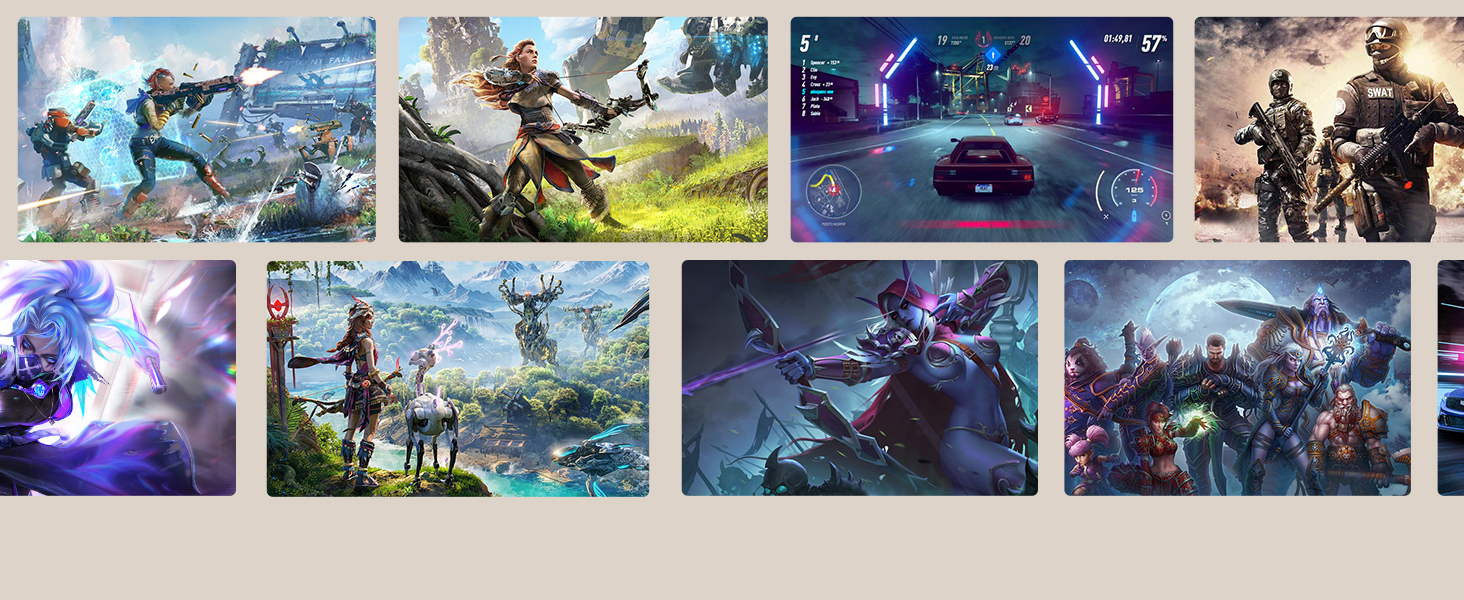
Image: The NIMO N15A laptop displaying a vibrant image on its 15.6-inch Full HD IPS screen.
Anschlüsse und Konnektivität:

Image: Diagram illustrating the various ports on the NIMO N15A laptop, including USB, HDMI, and Type-C.
- Micro-SD-Leser
- USB 2.0-Anschluss
- USB 3.2 Ports (multiple)
- Kopfhöreranschluss
- Kensington Lock Slot
- Type-C (Multifunction) Ports (supporting charging and data transfer)
- HDMI-Anschluss
Aufstellen
1. Initial Charging and Power On:
- Connect the provided 100W Type-C PD Fast Charger to the laptop's Type-C charging port and a power outlet.
- Allow the laptop to charge for at least 30 minutes before initial use, or until the charging indicator shows sufficient battery.
- Drücken Sie den Netzschalter auf der Tastatur, um den Laptop einzuschalten.

Image: Illustration of the NIMO N15A laptop being charged with the 100W Type-C PD Fast Charger.
2. Windows 11 Initial Setup:
Follow the on-screen prompts to complete the Windows 11 setup process. This typically includes:
- Auswahl Ihrer Region und Ihres Tastaturlayouts.
- Verbindung mit einem Wi-Fi-Netzwerk herstellen.
- Anmeldung mit einem Microsoft-Konto oder Erstellung eines lokalen Kontos.
- Einrichten einer PIN oder eines Passworts.
- Datenschutzeinstellungen konfigurieren.
Bedienungsanleitung
Energieverwaltung:
- Einschalten: Drücken Sie die Einschalttaste.
- Schlafmodus: Schließen Sie den Deckel oder drücken Sie kurz den Netzschalter.
- Abschalten: Klicken Sie auf die Schaltfläche „Start“, dann auf „Ein/Aus“ und anschließend auf „Ausschalten“.
- Neustart: Klicken Sie auf die Schaltfläche „Start“, dann auf „Ein/Aus“ und anschließend auf „Neustart“.
Tastatur und Touchpad:

Bild: Nahaufnahme view of the NIMO N15A laptop's backlit keyboard and the integrated fingerprint reader on the touchpad.
- Tastatur mit Hintergrundbeleuchtung: Use the dedicated function key (usually Fn + Fx) to toggle the keyboard backlight on/off and adjust brightness levels.
- Fingerabdruckleser: The fingerprint reader is integrated into the touchpad. During Windows setup, you can configure your fingerprint for secure, quick login.
- Präzisions-Touchpad: Unterstützt Multi-Touch-Gesten zur Navigation. Anpassungsmöglichkeiten finden Sie in den Windows-Einstellungen.
Anschließen von Peripheriegeräten:
Utilize the various ports to connect external devices such as monitors, printers, external storage, and audio devices.
- USB-Geräte: Plug USB devices into the available USB 2.0 or USB 3.2 ports.
- Externe Anzeige: Connect an external monitor or TV using the HDMI port or a compatible Type-C adapter.
- Audio: Verwenden Sie die 3.5-mm-Kopfhörerbuchse für Kopfhörer oder externe Lautsprecher.
Privatsphäre der Kamera:
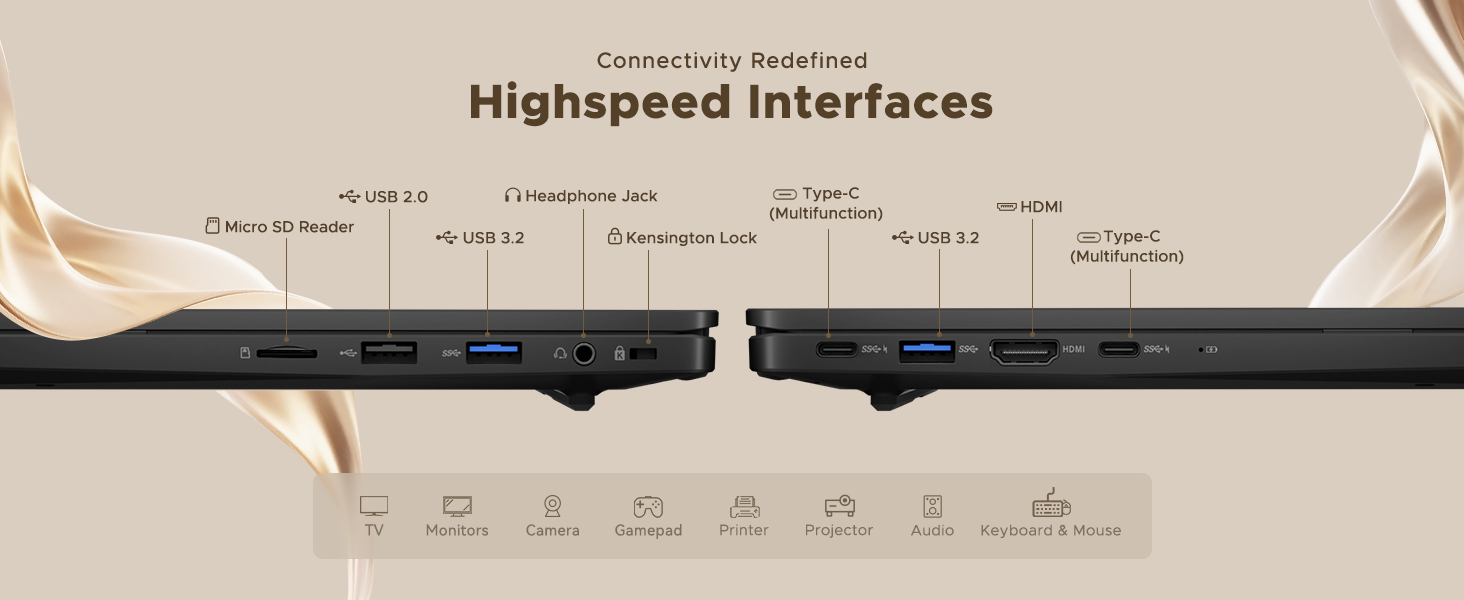
Image: Illustration of the NIMO N15A laptop's built-in privacy camera switch, allowing users to easily disable the webNocken.
The NIMO N15A laptop features a built-in privacy camera switch. This allows you to physically disable the 2.0MP webDie Kamera ist bei Nichtgebrauch ausgeschaltet, um Ihre Privatsphäre zu gewährleisten.
Wartung
Cleaning the Laptop:
- Power off the laptop and disconnect the charger before cleaning.
- Mit einem weichen, fusselfreien Tuch leichtampMit Wasser oder einem Bildschirmreiniger für das Display reinigen.
- Reinigen Sie Tastatur und Gehäuse mit einem weichen Tuch. Vermeiden Sie aggressive Chemikalien und Scheuermittel.
- Verwenden Sie Druckluft, um Staub von den Tasten und Lüftungsschlitzen der Tastatur zu entfernen.
Batteriepflege:
- Vermeiden Sie häufiges vollständiges Entladen des Akkus.
- Bewahren Sie den Laptop an einem kühlen, trockenen Ort auf, wenn er längere Zeit nicht benutzt wird. Der Akku sollte dabei zu etwa 50-70 % geladen sein.
- Use only the original NIMO 100W Type-C PD Fast Charger.
Software-Updates:
- Prüfen Sie regelmäßig, ob Windows-Updates verfügbar sind, und installieren Sie diese, um die Stabilität und Sicherheit des Systems zu gewährleisten.
- Keep device drivers updated, especially for graphics and chipset, by checking the NIMO support webWebsite oder Windows Update.
Fehlerbehebung
| Problem | Mögliche Lösung |
|---|---|
| Der Laptop lässt sich nicht einschalten. | Ensure the charger is properly connected and the power outlet is functional. Allow the battery to charge for at least 30 minutes. If the issue persists, contact support. |
| Der Bildschirm ist leer oder flackert. | Try connecting an external monitor to check if the issue is with the laptop's display. Adjust display brightness. Restart the laptop. |
| Langsame Leistung. | Close unnecessary applications. Check for background processes consuming high resources. Ensure sufficient free storage space. Run a system scan for malware. |
| Die Tastaturbeleuchtung funktioniert nicht. | Press the dedicated function key combination (e.g., Fn + Fx) to toggle or adjust the backlight. Check keyboard settings in Windows. |
| Fingerabdruckleser reagiert nicht. | Ensure your finger is clean and dry. Re-register your fingerprint in Windows settings. Restart the laptop. |
For issues not listed here or if solutions do not resolve the problem, please refer to the Warranty and Support section for assistance.
Technische Daten
| Besonderheit | Detail |
|---|---|
| Marke | NIMO |
| Modellname | NIMO N15AL (N15A) |
| Bildschirmgröße | 15.6 Zoll |
| Bildschirmauflösung | 1920 x 1080 Pixel (Full-HD) |
| Prozessor | AMD Ryzen 7 Pro 6850U (8 Cores, up to 4.7 GHz) |
| RAM | 32 GB LPDDR5 (6400 MHz) |
| Festplatte | 1024 GB SSD (PCIe 4.0, Solid State) |
| Grafik-Coprozessor | AMD Radeon 680M (integriert) |
| Betriebssystem | Windows 11 |
| Kabelloser Typ | 802.11a/b/g/n/ac |
| USB 2.0-Anschlüsse | 1 |
| USB 3.0/3.2-Anschlüsse | 4 |
| Durchschnittliche Akkulaufzeit | 9 Stunden |
| Artikelgewicht | 3.75 Pfund |
| Technische Daten | 14.07 x 8.98 x 0.76 Zoll |
| Farbe | Schwarz |
| Hinteren Webcam Auflösung | 2 Megapixel |
| Besondere Merkmale | Tastatur mit Hintergrundbeleuchtung, Fingerabdruckleser, HD-Audio, Ziffernblock |
Garantie und Support
NIMO provides comprehensive support for your laptop.
- Garantie: Your NIMO N15A laptop comes with a 2-year manufacturer's warranty.
- Rückgaberecht: A 90-day hassle-free return policy is offered from the date of purchase.
- Kundendienst: For technical assistance, warranty claims, or product-related inquiries, please contact NIMO customer support.
Contact information for support is typically available on the official NIMO website or through the product's packaging.
Sicherheitshinweise
Wichtig: Read and follow these safety guidelines to prevent damage to your device or personal injury.
- Verwenden Sie ausschließlich Original-Ladegeräte und überprüfen Sie die Kabel regelmäßig auf Beschädigungen.
- Fassen Sie den Laptop am unteren Ende an und verwenden Sie gegebenenfalls eine Schutzhülle. Vermeiden Sie es, schwere Gegenstände darauf abzustellen.
- Stellen Sie den Laptop auf eine harte, ebene Fläche, um eine ausreichende Belüftung zu gewährleisten und Überhitzung zu vermeiden. Schützen Sie ihn vor extremen Temperaturen und Feuchtigkeit.
- Do not overcharge the battery. Discontinue use if the battery shows signs of swelling or damage.
- Set strong passwords, keep software updated, use antivirus software, and regularly back up your data.
- Im Falle eines Flüssigkeitsaustritts ziehen Sie sofort den Netzstecker des Laptops und lassen Sie ihn vollständig trocknen, bevor Sie versuchen, ihn einzuschalten.
- For any issues, consult qualified professionals. Do not attempt to disassemble or repair the device yourself.
Rechtliche Hinweise
This NIMO laptop is provided "as is," without express or implied warranties, except for any applicable manufacturer's limited warranty. Implied warranties of merchantability or fitness for a specific purpose are disclaimed. NIMO is not liable for damages resulting from misuse (e.g., non-approved chargers, unauthorized repairs), physical damage, or failure to adhere to safety guidelines, including data loss or business interruption. Users are responsible for regularly backing up their data. This disclaimer does not exclude liability for manufacturing defects or violations of mandatory local laws. By using this laptop, you accept these terms, which are governed by the laws of the applicable jurisdiction.


