1. Einleitung
Welcome to the user manual for your SGIN Android Tablet 10.1 Inch, Model GE8300. This manual provides essential information for setting up, operating, maintaining, and troubleshooting your new tablet. Designed with children in mind, this tablet features a durable case, parental controls, and pre-installed educational content through Kidoz software. Please read this manual thoroughly to ensure proper use and to maximize your tablet's potential.
2. Produktüberschreitungview
The SGIN Android Tablet 10.1 Inch is equipped with a 10.1-inch HD IPS display, a quad-core processor, 4GB RAM, and 64GB of internal storage. It runs on Android 13 and includes a protective case with an adjustable bracket.
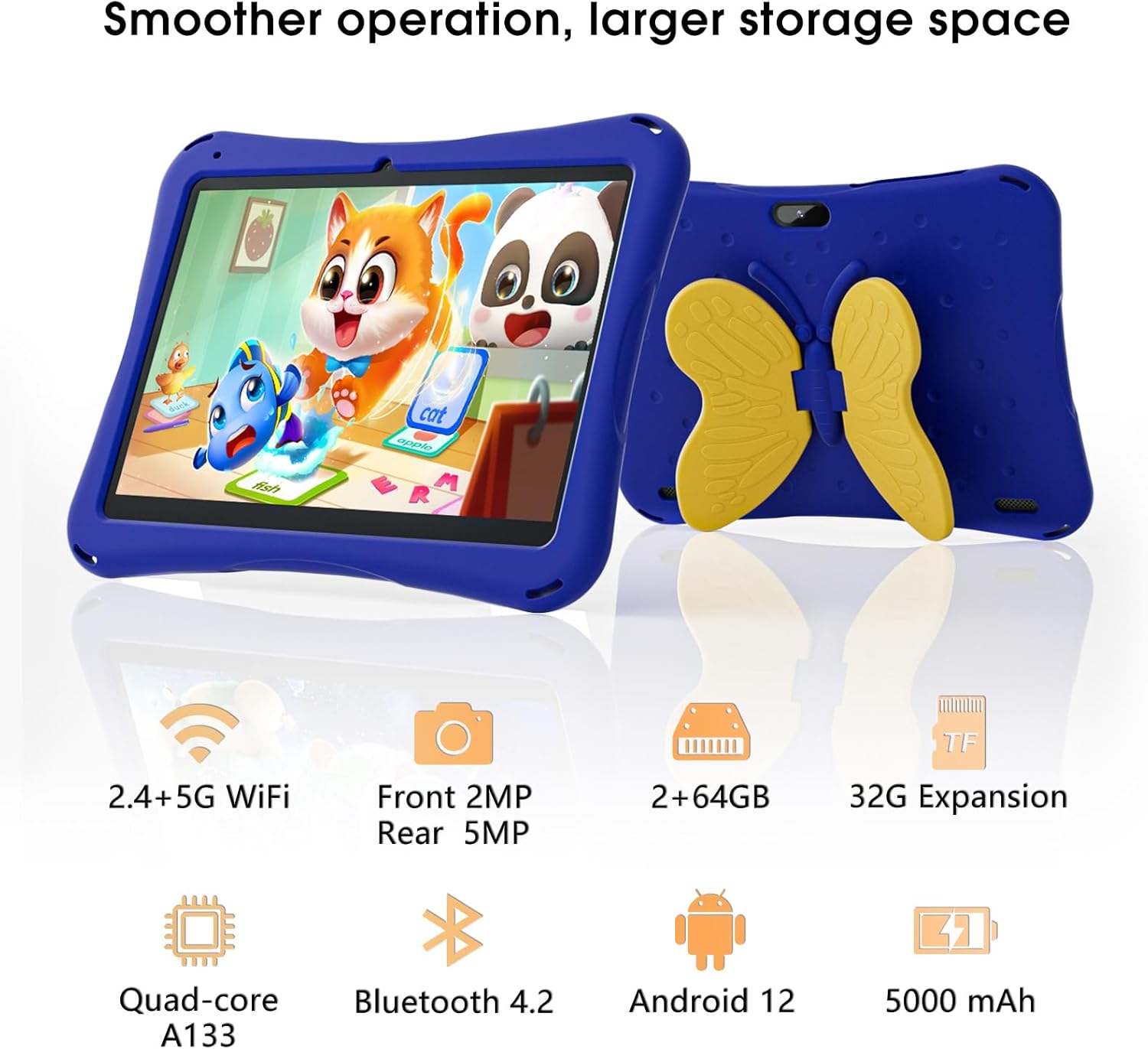
Image: SGIN Android Tablet 10.1 Inch with its protective blue case and yellow butterfly stand.
Tablet-Komponenten

Image: Detailed diagram illustrating the various components and ports of the SGIN Android Tablet.
- Frontkamera: Für Videoanrufe und Selfies.
- Rückfahrkamera: Zum Fotografieren und Filmen.
- Referenten: Für Audioausgabe.
- Typ C-Anschluss: Zum Aufladen und zur Datenübertragung.
- TF-Karten-Slot: Für erweiterbaren Speicher.
- Kopfhöreranschluss: Zum Anschließen von kabelgebundenen Kopfhörern.
- Lautstärke erhöhen: Button to raise the audio level.
- Lautstärke reduzieren: Button to lower the audio level.
- Klammer: Adjustable stand integrated into the protective case.
3. Einrichtung
3.1 Aufladen des Tablets
Before first use, fully charge the tablet using the provided Type-C cable and power adapter. The 5000mAh battery provides approximately 6-8 hours of usage on a full charge. A charging indicator will typically appear on the screen.
3.2 Ein-/Ausschalten
- So schalten Sie das Gerät ein: Press and hold the power button (usually located on the side) until the SGIN logo appears.
- So schalten Sie das Gerät aus: Halten Sie den Netzschalter gedrückt und wählen Sie dann auf dem Bildschirm die Option „Ausschalten“ aus.
- Neustarten: Halten Sie den Netzschalter gedrückt und wählen Sie dann in den Optionen „Neustart“ aus.
3.3 Ersteinrichtung und WLAN-Verbindung
Upon first power-on, follow the on-screen prompts to complete the initial Android 13 setup. This includes selecting your language, region, and connecting to a Wi-Fi network. The tablet supports both 2.4G and 5G Wi-Fi for stable internet connectivity.
- Gehe zu Einstellungen > Netzwerk & Internet > W-lan.
- WLAN ein-/ausschalten On.
- Wählen Sie das gewünschte Netzwerk aus der Liste aus.
- Geben Sie gegebenenfalls das Passwort ein und tippen Sie anschließend auf Verbinden.
4. Bedienungsanleitung
4.1 Grundlegende Navigation
The tablet uses a touch-sensitive screen for navigation. Common gestures include tapping to select, swiping to scroll, pinching to zoom, and long-pressing for additional options.
4.2 Kameranutzung
The tablet features a 2MP front-facing camera and a 5MP rear camera. To use the camera:
- Öffnen Sie die Kamera Anwendung.
- Select between front and rear cameras using the switch icon.
- Tippen Sie auf den Auslöser, um ein Foto aufzunehmen oder die Videoaufnahme zu starten/stoppen.
4.3 Speicherverwaltung
The tablet comes with 64GB of internal storage. If more space is needed, you can expand it by inserting a TF (microSD) card into the TF card slot. The tablet supports expansion up to 34GB.
4.4 Bluetooth-Konnektivität
The tablet supports Bluetooth 4.2 for connecting to wireless accessories such as headphones or speakers.
- Gehe zu Einstellungen > Verbundene Geräte > Verbindungseinstellungen > Bluetooth.
- Bluetooth ein-/ausschalten On.
- Wählen Sie Ihr Gerät aus der Liste der verfügbaren Geräte zum Koppeln aus.
5. Kindersicherungsfunktionen
The SGIN tablet includes a built-in parental control security system to manage your child's usage and content access.
- Passwörter festlegen: Create a password to secure parental control settings.
- Bildschirmzeitbegrenzungen: Define daily usage limits for the tablet.
- Inhaltsfilterung: Eliminate unwanted ads and create specific media files or approved websites for your children.
- Mehrere Konten: Set up individual accounts for each child, allowing personalized settings and content access.
6. Kidoz Kids Software
The tablet comes with the Kidoz Kid's software pre-installed, offering a safe and engaging environment for children.
- Accessing Kidoz: Starte die Kidoz-App vom Startbildschirm aus.
- Kindergeschäft: Explore thousands of free games and educational apps available for download within the Kidoz environment.
- Lehrinhalt: Kidoz provides content that supports learning in subjects like math, language, music, and painting.
7. Wartung
7.1 Reinigung
Use a soft, lint-free cloth to clean the screen and the tablet's body. For stubborn smudges, slightly dampBefeuchten Sie das Tuch mit Wasser. Vermeiden Sie aggressive Chemikalien oder scheuernde Materialien.
7.2 Batteriepflege
To prolong battery life, avoid exposing the tablet to extreme temperatures. Charge the tablet regularly and avoid letting the battery completely drain frequently.
7.3 Softwareaktualisierungen
Prüfen Sie regelmäßig, ob Systemaktualisierungen verfügbar sind, um optimale Leistung und Sicherheit zu gewährleisten. Gehen Sie zu Einstellungen > System > Systemaktualisierung.
7.4 Schutzhülle
The included kid-proof case is designed to protect the tablet from dust, bumps, and drops. It also features a hollow design for heat dissipation. Ensure the tablet is properly seated within the case for maximum protection.

Image: The durable anti-drop protective case with its adjustable bracket.
8. Fehlerbehebung
If you encounter issues with your SGIN tablet, refer to the following common solutions:
- Tablet lässt sich nicht einschalten: Stellen Sie sicher, dass das Tablet aufgeladen ist. Schließen Sie es an das Ladegerät an und warten Sie einige Minuten, bevor Sie versuchen, es wieder einzuschalten.
- Nicht reagierender Bildschirm: If the screen becomes unresponsive, try restarting the tablet by holding down the power button for approximately 10-15 seconds until it powers off, then power it on normally.
- Probleme mit der Wi-Fi-Verbindung: Check if other devices can connect to the Wi-Fi network. Restart your Wi-Fi router. On the tablet, forget the network and reconnect.
- Langsame Leistung: Close unused applications running in the background. Clear cache data for apps. Consider performing a factory reset if performance issues persist (back up important data first).
- Apps stürzen ab: Ensure apps are updated to their latest versions. Clear the app's cache and data via Einstellungen > Apps > [App-Name] > Speicher & Cache.
Sollten die Probleme durch diese Schritte nicht behoben werden können, wenden Sie sich bitte an den Kundendienst.
9. Spezifikationen
Key technical specifications for the SGIN Android Tablet 10.1 Inch Model GE8300:
| Besonderheit | Spezifikation |
|---|---|
| Modellnummer | GE8300 |
| Bildschirmgröße | 10.1 Zoll |
| Bildschirmauflösung | 1280 x 800 Pixel (HD IPS) |
| Prozessor | 1.6 GHz Quad-Core (Allwinner A133) |
| RAM | 4 GB (2 GB physischer Speicher + 2 GB erweiterbar) |
| Interner Speicher | 64 GB ROM |
| Erweiterbarer Speicher | Bis zu 34 GB über TF-Karte |
| Betriebssystem | Android 13 |
| Batteriekapazität | 5000 mAh |
| Frontkamera | 2 Megapixel |
| Rückfahrkamera | 5 Megapixel |
| Kabellose Konnektivität | 2.4-GHz-/5-GHz-WLAN, Bluetooth 4.2 |
| Farbe | Tiefes Blau |
| Flurstücksabmessungen | 32.2 x 20.4 x 4.7 cm; 1.04 kg |
10. Garantie und Support
10.1 Produktgarantie
The SGIN Android Tablet 10.1 Inch Model GE8300 comes with a 1 Jahr Garantie Diese Garantie gilt ab Kaufdatum und deckt Herstellungsfehler bei normalem Gebrauch ab. Bitte bewahren Sie Ihren Kaufbeleg für Garantieansprüche auf.
10.2 Kundendienst
If you require further assistance or have questions not covered in this manual, please contact SGIN customer support. Refer to the product packaging or the official SGIN webDie aktuellsten Kontaktinformationen finden Sie auf dieser Webseite.


