1. Einleitung
This manual provides essential information for the safe and efficient operation of your AOC U32G4U 31.5-inch UHD 160Hz Gaming Monitor. Please read these instructions carefully before using the product and retain them for future reference. The AOC U32G4U monitor features a 31.5-inch Fast IPS panel, offering UHD (3840x2160) resolution at 160Hz, 1ms GtG response time, Adaptive Sync, HDR400 certification, and G-Sync compatibility for a high-performance visual experience. It also includes HDMI 2.1 connectivity and a USB hub.

Abbildung 1.1: Vorderseite view of the AOC U32G4U monitor.
2. Sicherheitshinweise
- Um ein versehentliches Herunterfallen zu verhindern, stellen Sie sicher, dass der Monitor auf einer stabilen, ebenen Fläche steht.
- Verwenden Sie ausschließlich das mit dem Monitor gelieferte Netzteil und die dazugehörigen Kabel.
- Blockieren Sie keine Lüftungsöffnungen. Sorgen Sie für ausreichend Platz um den Monitor herum, um eine ordnungsgemäße Luftzirkulation zu gewährleisten.
- Setzen Sie den Monitor keinen extremen Temperaturen, Feuchtigkeit oder direkter Sonneneinstrahlung aus.
- Vor der Reinigung des Monitors muss das Netzkabel aus der Steckdose gezogen werden.
- Führen Sie keine Reparaturen am Monitor selbst durch. Überlassen Sie alle Reparaturen qualifiziertem Servicepersonal.
3. Packungsinhalt
Überprüfen Sie, ob alle Artikel im Paket vorhanden sind:
- AOC U32G4U Monitor Display
- Monitorständerbasis
- Monitorständerhals
- Power Cable (IEC C13)
- HDMI-Kabel
- DisplayPort-Kabel
- USB-B-auf-USB-A-Kabel (für USB-Hub-Funktionalität)
- Quick Setup Guide
4. Einrichtungsanweisungen
4.1 Montage des Ständers
- Nehmen Sie die Monitor- und Standfußkomponenten vorsichtig aus der Verpackung.
- Befestigen Sie den Stativhals am Stativfuß und achten Sie darauf, dass er sicher einrastet oder mit der mitgelieferten Schraube fixiert wird.
- Richten Sie den zusammengebauten Ständer an der Montagefläche auf der Rückseite des Monitors aus.
- Gently push the stand into the monitor until it locks securely.

Abbildung 4.1: Zurück view des Monitors mit angebrachtem Ständer.
4.2 Anschließen des Monitors
Verbinden Sie die erforderlichen Kabel mit den entsprechenden Anschlüssen am Monitor und Ihrem Computer oder anderen Geräten.
- Stromanschluss: Schließen Sie das Netzkabel an den Stromeingang des Monitors und anschließend an eine geerdete Steckdose an.
- Videoverbindung:
- For optimal performance, use the supplied DisplayPort cable to connect to your computer's DisplayPort output.
- Alternatively, use an HDMI 2.1 cable to connect to your computer's or console's HDMI output. The monitor supports two HDMI 2.1 inputs.
- USB-Hub-Anschluss: Connect the USB-B to USB-A cable from the monitor's USB-B upstream port to an available USB port on your computer. This enables the monitor's integrated USB 3.2 hub.
- Audioausgang: Connect headphones or external speakers to the 3.5mm headphone output jack if desired.
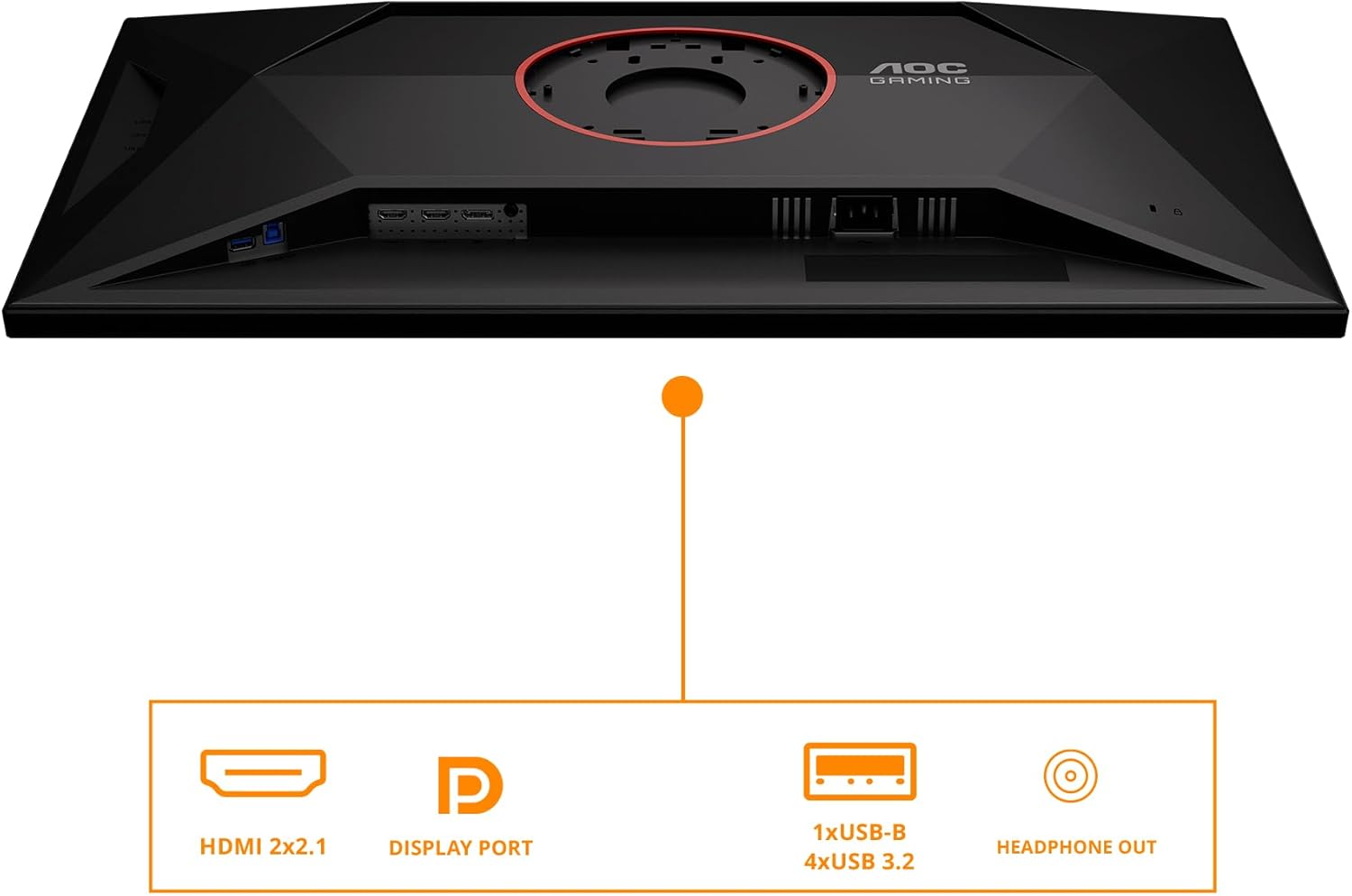
Figure 4.2: Monitor input and output ports.
4.3 Erstes Einschalten
After connecting all cables, press the power button located on the monitor to turn it on. The monitor should automatically detect the active input source. If not, you may need to manually select the input source using the OSD menu.
5. Bedienung des Monitors
5.1 Bedienelemente des Bildschirmdisplays (OSD)
The monitor features a joystick control located on the back or bottom-right for navigating the On-Screen Display (OSD) menu. This joystick allows you to adjust various settings.
- Eindrücken: Activates the OSD menu or confirms a selection.
- Nach oben/unten bewegen: Navigiert durch die Menüoptionen.
- Nach links/rechts bewegen: Adjusts values or navigates sub-menus.
5.2 Navigation im OSD-Menü
The OSD menu provides access to settings for picture quality, color, input selection, and more.
- Leuchtdichte: Adjusts brightness, contrast, and gamma.
- Farbeinstellungen: Controls color temperature, sRGB mode, and other color-related settings.
- Picture Boost: Enhances specific areas of the screen.
- OSD-Setup: Configures OSD language, transparency, and timeout.
- Spieleinstellung: Accesses gaming-specific features like Game Mode, Shadow Control, Low Input Lag, and Adaptive Sync.
- Eingangsauswahl: Manually switches between HDMI 1, HDMI 2, and DisplayPort inputs.
- Extra: Contains information about the current resolution and refresh rate, and options for resetting settings.
5.3 Ergonomische Anpassung
Der Monitorständer ermöglicht ergonomische Anpassungen zur Optimierung Ihres Arbeitsplatzes. viewKomfort.
- Höhenverstellung: Gently push or pull the monitor up or down along the stand neck to adjust its height. The monitor offers up to 130mm of height adjustment.
- Neigungseinstellung: Hold the top and bottom edges of the monitor and gently tilt it forward or backward to achieve your desired viewing-Winkel.

Abbildung 5.1: Höhenverstellung des Monitors.
6. Wartung
6.1 Reinigung des Monitors
- Ziehen Sie vor der Reinigung immer das Netzkabel ab.
- Mit einem weichen, fusselfreien Tuch leichtampMit Wasser oder einem milden, nicht scheuernden Bildschirmreiniger abspülen.
- Sprühen Sie den Reiniger nicht direkt auf den Bildschirm. Tragen Sie ihn zuerst auf ein Tuch auf.
- Vermeiden Sie die Verwendung von Benzol, Verdünner, ammoniakhaltigen Reinigern oder Scheuermitteln, da diese den Bildschirm oder die Oberfläche beschädigen können.asing.
6.2 Speicherung
If storing the monitor for an extended period, ensure it is powered off, disconnected from all cables, and stored in a cool, dry place, preferably in its original packaging to protect it from dust and physical damage.
7. Fehlerbehebung
In der folgenden Tabelle finden Sie häufig auftretende Probleme und deren Lösungen.
| Problem | Mögliche Ursache | Lösung |
|---|---|---|
| Kein Strom | Stromkabel nicht angeschlossen; Steckdose defekt. | Stellen Sie sicher, dass das Netzkabel fest mit dem Monitor und der Steckdose verbunden ist. Testen Sie die Steckdose mit einem anderen Gerät. |
| Kein Signal | Videokabel nicht angeschlossen; falsche Eingangsquelle ausgewählt. | Check video cable connections (HDMI/DP). Use OSD menu to select correct input source. Ensure computer is on. |
| Das Bild ist zu dunkel/zu hell. | Die Helligkeits-/Kontrasteinstellungen sind falsch. | Passen Sie Helligkeit und Kontrast über das OSD-Menü an. |
| Flackerndes oder verzerrtes Bild | Loose video cable; Graphics card driver issue; Incorrect refresh rate. | Reseat video cable. Update graphics card drivers. Check display settings for correct refresh rate (160Hz for UHD). |
| USB-Anschlüsse funktionieren nicht | USB-Upstream-Kabel nicht angeschlossen. | Ensure the USB-B to USB-A cable is connected from the monitor to your computer. |
8. Spezifikationen
Key technical specifications for the AOC U32G4U monitor:
| Besonderheit | Spezifikation |
|---|---|
| Bildschirmgröße | 31.5 Zoll |
| Panel-Typ | Schnelles IPS |
| Max Auflösung | 3840 x 2160 Pixels (UHD) |
| Bildwiederholrate | 160 Hz (UHD), 320 Hz (FHD) |
| Ansprechzeit | 1ms GtG, 0.5ms MPRT |
| HDR-Unterstützung | HDR400 Certified |
| Adaptive Synchronisierung | Yes (G-Sync Compatible) |
| Seitenverhältnis | 16:9 |
| ViewWinkel | 178° (Horizontal/Vertikal) |
| Videoeingänge | 2x HDMI 2.1, 1x DisplayPort 1.4 |
| USB-Hub | 1x USB-B (upstream), 4x USB 3.2 (downstream) |
| Audioausgang | 1x Headphone Out (3.5mm) |
| Lautsprecher | Integrierte Stereo-Lautsprecher |
| Ergonomie | Height Adjustment (130mm), Tilt |
| VESA-Montierung | Supported (Mounting hardware not included) |
| Abmessungen (LxBxH) | 10.61 x 28.19 x 18.19 Zoll (mit Ständer) |
| Gewicht | 22 Pfund (mit Ständer) |
9. Garantie und Support
For detailed warranty information, please refer to the warranty card included with your product or visit the official AOC website. Technical support and customer service contact information can also be found on the AOC website. Please have your monitor's model number (U32G4U) and serial number ready when contacting support.
Online-Ressourcen: For the latest drivers, software, and FAQs, please visit the official AOC support page.