1. Einleitung
This manual provides essential information for setting up, operating, and maintaining your Thunderobot Storm 15 4050 Gaming Laptop. Please read this manual thoroughly before using your device to ensure optimal performance and longevity.
2. Packungsinhalt
Prüfen Sie, ob alle Artikel in Ihrer Produktverpackung vorhanden sind:
- Thunderobot Storm 15 4050 Gaming Laptop
- Netzteil und Kabel
- Benutzerhandbuch (dieses Dokument)
- Garantiekarte
Note: Additional accessories may be included depending on your specific purchase configuration.
3. Körperliche Übergriffeview
3.1. Laptop Exterior
Familiarize yourself with the external components of your laptop.
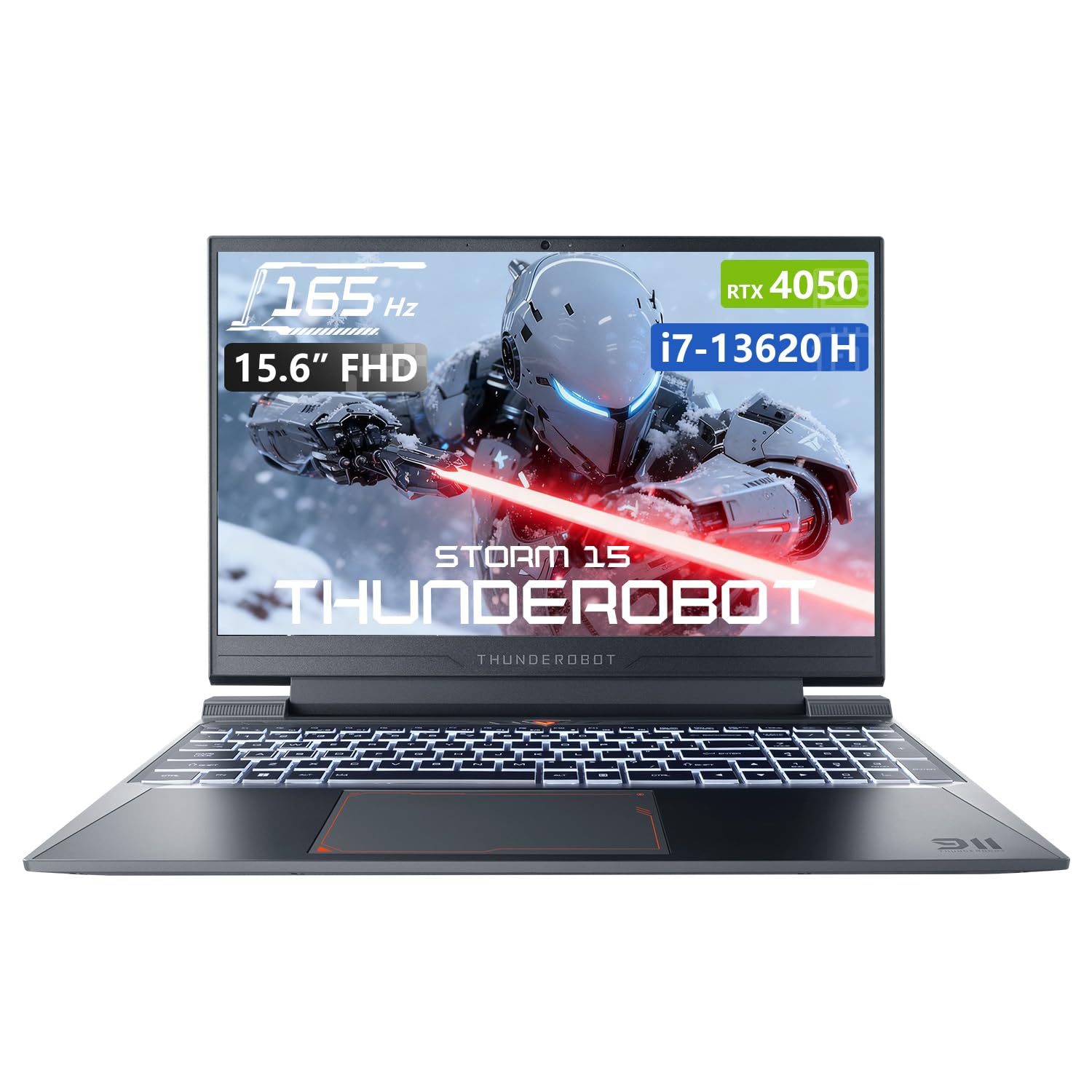
Abbildung 3.1: Draufsicht view of the Thunderobot Storm 15 4050 Gaming Laptop.

Abbildung 3.2: Offen view of the Thunderobot Storm 15 4050 Gaming Laptop, highlighting the keyboard and display.
3.2. Anschlüsse und Stecker
The Thunderobot Storm 15 4050 is equipped with various ports for connectivity. Refer to the diagram below for port locations and functions.

Figure 3.3: Port layout of the Thunderobot Storm 15 4050 Gaming Laptop.
- USB 3.1 Gen 2 Typ-C: Für schnelle Datenübertragung und Bildausgabe.
- RJ-45-Ethernet-Anschluss: Für kabelgebundene Netzwerkverbindung.
- USB 3.1 Typ-A (x3): Zum Anschließen von USB-Geräten.
- HDMI-Anschluss: Zum Anschluss externer Displays.
- 3.5-mm-Kombibuchse: Für Kopfhörer oder Headsets mit Mikrofon.
- Leistungsaufnahme: Zum Anschluss des Netzteils.
3.3. Tastatur und Touchpad
The laptop features a full-size backlit keyboard with a numeric keypad for enhanced usability. The touchpad supports multi-touch gestures.

Abbildung 3.4: Ausführlich view of the backlit keyboard.
4. Einrichtung
4.1. Erstes Einschalten
- Schließen Sie das Netzteil an den Stromeingangsanschluss des Laptops und anschließend an eine Steckdose an.
- Öffnen Sie den Laptopdeckel.
- Drücken Sie den Netzschalter, um den Laptop einzuschalten.
- Folgen Sie den Anweisungen auf dem Bildschirm, um die Einrichtung von Windows 11 Home abzuschließen.
4.2. Verbinden mit einem Netzwerk
You can connect to the internet via Wi-Fi or a wired Ethernet connection.
- W-lan: After initial setup, click the Wi-Fi icon in the taskbar, select your network, and enter the password.
- Ethernet: Verbinden Sie ein Ethernet-Kabel von Ihrem Router oder Modem mit dem RJ-45-Anschluss des Laptops.
5. Bedienung Ihres Laptops
5.1. Leistungsmodi
The Thunderobot Storm 15 4050 features an Intelligent Control Center allowing you to switch between different performance modes to optimize for various tasks. These modes typically include:
- Berserk Mode: Full performance release for demanding applications and gaming.
- Spielmodus: Optimized for smooth gaming performance.
- Audio and Video Office Mode: Balances performance with power efficiency for everyday tasks.
Access the Control Center by searching for "Control Center" in the Windows search bar or by using dedicated function keys (if available). Hinweis: Für die Umschaltung des Systemmodus im Control Center muss das Gerät an eine Stromquelle angeschlossen sein.

Figure 5.1: Intelligent Control Center interface.
5.2. Kühlsystem
The laptop incorporates an advanced Frost Cooling System designed for efficient heat dissipation, crucial during intensive use. This system includes multi-heat-pipe design, high-pressure turbine fans, and high-density copper fins.
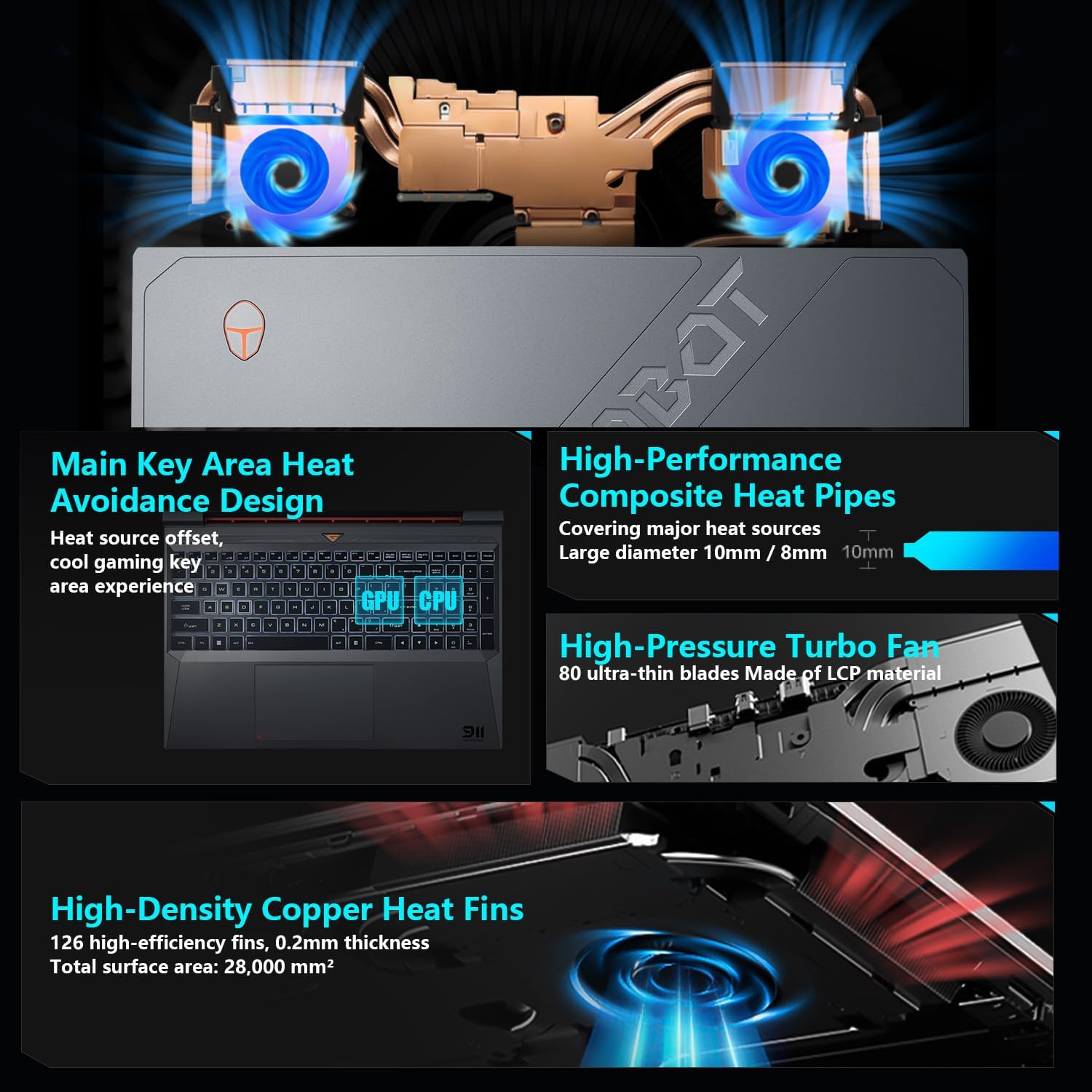
Abbildung 5.2: Intern view of the Frost Cooling System.
Ensure that the air vents are not obstructed to maintain optimal cooling performance. Fan speed can be adjusted via the Control Center.
5.3. Anzeigeeinstellungen
Your laptop features a 15.6-inch Full HD (1920x1080) display with a 165Hz refresh rate. You can adjust display settings through Windows settings (Right-click on desktop > Display settings) to customize resolution, refresh rate, and color profiles.
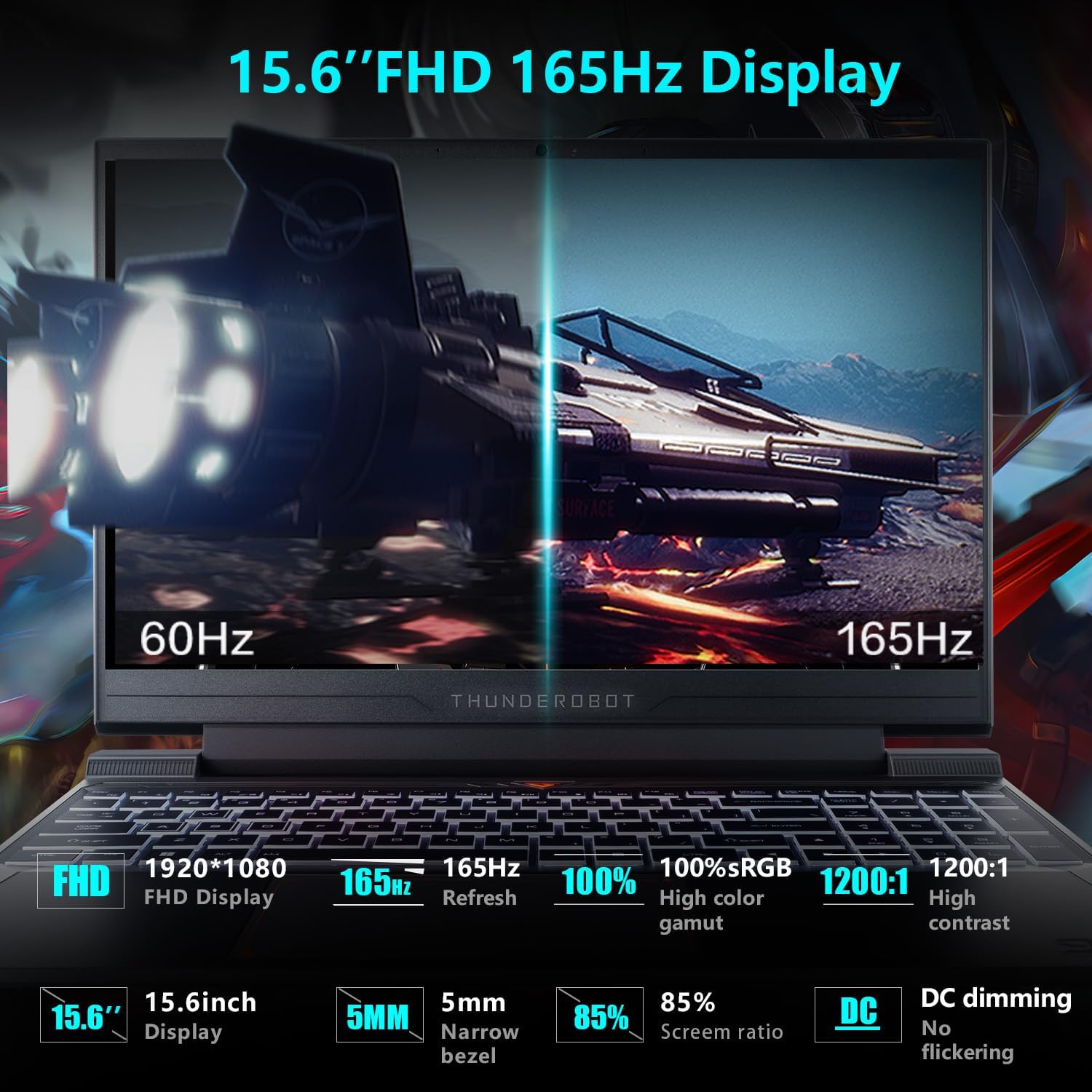
Figure 5.3: Display features of the Thunderobot Storm 15 4050.
5.4. Audiosystem
The laptop is equipped with a professional sound system for an immersive audio experience. Adjust volume and sound settings through the Windows sound control panel.
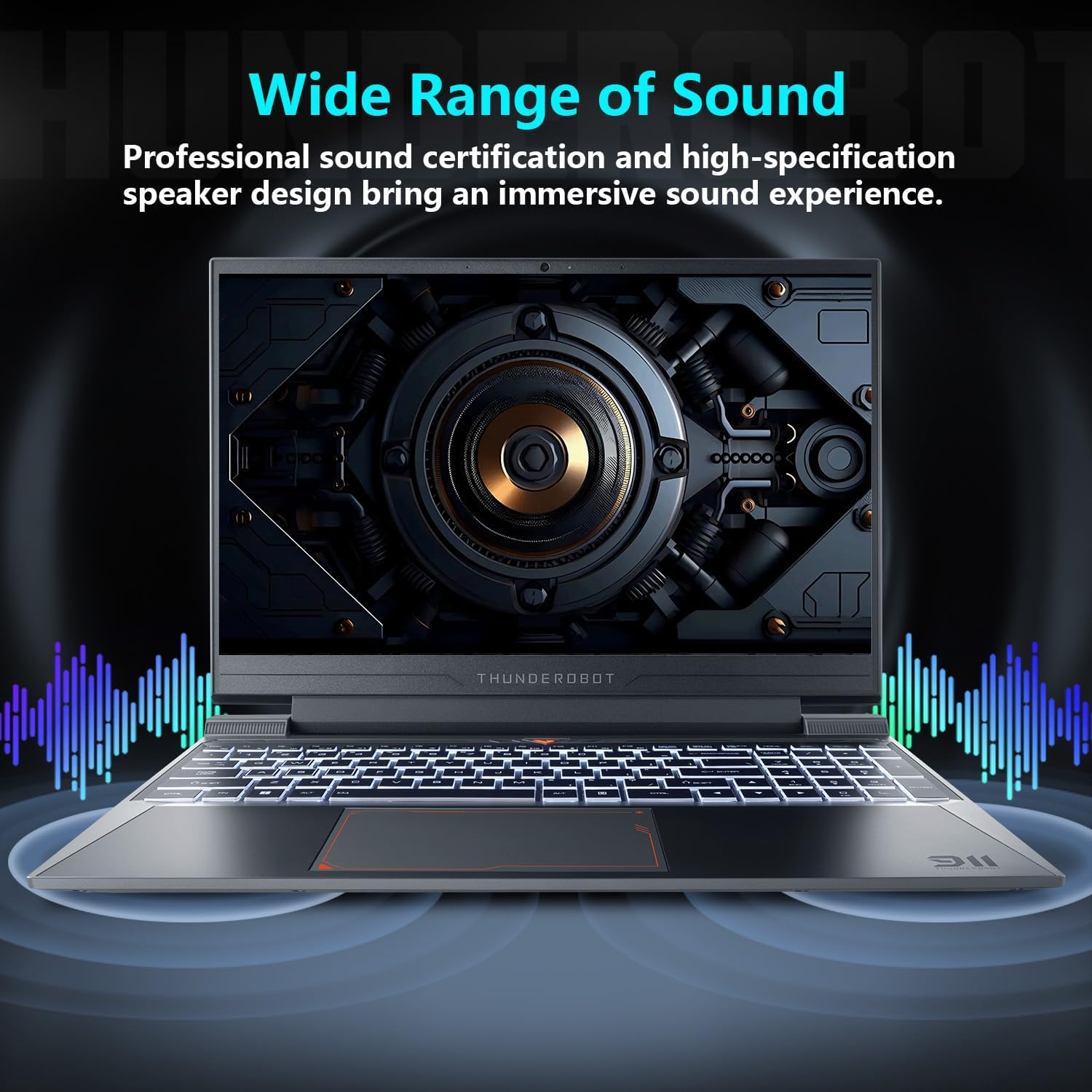
Figure 5.4: Audio system overview.
6. Wartung
Proper maintenance ensures the longevity and performance of your laptop.
- Reinigung: Use a soft, dry cloth to clean the screen and chassis. For stubborn marks, a slightly damp cloth with a mild cleaning solution can be used, ensuring no liquid enters the device.
- Belüftung: Regularly check and clean the air vents to prevent dust buildup, which can hinder cooling performance.
- Batteriepflege: Um eine optimale Batterielebensdauer zu gewährleisten, vermeiden Sie es, die Batterie dauerhaft vollständig zu entladen oder sie über längere Zeiträume auf 100 % geladen zu halten.
- Software-Updates: Halten Sie Ihr Betriebssystem und Ihre Treiber auf dem neuesten Stand, um Stabilität und Sicherheit zu gewährleisten.
7. Fehlerbehebung
In diesem Abschnitt werden häufig auftretende Probleme behandelt.
| Problem | Mögliche Ursache | Lösung |
|---|---|---|
| Der Laptop lässt sich nicht einschalten. | Battery depleted, power adapter not connected properly. | Ensure the power adapter is securely connected and the laptop is charging. Try a different power outlet. |
| Der Bildschirm bleibt nach dem Einschalten schwarz. | External display connected, display driver issue. | Disconnect any external displays. Try pressing Fn + F1 (or the appropriate function key for display toggle) to switch display output. |
| Probleme mit der WLAN-Verbindung. | WLAN deaktiviert, falsches Passwort, Routerproblem. | Stellen Sie sicher, dass WLAN in den Windows-Einstellungen aktiviert ist. Überprüfen Sie das WLAN-Passwort. Starten Sie Ihren Router neu. |
| Laptop is running slow or overheating. | Too many applications running, obstructed vents, outdated drivers. | Close unnecessary applications. Clean air vents. Update drivers. Adjust fan speed in Control Center. |
Sollten Sie auf Probleme stoßen, die hier nicht aufgeführt sind, oder sollten die vorgeschlagenen Lösungen das Problem nicht beheben, wenden Sie sich bitte an den Kundendienst.
8. Spezifikationen
Detailed technical specifications for the Thunderobot Storm 15 4050 Gaming Laptop:
- Modell: Sturm 15
- Prozessor: Intel Core i7-13620H (10 Kerne, 16 Threads, bis zu 4.9 GHz)
- Grafik: NVIDIA GeForce RTX 4050 Laptop GPU (Dedicated)
- Anzeige: 15.6-inch Full HD (1920x1080) 165Hz
- RAM: 16 GB DDR4 3200 MHz
- Lagerung: 1 TB PCIe M.2 SSD
- Betriebssystem: Windows 11 Home
- Kabellose Verbindung: 802.11ac WLAN, Bluetooth
- Häfen: USB 3.1 Gen 2 Type-C, 3x USB 3.1 Type-A, HDMI, RJ-45 Ethernet, 3.5mm Combo Jack, Power Input
- Tastatur: Vollwertige Tastatur mit Hintergrundbeleuchtung und Ziffernblock
- Abmessungen: 14.12 x 10.14 x 0.94 Zoll
- Gewicht: Ungefähr 12 Pfund
9. Garantie und Support
Every Thunderobot laptop includes a 12-month warranty, offering expert support, thorough diagnostics, and genuine parts if a repair is needed. We also provide a 90-day warranty on all warranty replacement parts, ensuring hassle-free repairs.
For technical support, warranty claims, or service inquiries, please visit the official Thunderobot website or contact their customer service department. Keep your purchase receipt and warranty card for reference.
Video 9.1: Eine kurze Vorbemerkungview Video-Showasing the Thunderobot Storm 15 4050 Gaming Laptop's features and design. This video is provided by the seller and offers a quick visual overview des Produkts.
Video 9.2: Another short preview video highlighting the Thunderobot Storm 15 4050 Gaming Laptop's design elements and user interaction. This video is provided by the seller and offers a quick visual overview des Produkts.


