Einführung
Thank you for choosing the vretti PB821 Portable Thermal Printer. This compact and versatile device is designed for convenient, inkless printing from various devices, including smartphones, tablets, and laptops. Its portability makes it ideal for business, office, home, and travel use. This manual provides essential information on setting up, operating, maintaining, and troubleshooting your printer to ensure optimal performance.
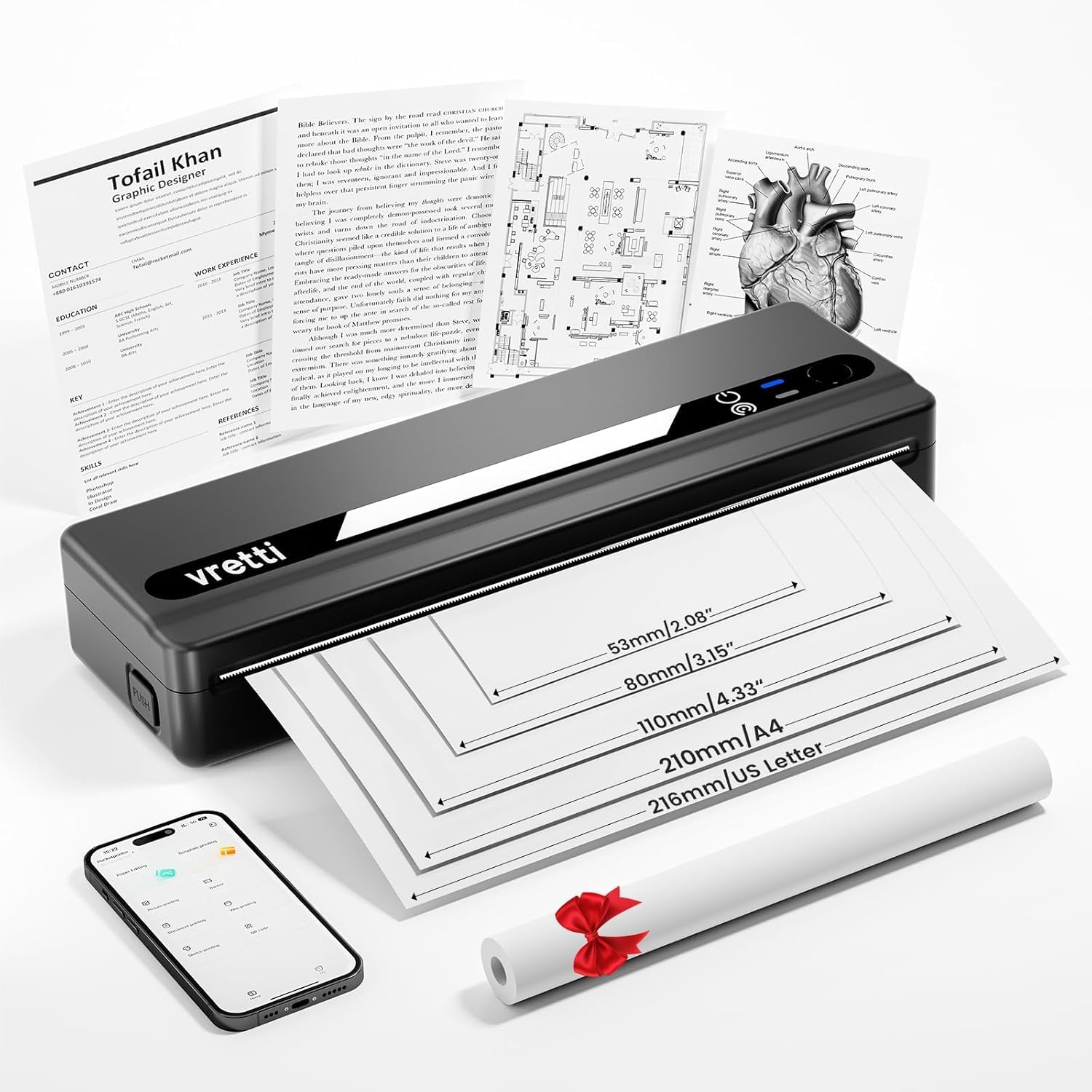
Image: The vretti PB821 Portable Thermal Printer, a sleek black device, ready for use.
Packungsinhalt
Bitte überprüfen Sie nach dem Auspacken den Packungsinhalt, um sicherzustellen, dass alle Artikel vorhanden sind:
- vretti PB821 Portable Thermal Printer
- 1 Roll of Thermal Paper
- USB-C-Ladekabel
- Bedienungsanleitung
Produkt überview
Hauptmerkmale
- Drahtloses Bluetooth-Drucken: Connects wirelessly to phones and tablets via the "XLifePro" app.
- Tragbar und kompakt: Kleines und leichtes Design für einfachen Transport.
- Cost-effective Inkless Printing: Utilizes advanced thermal printing technology, eliminating the need for ink, toner, or ribbons.
- High-quality Printing: Delivers clear prints with a 203 DPI resolution.
- Langlebige Batterie: Built-in 1500mAh rechargeable battery supports printing up to 223 A4 sheets on a full charge.
- Multi-size Paper Support: Compatible with A5, A4, Letter, and 2-4 inch labels.
Konnektivitätsoptionen

Image: The vretti PB821 printer supports both Bluetooth and USB connections for versatile use with Android, iOS, iPad, Windows, Mac OS, Linux, and Chromebook devices.
The vretti PB821 printer offers flexible connectivity, allowing you to print wirelessly via Bluetooth from mobile devices or directly via USB from computers. This ensures compatibility across various operating systems and devices.
Tragbares Design

Image: A visual comparison highlighting the compact and portable design of the vretti PB821 printer against a larger, traditional printer, emphasizing its convenience.
The PB821 is designed for maximum portability, making it easy to carry in a backpack or bag. Its compact form factor does not compromise on functionality, offering easy setup and smooth, inkless printing.
Aufstellen
1. Erstes Aufladen
Before first use, fully charge the printer using the provided USB-C cable. Connect the cable to the printer's USB-C port and a compatible power adapter (not included) or computer USB port. The charging indicator light will show the charging status.

Image: Visual representation of the printer's 1500mAh battery capacity, USB-C charging, and its ability to print up to 223 A4 sheets on a single charge.
2. Einlegen von Thermopapier
The vretti PB821 supports various thermal paper types. To load paper:
- Öffnen Sie die Papierabdeckung des Druckers.
- Insert the thermal paper with the printable side facing up. Ensure the paper is aligned correctly within the guides.
- Schließen Sie die Papierabdeckung fest.

Image: The vretti PB821 printer showcasing its compatibility with different thermal paper types, including folding thermal paper and roll paper, along with various paper sizes.
3. Verbindung via Bluetooth (Mobilgeräte)
To print wirelessly from your smartphone or tablet:
- Download the "XLifePro" app from the App Store (iOS) or Google Play Store (Android).
- Turn on the vretti PB821 printer. The Bluetooth indicator light will blink.
- Open the XLifePro app, navigate to the device connection settings, and select the PB821 printer from the list of available Bluetooth devices.
- Sobald die Verbindung hergestellt ist, leuchtet die Bluetooth-Anzeigeleuchte dauerhaft.

Image: Step-by-step guide on connecting the vretti PB821 printer via Bluetooth, including downloading the XLifePro app and pairing the device.
4. Anschluss über USB (Computer)
To print from your Windows, Mac OS, or Linux computer:
- Download the appropriate printer driver from the official vretti webWebsite: vrettitech.com/pages/p83-support.
- Install the driver on your computer following the on-screen instructions.
- Connect the vretti PB821 printer to your computer using the provided USB-C cable.
- The computer should recognize the printer, and you can now select it as your printing device.

Image: Instructions for USB connection, detailing driver download from the vretti website and connecting the PB821 printer to a laptop.
Bedienungsanleitung
Printing from Mobile Devices
Sobald die Verbindung über Bluetooth hergestellt ist:
- Öffnen Sie das Dokument, das Bild oder file you wish to print within the XLifePro app. The app supports various formats including TXT, PDF, Excel, and Word documents.
- Wählen Sie in der App die Druckoption aus.
- Confirm print settings such as paper size and quantity.
- Druckvorgang starten.
Printing from Computers
Once connected via USB and drivers are installed:
- Öffnen Sie das Dokument bzw file Sie möchten auf Ihrem Computer drucken.
- Select the print option from your application (e.g., File > Drucken).
- Choose "vretti PB821" from the list of available printers.
- Passen Sie die Druckeinstellungen nach Bedarf an (z. B. Papierformat, Ausrichtung).
- Klicken Sie auf „Drucken“.
Unterstützte Papiersorten und -formate
The PB821 printer is compatible with various thermal paper types and sizes, including:
- A4 (210 mm)
- Letter (8.5" x 11" / 216mm)
- A5 (148 mm)
- B5 (175 mm)
- 2-inch (53mm) labels
- 3-inch (80mm) labels
- 4-inch (110mm) labels

Image: The vretti PB821 printer demonstrating its support for multiple paper sizes, including standard document sizes and various label sizes.
Using the XLifePro App
The XLifePro app provides additional functionalities beyond basic printing, including:
- Access to multiple templates for creative printing.
- Options for document printing, picture printing, and more.
- Customization features for various printing needs.

Image: Screenshots of the XLifePro app interface, illustrating its diverse range of templates and printing options.
Wartung
Reinigen des Druckers
To maintain print quality and prolong the printer's lifespan:
- Ensure the printer is turned off and disconnected from power before cleaning.
- Mit einem weichen, fusselfreien Tuch leichtampened with water or isopropyl alcohol to gently wipe the print head and paper path.
- Keine Scheuer- oder Lösungsmittel verwenden.
- Allow the printer to dry completely before turning it on.
Batteriepflege
So optimieren Sie die Akkulaufzeit:
- Vermeiden Sie häufiges vollständiges Entladen des Akkus.
- Bewahren Sie den Drucker an einem kühlen, trockenen Ort auf, wenn er längere Zeit nicht benutzt wird.
- Charge the printer regularly, even if not in frequent use, to prevent deep discharge.
Fehlerbehebung
| Ausgabe | Mögliche Ursache | Lösung |
|---|---|---|
| Drucker lässt sich nicht einschalten | Niedriger Batteriestand; Ein-/Ausschalter nicht richtig gedrückt | Laden Sie den Drucker auf; Halten Sie den Netzschalter einige Sekunden lang gedrückt. |
| Verbindung über Bluetooth nicht möglich | Bluetooth am Gerät deaktiviert; Drucker nicht im Kopplungsmodus; App-Problem | Ensure Bluetooth is enabled; Restart printer; Reinstall XLifePro app |
| Schlechte Druckqualität | Low battery; Dirty print head; Incorrect paper type | Charge printer; Clean print head; Use recommended thermal paper |
| Papierstau | Falsches Einlegen des Papiers; Beschädigtes Papier | Turn off printer, carefully remove jammed paper, reload correctly; Use undamaged paper |
| Drucker wird vom Computer nicht erkannt. | Fehlende/falsche Treiber; defektes USB-Kabel/USB-Anschluss | Install/reinstall drivers from vretti website; Try a different USB cable/port |
Technische Daten
| Besonderheit | Detail |
|---|---|
| Modell | PB821 |
| Marke | vretti |
| Drucktechnologie | Thermal |
| Konnektivitätstechnologie | Bluetooth, USB |
| Maximale Druckauflösung | 203 DPI (Black and White) |
| Printmedien | Thermopapier (unbedruckt) |
| Unterstützte Blechgrößen | 2'', 3'', 4'', A4, 8.5''x 11'' US Letter |
| Max. Blatteingabekapazität | 30 Blatt |
| Batteriekapazität | 1500 mAh (Lithium-Ionen) |
| Technische Daten | 25.7 x 7 x 4.7 cm |
| Artikelgewicht | 900 g |
| Beidseitiger Druck | NEIN |
| Tintenfarbe | Schwarz |
Garantie und Support
The vretti PB821 Portable Thermal Printer comes with a standard manufacturer's warranty. For specific warranty details, technical support, or service inquiries, please refer to the warranty card included in your package or visit the official vretti webBewahren Sie Ihren Kaufbeleg als Kaufnachweis für Garantieansprüche auf.
Produktvideo
Video: An official product video demonstrating the features and usage of the vretti PB821 Portable Thermal Printer, including its compact design, wireless connectivity, and printing capabilities.


