1. Einleitung
This manual provides essential information for setting up, operating, and maintaining your XGIMI HORIZON 20 4K RGB Triple Laser Home Projector. Please read it thoroughly to ensure optimal performance and longevity of your device.

Figure 1: The XGIMI HORIZON 20 4K RGB Triple Laser Home Projector with included 3D glasses.
2. Hauptmerkmale
- RGB-Dreifachlaser: Delivers 3200 ISO lumens and a 100,000:1 contrast ratio for vivid and accurate colors.
- Cinematic Certified: Supports IMAX Enhanced, Dolby Vision, HDR10+, and Filmmaker Mode for high-quality visuals.
- Integriertes System: Features powerful Harman Kardon speakers, built-in Google TV, and an integrated stand.
- Lossless Optics: Flexible lens shift and optical zoom for setup versatility without clarity loss.
- Pro-Level Gaming: Offers 1ms response time, 240Hz refresh rate, VRR, and ALLM for a smooth gaming experience.
- Großes Display: Capable of projecting visuals up to 300 inches.
- Licensed Netflix: Official Netflix support integrated.
3. Einrichtung
3.1 Auspacken
The XGIMI HORIZON 20 comes in premium packaging. Carefully remove the projector and its accessories from the box. A portable box is included for convenient transport and outdoor use.
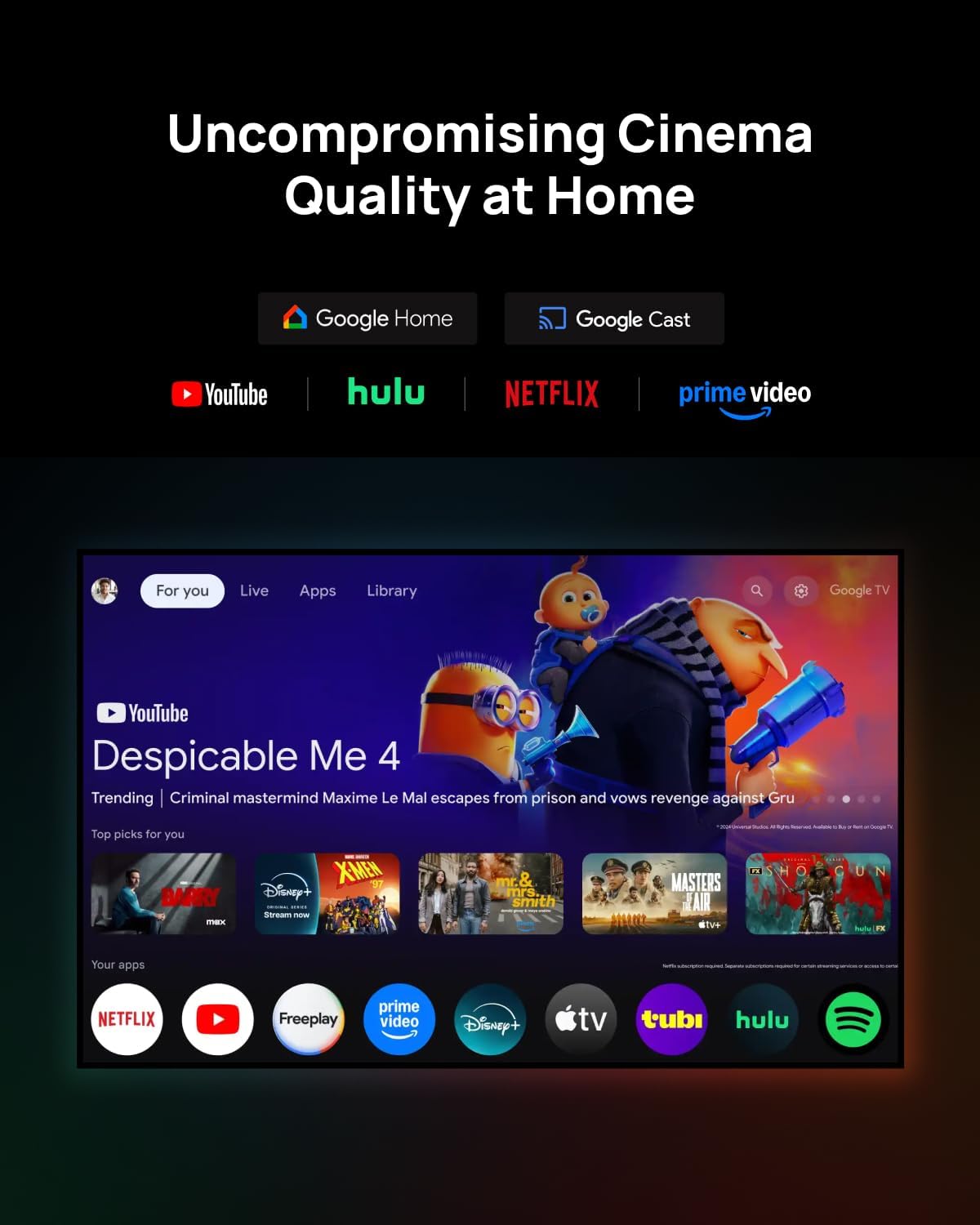
Figure 2: The XGIMI HORIZON 20 projector being unboxed from its protective, portable packaging.
3.2 Platzierung
The projector can be placed on a flat surface or mounted to the ceiling. Ensure the projector is stable and has adequate ventilation. For ceiling mounting, use a compatible mount (sold separately).

Figure 3: The XGIMI HORIZON 20 projector showcasing its flexible installation options, including dynamic lens shift for optimal image placement.
3.3 Anschlüsse
Die Rückseite des Projektors verfügt über verschiedene Anschlüsse:
- HDMI-Anschlüsse: Two HDMI ports, one supporting eARC for enhanced audio return.
- USB-Anschlüsse: One USB 3.0 port and one USB 2.0 port for media playback and external devices.
- Audioausgang: Digital audio out and an analog audio output (3.5mm jack).
- Leistungsaufnahme: Connect the power adapter to this port.

Abbildung 4: Rückseite view of the XGIMI HORIZON 20, highlighting its various connectivity ports for external devices.
4. Bedienung
4.1 Ein-/Ausschalten
Drücken Sie den Netzschalter am Projektor oder an der Fernbedienung, um das Gerät ein- oder auszuschalten.
4.2 Navigation (Google TV)
The projector runs on Google TV OS, providing a user-friendly interface for accessing apps, streaming services, and settings. Navigate using the provided remote control.

Figure 5: The Google TV interface on the XGIMI HORIZON 20, showing access to popular streaming applications like Netflix, YouTube, and Prime Video.
4.3 Bildeinstellungen
Access the picture settings menu to adjust various display parameters:
- Bildmodus: Select from predefined modes (e.g., Standard, Filmmaker).
- Helligkeit: Passen Sie die Gesamthelligkeit des Bildes an.
- Kontrast: Den Unterschied zwischen den hellsten und dunkelsten Bereichen steuern.
- Sättigung: Modify the intensity of colors.
- Schärfe: Bildkanten verstärken oder weicher zeichnen.
- Erweiterte Einstellungen: Includes options for 11-Point White Balance Correction, 2-Point White Balance Correction, Color Temperature, Dynamic Black Level Enhancer, Gamma, Color Space, and Color Tuner for precise calibration.
4.4 Audioeinstellungen
The projector features an integrated Harman Kardon sound system. Adjust audio settings via the menu:
- Klangstil: Wählen Sie aus verschiedenen Soundprogrammenfiles (e.g., Standard, Game).
- Grundeinstellungen: Adjust Balance, Bass, Treble, enable Surround Sound, and fine-tune Equalizer Detail.
- DTS DRC: Digital Theater System Dynamic Range Control.
- Referenten: Toggle internal speakers on/off.
- Lautsprecherverzögerung: Adjust delay for audio synchronization.
- eARC: Enhanced Audio Return Channel settings.
- Downmix-Modus: Select stereo or other downmix options.
- Dialog Enhancer: Improve clarity of spoken dialogue.
4.5 Intelligente Funktionen
The HORIZON 20 includes several smart features for ease of use:
- Autofokus: Passt das Bild automatisch für optimale Klarheit an.
- Automatische Trapezkorrektur: Corrects image distortion when the projector is not perfectly aligned with the screen.
- Wandfarbanpassung: Passt die Farben an die Wandoberfläche an.
- Bildschirm Rotation: Automatically adjusts image orientation.
- Augenschutzmodus: Reduziert die Blaulichtemission für mehr Augenkomfort.
4.6 Lens Shift and Optical Zoom
The projector offers advanced optical adjustments:
- Linsenverschiebung: Allows you to move the projected image vertically (up to ±120%) and horizontally (up to ±45%) without moving the projector. This feature maintains image quality without digital scaling or distortion. Note that enabling Lens Shift may disable some automatic smart features like Auto Focus and Auto Keystone Correction.
- Optischer Zoom: Provides framing flexibility by adjusting the image size optically, avoiding digital scaling and preserving image quality.
4.7 Gaming-Modus
For an enhanced gaming experience, the projector offers a dedicated gaming mode with 1ms response time, 240Hz fluidity, VRR (Variable Refresh Rate), and ALLM (Auto Low Latency Mode). When gaming mode is enabled, Keystone correction may be disabled, but Lens Shift and Optical Zoom can be used to maintain image geometry.
Figure 6: The XGIMI HORIZON 20 delivering a high-performance gaming experience with minimal input lag.
4.8 3D Video Support
The HORIZON 20 supports 3D video playback. Compatible 3D glasses (such as XGIMI Active 3D Glasses) are required for view3D-Inhalte.

Figure 7: XGIMI Active 3D Glasses, designed for a brighter and clearer 3D viewing experience with long battery life.
5. Wartung
5.1 Reinigung
Regularly clean the projector's lens with a soft, lint-free cloth specifically designed for optical surfaces. Use a soft brush or compressed air to remove dust from the vents. Do not use abrasive cleaners or solvents.
5.2 Speicherung
Bei längerer Nichtbenutzung sollte der Projektor an einem kühlen, trockenen Ort aufbewahrt werden, idealerweise in der Originalverpackung oder einem Schutzkoffer, um Staubansammlungen und Beschädigungen zu vermeiden.
6. Fehlerbehebung
If you encounter any issues with your XGIMI HORIZON 20, please refer to the following general troubleshooting steps:
- Kein Strom: Vergewissern Sie sich, dass das Netzkabel fest angeschlossen und die Steckdose funktionsfähig ist.
- Kein Bild: Check HDMI or other input connections. Verify the correct input source is selected.
- Verschwommenes Bild: Adjust focus manually or use the auto-focus feature. Ensure the lens is clean.
- Zerrbild: Use keystone correction or lens shift to adjust the image geometry.
- Kein Ton: Check audio settings, volume levels, and external audio connections.
For more detailed troubleshooting or persistent issues, please contact XGIMI customer support.
7. Spezifikationen
| Besonderheit | Spezifikation |
|---|---|
| Modell | HORIZON 20 |
| Display-Technologie | 4K RGB Triple Laser |
| Helligkeit | 3200 ISO-Lumen |
| Kontrastverhältnis | 100,000:1 |
| Maximale Displaygröße | 300 Zoll |
| Betriebssystem | Google TV |
| Prozessor | MediaTek MT9679 SoC |
| RAM | 4 GB |
| Lagerung | 128 GB |
| Input Lag (Gaming Mode) | 1 ms |
| Refresh Rate (Gaming Mode) | 240 Hz |
| HDR-Unterstützung | HDR10+, Dolby Vision |
| Audio | Harman Kardon Integrated System |
| Konnektivität | 2x HDMI (1x eARC), 1x USB 3.0, 1x USB 2.0, Digital Audio Out, Analog Audio Out (3.5mm), Wi-Fi, Bluetooth |
| Besondere Merkmale | Lens Shift, Optical Zoom, Auto Focus, Auto Keystone, Wall Color Adaption, Screen Rotation, Eye Protection Mode, VRR, ALLM, 3D Video Support, Licensed Netflix |
8. Garantie und Support
Informationen zur Garantie und zum technischen Support finden Sie auf der offiziellen XGIMI-Website. webSie können auch die Website oder die Ihrem Produkt beiliegende Dokumentation besuchen. XGIMI Store on Amazon für zusätzliche Ressourcen.


