1. Einleitung
This manual provides essential information for setting up, operating, maintaining, and troubleshooting your NIMO 15.6-inch Laptop N152. Please read this manual thoroughly before using your device to ensure proper functionality and longevity.

Image 1.1: NIMO 15.6-inch Laptop, top-down view.
2. Einrichtung
2.1 Auspacken und erste Inspektion
Carefully remove all components from the packaging. Verify that all items listed in the 'What's in the Box' section (Section 6) are present and undamaged. If any items are missing or damaged, contact customer support.
2.2 Laden des Laptops
Before first use, fully charge your NIMO laptop. Connect the provided 65W USB-C PD Fast Charger to the laptop's USB-C port and then to a power outlet. The charging indicator light will illuminate. A 15-minute charge provides approximately 2 hours of use.

Image 2.1: The 65W USB-C PD Fast Charger can charge multiple devices.
2.3 Einschalten und Erstkonfiguration
Press the power button to turn on the laptop. Follow the on-screen instructions to complete the Windows 11 Home setup, including language selection, network connection, and user account creation. You can set up the fingerprint reader during this process for secure login.
3. Bedienungsanleitung
3.1 Tastatur und Touchpad
The NIMO N152 features an ergonomic backlit keyboard. To adjust the backlight brightness or toggle it on/off, use the dedicated function keys (Fn + F-key combination, refer to keyboard legends). The touchpad supports multi-touch gestures for enhanced navigation.
3.2 Fingerabdruckleser
The fingerprint reader is integrated into the touchpad for secure and instant login. Once configured, simply place your registered finger on the sensor to unlock your device.
3.3 Anzeigefunktionen
The 15.6-inch Full HD (1920x1080) IPS anti-glare display offers clear visuals. The 180° hinge allows the screen to lay completely flat, useful for sharing content or collaborating.

Image 3.1: The 180° lay-flat hinge for versatile viewing.
3.4 Konnektivität
The laptop is equipped with various ports for external devices:
- USB 3.0 Ports: Für Hochgeschwindigkeits-Datenübertragung.
- USB 2.0-Anschluss: Für Standard-USB-Geräte.
- HDMI: Anschluss an externe Displays oder Projektoren.
- Typ-C-Anschlüsse: Zum Aufladen und zur Datenübertragung.
- Micro-SD-Kartenleser: Zur Erweiterung des Lagers oder zum Transfer files von Speicherkarten.
- Audiobuchse: Für Kopfhörer oder externe Lautsprecher.
- Kensington Schloss: Zur physischen Sicherheit.
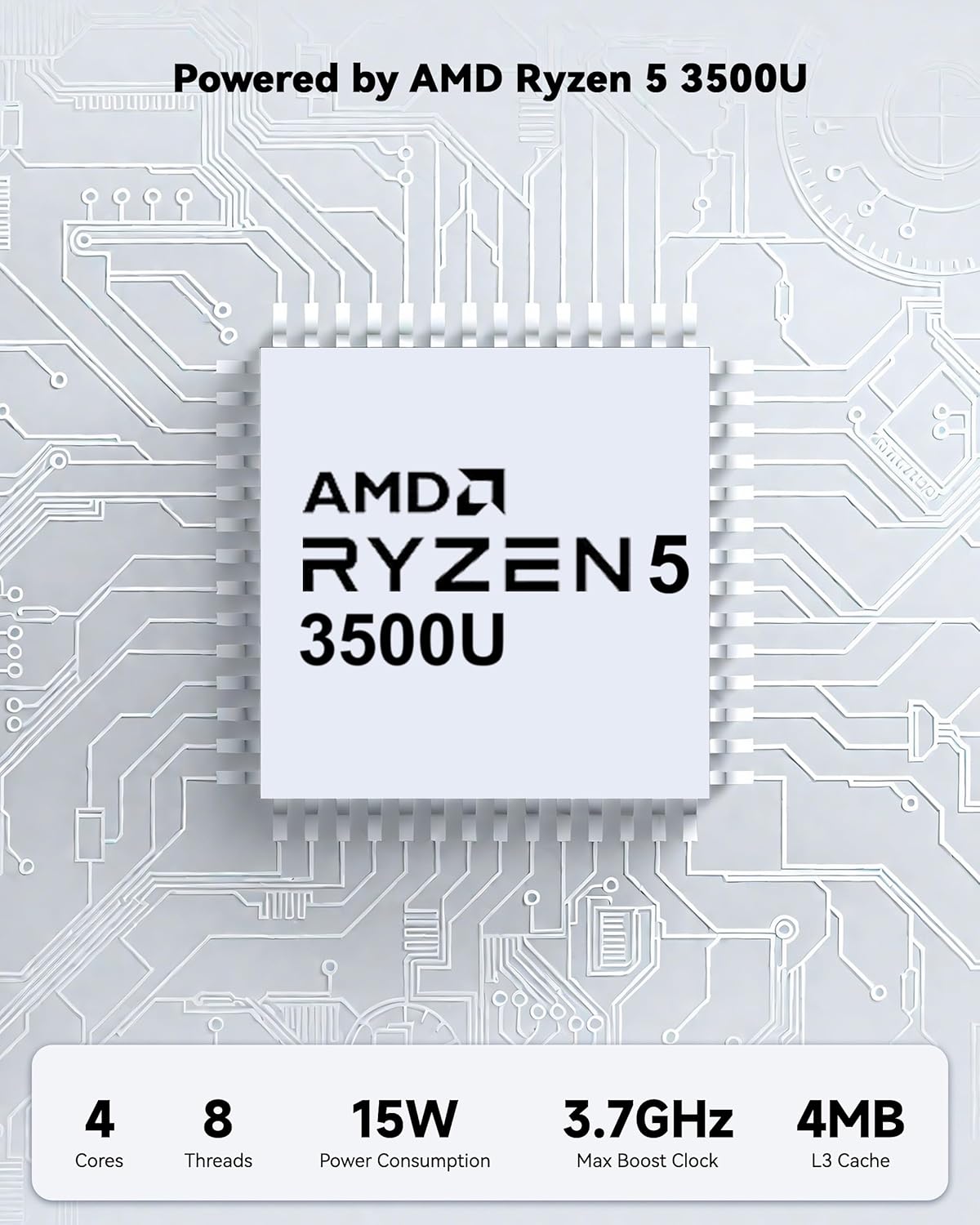
Abbildung 3.2: Seite view of the NIMO laptop showing available ports.
For wireless connectivity, the laptop supports Wi-Fi 6 for stable, high-speed internet and Bluetooth 5.2 for connecting wireless peripherals.
4. Hauptmerkmale
4.1 Leistung
Powered by an AMD Ryzen 5 processor with 4 cores up to 3.7GHz and 16GB DDR4 RAM, the NIMO N152 is designed for efficient multitasking. The 512GB PCIe SSD ensures fast boot-ups and quick file transfers. The RAM is upgradable for future needs.

Image 4.1: AMD Ryzen 5 processor details.
4.2 Visuals and Audio
The 15.6-inch Full HD (1920x1080) IPS anti-glare display provides vibrant visuals with an 85% screen-to-body ratio. The integrated 2MP webcam allows for clear video calls.
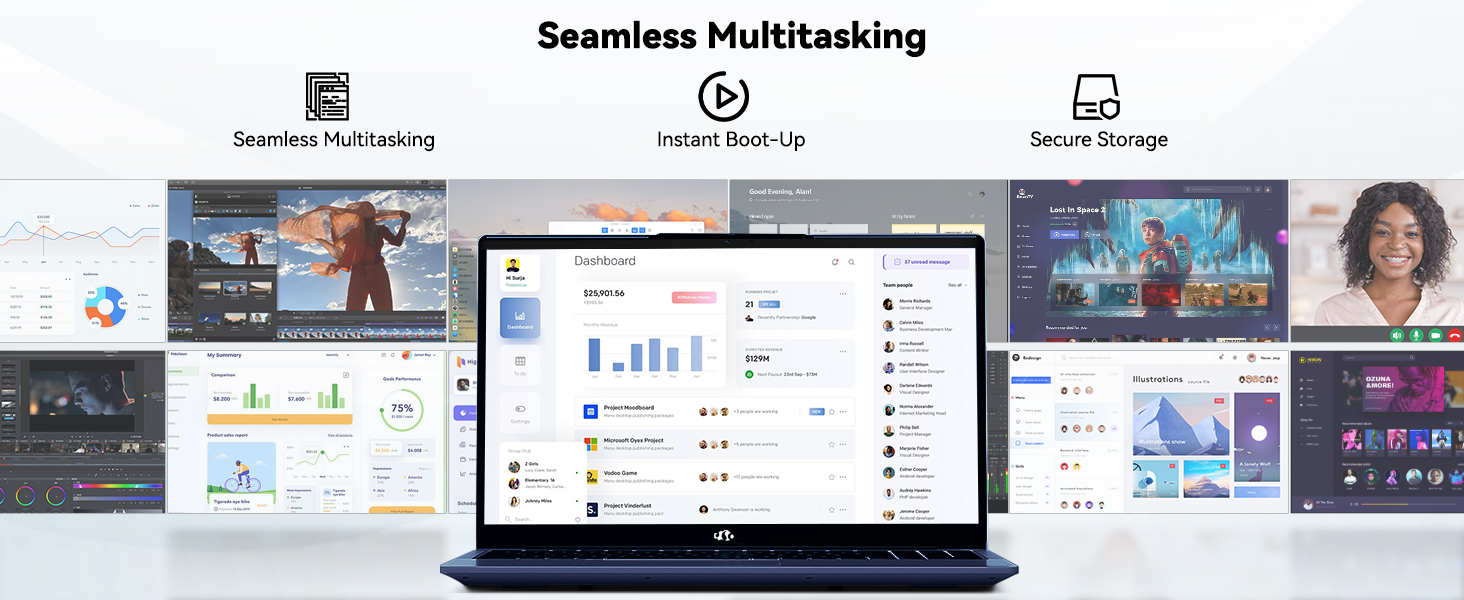
Image 4.2: The laptop's stunning Full HD display.

Image 4.3: The 1080p FHD camera for clear video conferencing.
4.3 Akkulaufzeit
The laptop features a 54WH battery with smart battery optimization for extended lifespan and efficient power control, providing approximately 9 hours of average battery life.

Image 4.4: Smart Battery Optimization features.
4.4 Design und Portabilität
The NIMO N152 has a durable metal A-shell and a slim, lightweight design, weighing approximately 3.75 pounds.

Image 4.5: The NIMO laptop's lightweight and slim profile.
4.5 Produktüberschussview Video
Video 4.1: Ein allgemeiner Überblickview of the NIMO 15.6-inch laptop, highlighting its features and design.
4.6 Power and Portability Video
Video 4.2: This video demonstrates the power and portability aspects of the NIMO 15.6-inch laptop.
5. Wartung
5.1 Reinigung
- Verwenden Sie ein weiches, fusselfreies Tuch, um den Bildschirm und die Außenseite zu reinigen.
- Bei hartnäckigen Flecken leicht tupfen.ampDas Tuch mit Wasser oder einem für Bildschirme geeigneten Reiniger abwischen.
- Vermeiden Sie aggressive Chemikalien, Scheuermittel oder Lösungsmittel.
- Um einen ordnungsgemäßen Luftstrom zu gewährleisten, müssen die Lüftungsschlitze frei von Staub und Schmutz sein.
5.2 Batteriepflege
- Vermeiden Sie häufiges vollständiges Entladen des Akkus.
- Bewahren Sie den Laptop an einem kühlen, trockenen Ort auf, wenn er längere Zeit nicht benutzt wird.
- Use only the provided NIMO charger.
5.3 Softwareaktualisierungen
Regularly update your operating system and drivers to ensure optimal performance and security. Windows 11 Home will prompt you for updates.
6. Fehlerbehebung
6.1 Laptop lässt sich nicht einschalten
- Stellen Sie sicher, dass das Ladegerät sowohl mit dem Laptop als auch mit einer funktionierenden Steckdose fest verbunden ist.
- Überprüfen Sie die Funktionsfähigkeit der Steckdose, indem Sie ein anderes Gerät anschließen.
- Lassen Sie den Laptop mindestens 30 Minuten lang aufladen, bevor Sie versuchen, ihn wieder einzuschalten.
6.2 Bildschirmprobleme
- If the screen is blank, try connecting an external monitor to check if the display output is working.
- Die Bildschirmhelligkeit kann über die Funktionstasten angepasst werden.
- Starten Sie den Laptop neu.
6.3 Verbindungsprobleme
- W-lan: Check your router and internet connection. Ensure Wi-Fi is enabled on the laptop.
- Bluetooth: Verify Bluetooth is enabled and devices are in pairing mode.
- USB-Geräte: Try connecting the device to a different USB port or another computer to rule out device issues.
6.4 Langsame Leistung
- Schließen Sie unnötige Anwendungen, die im Hintergrund laufen.
- Prüfen Sie, ob Windows-Updates ausstehen, und installieren Sie diese gegebenenfalls.
- Stellen Sie sicher, dass auf der SSD ausreichend freier Speicherplatz vorhanden ist.
- Führen Sie einen Virenscan durch.
7. Spezifikationen
| Besonderheit | Spezifikation |
|---|---|
| Modellname | NIMO N152 |
| Bildschirmgröße | 15.6 Zoll |
| Bildschirmauflösung | 1920 x 1080 Pixel (Full HD IPS) |
| Prozessor | AMD Ryzen 5 (4 Kerne, bis zu 3.7 GHz) |
| RAM | 16 GB DDR4 (aufrüstbar) |
| Speichergeschwindigkeit | 3200 MHz |
| Festplatte | 512 GB SSD (PCIe) |
| Grafik-Coprozessor | AMD-integrierte Grafik |
| Betriebssystem | Windows 11 Home |
| Kabelloser Typ | Wi-Fi 6 (802.11a/b/g/n/ac), Bluetooth 5.2 |
| USB 2.0-Anschlüsse | 1 |
| USB 3.0-Anschlüsse | 3 |
| Durchschnittliche Akkulaufzeit | 9 Stunden |
| Artikelgewicht | 3.75 Pfund |
| Technische Daten | 14.07 x 8.98 x 0.76 Zoll |
| Farbe | Blau |
| Hinteren Webcam Auflösung | 2 Megapixel |
| Besondere Merkmale | Tastatur mit Hintergrundbeleuchtung, Fingerabdruckleser, HD-Audio, Ziffernblock |
7.1 Was ist in der Box?
- 1 x NIMO N152 Laptop
- 1 x Typ-C 65W PD Schnellladegerät
- 1 x Benutzerhandbuch
- Windows 11 Home (vorinstalliert)
8. Garantie und Support
Ihr NIMO N152 Laptop wird mit einem 2 Jahr HerstellergarantieDarüber hinaus bietet NIMO eine 90-Tage-Rückgabe- und Umtauschrecht ohne Probleme. For any product-related questions, technical assistance, or warranty claims, please contact NIMO customer service.
8.1-Kontaktinformationen
For support, you can reach out to the professional after-sales team via email or phone. Please refer to the official NIMO website or product page for the most current contact details.

Image 8.1: NIMO products are covered by a 2-year support.

Image 8.2: 90-Day Return policy.


