Einführung
This manual provides detailed instructions for the operation and maintenance of your Vivitar DVR4K 4K & 8K Video Camera Camcorder. Please read this manual thoroughly before using the device to ensure proper functionality and to maximize your recording experience. This camcorder is designed for capturing high-quality video and still images, featuring advanced capabilities for various content creation needs.
Lieferumfang
Bitte überprüfen Sie, ob alle unten aufgeführten Artikel in Ihrem Paket enthalten sind:
- Vivitar DVR4K Camcorder
- Fernbedienung
- Battery (Nonstandard Battery, 2 included)
- HDMI-Kabel
- USB Cable (Standard USB to USB-C)
- Objektivdeckel
- Tragetasche
- Instruction Manual (Easy Guide)
Video: Unboxing the Vivitar DVR4K Camcorder, showing included accessories like the camcorder, remote, battery, cables, and carrying pouch.
Aufstellen
1. Laden des Akkus
The camcorder uses a 3.7V 1050mAh Li-ion battery (NP-40). Ensure the battery is fully charged before first use.
- Öffnen Sie die Batteriefachabdeckung des Camcorders.
- Insert the battery into the compartment, ensuring correct polarity.
- Schließen Sie den Batteriefachdeckel.
- Connect the USB cable to the camcorder's USB-C port and to a power source (e.g., computer USB port or USB wall adapter).
- Die Ladeanzeigeleuchte leuchtet auf. Sie erlischt oder ändert die Farbe, sobald der Ladevorgang abgeschlossen ist.
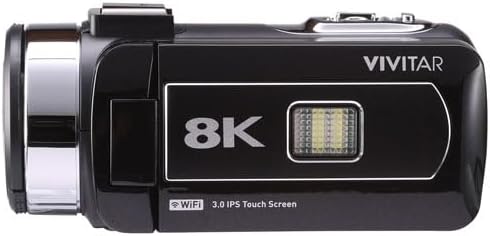
Image: Vivitar DVR4K Camcorder with its flip screen open, showing the controls and ports.
2. Einlegen einer Speicherkarte
The camcorder supports SD flash memory cards. A memory card is required to store videos and photos.
- Locate the memory card slot (usually near the battery compartment or on the side).
- Insert the SD card into the slot with the metal contacts facing the correct direction until it clicks into place.
- Zum Herausnehmen die Karte vorsichtig drücken, bis sie herausspringt.
3. Anbringen der Handschlaufe und des Objektivdeckels
- Secure the hand strap to the designated loop on the camcorder for a firm grip during operation.
- Attach the lens cap to protect the lens when the camcorder is not in use.

Bild: Vorderseite view of the Vivitar DVR4K Camcorder with the lens cap in place.
Bedienungsanleitung
1. Ein-/Ausschalten
- To power on, open the LCD flip screen. The camcorder will automatically turn on.
- To power off, close the LCD flip screen. The camcorder will automatically turn off.
- Alternativ drücken und halten Sie die LEISTUNG button located near the screen for a few seconds.
2. Basic Navigation and Modes
Use the buttons next to the LCD screen or the remote control to navigate menus and select modes.
- MODUS button: Cycles through video recording, photo capture, and playback modes.
- SPEISEKARTE button: Accesses the settings menu for various adjustments.
- UP/DOWN/OK buttons: Navigate menu options and confirm selections.
- W-lan button: Activates Wi-Fi connectivity for file Übertragung.

Abbildung: Seite view of the Vivitar DVR4K Camcorder with the flip screen open, highlighting the control buttons for power, mode, menu, and Wi-Fi.
3. Videoaufnahme
- Switch to video recording mode using the MODUS Taste.
- Verwenden Sie den LCD-Bildschirm, um den Bildausschnitt festzulegen.
- Drücken Sie die AUFZEICHNEN button (red button on the top/back) to start recording.
- Drücken Sie die AUFZEICHNEN erneut, um die Aufnahme zu stoppen.
- Use the zoom lever (located on top) to zoom in or out during recording.
4. Fotos machen
- Switch to photo capture mode using the MODUS Taste.
- Verwenden Sie den LCD-Bildschirm, um den Bildausschnitt festzulegen.
- Drücken Sie die FOTO button (usually near the record button) to take a picture.
5. Verwendung der Fernbedienung
Die mitgelieferte Fernbedienung ermöglicht eine bequeme Steuerung aus der Ferne.
- Ensure the plastic tab is removed from the remote's battery compartment to activate it.
- Point the remote at the camcorder's IR receiver.
- Use the corresponding buttons on the remote for recording, taking photos, zooming, and navigating menus.

Image: The Vivitar DVR4K Camcorder's remote control and a spare battery.
6. Anschluss an einen Fernseher (HDMI)
View your recordings and photos on a larger screen using the HDMI output.
- Connect the mini HDMI end of the HDMI cable to the camcorder's HDMI port.
- Connect the standard HDMI end to an HDMI input on your TV.
- Wählen Sie den richtigen HDMI-Eingang an Ihrem Fernseher.
- The camcorder's display will appear on your TV screen.
7. Übertragen Files (USB & Wi-Fi)
Transfer your media to a computer or other device.
- USB-Übertragung: Connect the camcorder to your computer using the USB cable. The camcorder will appear as a removable drive, allowing you to copy files.
- Wi-Fi-Übertragung: Activate Wi-Fi on the camcorder using the W-lan button. Follow the on-screen instructions or refer to the full manual for connecting to a smartphone app for wireless transfer.
Wartung
1. Batteriepflege
- Bewahren Sie Batterien an einem kühlen, trockenen Ort auf, wenn Sie sie nicht verwenden.
- Um die Lebensdauer der Batterie zu verlängern, sollte eine häufige vollständige Entladung vermieden werden.
- Batterien dürfen keinen extremen Temperaturen ausgesetzt werden.
2. Reinigung
- Verwenden Sie ein weiches, trockenes Tuch, um das Gehäuse des Camcorders zu reinigen.
- Verwenden Sie für die Linse ein spezielles Linsenreinigungstuch und eine spezielle Linsenreinigungslösung.
- Vermeiden Sie die Verwendung aggressiver Chemikalien oder Scheuermittel.
3. Speicherung
- Store the camcorder in its carrying pouch to protect it from dust and scratches.
- Entfernen Sie den Akku, wenn der Camcorder längere Zeit nicht benutzt wird.
- Keep the camcorder away from direct sunlight, high humidity, and extreme temperatures.
Fehlerbehebung
| Problem | Mögliche Ursache | Lösung |
|---|---|---|
| Der Camcorder lässt sich nicht einschalten. | Die Batterie ist nicht geladen oder falsch eingesetzt. | Stellen Sie sicher, dass der Akku vollständig geladen und korrekt eingesetzt ist. |
| Videoaufnahmen/Fotos können nicht aufgenommen werden. | Die Speicherkarte ist voll, nicht eingelegt oder beschädigt. | Insert a valid memory card, ensure sufficient space, or format the card (this will erase all data). |
| Schlechte Video-/Fotoqualität. | Lens is dirty, lighting conditions are poor, or incorrect settings. | Clean the lens. Adjust lighting or camcorder settings (e.g., exposure, white balance). |
| Fernbedienung funktioniert nicht. | Plastic tab not removed, battery dead, or not pointing correctly. | Remove plastic tab. Replace remote battery. Ensure direct line of sight to IR receiver. |
Technische Daten
| Besonderheit | Detail |
|---|---|
| Marke | Vivitar |
| Modellnummer | DVR4K |
| Auflösung der Videoaufnahme | 4K / 8K Ultra HD |
| Still Image Sensor | 48.0 Megapixel |
| Anzeige | 3-inch Rotatable Full-Color LCD (IPS Touchscreen) |
| Zoom | 18-facher Digitalzoom |
| Konnektivität | Wi-Fi, Mini USB, HDMI |
| Besondere Merkmale | Image Stabilization, Face Detection, Night Vision, Multiple Shooting Modes (Auto, Portrait, Landscape, Time Lapse, Motion Detection, Loop Recording) |
| Speichermedien | SD Flash Memory (Max size not specified, user review mentions 128GB/256GB attempts) |
| Akku-Typ | Nonstandard Battery (Li-ion, 3.7V 1050mAh, NP-40) |
| Videoformat | MP4 |
| Fotoformat | JPG |
| Betriebstemperatur | -20°C bis +50°C |
| Artikelgewicht | 3.5 Pfund |
Garantie und Support
Informationen zur Garantie und zum technischen Support finden Sie auf der offiziellen Vivitar-Website. website or contact their customer service. Details are typically provided in the full product manual or on the manufacturer's webWebsite.
Schutzpläne: Additional protection plans may be available for purchase. Please check with your retailer for options such as 2-Year or 3-Year Protection Plans.


