Einführung
This manual provides detailed instructions for setting up, operating, maintaining, and troubleshooting your GEEKOM GeekBook X14 Pro laptop. Please read this manual thoroughly before using your device to ensure proper functionality and longevity. Keep this manual for future reference.
Lieferumfang
Upon unboxing your GEEKOM GeekBook X14 Pro, verify that all the following items are included:
- GEEKOM GeekBook X14 Pro Laptop
- GEEKOM GeekBook X14 Pro Premium Packaging
- 65W PD GaN Fast Charger
- USB-C-auf-USB-C-Kabel
- Dockingstation
- Bedienungsanleitung

Produkt überview
The GEEKOM GeekBook X14 Pro is an ultra-light and thin laptop designed for professionals. It features a magnesium alloy unibody chassis, weighing only 999g and tapering to 6mm at its thinnest point.

Hauptmerkmale:
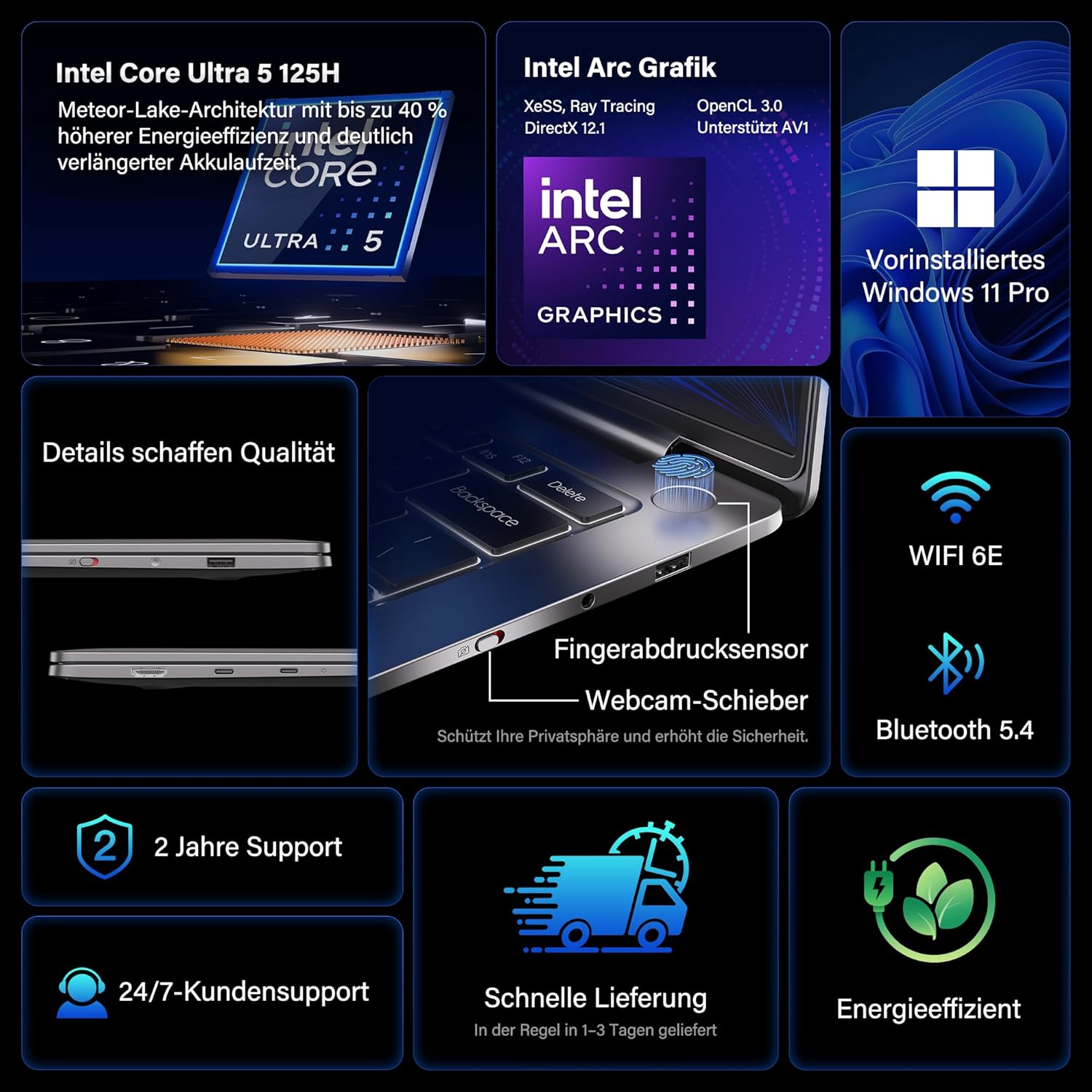
- Prozessor: Intel Core Ultra 5 125H (14 cores, 18 threads, up to 4.5 GHz)
- Grafik: Intel Arc Graphics with Xe-LPG architecture
- Anzeige: 14-inch 2.8K OLED (2880 x 1800) with 120Hz refresh rate, 100% DCI-P3, up to 450 nits brightness
- Erinnerung: 32GB LPDDR5x RAM (7500 MT/s)
- Lagerung: 1 TB PCIe 4.0 NVMe SSD
- Betriebssystem: Vorinstalliertes Windows 11 Pro
- Konnektivität: 2x USB4 (40 Gbps), 1x USB 3.2 Gen 1 Type-A (5 Gbps), HDMI 2.0, Wi-Fi 6E, Bluetooth 5.4
- Sicherheit: Fingerprint sensor in power button, physical webcam slider
- Audio: DTS:X Ultra Audio
- Batterie: 72 Wh, up to 16 hours battery life, 65W USB-C fast charging
- Kühlung: GEEKOM IceBlade 2.0 cooling system with adjustable fan profiles

Ports und Anschlüsse:
- 2x USB4 (40 Gbps)
- 1x USB 3.2 Gen 1 Type-A (5 Gbps)
- 1 x HDMI 2.0
- 1x 3.5-mm-Audiobuchse
- Power Input (via USB-C)

Aufstellen
1. Erstes Einschalten und Laden
- Connect the 65W PD GaN Fast Charger to a power outlet and then to one of the USB-C ports on your laptop.
- Lassen Sie den Laptop vor der ersten Benutzung mindestens 30 Minuten lang aufladen oder bis die Akkuanzeige einen ausreichenden Ladestand anzeigt.
- Press the power button (integrated with the fingerprint sensor) to turn on the laptop.
2. Windows 11 Pro-Setup
Follow the on-screen prompts to complete the initial Windows 11 Pro setup. This includes:
- Auswahl Ihrer Region und Ihres Tastaturlayouts.
- Verbindung mit einem Wi-Fi-Netzwerk herstellen.
- Anmeldung mit einem Microsoft-Konto oder Erstellung eines lokalen Kontos.
- Datenschutzeinstellungen einrichten.
3. Einrichtung des Fingerabdrucksensors
Für erhöhte Sicherheit und schnelles Anmelden richten Sie den Fingerabdrucksensor ein:
- Gehe zu Einstellungen > Konten > Anmeldeoptionen.
- Wählen Sie unter „Anmeldemöglichkeiten“ die Option „Anmelden“. Fingerabdruckerkennung (Windows Hello) und folgen Sie den Anweisungen, um Ihre Fingerabdrücke zu registrieren.
Bedienungsanleitung
Anzeigefunktionen
The 14-inch 2.8K OLED display offers vibrant colors and sharp details. With a 120Hz refresh rate, scrolling and animations are smooth. The display covers 100% DCI-P3 color gamut and reaches up to 450 nits brightness, ensuring clear visibility in various lighting conditions.

Leistung
Equipped with an Intel Core Ultra 5 125H processor, 32GB LPDDR5x RAM, and a 1TB PCIe 4.0 NVMe SSD, the GeekBook X14 Pro delivers efficient performance for demanding tasks, quick application launches, and seamless multitasking.

Konnektivität
The laptop supports Wi-Fi 6E for fast and stable wireless internet connections and Bluetooth 5.4 for connecting peripherals. The two USB4 ports offer high-speed data transfer (40 Gbps) and support up to three 4K external displays simultaneously via the included mini docking station or direct connection.
Audio
Experience clear and spatial audio with DTS:X Ultra technology, enhancing your video calls, movies, and music playback.
Cooling System (GEEKOM IceBlade 2.0)
The GEEKOM IceBlade 2.0 cooling system ensures optimal performance even under sustained load. It features a quiet fan and a dual-heatpipe design to efficiently dissipate heat. You can switch between three intelligent fan profiles (Silent, Standard, Performance) by pressing Fn + P. to balance noise and cooling efficiency.

Akku und Laden
The 72 Wh battery provides up to 16 hours of usage. The included 65W USB-C PD GaN fast charger can charge the battery up to 80% in approximately one hour, allowing for quick power-ups on the go.

Webcam Privacy Slider
For enhanced privacy, the laptop includes a physical slider to cover the webKamera, wenn sie nicht verwendet wird.
Wartung
Reinigung
- Verwenden Sie ein weiches, fusselfreies Tuch, um Bildschirm und Gehäuse zu reinigen.
- Bei hartnäckigen Flecken leicht tupfen.ampDas Tuch mit Wasser oder einer für Bildschirme geeigneten Reinigungslösung befeuchten.
- Vermeiden Sie die Verwendung von aggressiven Chemikalien, scheuernden Materialien oder übermäßiger Feuchtigkeit.
- Vor der Reinigung unbedingt sicherstellen, dass der Laptop ausgeschaltet und vom Stromnetz getrennt ist.
Software-Updates
Regularly check for and install Windows updates and driver updates to ensure optimal performance, security, and compatibility. You can check for Windows updates via Einstellungen > Windows Update.
Fehlerbehebung
Laptop lässt sich nicht einschalten
- Stellen Sie sicher, dass das Ladegerät sowohl mit dem Laptop als auch mit einer funktionierenden Steckdose fest verbunden ist.
- Allow the laptop to charge for at least 30 minutes.
- Try a different power outlet or USB-C port if available.
Anzeigeprobleme
- If the screen is black, ensure the laptop is powered on and not in sleep mode. Press any key or the power button briefly.
- Check display settings in Windows if external monitors are not detected or showing incorrect resolution.
Langsame Leistung
- Schließen Sie unnötige Anwendungen, die im Hintergrund laufen.
- Stellen Sie sicher, dass Windows und die Treiber auf dem neuesten Stand sind.
- Prüfen Sie, ob auf der SSD ausreichend freier Speicherplatz vorhanden ist.
- Monitor CPU/RAM usage in Task Manager to identify resource-intensive processes.
Verbindungsprobleme
- W-lan: Starten Sie Ihren Router und Ihren Laptop neu. Stellen Sie sicher, dass WLAN in den Windows-Einstellungen aktiviert ist.
- Bluetooth: Ensure Bluetooth is enabled and devices are in pairing mode. Remove and re-pair devices if issues persist.
- USB/HDMI: Ensure cables are securely connected. Test with different cables or ports if possible.
Weitere Informationen finden Sie im Abschnitt Garantie und Support.
Technische Daten
| Besonderheit | Detail |
|---|---|
| Marke | GEEKOM |
| Modellname | GeekBook X14 Pro |
| Modellnummer | NX14CM |
| Farbe | Titangrau |
| Formfaktor | Ultra-portable and Ultra-light Notebook |
| Bildschirmgröße | 14 Zoll |
| Bildschirmauflösung | 2.8K (2880 x 1800 pixels, 16:10) |
| Prozessortyp | Intel Core Ultra 5 125H |
| Prozessorgeschwindigkeit | Bis zu 4.5 GHz |
| RAM-Größe | 32 GB |
| RAM-Technologie | LPDDR5x |
| Speichertaktfrequenz | 7500 MHz |
| Festplattengröße | 1 TB |
| Festplattentyp | SSD (PCIe x4) |
| Grafik-Coprozessor | Intel Arc-Grafiken |
| Kabelloser Typ | 802.11ax (Wi-Fi 6E), Bluetooth 5.4 |
| USB-Anschlüsse | 2x USB4, 1x USB 3.2 Gen 1 Type-A |
| HDMI-Anschlüsse | 1 (HDMI-2.0) |
| Betriebssystem | Windows 11 Pro |
| Durchschnittliche Akkulaufzeit | Up to 16 Hours (72 Wh) |
| Artikelgewicht | 999g (Laptop only) |
| Besondere Merkmale | Fingerprint sensor, Webcam privacy slider, DTS:X Ultra Audio, GEEKOM IceBlade 2.0 cooling, Mini docking station included |
Garantie und Support
The GEEKOM GeekBook X14 Pro comes with a 2 Jahr Garantie. GEEKOM provides 24/7 Kundensupport for any technical assistance or inquiries you may have.
For support, please visit the official GEEKOM webBesuchen Sie die Website oder kontaktieren Sie direkt den Kundenservice. Halten Sie Ihren Kaufbeleg und die Seriennummer des Produkts bereit, wenn Sie den Support kontaktieren.
The product undergoes extensive reliability testing, including thermal shock, vibration, humidity, and impact tests, to ensure durability and high quality.


