1. Einleitung
This manual provides detailed instructions for the setup, operation, maintenance, and troubleshooting of your SOLAKAKA A99 Pro Mechanical Keyboard. Please read this manual thoroughly to ensure proper use and to maximize your keyboard's features.
2. Packungsinhalt
- SOLAKAKA A99 Pro Mechanical Keyboard
- Tastenkappenabzieher
- USB-Kabel (USB-C auf USB-A)
- Bedienungsanleitung
3. Produktüberschreitungview
The SOLAKAKA A99 Pro is a 96% layout mechanical keyboard featuring 97 keys, an LCD screen, and a multifunctional metal knob. It supports tri-mode connectivity (Bluetooth 5.0, 2.4GHz wireless, and USB-C wired) and is compatible with Windows, iOS, Mac, and Android systems. The keyboard includes RGB backlighting, hot-swappable switches, and PBT keycaps.
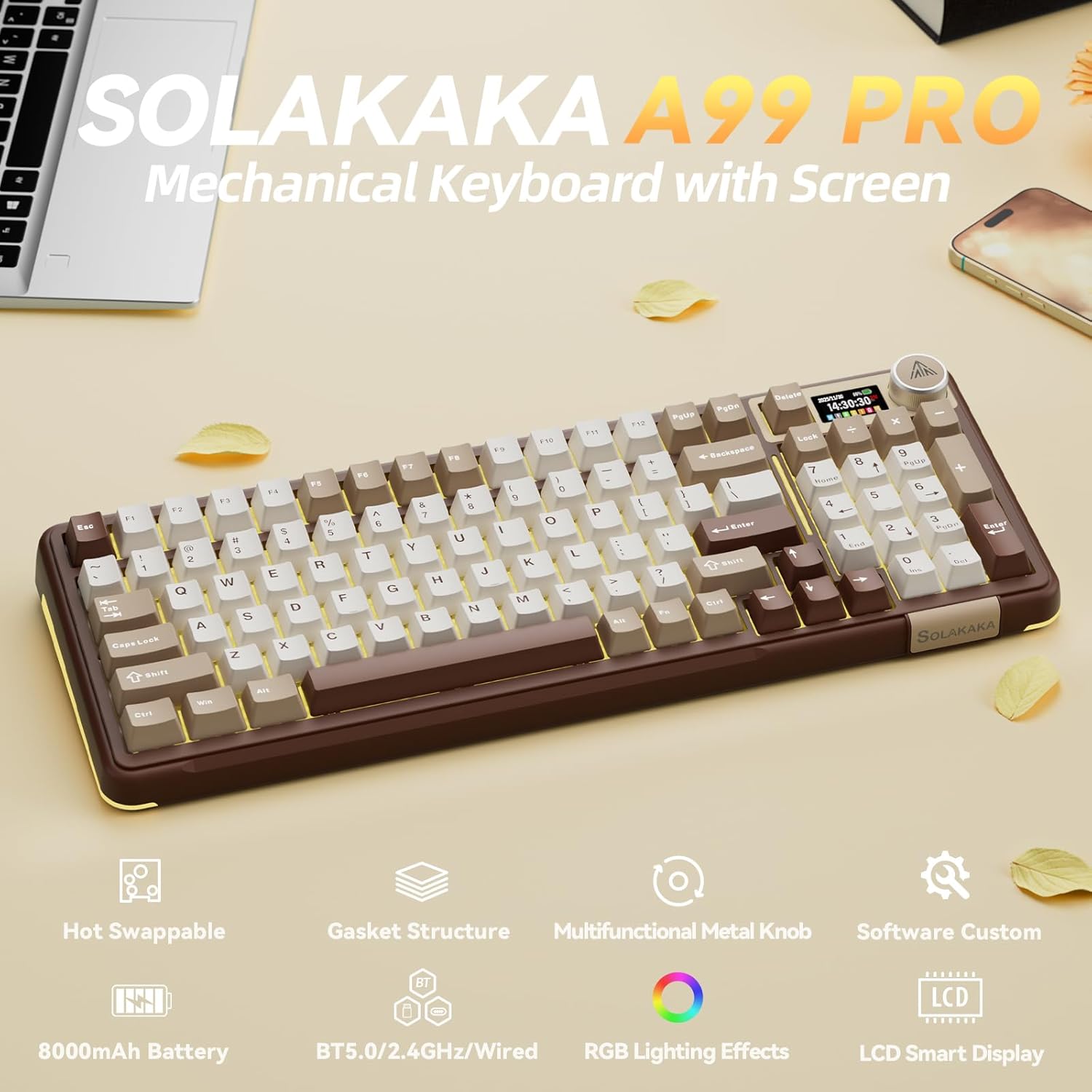
Image: SOLAKAKA A99 Pro Mechanical Keyboard, showcasing its layout, LCD screen, and metal knob.
4. Einrichtung und Verbindung
4.1. Ein-/Ausschalten
Locate the power switch on the side or back of the keyboard to turn it on or off.
4.2. Tri-Mode-Konnektivität
The keyboard supports three connection modes: USB-C wired, 2.4GHz wireless, and Bluetooth 5.0. A switch on the keyboard allows selection between these modes.
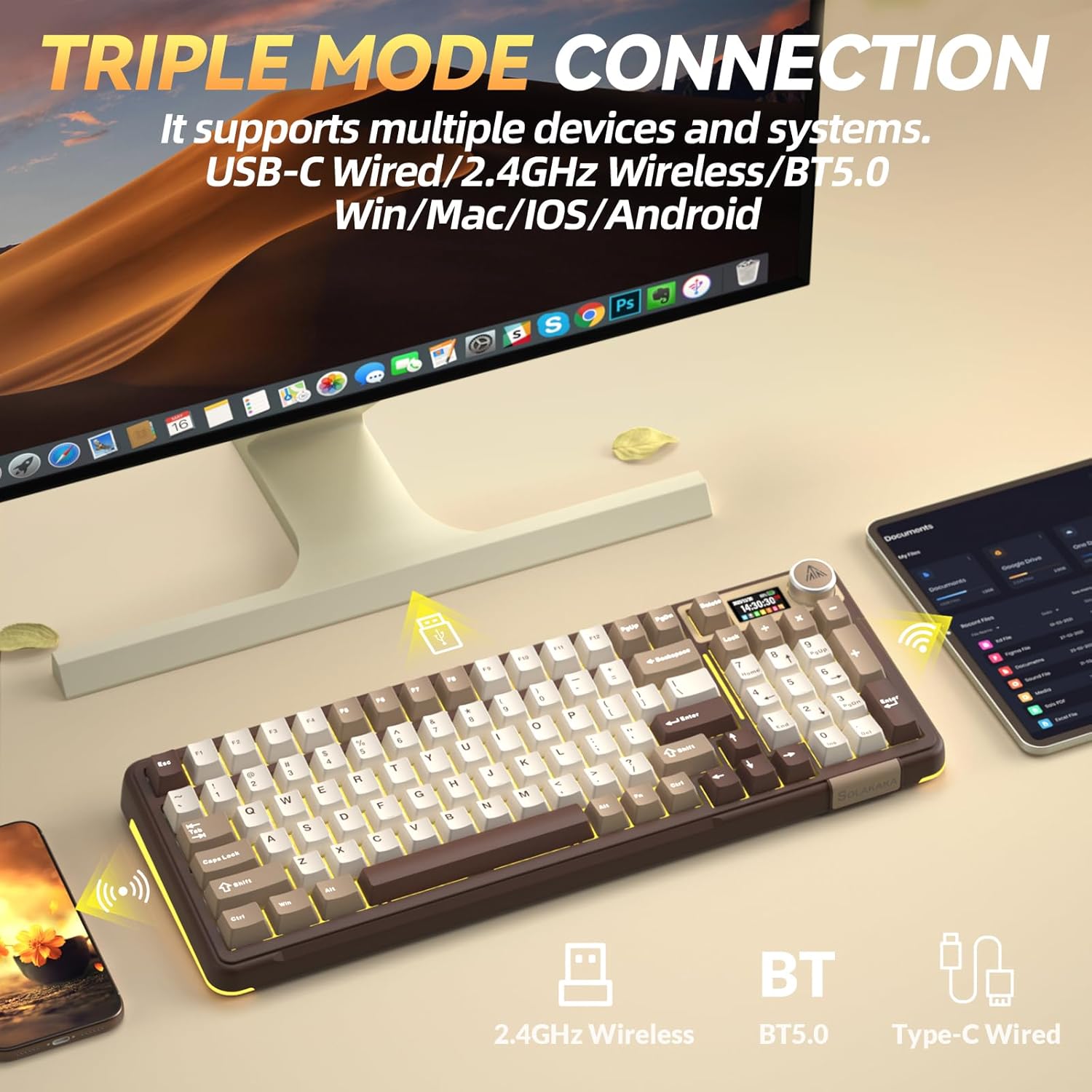
Image: The SOLAKAKA A99 Pro keyboard connected to a desktop and a tablet, illustrating its triple-mode connectivity.
4.2.1. 2.4-GHz-Funkverbindung
- Locate the 2.4GHz USB receiver, typically stored in a slot on the keyboard.
- Stecken Sie den USB-Empfänger in einen freien USB-Anschluss Ihres Computers oder Geräts.
- Switch the keyboard to 2.4GHz mode using the selector switch. The keyboard should automatically connect.
Video: Demonstrates the various connection modes and features of the SOLAKAKA A99 Pro Mechanical Keyboard, including the 2.4GHz wireless connection.
4.2.2. Bluetooth 5.0-Verbindung
- Schalten Sie die Tastatur mithilfe des Wahlschalters in den Bluetooth-Modus.
- Aktivieren Sie auf Ihrem Gerät (Computer, Tablet, Smartphone) Bluetooth und suchen Sie nach neuen Geräten.
- Select "SOLAKAKA A99 Pro" (or similar) from the list of available devices to pair.
- The keyboard can save up to 5 devices. Refer to the LCD screen for pairing indicators (B1, B2, A1, etc.).
4.2.3. Kabelgebundene USB-C-Verbindung
- Verbinden Sie das mitgelieferte USB-C-Kabel mit dem USB-C-Anschluss der Tastatur.
- Connect the other end of the cable (USB-A) to your computer or device.
- The keyboard will automatically switch to wired mode and begin charging if necessary.
4.3. Aufladen der Tastatur
Connect the keyboard via the USB-C cable to a powered USB port. The LCD screen will display the battery level. The keyboard features an 8000mAh rechargeable battery.

Image: The SOLAKAKA A99 Pro keyboard highlighting its 8000mAh battery capacity and estimated usage times.
5. Bedienungsanleitung
5.1. LCD Smart Display and Multifunctional Knob
The LCD screen displays essential information such as date, time, battery level, connected system, and connection mode. The metal knob allows for quick adjustments.
- Drehung: Adjusts volume, lighting brightness, or navigates menu options.
- Kurzes Drücken: Confirms selection or switches between modes/settings.
- Lange drücken: Accesses advanced settings or specific functions.

Bild: Detailliert view of the LCD screen and multifunctional knob, showing various display options like home screen, system connection, lighting modes, colors, brightness, speed, volume, language, time, and GIF display.
Video: Demonstrates how to switch between different operating systems (Windows/Mac) and adjust lighting effects using the keyboard's knob and function keys.
Video: Shows the process of setting up custom GIF images on the keyboard's LCD screen using the driver software.
5.2. Systemumschaltung
The keyboard is compatible with Windows, iOS, Mac, and Android systems. You can switch between Windows and Mac modes using the LCD screen or shortcut keys.
- Via LCD Screen: Rotate the knob to navigate to "System" settings, then short press to confirm and select "WIN" or "MAC".
- Tastenkombinationen:
- Drücken Fn + W um in den Windows-Modus zu wechseln.
- Drücken fn+m to switch to Mac mode.
5.3. RGB-Hintergrundbeleuchtung
The keyboard features 16 RGB lighting modes for the main keys and 5 modes for the side lights. South-facing LEDs enhance light transmission.
- Hintergrundbeleuchtungsmodus ändern: Drücken Fn + \
- Helligkeit der Hintergrundbeleuchtung anpassen: Drücken Fn + F5 / F6
- Hintergrundbeleuchtungsfarbe ändern: Drücken Fn + D
- Change Side Backlight Lighting Effects: Drücken Fn + P
- Adjust Side Backlight Brightness: Drücken Fn + ↑ / ↓
- Change Side Backlight Color: Drücken Fn + Tab

Image: The RGB backlit keyboard showing various function key combinations for controlling backlight modes, brightness, and colors for both main keys and side lights.
5.4. Programmable Software
Customize your keyboard functions using the dedicated driver software. This software is compatible with Windows systems only and requires a wired connection for operation.
- Set sleep time, key mapping, and sensitivity.
- Optimize key bounce.
- Add GIF images to the LCD screen.
- Switch lighting modes and colors.
- Add music rhythm backlighting.
- Makro aufzeichnen files.
Laden Sie die Software herunter von: solakakadriver.com

Image: Screenshot of the SOLAKAKA A99 Pro's programmable software, showing options for adjusting lighting effects, setting shortcut keys, recording macros, and managing GIF images.
6. Wartung
Um die Langlebigkeit und optimale Leistung Ihrer Tastatur zu gewährleisten, beachten Sie bitte folgende Wartungshinweise:
- Reinigung: Use a soft, dry cloth to wipe the keyboard surface. For deeper cleaning, use a keycap puller to remove keycaps and clean underneath with compressed air or a small brush. Avoid using harsh chemicals or abrasive materials.
- Lagerung: Bewahren Sie die Tastatur an einem kühlen, trockenen Ort fern von direkter Sonneneinstrahlung und extremen Temperaturen auf.
- Schalteraustausch: The keyboard is hot-swappable, allowing for easy replacement of 3/5-pin switches without soldering. Use the provided keycap puller and switch puller (if included) for safe removal and installation.

Image: A close-up of the SOLAKAKA A99 Pro keyboard demonstrating its full hot-swappable feature, showing switches being removed and the underlying PCB with south-facing LEDs.
7. Fehlerbehebung
- Tastatur reagiert nicht:
- Stellen Sie sicher, dass die Tastatur eingeschaltet ist.
- Check the connection mode (2.4GHz, Bluetooth, or wired) and ensure it matches your device's connection.
- For 2.4GHz, ensure the USB receiver is properly plugged in.
- Bei Bluetooth-Verbindungen stellen Sie sicher, dass die Tastatur mit Ihrem Gerät gekoppelt und ausgewählt ist.
- Um drahtlose Probleme auszuschließen, versuchen Sie, eine Verbindung über ein USB-C-Kabel herzustellen.
- Stellen Sie sicher, dass die Batterie geladen ist.
- LCD screen issues (e.g., detached):
- If the screen appears loose or detached, gently press it back into place. If the issue persists, contact customer support.
- Lighting not working or incorrect:
- Ensure the keyboard is powered on and not in a low-power state.
- Use the Fn key combinations or the multifunctional knob to cycle through lighting modes and adjust brightness/color.
- If using programmable software, ensure settings are correctly applied.
- Software erkennt Tastatur nicht:
- Ensure the keyboard is connected via USB-C wired mode. The software only supports Windows systems and requires a wired connection.
- Starten Sie die Software und/oder Ihren Computer neu.
- Reinstall the driver software from solakakadriver.com.
8. Spezifikationen
| Besonderheit | Detail |
|---|---|
| Modell | A99 Pro |
| Layout | 96 % (97 Tasten) |
| Konnektivität | Bluetooth 5.0, 2.4-GHz-Funkverbindung, USB-C-Kabelverbindung |
| Schalter | LEOBOG Star Vector Switches, Full Hot-Swappable (3/5-pin) |
| Tastenkappen | Double-shot PBT, OEM Height |
| Hintergrundbeleuchtung | RGB (16 modes main, 5 modes side), South-facing LEDs |
| Batteriekapazität | 8000 mAh |
| Besondere Merkmale | LCD Screen, Multifunctional Metal Knob, Gasket Structure, Programmable Software |
| Kompatible Geräte | Laptop, PC, Tablet |
| Betriebssysteme | Windows, iOS, Mac, Android |
| Artikelgewicht | 2.99 Pfund |
| Verpackungsabmessungen | 16.61 x 7.2 x 2.28 Zoll |

Image: An exploded diagram illustrating the multi-layer gasket structure of the SOLAKAKA A99 Pro keyboard, detailing components like the multifunctional knob, PBT keycaps, switches, positioning plate, and various sound-dampening pads.
9. Garantie und Support
For warranty information, technical support, or any product-related inquiries, please refer to the official SOLAKAKA webBesuchen Sie die Website oder kontaktieren Sie direkt den Kundenservice. Bewahren Sie Ihren Kaufbeleg für Garantieansprüche auf.


