1. Einleitung
The Brother DCP-L2640DW is a compact, high-performance monochrome laser all-in-one printer designed for home offices and small workgroups. This manual provides essential information for setting up, operating, maintaining, and troubleshooting your printer to ensure optimal performance.
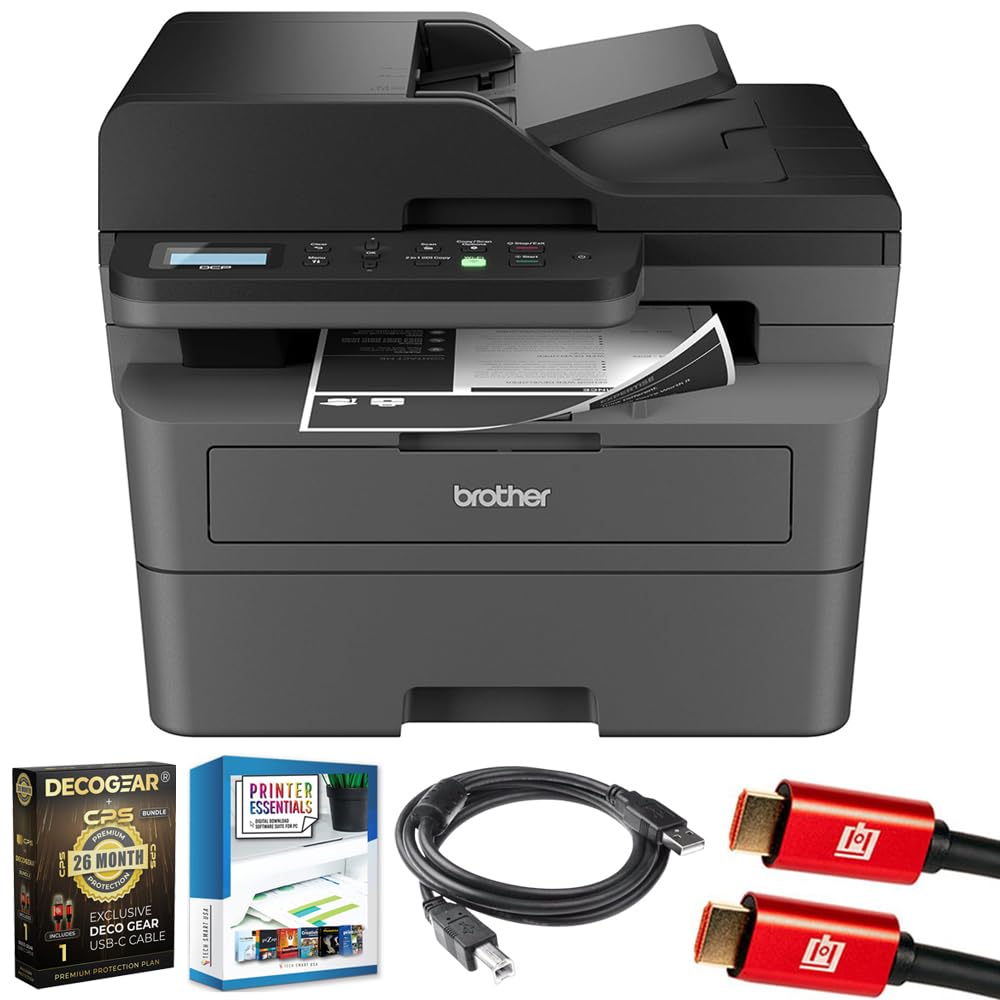
Image 1.1: Brother DCP-L2640DW Compact Monochrome Laser Printer
2. Hauptmerkmale
- 3-in-1-Funktionalität: Print, copy, and scan capabilities in a compact design.
- Schnelle Druckgeschwindigkeiten: Delivers up to 36 pages per minute for efficient task completion.
- Automatischer Duplexdruck: Built-in two-sided printing to save time and paper.
- 50-Sheet Automatic Document Feeder (ADF): For efficient multi-page scanning and copying.
- High-Capacity Paper Handling: 250-sheet paper tray plus a manual feed slot for diverse media types.
- Flexible Konnektivitätsoptionen: Dual-band Wi-Fi, Ethernet, USB, and mobile printing via Brother Mobile Connect, AirPrint, Mopria, and Wi-Fi Direct.
- Erweiterte Netzwerksicherheit: Features like TLS/SSL, SNMP v3, and IP filtering for secure operation.

Bild 2.1: Überview of the Brother DCP-L2640DW's key features including print speed, connectivity, and compact design.
3. Lieferumfang
- Brother DCP-L2640DW Monochrome Laser Printer
- Starter Black Toner Cartridge (approx. 700 pages)
- Brother DR830 Drum Unit (approx. 15,000 pages)
- Netzkabel
- Documentation (Quick Setup Guide, Product Safety and Protection Information)
4. Einrichtung
4.1. Auspacken
- Nehmen Sie den Drucker vorsichtig aus der Verpackung.
- Entfernen Sie sämtliche Schutzbänder und Verpackungsmaterialien von der Außen- und Innenseite des Druckers.
4.2. Toner Cartridge and Drum Unit Installation
- Öffnen Sie die vordere Abdeckung des Druckers.
- Remove the toner cartridge and drum unit assembly from the printer.
- Unpack the new toner cartridge and drum unit.
- Setzen Sie die Tonerkartusche fest in die Trommeleinheit ein, bis sie einrastet.
- Slide the green tab on the drum unit from left to right several times to clean the corona wire. Return the tab to the home position.
- Reinstall the toner cartridge and drum unit assembly into the printer.
- Schließen Sie die vordere Abdeckung.
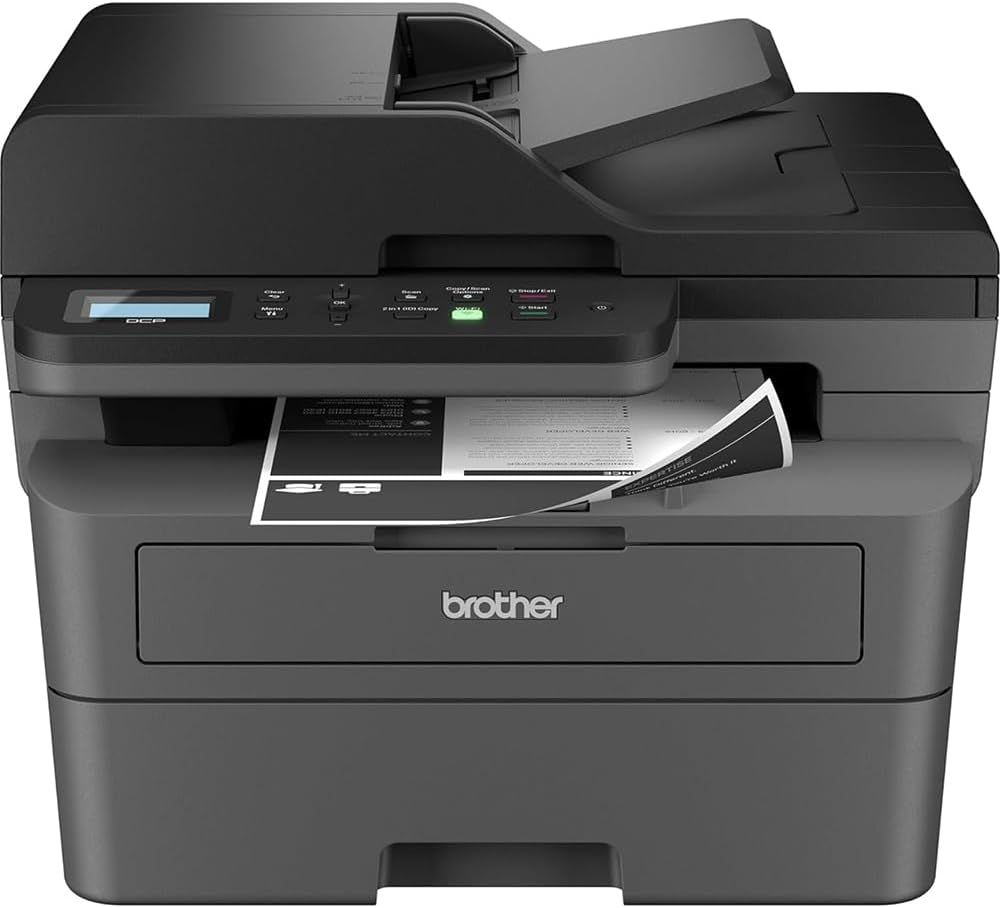
Image 4.1: The Brother DCP-L2640DW printer with the front cover open, showing the toner cartridge and drum unit assembly.
4.3. Stromanschluss
- Connect the AC power cord to the printer's power input.
- Stecken Sie das andere Ende des Netzkabels in eine geerdete Steckdose.
- Drücken Sie den Netzschalter, um den Drucker einzuschalten.
4.4. Ersteinrichtung & Konnektivität
Follow the on-screen instructions on the printer's LCD display to complete the initial setup, including language selection and date/time settings.
- Drahtloses Setup: Navigate to the network settings on the printer's control panel, select your Wi-Fi network, and enter the password.
- Ethernet-Verbindung: Verbinden Sie ein Ethernet-Kabel von Ihrem Router oder Netzwerk-Hub mit dem Ethernet-Anschluss des Druckers.
- USB-Verbindung: Verbinden Sie Ihren Computer mit einem USB-Kabel mit dem USB-Anschluss des Druckers.
- Treiberinstallation: Install the printer drivers from the included CD-ROM or download them from the official Brother support webWebsite.
Video 4.1: Ein Produkt überview video demonstrating the Brother DCP-L2640DW printer's features and ease of use.
5. Bedienungsanleitung
5.1. Dokumente drucken
- Load paper into the 250-sheet paper tray or the manual feed slot.
- From your computer or mobile device, open the document you wish to print.
- Wählen Sie im Menü der Anwendung die Option „Drucken“.
- Choose your Brother DCP-L2640DW printer.
- Adjust print settings (e.g., number of copies, duplex printing) as needed.
- Klicken Sie auf „Drucken“.
5.2. Dokumente kopieren
- Legen Sie Ihr Dokument mit der bedruckten Seite nach unten auf das Scannerglas oder mit der bedruckten Seite nach oben in den automatischen Dokumenteneinzug (ADF).
- Drücken Sie am Bedienfeld des Druckers die Taste „Kopieren“.
- Use the arrow keys to select the number of copies or adjust other settings.
- Drücken Sie „Start“, um den Kopiervorgang zu starten.

Image 5.1: The Brother DCP-L2640DW highlighting its Automatic Document Feeder for multi-page tasks.
5.3. Dokumente scannen
- Place your document face down on the scanner glass or face up in the ADF.
- On the printer's control panel, press the 'Scan' button.
- Select your desired scan destination (e.g., PC, email, cloud).
- Adjust scan settings (e.g., resolution, color mode) as needed.
- Drücken Sie „Start“, um mit dem Scannen zu beginnen.
5.4. Mobile Printing
The Brother DCP-L2640DW supports various mobile printing solutions:
- Brother Mobile Connect App: Download the app to manage your printer, print, and scan from your smartphone or tablet.
- Apple AirPrint: Print directly from your Apple iOS device without installing drivers.
- Mopria Druckservice: Drucken von Mopria-zertifizierten Android-Geräten.
- Wi-Fi Direct: Print directly from your mobile device to the printer without needing a router.

Image 5.2: The Brother Mobile Connect App interface, showing options for document print, photo print, scan, copy, and toner monitoring.
6. Wartung
6.1. Toner Replacement
When the toner is low or empty, the printer's display will indicate that the toner cartridge needs to be replaced. Always use genuine Brother toner cartridges for optimal performance and print quality.
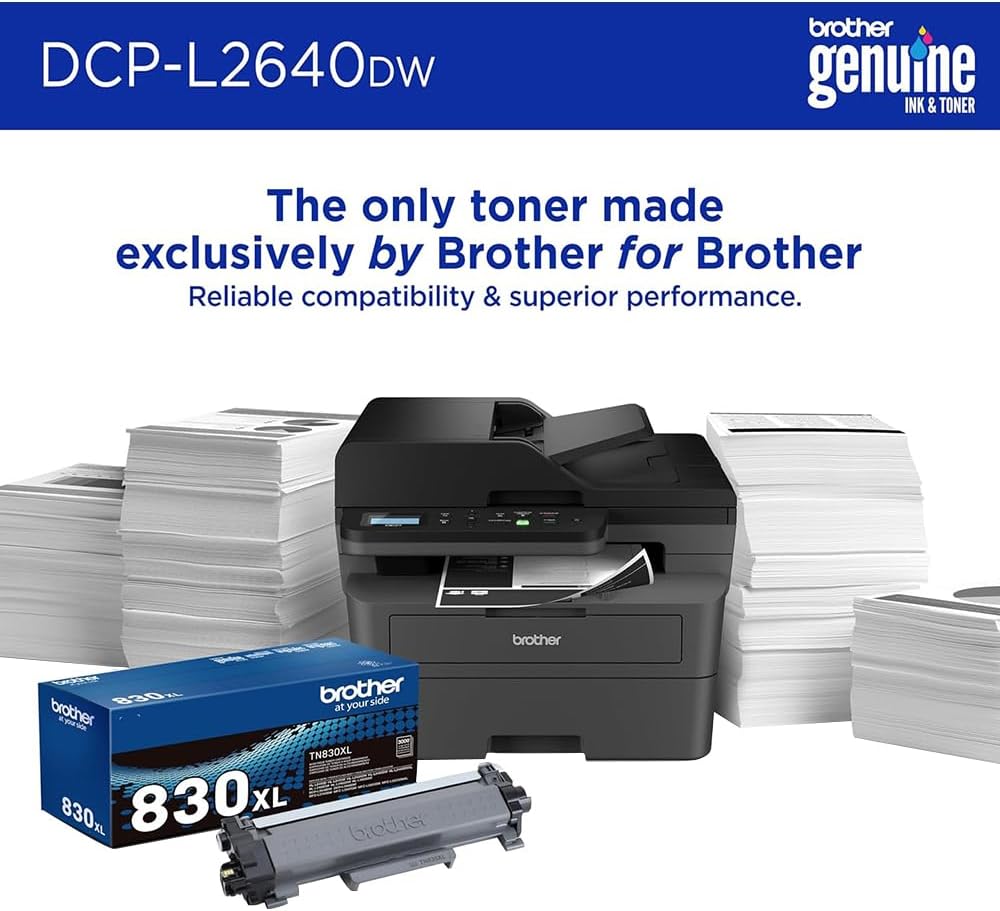
Image 6.1: Brother Genuine Ink & Toner packaging, emphasizing reliable compatibility and superior performance.
6.2. Drum Unit Replacement
The drum unit is a separate consumable that needs to be replaced periodically, typically after approximately 15,000 pages. The printer will notify you when it's time to replace the drum unit.
6.3. Reinigung
- Exterieur: Wischen Sie die Außenseite des Druckers mit einem weichen, fusselfreien Tuch ab.
- Scannerglas: Clean the scanner glass with a soft, lint-free cloth moistened with glass cleaner.
- Corona-Draht: Regularly clean the corona wire inside the drum unit by sliding the green tab.
7. Fehlerbehebung
- Papierstaus: Follow the on-screen instructions or refer to the printer's documentation to clear paper jams from various access points.
- Verbindungsprobleme: Ensure the printer is connected to the correct network (Wi-Fi or Ethernet) or directly to the computer via USB. Restarting the printer and router can often resolve temporary connection problems.
- Schlechte Druckqualität: Check toner levels, clean the corona wire, and ensure you are using appropriate paper for your print job.
- Fehlermeldungen: Refer to the printer's LCD display for specific error codes and consult the online manual or Brother support for solutions.
8. Spezifikationen
| Besonderheit | Detail |
|---|---|
| Modellnummer | DCP-L2640DW |
| Drucktechnologie | Laser |
| Druckerausgabe | Einfarbig |
| Maximale Druckgeschwindigkeit Monochrom | 36 ppm |
| Maximale Schwarzweiß-Druckauflösung | 1200 x 1200 Punkte pro Zoll |
| Automatischer Duplexdruck | Ja |
| Scannertyp | Pritsche |
| Max. Blatteingabekapazität | 250 Blatt |
| Kapazität des automatischen Dokumenteneinzugs (ADF) | 50 Blatt |
| Konnektivitätstechnologie | USB, Ethernet, Dual-band Wi-Fi |
| Kompatible Patrone | TN830, TN830XL |
| Technische Daten | 15.7"T x 16.1"B x 12.5"H |
| Gewicht | Not specified in provided data, typically around 20-30 lbs for similar models. |
9. Garantie und Support
The Brother DCP-L2640DW Monochrome Laser Printer comes with a Limited Warranty. For specific warranty terms and conditions, please refer to the documentation included with your product or visit the official Brother support webWebsite.
Technischen Support, Treiber-Downloads und weitere Ressourcen finden Sie unter: Brother-Kundendienst WebWebsite.


