1. Einleitung
This manual provides essential instructions for the safe and efficient operation, setup, and maintenance of your Procolored F13 Panda DTF Printer. Please read this manual thoroughly before using the printer to ensure optimal performance and longevity.
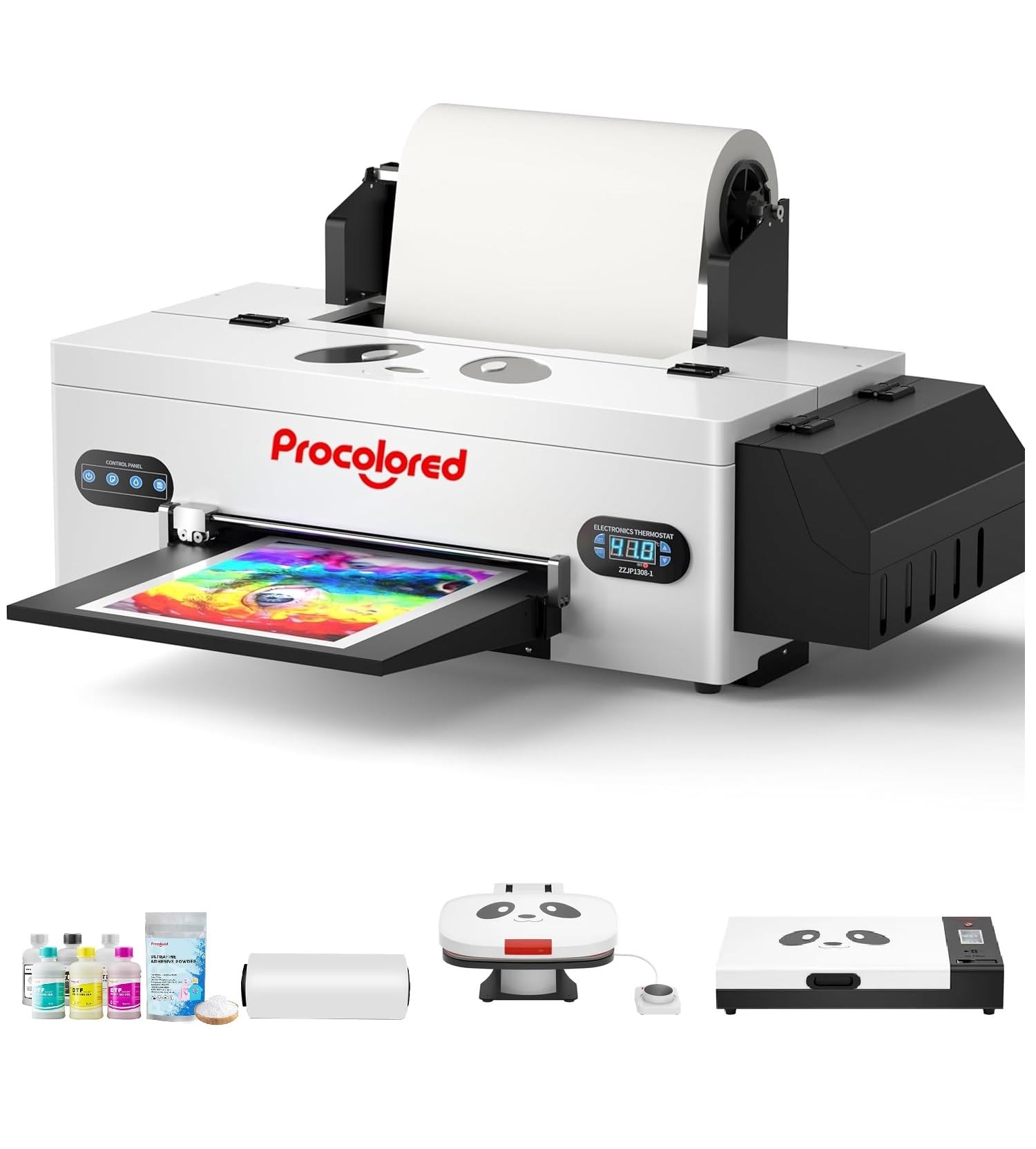
Figure 1: Procolored F13 Panda DTF Printer.
2. Sicherheitshinweise
Always observe the following safety precautions to prevent injury or damage to the printer:
- Stellen Sie sicher, dass der Drucker auf einer stabilen, ebenen Fläche steht.
- Schließen Sie den Drucker an eine geerdete Steckdose mit der korrekten Spannung an.tage (Wechselstrom 100-230 V).
- Setzen Sie den Drucker weder Wasser noch übermäßiger Feuchtigkeit aus.
- Halten Sie während des Betriebs Ihre Hände von beweglichen Teilen fern.
- Use only recommended inks and cleaning solutions.
- Außerhalb der Reichweite von Kindern aufbewahren.
3. Packungsinhalt
Überprüfen Sie, ob alle Artikel im Paket vorhanden sind:
- Procolored F13 DTF Printer
- Roll Film 13"
- DTF Ink Set (CMYK+WW)
- Nozzle Protection Fluid
- DTF Powder
- Kunststoffstütze
- Datenkabel (USB)
- Stromkabel
- Moisturizing Device
- Abfallflasche
- Patrone
- Spare Ink Tube
- Rollenhalterung
- Stempelkissen
- Wischer
- Schneidmesser
- USB-Dongle
- Spritze
- Schraubendreher
- Rollenleiste
- Verlängerungsrohr
- Needle Hub
- Frühling
- Tupfer

Figure 2: Included accessories for the Procolored F13 DTF Printer.
4. Installationsanleitung
4.1 Auspacken und erste Platzierung
Carefully remove the printer and all components from the packaging. Place the printer on a sturdy, level surface in a well-ventilated area.
Video 1: Procolored F13 DTF Printer Unboxing. This video demonstrates the unboxing process and initial setup steps for the printer.
4.2 Film Roll Installation
Install the 13-inch DTF film roll onto the designated holder at the rear of the printer. Ensure the film feeds smoothly into the printer mechanism.
4.3 Ink System Setup
Fill the ink tanks with the corresponding DTF pigment inks (Cyan, Magenta, Yellow, Black, White, Light Cyan). Ensure the white ink circulation system is properly connected and functioning to prevent clogging.

Figure 3: Illustration of the advanced white ink system, showing circulation, siphon effect, and automatic cleaning.
4.4 Stromanschluss und Softwareinstallation
Connect the power cable to the printer and a suitable power outlet. Install the Procolored RIP software (compatible with Windows 7/10/11) on your computer. Follow the on-screen instructions for software installation and driver setup.
Abbildung 4: Überview of the Procolored RIP software interface and available tutorials.
5. Bedienungsanleitung
5.1 Preparing for Print
- Power on the printer using the main switch.
- Ensure the DTF film is correctly loaded and aligned.
- Open the Procolored RIP software on your computer.
- Import your design and adjust settings such as size, resolution (up to 1440x1440dpi), and color profile.
5.2 Druckprozess
Initiate the print job from the software. The printer will feed the film and apply ink. The built-in cutter will automatically trim the film after printing, optimizing material usage.
Video 2: Procolored F13 DTF Printer in operation. This video demonstrates the printing process, including film feeding and ink application.
5.3 Nachbearbeitung
After printing, apply DTF powder to the wet ink and cure it using a DTF oven or heat press. Once cured, the design is ready for transfer to textiles.

Abbildung 5: Bspamples of versatile applications for DTF prints, including shirts, flags, tote bags, and caps.
6. Wartung
6.1 Automatisches Reinigungssystem
The F13 Panda DTF Printer features an automatic cleaning system that operates even when the printer is powered on. This system helps prevent print head clogs and ensures consistent print quality. Regular use of this feature is recommended.
6.2 White Ink Circulation
The printer includes a white ink circulation system with a siphon filtration diaphragm pump. This system minimizes blockages and maintains the quality of white ink. Ensure the system is always active during operation.
Video 3: F13 L1800 DTF Apparel Printer features. This video highlights the white ink circulation and automatic cleaning functions.
6.3 Allgemeine Reinigung
Reinigen Sie die Außenseite des Druckers regelmäßig mit einem weichen, feuchten Tuch.amp cloth. Refer to the software's maintenance section for specific print head cleaning procedures if needed.
7. Fehlerbehebung
If you encounter issues with your printer, consider the following common solutions:
- Probleme mit der Druckqualität: Perform a nozzle check and head cleaning through the software. Ensure ink levels are sufficient.
- Film Feeding Problems: Check for obstructions in the film path and ensure the film roll is correctly installed and aligned.
- Softwarefehler: Restart the software and the printer. Ensure your software and drivers are up to date.
- Verbindungsprobleme: Verify USB cable connection and ensure the printer is powered on.
For persistent issues, contact Procolored customer service.
8. Spezifikationen
| Besonderheit | Spezifikation |
|---|---|
| Marke | Profarbig |
| Modellname | F13-XMJZ |
| Konnektivitätstechnologie | USB |
| Drucktechnologie | Tintenstrahl |
| Besonderheit | Tragbar |
| Druckerausgabe | Farbe |
| Maximale Druckgeschwindigkeit (Farbe) | 1 ppm |
| Maximale Druckgeschwindigkeit Monochrom | 1 ppm |
| Produktabmessungen (T x B x H) | 16.53"T x 34.25"B x 16.4"H |
| Tintenfarbe | Cyan, Magenta, Yellow, Black, White, Light Cyan |
| Auflösung | 1440 x 1440 dpi |
| Maximale Mediengröße | A3 (13 Inches) |
| Softwareunterstützung | Windows 7/10/11 |
| Spezifische Verwendungen für das Produkt | Textile Printing |
9. Garantie und Support
Your Procolored F13 Panda DTF Printer comes with a comprehensive warranty:
- Print Head and Related Components: Sechsmonatige Garantie.
- Weiteres Zubehör: Ein Jahr Garantie.
Our dedicated customer service team is available 24/6 to address any queries or technical issues you may encounter. Please refer to your purchase documentation for specific contact details.


