1. Einleitung
This manual provides essential information for the setup, operation, maintenance, and troubleshooting of your GMKtec M5 Pro Mini PC. Please read this manual thoroughly before using the device to ensure proper functionality and to prevent damage.
The GMKtec M5 Pro is a compact and powerful mini PC designed for various applications, including office work, gaming, and multimedia. It features an AMD Ryzen 7 5700U processor, ample memory, and fast storage, along with comprehensive connectivity options.

Bild 1.1: Vorderseite view of the GMKtec M5 Pro Mini PC.
2. Packungsinhalt
Verify that all items listed below are included in your package. If any items are missing or damaged, please contact GMKtec support.
- 1 x GMKtec Nucbox M5 Pro AMD Ryzen 7 5700U Mini PC
- 1 x Netzteil
- 1 x VESA-Halterung mit Schrauben
- 1 x HDMI-Kabel
- 1 x Benutzerhandbuch (dieses Dokument)

Image 2.1: Retail boxed packaging showing the Mini PC and included accessories.
3. Einrichtung
3.1 Erstplatzierung
Place the GMKtec M5 Pro Mini PC on a stable, flat surface with adequate ventilation. Ensure that the cooling vents are not obstructed. The device can also be mounted to the back of a VESA-compatible monitor using the included VESA mount.
3.2 Anschließen von Peripheriegeräten
Refer to the port diagram below for connecting your peripherals.

Image 3.1: Rich interface diagram showing all available ports.
- Anzeige: Connect your monitor(s) using the HDMI 2.0, DisplayPort 1.4, or USB-C (DP Alt Mode) ports. The Mini PC supports up to three 4K@60Hz displays simultaneously.
- Tastatur maus: Connect your USB keyboard and mouse to the USB 3.2 or USB 2.0 ports. Wireless peripherals can be connected via Bluetooth 5.2.
- Netzwerk: Connect an Ethernet cable to one of the two 2.5G RJ45 LAN ports for a wired network connection. For wireless connectivity, the device supports WiFi 6E.
- Audio: Schließen Sie Kopfhörer oder Lautsprecher an die 3.5-mm-Audiobuchse an.
- Leistung: Connect the included power adapter to the DC IN 19V/3.42A port and then to a power outlet.
3.3 Einschalten
After connecting all necessary peripherals and the power adapter, press the power button located on the front of the Mini PC. The power indicator light will illuminate, and the system will begin to boot.
4. Bedienungsanleitung
4.1 Betriebssystem
The GMKtec M5 Pro Mini PC comes pre-installed with Windows 11 Pro. Follow the on-screen instructions for initial Windows setup, including language, region, and user account creation.
4.2 Anzeigekonfiguration
The Mini PC supports triple display output at 4K@60Hz. After connecting multiple monitors, you may need to configure display settings within Windows. Right-click on the desktop, select 'Display settings', and arrange your displays as desired (e.g., extend, duplicate).

Image 4.1: Triple Ultra HD Display setup with the Mini PC.
4.3 Netzwerkverbindungen
Kabelgebundenes Netzwerk: Connect an Ethernet cable to either of the 2.5G RJ45 ports. The system will automatically detect the connection.

Image 4.2: Dual LAN High Speed Ethernet ports.
Wireless Network (WiFi 6E): To connect to a wireless network, click the network icon in the Windows taskbar, select your desired WiFi network, and enter the password if prompted. The Mini PC supports WiFi 6E for faster and lower latency connections across 2.4GHz, 5GHz, and 6GHz bands.
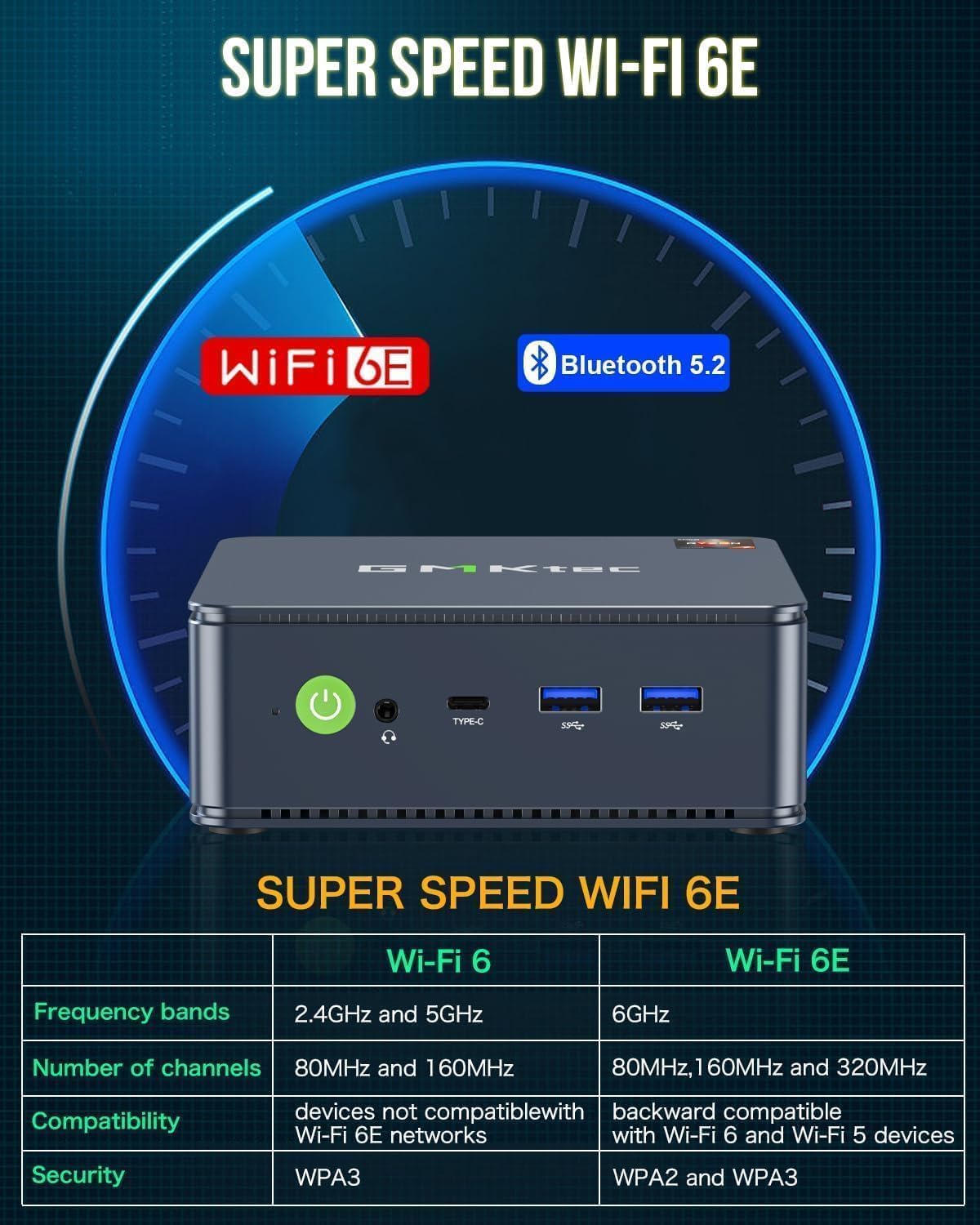
Image 4.3: Super Speed WiFi 6E and Bluetooth 5.2 features.
4.4 Speicher- und Arbeitsspeichererweiterung
The GMKtec M5 Pro comes with 32GB DDR4 RAM and a 1TB PCIe 3.0 SSD. The system supports expansion up to 64GB RAM (via two DDR4 slots) and up to 4TB SSD (via dual M.2 2280 PCIe slots). Refer to the internal component diagram for slot locations. Upgrades are not included and should be performed by a qualified technician if you are unsure.

Image 4.4: Premium parts and design, illustrating internal components and upgrade options.
5. Wartung
5.1 Reinigung
Regularly clean the exterior of the Mini PC with a soft, dry cloth. Use compressed air to gently clear dust from the cooling vents to ensure optimal airflow and prevent overheating. Do not use liquid cleaners directly on the device.
5.2 Softwareaktualisierungen
Keep your Windows operating system and device drivers updated to ensure system stability, security, and performance. Windows Update can be accessed via 'Settings > Update & Security > Windows Update'.
6. Fehlerbehebung
- Kein Strom: Stellen Sie sicher, dass das Netzteil fest mit dem Mini-PC und einer funktionierenden Steckdose verbunden ist. Prüfen Sie, ob die Betriebsanzeige leuchtet.
- Kein Bildschirm: Verify that the HDMI or DisplayPort cable is securely connected to both the Mini PC and the monitor. Ensure the monitor is powered on and set to the correct input source. Try a different cable or monitor if possible.
- Keine Internetverbindung: For wired connections, check the Ethernet cable and router status. For wireless connections, ensure WiFi is enabled, you are connected to the correct network, and the password is correct. Restarting the router and Mini PC can often resolve connectivity issues.
- Langsame Leistung: Close unnecessary applications. Check Task Manager for high CPU or RAM usage. Ensure the system has adequate ventilation. Consider performing a disk cleanup or defragmentation.
- Lüftergeräusch: Some fan noise is normal under heavy load. If the fan is excessively loud or constantly running at high speed, ensure cooling vents are clear of obstructions and the device is in a well-ventilated area.
Weitere Unterstützung finden Sie im Supportbereich oder kontaktieren Sie den GMKtec-Kundendienst.
7. Spezifikationen
| Besonderheit | Detail |
|---|---|
| Prozessor | AMD Ryzen 7 5700U (8 Kerne/16 Threads, bis zu 4.50 GHz) |
| Grafik | AMD Radeon Vega Grafikprozessor mit 8 Kernen und 1900 MHz |
| RAM | 32 GB DDR4 (Dual Channel, erweiterbar auf 64 GB) |
| Lagerung | 1TB M.2 2280 PCIe 3.0 SSD (expandable to 4TB via dual slots) |
| Betriebssystem | Windows 11 Pro |
| Kabellose Konnektivität | WiFi 6E (2.4G/5G/6G), Bluetooth 5.2 |
| Kabelgebundene Konnektivität | 2 x 2.5G RJ45 Gigabit Ethernet |
| Videoausgang | 1 x HDMI 2.0, 1 x DisplayPort 1.4, 1 x USB-C (DP Alt Mode) |
| USB-Anschlüsse | 3 x USB 3.2, 2 x USB 2.0, 1 x USB-C (Data/DP/PD) |
| Audio | 1 x 3.5 mm Audiobuchse |
| Maße | Ungefähr 3.94 x 3.94 x 3.94 Zoll |
| Gewicht | Ungefähr 9.6 Unzen |
8. Garantie und Support
8.1 Garantieinformationen
GMKtec gewährt für jeden Mini-PC eine einjährige eingeschränkte Garantie ab Kaufdatum. Diese Garantie deckt Konstruktions- und Verarbeitungsfehler ab. Bitte bewahren Sie Ihren Kaufbeleg für Garantieansprüche auf.
8.2 Kundendienst
For technical support, warranty claims, or any other inquiries, please visit the official GMKtec website or contact their customer service team. Contact information can typically be found on the GMKtec website or on the warranty card included in your package.
Online-Ressourcen: GMKtec Amazon Store


