1. Einführung und Endeview
The Ingenico Desk/3500 is a robust and versatile credit card terminal designed to facilitate fast, secure, and efficient payment processing for businesses. This device supports a wide range of payment options, including EMV Chip & PIN, magnetic stripe, and contactless (NFC) payments, making it suitable for various retail environments. Its user-friendly interface and advanced security features ensure a reliable and enhanced payment experience for both merchants and customers.
This manual provides essential information on setting up, operating, maintaining, and troubleshooting your Desk/3500 terminal to ensure optimal performance and longevity.
2. Hauptmerkmale
- Highest Security: PCI-PTS 5.x Certified, ensuring secure transaction processing with the latest cryptographic schemes.
- Telium TETRA OS: Powered by Ingenico's secure and user-friendly operating system, embedding robust security mechanisms.
- Comprehensive Payment Options: Supports EMV Chip & PIN, magnetic stripe, and contactless (NFC) payments, including NFC couponing and wallet use cases.
- Benutzerfreundliche Oberfläche: Features intuitive card readers and an easy-to-navigate application menu for an enhanced payment experience.
- Maximized Network Availability: Optimized communication costs and network availability through Ethernet and modem connectivity.
- Convenient NFC Payment: Designed with a conveniently located card-reader zone for seamless and faster contactless transactions.
- Large Color Touchscreen Display: Provides clear visibility and ease of interaction for both merchants and customers.
3. Installationsanleitung
Follow these steps to set up your Ingenico Desk/3500 terminal:
- Packen Sie das Gerät aus: Carefully remove the Desk/3500 terminal and all accessories from its packaging.
- Strom anschließen: Plug the power adapter into the terminal's power port and then into a standard electrical outlet.
- Netzwerkverbindung:
- Ethernet: Connect an Ethernet cable from the terminal's Ethernet port to your network router or switch.
- Modem (Dial-up): Connect a telephone line to the terminal's modem port and to a telephone wall jack.
- Load Paper Roll (if applicable): Open the printer cover, insert a thermal paper roll with the paper feeding from the bottom, and close the cover.
- Erster Systemstart: The terminal will power on automatically or may require pressing the power button. Follow any on-screen prompts for initial configuration.
- Encryption Specification: It is crucial to ensure the correct encryption type is specified and configured for your terminal as per your payment processor's requirements. Consult your payment processor for details.
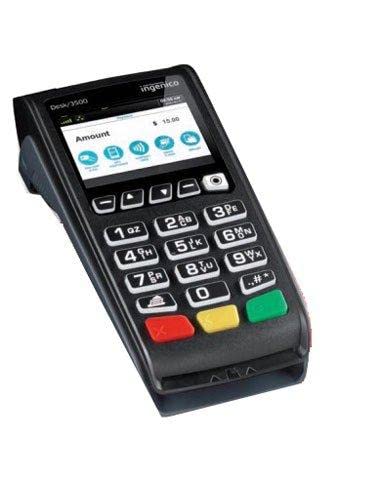
Abbildung 1: Ingenico Desk/3500 Credit Card Terminal. This image displays the front view of the Ingenico Desk/3500 terminal, highlighting its color display, numeric keypad, and function buttons. The screen shows an an "Amount" field with "$15.00" and icons for various payment methods, indicating its readiness for transactions.
4. Bedienungsanleitung
The Desk/3500 is designed for intuitive operation. Here are basic steps for processing a transaction:
- Start a Transaction: From the idle screen, select the appropriate application (e.g., "Sale").
- Enter Amount: Input the transaction amount using the numeric keypad and press the green "Enter" key.
- Kundenzahlung: Instruct the customer to present their card:
- Chip Card: Insert the card into the EMV slot at the bottom of the terminal.
- Magnetstreifenkarte: Swipe the card through the magnetic stripe reader on the side.
- Kontaktlos (NFC): Tap the card or mobile device near the contactless symbol on the display.
- PIN Entry (if required): If prompted, the customer will enter their PIN on the keypad.
- Transaction Completion: The terminal will process the transaction. Once approved, a confirmation message will appear.
- Belegdruck: The terminal will automatically print a merchant copy of the receipt. You may be prompted to print a customer copy.
5. Wartung
Proper maintenance ensures the longevity and optimal performance of your Desk/3500 terminal.
- Reinigung: Use a soft, dry, lint-free cloth to clean the exterior of the terminal. For stubborn marks, slightly dampDas Tuch mit Wasser befeuchten. Keine Scheuermittel, Lösungsmittel oder Sprays verwenden.
- Bildschirmpflege: Clean the touchscreen with a soft, dry cloth. Avoid pressing too hard or using sharp objects.
- Card Reader Maintenance: Periodically inspect card reader slots for debris. Do not attempt to clean internal components yourself.
- Software-Updates: Ensure your terminal's software is kept up-to-date. Your payment processor or service provider typically manages these updates remotely.
- Umgebungsbedingungen: Operate the terminal within recommended temperature and humidity ranges. Avoid exposure to direct sunlight, excessive dust, or moisture.
6. Fehlerbehebung
This section addresses common issues you might encounter with your Desk/3500 terminal.
| Problem | Mögliche Ursache | Lösung |
|---|---|---|
| Terminal not powering on | Stromkabel nicht angeschlossen; Problem mit der Steckdose | Check power cable connection; Try a different power outlet; Ensure power adapter is functioning. |
| Transaktion abgelehnt | Insufficient funds; Incorrect card data; Network issue | Advise customer to contact their bank; Re-enter card details carefully; Check network connection. |
| Keine Netzwerkverbindung | Ethernet cable loose/disconnected; Router/modem issue | Verify Ethernet cable is securely connected; Restart your network router/modem. |
| Drucker druckt nicht | No paper; Paper jammed; Incorrect paper orientation | Check and replace paper roll; Clear any paper jams; Ensure paper is loaded correctly. |
If you encounter issues not listed here or if the suggested solutions do not resolve the problem, please contact your payment processor or technical support.
7. Spezifikationen
| Attribut | Detail |
|---|---|
| Marke | Ingenico |
| Modellnummer | 3500 |
| Hersteller | Ingenico |
| Artikelgewicht | 6 Pfund |
| Verpackungsabmessungen | 10 x 6 x 4 Zoll |
| ASIN | B0BZTGXVRT |
| Datum der ersten Verfügbarkeit | 8. Februar 2018 |
| Sicherheitszertifizierung | PCI-PTS 5.x Certified |
| Betriebssystem | Telium TETRA OS |
| Konnektivität | Ethernet, Dial/Modem |
8. Sicherheitshinweise
Please observe the following safety precautions to prevent damage to the device or injury to yourself or others:
- Do not expose the terminal to extreme temperatures, direct sunlight, or high humidity.
- Avoid dropping or subjecting the terminal to severe impact.
- Do not attempt to open, disassemble, or modify the terminal. This will void the warranty and could cause damage or injury.
- Verwenden Sie ausschließlich das mit dem Gerät gelieferte Netzteil.
- Keep the terminal away from liquids and sources of strong electromagnetic fields.
- Sorgen Sie während des Betriebs für ausreichende Belüftung rund um das Gerät.
9. Support und Garantie
For technical support, service, or warranty inquiries regarding your Ingenico Desk/3500 terminal, please contact your payment processor or the vendor from whom you purchased the device. They can provide specific assistance related to your service agreement and any applicable warranty terms.
As this is a refurbished unit, warranty terms may vary. Please refer to the specific warranty information provided at the time of purchase or contact your supplier for details.


